Configure Conditional Access Policies Using Device Health Postures
Conditional Access Policy (CAP) configurations now support additional conditions based on device health posture. These conditions let you deny or allow access based on criteria such as device OS version, CrowdStrike ZTA score, or EDR agent status, etc. These conditions provide advanced device-level enforcement capabilities to Zero Trust, compliance, and evolving security needs.
See Get Started: Conditional Access Policies to get an overview of CAPs and device trust.
Prerequisites:
- Devices must be registered with JumpCloud Go, and users must be logged in to JumpCloud Go to utilize full device health checks.
- If JumpCloud Go isn’t available, users can utilize Google Chrome if Device Trust (DTC) is configured. See Configure Google Chrome Enterprise Device Trust with JumpCloud to learn more.
The following checks are supported based on whether devices are managed or unmanaged.
| Managed Devices | Unmanaged Devices | |||
|---|---|---|---|---|
| JumpCloud Go | Chrome DTC | JumpCloud Go | Chrome DTC | |
| OS Version | Yes | Yes | No | Yes |
| EDR (CrowdStrike) | Yes | No | No | No |
| Disc Encryption | Yes | Yes | No | Yes |
| Firewall Status (Private Preview) | Yes | Yes | No | Yes |
Supported Device Health Conditions A screenshot showing conditions by device health postures
The following conditions allow you to enforce security baselines based on device health posture.
OS Version
Use this condition to apply policies based on the specific OS version of the device. This ensures that only devices running the latest, most secure operating systems can access your critical cloud applications. Any device with an outdated or end-of-life OS is automatically blocked.
You must select the Operating System condition before selecting the OS Version condition. You won’t see the OS Version condition if you select multiple operating systems or do not select any OS. We recommend entering the exact OS version to ensure the policy is applied only on the required devices.
Checking the OS Version Using Commands
Follow these steps to retrieve your specific OS version number using the terminal.
Windows (Command Prompt)
- Open Command Prompt from the Start menu.
- Type the
vercommand and press Enter: - Locate the output line (e.g.,
Microsoft Windows [Version 10.0.26200.7840]). - Copy only the numeric value upto 3 decimal points or the initial 4 octets as highlighted in the image below (e.g.,
10.0.26200.7840).

Use this as an input value in the CAP.
You can also check the Windows OS version by going to Settings> System > About. See Windows documentation to learn more.
macOS (Terminal):
- Open the Terminal.
- Type the
sw_verscommand and press Enter. - The system will return a simple numeric string (e.g.,
15.7.3). - Copy only the numeric value as highlighted in the image below.
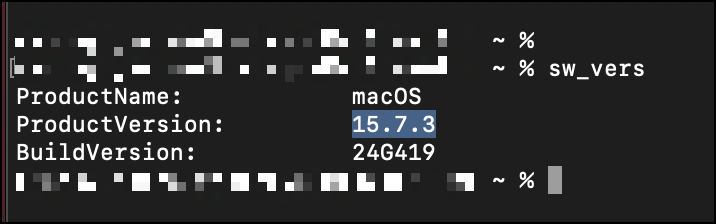
Use this as an input value in the CAP.
Alternatively, you can go to System Settings > General and get the current version under ‘macOS’. Copy only the numerical value as highlighted in the image below.
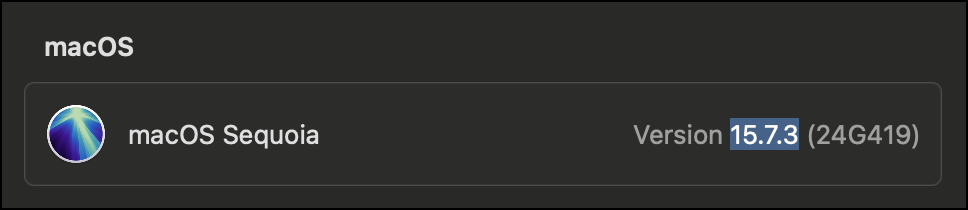
See Apple’s documentation to learn more.
Configuration Guidelines
An Admin can enter the OS version as whole numbers like 10, 11, or 12 or as decimal numbers like 11.2, 11.3, or 11.3.7 . This ensures that the CAP is applied to a broader set of devices. We support version formats until 2 decimal points only.
It is recommended to create a new, separate CAP for OS version check catering to each operating system (such as Windows, macOS, etc).
Example:
The Admin wants to apply a CAP to Windows devices having the OS version as 10.2.7:
- If the Admin selects the Equals operator, they need to enter the OS version as 10.2.7 (the same exact version).
- If the Admin selects the Greater Than operator, they can enter the OS version as 10.1, 10.2.8, etc.
- If the Admin selects the Less Than operator, they can enter the OS version as 10.3, 10.2.8 etc.
For Linux devices, check the documentation for your respective distribution.
EDR Agent Crowdstrike (Status)
Use this condition to apply policies based on whether the CrowdStrike Falcon agent is active.
EDR Agent Crowdstrike (Version)
Use this condition to restrict access based on the specific version of the installed CrowdStrike agent.
Format
This condition supports version formats until 2 decimal points only.
Example
The Admin wants to apply a CAP to devices having the OS version as 10.2.7:
- If the Admin selects the Equals operator, they need to enter the EDR agent version as 10.2.7 (the same exact version).
- If the Admin selects the Greater Than operator, they can enter the agent version as 10.1, 10.2.8, etc.
- If the Admin selects the Less Than operator, they can enter the agent version as 10.3, 10.2.8 etc.
EDR Agent Crowdstrike (ZTA score)
Use this condition to apply policies based on the Zero Trust Assessment (ZTA) score generated by CrowdStrike.
Format
This condition supports whole number format.
Example
The Admin wants to apply a CAP to devices having the EDR agent ZTA score of 50:
- The Admin can select the Equals operator and enter the ZTA score as 50.
The ZTA score condition is not supported for Linux, Android, and iOS devices.
The EDR based conditions will ensure the user access is automatically blocked if the EDR agent is missing, stopped, or unhealthy. If the ZTA score is missing, see Troubleshoot: ZTA Score Data File Missing or Empty to learn more.
EDR Agent SentinelOne (Status)
Use this condition to apply policies based on whether the SentinelOne agent is active.
EDR Agent SentinelOne (Version)
Use this condition to restrict access based on the specific version of the SentinelOne agent installed.
Format
This condition supports version formats until 2 decimal points only.
Example
See the above example (under EDR Agent Crowdstrike Version) to know how this condition works.
Private Preview
Firewall Status
Use this condition to check whether the firewall is active or not.
This condition can be applied to Windows, Mac, and Linux devices. It is also available via DTC.
Was this information helpful?