


 Subscribe to Help Center RSS Feed
JumpCloud’s AI Gateway secures autonomous AI workflows by centralizing visibility, monitoring behavior, and enforcing least-privilege access for AI clients and agents connecting to your enterprise applications.
As organizations integrate AI into their daily operations, IT admins need control over non-human identities like AI agents. Traditional API keys and service accounts only execute explicit commands. However, AI agents are autonomous. They process unstructured data, orchestrate complex workflows, and act on behalf of your users. Without centralized management, organizations risk exposing sensitive data through over-privileged access and unmonitored actions. You need to know exactly which agents are running, what tools they can access, and what they're doing.
The AI Gateway solves this by acting as a centralized MCP control plane, securing the connection between your AI clients and enterprise applications. This allows you to govern AI activity from a single JumpCloud platform, ensuring you always know who accessed your data and when.

- The AI Gateway is not an SSO login method for your AI clients. While SAML SSO can control who logs in to an AI client like ChatGPT, the AI Gateway controls and audits what enterprise data the AI client can access from your configured MCP servers.
- The AI Gateway acts exclusively as a secure authentication and routing layer. It does not process, alter, or influence the responses generated by your AI clients.
- This feature is in Public Preview and is available in all data center regions. See JumpCloud Data Centers to learn more.
Prerequisites:
- You must have the Administrator with Billing or Administrator role to use this feature. See Admin Portal Roles to learn more.
- To create an MCP server, you must have an existing application under Access > SSO Applications to associate it with. This can be an SSO application using a pre-built connector, a custom SSO connector, or a bookmark if you don’t want to enforce SSO. See Get Started: SSO Applications and Connect Apps Using Bookmarks to learn more.
Core Concepts and Terminology
Before configuring the AI Gateway, familiarize yourself with the standard terminology used to describe AI integrations:
- Model Context Protocol (MCP): An open standard that enables AI applications to securely connect to external data sources.
- Enterprise Application: The third party software or platform that holds organization data.
- MCP Server: A backend program that offers an enterprise application’s data and actions to AI clients using the MCP standard. Note: JumpCloud can also act as an MCP server, allowing external clients to query JumpCloud directory data, while AI Gateway acts as a control plane for your other enterprise MCP servers.
- AI Client: An AI-powered application, most commonly a large language model (LLM) like ChatGPT or integrated development environment (IDE) like Cursor that users interact with to access information from MCP servers.
- Users configure their specific AI client to connect to JumpCloud's AI Gateway endpoint.
- AI Agent: Software that uses AI to carry out tasks for you by interacting with tools and APIs autonomously.
- MCP Resources and Tools: Specific functions exposed by an MCP server that the AI client can use. Resources are "read-only" data that the AI can view, and tools are executable actions that the AI can perform. For example, these might be the ability to view a document or search for objects in the enterprise application.

See What is an MCP Server for a deeper dive into how this architecture functions.
Key Features and Benefits
- Central AI Access Control: Add MCP servers in the AI Gateway and associated them with applications to control who can authorize them via User Groups. Depending on the MCP server, choose whether users authenticate to them via OAuth or API tokens.
- Secure Routing: The gateway automatically routes AI tool calls to the correct MCP servers.
- Behavior Monitoring and Auditing: Track, analyze, and audit requests. Tool call activity is published as Directory Insights (DI) events.
Understanding the Authentication Flow
The AI Gateway uses a secure redirect flow to ensure users only access the MCP servers you have explicitly configured for them in JumpCloud.
- A user configures their AI client (for example, Cursor) using the JumpCloud AI Gateway MCP URL: https://ai.jumpcloud.com/mcp
- The user's AI client requests authorization to the MCP server, and they are redirected to a JumpCloud authorization page.
- After successfully authenticating using JumpCloud SSO, the AI Gateway shows the MCP servers the admin has configured and authorized via the associated application's User Groups.
- The user authenticates to each application using OAuth or by entering a specific API key, depending on the admin configuration.
- During an active session, the gateway routes the requests to the selected MCP server and returns the results to the AI client.
Choosing an Authentication Method
When connecting external applications to the AI Gateway, the authentication methods available depend on how the application provider designed their MCP server. Some applications support OAuth, some require API Tokens, and some offer both.
If an application supports both methods, JumpCloud generally recommends configuring the server using OAuth.
- OAuth (Recommended): OAuth provides the most seamless and secure experience. The configuration generally involves creating an OAuth application in the enterprise application's console. When users connect their AI clients to the gateway, they click on the listed server to securely log in via the application’s standard authentication screen. They do not need to handle, store, or rotate any credentials.
- API Token: API Token authentication requires every user to manually generate an API key directly within the application (for example, in their Slack or Atlassian account settings) and paste it into the JumpCloud AI Gateway authorization page. While JumpCloud securely passes this token, this method introduces more friction and relies on users to correctly generate the key with the correct scopes.
Always review the application’s MCP documentation to determine which authentication method their server requires before configuring it in JumpCloud.
Configuring the AI Gateway
Adding MCP Servers
To begin securing your AI workflows, you must register your enterprise applications as MCP servers in the Admin Portal. Because each application has specific prerequisite configurations, review the application’s setup guide before adding the server to JumpCloud. See Configure AI Gateway Integrations to learn more.
Creating an Application from the AI Gateway
Every MCP server requires an associated SSO application or bookmark to scope access using User Groups. If the SSO application doesn’t exist yet, you can create it directly from the AI Gateway before you finish the MCP server setup. See Configure AI Gateway Integrations to learn more.
Assigning an Application to an Existing MCP Server
If you created MCP servers before application association was required, you are prompted to associate these servers with an application. Until you assign one, access is not scoped by the application's User Groups, and all users can see those MCP servers at the AI Gateway. See Configure AI Gateway Integrations to learn more.
Configuring Trusted Redirect URLs
To secure your AI integrations, the AI Gateway uses an allowlist of trusted redirect URLs to define which AI client origins are permitted to receive OAuth redirects and authentication tokens.
During the OAuth flow, the client application redirects the user to JumpCloud for consent, and then redirects the user back to the client’s URL. If the AI client’s origin doesn’t match one you’ve enabled or a custom URL in your trusted list, JumpCloud blocks the connection. The AI Gateway provides built-in toggles for popular AI clients, or you can manually add custom redirect URLs for other AI clients your organization uses.
To authorize a prebuilt AI client:
- From the JumpCloud Admin Portal, go to Access > AI Gateway.
- Select the Authorized Clients tab.
- A list of popular AI clients appear here.
- To enable a supported AI client, click to toggle it on. The following clients are supported:
- Antigravity
- ChatGPT
- Claude Code
- Cursor
- Gemini CLI
- OpenAI Codex
- VS Code Copilot
- Windsurf / Devin Desktop
Some AI clients provide multiple toggles to control access to different integration methods, for example web applications and desktop clients.
- Click Save changes.
- (Optional) To disable a supported AI client, click to toggle it off, then click Save changes.

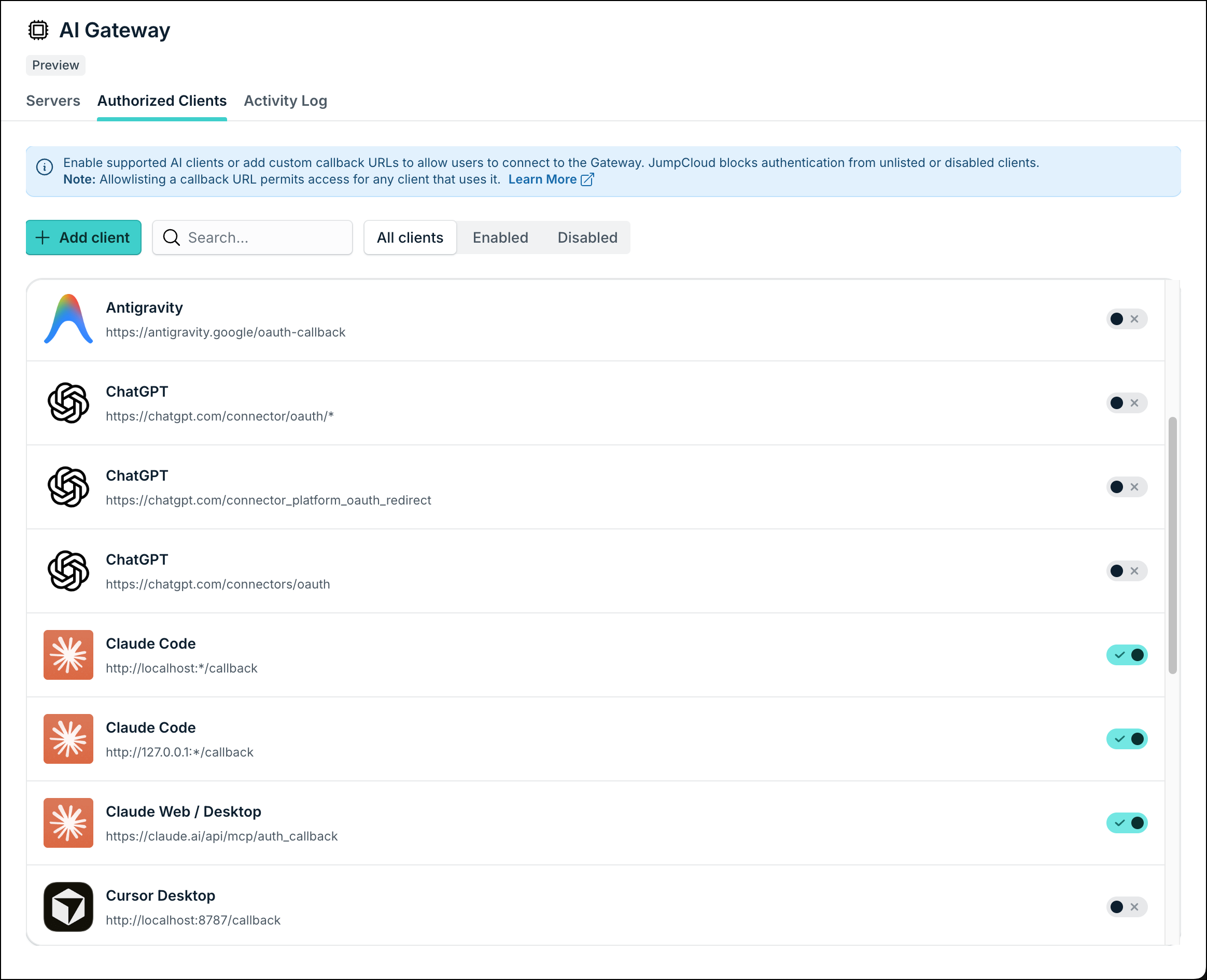
To add a custom AI client:
- From the Authorized Clients tab, click + Add client.
- Enter a Title.
- (Optional) Enter a description of the AI client.
- Enter the redirect origin you want to trust. The AI Gateway supports specific URLs as well as wildcards (*) for dynamic routing:
- Web-based AI Clients: Enter the standard HTTPS domain.
- For example:
https://<client-domain>.com/oauth/callback
- For example:
- Local Desktop IDEs: Enter the localhost IP with port number to allow local clients to receive tokens on varying ports (for example http://localhost:3118). To accommodate tools that assign random ports at runtime, use a wildcard (*):
- For example:
http://localhost:*/oauth/callback
- For example:
- Dynamic Paths: Use a wildcard (*) to support AI clients that append dynamic session IDs or variables to the end of their callback route:
- For example:
https://anyhost.com/oauth/callback/*
- For example:
- Custom App Protocols: Enter the custom URI scheme required by specific desktop applications:
- For example:
custom-app://oauth/callback
- For example:
- Web-based AI Clients: Enter the standard HTTPS domain.
You can't use multiple wildcards in a single redirect URL entry. For example, a URL containing wildcards for both the port and the path and isn't supported: http://127.0.0.1:*/callback/*
- Click Save changes.
- (Optional) To remove a custom custom client and revoke its ability to receive OAuth tokens, click the trash icon next to the URL.
Connecting AI Clients
After you configure the MCP servers and establish your trusted redirect URLs in the Admin Portal, users must configure their specific AI clients to connect to the JumpCloud AI Gateway MCP endpoint: https://ai.jumpcloud.com/mcp
When users connect, they're redirected to the AI Gateway which lists the MCP servers you configured in JumpCloud. Users can select each application and authenticate via OAuth or by entering a specific API key, depending on your server configuration.
See Connect AI Clients to the AI Gateway to learn more.
Using the Activity Log
The Activity Log tab provides a detailed, searchable audit trail of all AI interactions to help you monitor behavior and maintain compliance. This data is powered by Directory Insights. You can use this tab to investigate anomalies, track token consumption, and audit requests across your connected MCP servers.
On the Activity Log tab, you can view the following information:
- Time: The exact date and time the event occurred.
- User: The email address of the user associated with the action.
- Action: The specific event type, such as the MCP Tool Call.
- Service: The connected MCP server (for example, Github) where the action took place.
- Details: The granular telemetry of the request, including response status and requested tool.
To find specific events, click Search activity... or click Filter to narrow the log results.
Additional Resources
- Tutorial: JumpCloud AI Gateway
FAQ
No. The AI Gateway cannot see, log, or store the conversational prompts your users type into their AI clients (such as ChatGPT or Cursor).
Because the Gateway functions strictly as an authentication and routing layer for your enterprise data, it only has visibility into the resulting user actions over MCP, not the conversation itself. The AI Gateway can log the following:
- Authentication Events: When a user successfully authenticates and starts or stops an MCP session.
- Tool Executions: The specific MCP tool calls the AI agent attempts to run against a connected server (for example, logging that the AI executed a search_directory or create_ticket action on the user's behalf).
No. When you click + Add Server in the JumpCloud Admin Portal, the App dropdown menu populates with the applications you have already configured for SSO in your JumpCloud org.
An app appearing in the dropdown does not mean it natively supports MCP. JumpCloud only links the AI Gateway connection to your existing SSO app for organizational reporting purposes. You must verify with the application vendor that they host a supported MCP server before attempting to configure it here.
The association scopes AI Gateway access. Users only see an application’s MCP server in the AI Gateway authorization page if they belong to a User Group associated with that application or bookmark. Without associating servers to apps and groups, you cannot control user access to MCP servers.
If the application does not require SSO, follow these steps to configure a bookmark instead:
- While creating the application, select Custom Application, then configure a bookmark. See Connect Apps Using Bookmarks to learn more.
- Enter any valid Bookmark URL if users won't see this bookmark.
- Click the General Info tab, then clear the Show this application in User Portal checkbox if the bookmark should stay hidden.
- Associate the required user groups.
This typically happens if the AI client hasn't been authorized (for prebuilt clients) or the custom redirect URL has not been correctly added in the AI Gateway > Authorized Clients tab. This causes JumpCloud to block the handoff for security reasons.

When users hit the error page in their browser, the redirect URL might be appended in their URL bar to help you investigate.
 In this Article
 Learn More