


 Subscribe to Help Center RSS Feed
JumpCloud AI Assistant offers a simple, chat-based interface to help you manage your org. This conversational agent streamlines your workflow, allowing you to use natural language to ask questions and perform single or bulk administrative tasks. You can manage your users, devices, applications, and events all from a single chat panel without navigating to different areas of the Admin Portal. When completing tasks for you, AI Assistant always confirms your requests, letting you review any and all actions before it performs them.
Prerequisites:
- You must have the Administrator with Billing, Administrator, or Read Only role to use this feature. See Admin Portal Roles to learn more.
Considerations:
- AI Assistant requests your approval before performing any action. This lets you review the output and confirm actions that may modify or be destructive to an object.
- AI-generated commands and dynamic groups are provided as-is and must be carefully reviewed and validated by an administrator before use. JumpCloud Support cannot assist with command creation or troubleshooting AI-generated code content.
Understanding Supported Functions
AI Assistant can help you with the following areas of the Admin Portal:
- AI & Saas Management - List and get details for apps.
- Admins - List, update, reactivate, and reset MFA for administrators.
- Applications - List and get details for applications and software.
- Assets - List, view, update, and delete assets.
- Audit and Event Operations - Get Directory Insights (DI) events.
- Commands - Generate, review, and run commands. In addition, get command results and manage device associations.
- Devices - List, get details for, lock, erase, restart, and update devices. In addition, bind and unbind users to and from devices.
- Device Policies - List and get details for policies.
- Groups - Generate dynamic device and user groups. List, create, delete, and manage user and device groups.
- Users - List, create, get details for, suspend, reactivate, and manage passwords and MFA for users.
Enabling and Accessing AI Assistant
As with other JumpCloud AI-powered features, AI Assistant is disabled by default.
To enable JumpCloud AI Assistant:

If your data is stored outside of the US, check which login URL you should be using depending on your region. If your organization uses LDAP, RADIUS, or requires firewall allow list configuration, the Fully Qualified Domain Names (FQDNs) will also be region specific. See JumpCloud Data Centers for the URLs, FQDNs, and IP addresses.
- Log in to the JumpCloud Admin Portal.
- In the top right, click the AI Assistant icon, then click Enable AI Assistant.
- Alternatively, go to Settings > JumpCloud AI and toggle on AI Assistant.
- In the top right, click the AI Assistant icon to open it.
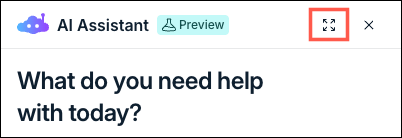
By default, AI Assistant opens as an aside panel. You can access additional options like object details, recent chats, and archived chats by opening full-screen mode.
To open full-screen mode:
- In the top right of the chat menu, click the full-screen icon.

Full-screen mode provides you with the following information and actions:
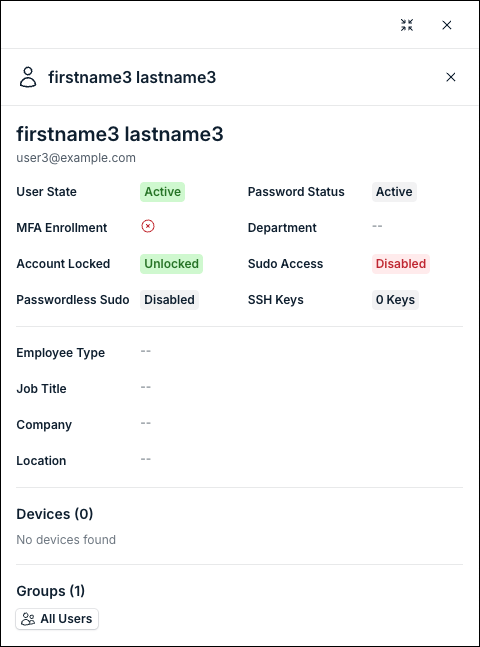
- Object Details - During a conversation, launching full-screen mode opens the Details panel, giving you information about the object you’re interacting with. For example, the following screenshot shows user details:

- New Chat - Starts a new chat with the AI Assistant.
- Archived Chats - View a list of archived chats.
- Recent Chats - A list of recent chats.
Using AI Assistant
Default Actions
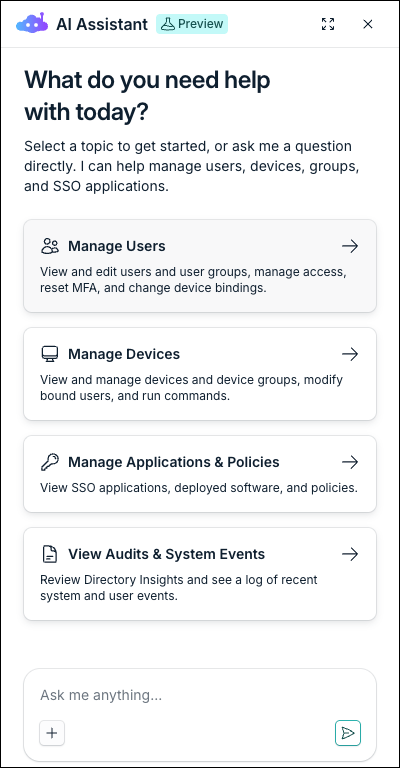
When you first open AI Assistant, the default actions menu appears with common administrative tasks. These will guide you through performing actions depending on your selection.
- Manage Users:
- View and edit users and user groups.
- Manage user access to groups, devices, and applications.
- Unlock users, reset MFA.
- Manage Devices:
- View and edit devices.
- Modify device group membership.
- Bind and set the primary user of a device.
- Generate and run commands (scripts) and security commands (lock, erase device).
- Manage Applications & Policies:
- View SSO application configurations.
- Check IdP certificate statuses.
- Manage user access to apps.
- View applications and policies deployed to devices.
- View Audits & System Events
- View user activity.
- View and filter policy and application events on systems.
- Audit admin access and Admin Portal changes.
Using Chat
In addition to the default actions menus, you can also interact with AI Assistant similar to other agents using a natural chat interface. Ask a question or tell the assistant to perform a specific task. Here are some examples to get you started:
Ask the assistant to show you a list of users.
- For example: “Can you show me how many users we have?”
- The assistant provides a list of users in your org. You can follow up this question by asking, “Show me more details about one of these users.”
Ask the assistant for a list of devices with specific details.
- For example: “I need a list of devices”
- The assistant lists devices in your org with their details. Using context and reasoning, you can ask things like “get devices from a specific manufacturer.” The assistant will use the hostname or displayname that mention a model name to determine their manufacturer and provide you results.
Ask the assistant to perform an action on a device.
- For example: “Lock a user’s device”
- The assistant will list the device object for you to confirm its details, then ask you for confirmation before performing the action.
Help Center Integration
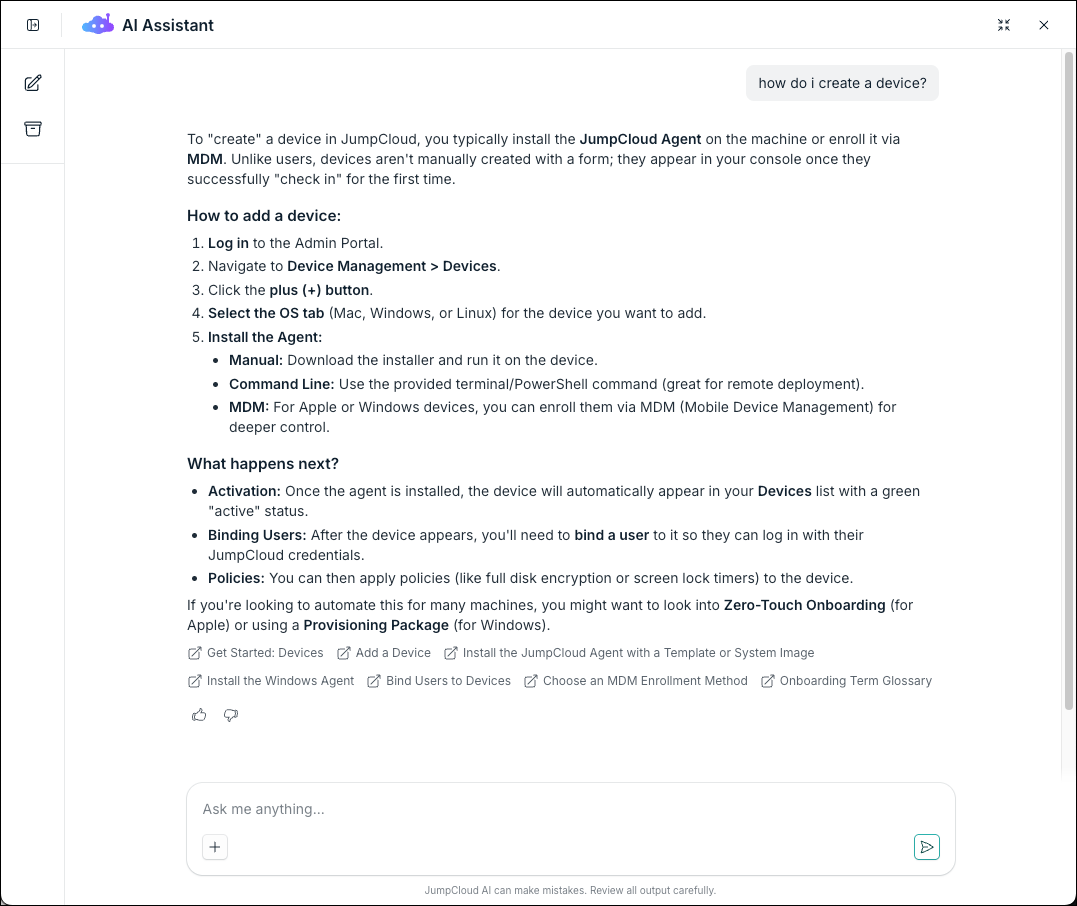
The AI Assistant integrates directly with JumpCloud’s Help Center to answer questions based on our documentation. If you ask how to do something, you will get step-by-step instructional help, with specific sources and inline links.
For example:
- “How do I create a policy group?”
- “How to enroll Windows in MDM?”
- “How do I add an Identity Provider?”

Using the More Menu
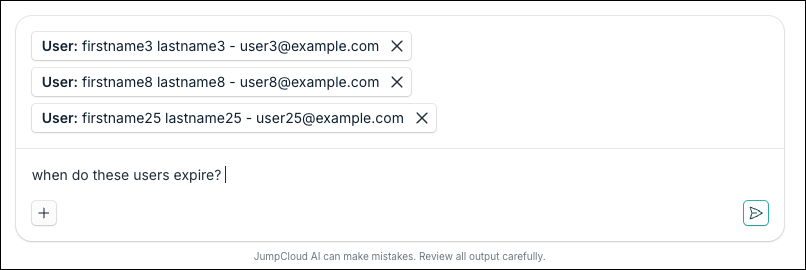
In an active chat, you can quickly access a list of users and devices in your org to tag and perform specific actions on.
- Click (+) at the bottom of the chat window.
- Select multiple users and devices to give the assistant context.
- Ask a question or request an action about these selected objects.

Confirming Actions
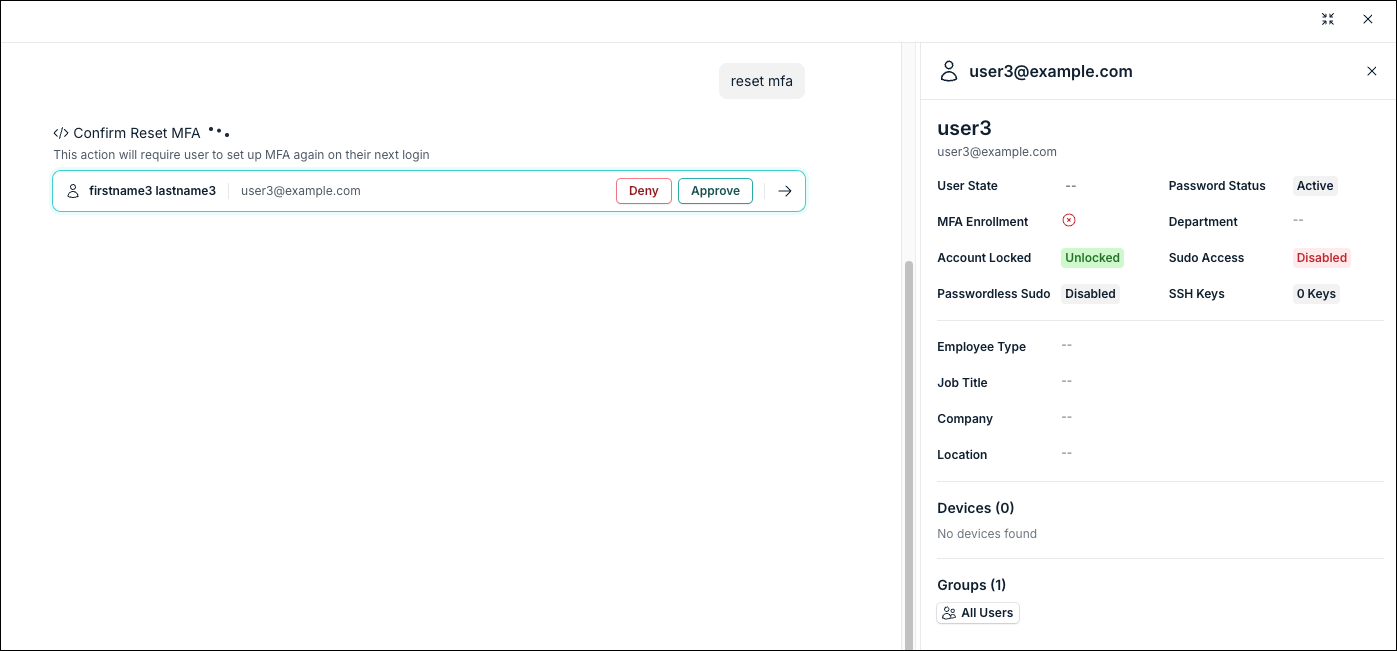
Before performing any action that may be destructive, AI Assistant will request your approval. A confirmation banner appears, which you can click for additional details about the object you’re modifying.
- Review the action.
- Click Approve to proceed or Deny to prevent the action from completing.

Artifacts
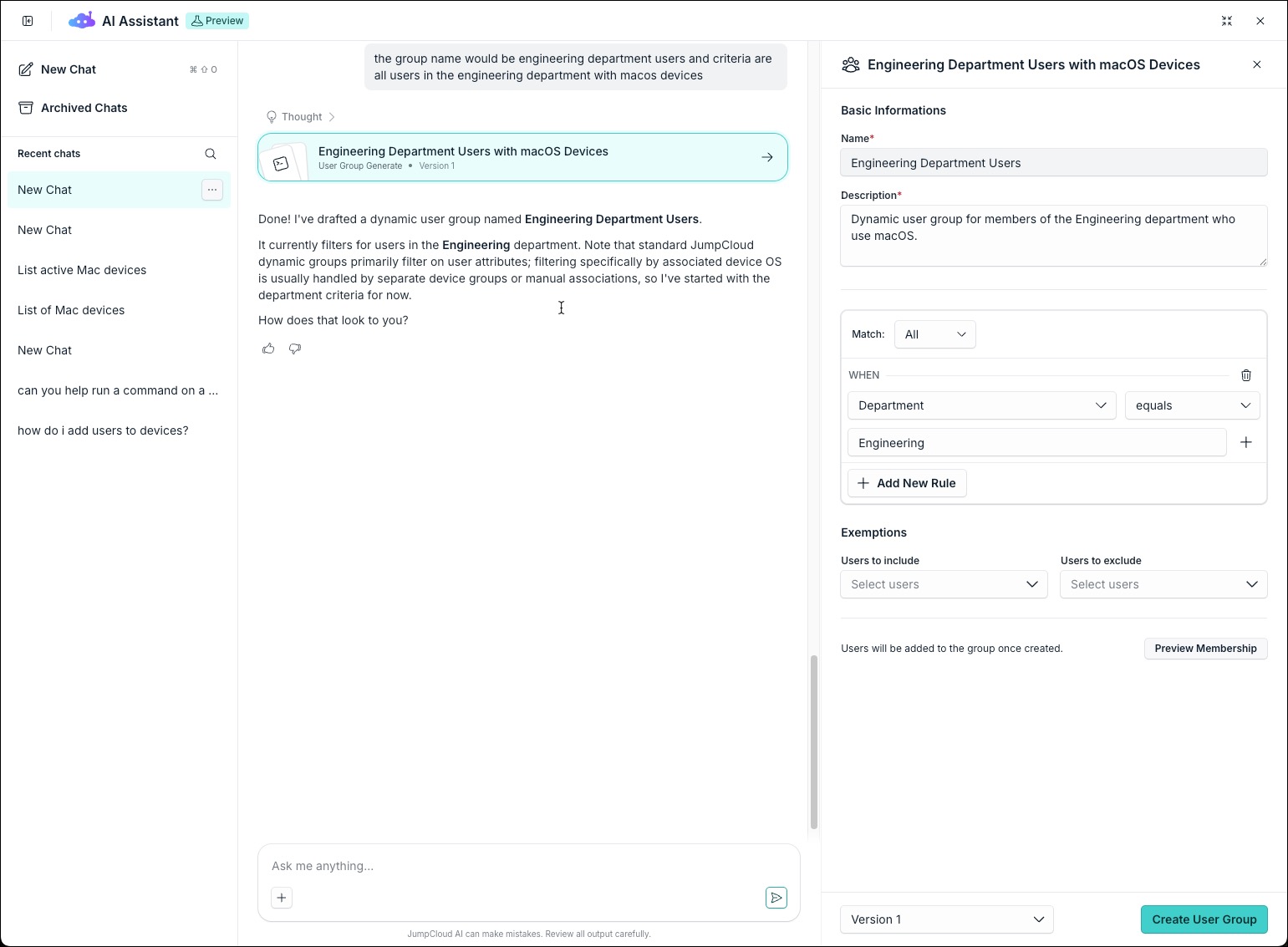
Each object in the AI Assistant has an associated artifact, such as a user, device, or group. You can edit these artifacts further directly within the assistant's interface.
When you query an object (for example, a user or a device), the AI Assistant provides an artifact card with basic information and quick actions.
To view and edit an artifact:
- In the AI Assistant chat, click Go to Details on the artifact card to open the object's details panel.
- Under the details panel, you can view information such as Account & Security, Organization Details, or System Information.
- Make necessary changes, such as editing dynamic group rules or managing device policies.
Generating Commands and Dynamic Groups
You can use the AI Assistant to generate device commands and dynamic user groups using natural language prompts. The assistant drafts the script or group criteria, which you can review and edit in the artifact panel before saving or executing.
To generate a command or dynamic group:
- In the AI Assistant chat, enter a prompt describing the command or dynamic group you want to create.
- For example: “Create a dynamic group for all users in the marketing department.”
- The assistant provides a response and generates an artifact card in the chat.
- Click Go to Details on the artifact card to open the details panel.
- Review the generated script or dynamic group criteria.
- Make any necessary edits to the rules, conditions, or code.
- Click the appropriate action button to save the group or run the command.

Conversation Settings
AI Assistant includes customizable Global Rules and a persistent Memory Engine to tailor responses, enforce organizational policies, and retain conversation context.
Memories
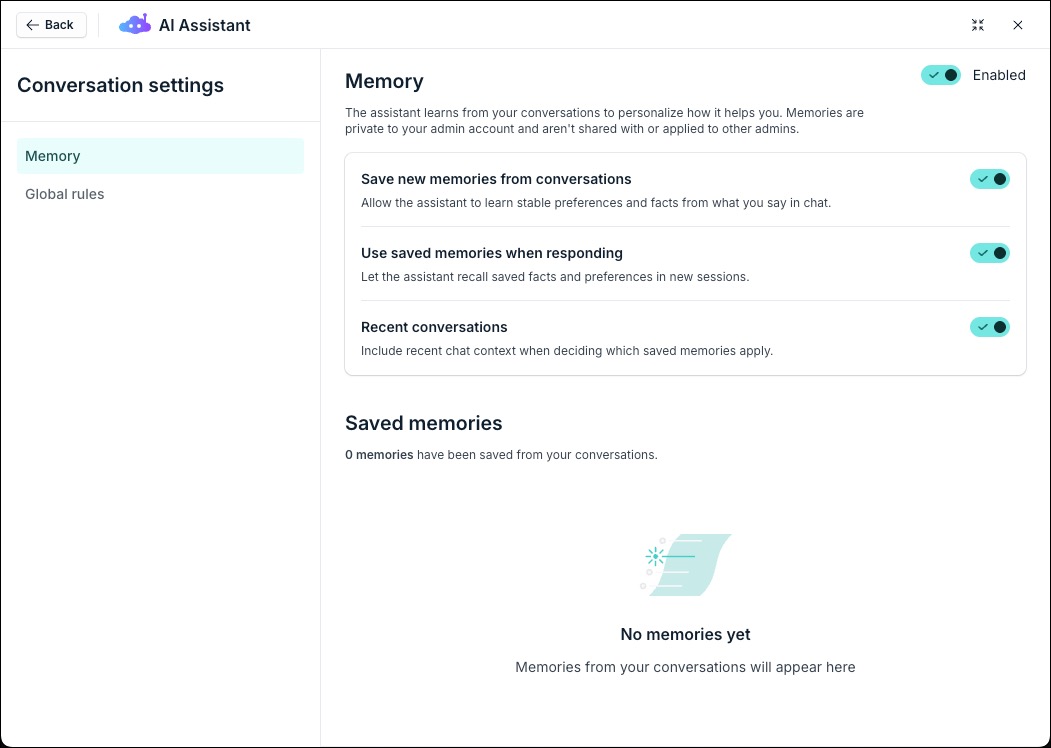
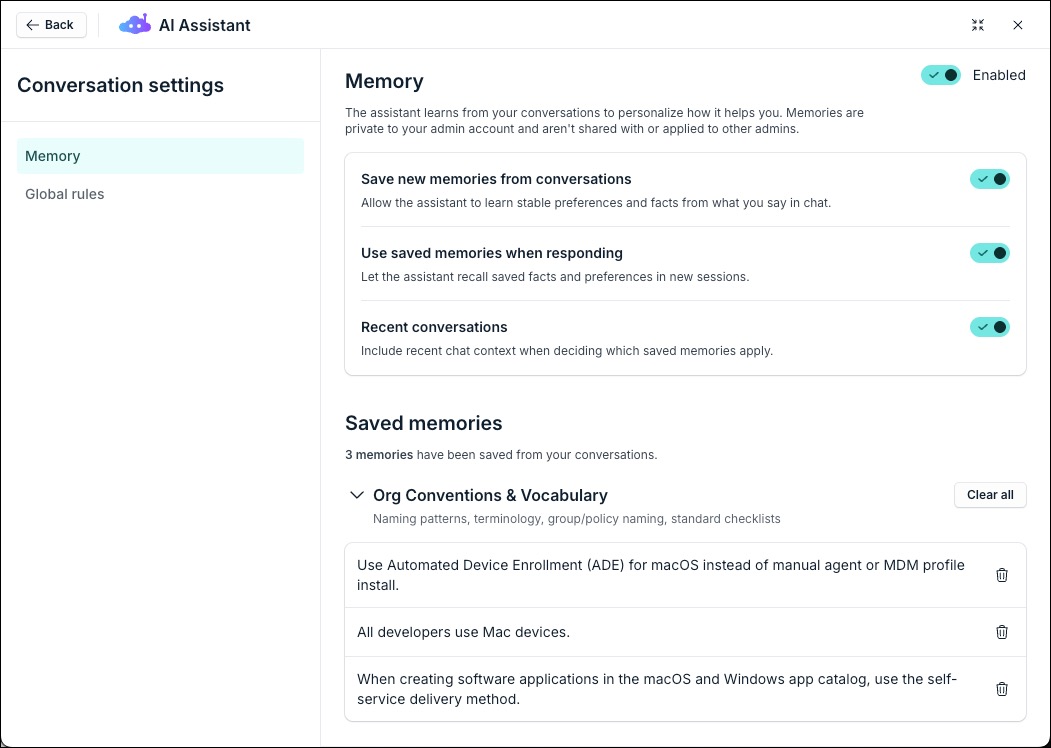
The AI Assistant can learn from your conversations to personalize how it helps you. Memories are private to your individual administrator account and are not shared with or applied to other administrators.
To configure Memory settings:
- In the Admin Portal, open the AI Assistant in full screen.
- In the bottom-left navigation menu, click Conversation settings.
- In the left menu, select Memory.
- Under Memory, toggle the feature to Enabled.
- Toggle the following settings to customize how the assistant processes your context:
- Save new memories from conversations: Allows the assistant to learn stable preferences and facts from what you say in chat.
- Use saved memories when responding: Lets the assistant recall saved facts and preferences in new sessions.
- Recent conversations: Includes recent chat context when deciding which saved memories apply.

To manage Saved memories:
- In the Memory settings menu, scroll to the Saved memories section.
- Click the expand arrow next to a memory category (such as Admin Profile & Working Context or Active Threads) to review the retained information.
- Click Clear all next to a specific category to permanently delete all saved memories within that group.
Global Rules
Customize AI Assistant behavior across your entire organization. These instructions are shared with all administrators and apply organization-wide. Define specific behavioral conditions, such as requiring the assistant to confirm targets before executing bulk actions or verifying group membership before suspending a user. Rules are injected into the assistant's context when enabled, but they do not change JumpCloud data by themselves.
To add a Global Rule:
- From the Admin Portal, open to the AI Assistant in full screen.
- In the bottom-left menu, click Configuration settings.
- Under Global rules, toggle the feature to Enabled.
- Click Add rule.
- In the Name* field, enter a title for the rule.
- In the Instruction* field, enter the specific behavioral guideline the assistant must follow.
- Under Status, select the Enable for all admins in the organization check box to activate the rule for all admins. Clear this checkbox to disable the rule.
- Click Add rule to save your configuration.
To manage existing Global Rules:
From the Global rules list, click the edit (pencil) or delete (trash can) icons next to a specific rule to modify its instructions or remove it entirely.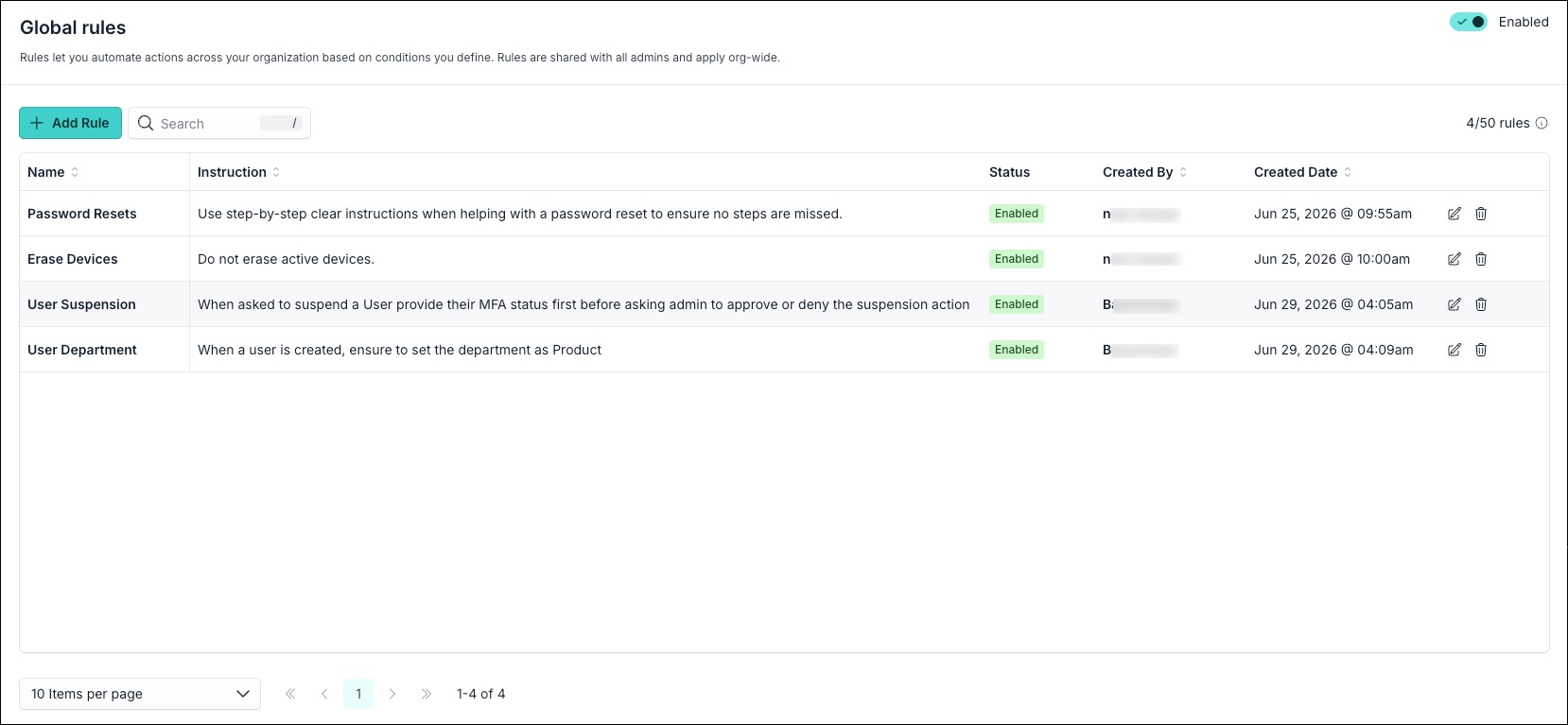
FAQ
AI Assistant uses a Google Gemini-based prompt for its chat functionality. When interacting with JumpCloud and your organization data, the assistant uses JumpCloud API calls to retrieve data and perform actions.
When interacting with the AI Assistant, the text you enter and associated chat information is interpreted and processed by Gemini, which may include personal or company information. This information is not shared with third parties.
Yes, recent chats are saved for the duration of the Admin Portal session. Additionally, you can archive a specific chat conversation for reference later.
For Public Preview, you can report any questions or concerns to your Account Manager who will relay them to our team. You can also rate responses with a “thumbs down” to flag the response as unhelpful.
Yes. AI Assistant permissions mirror your administrator role. For example, if your role limits access to a specific feature, AI Assistant cannot access or assist you with that feature.
 In this Article
 Learn More