SaaS Management: Gemini Enterprise Connector
JumpCloud® AI & SaaS Management gives you visibility and control over shadow IT, including AI and SaaS app usage, within your org. Connectors detect shadow IT without adoption of a browser extension and provide a significant increase to valuable usage and security insights.
The Gemini Enterprise connector retrieves organization-level AI token usage by polling Google Cloud Monitoring metrics. Using periodic polling for regular hourly updates, it maps consumption data to keep resource utilization records accurate and up-to-date.
Gemini Enterprise Consumption: Provides organization-wide aggregate AI token usage details broken down by active models and Google Cloud project identifiers.
Prerequisites:
- You must use a Google account with permissions to read Cloud Monitoring metrics for the targeted project (the OAuth flow requests read-only
monitoring.readaccess). - The designated project must expose the Vertex AI/Gemini token metric within Cloud Monitoring.
- To cover multiple Google Cloud projects with a single connector setup, you must use a project whose Cloud Monitoring Metrics Scope includes those linked projects.
Considerations:
- Dashboard Metrics: This connector tracks and displays aggregate AI token consumption broken down by active models and Google Cloud project IDs. Individual user profiles and associated cost metrics are not available due to metric API limitations.
- Data Backfill: Your initial sync automatically pulls token usage for the prior 30 completed UTC days, along with a separate query for the current day-to-date.
- Session Expiration: This connection is subject to your Google Cloud Session Control rules in Google Workspace. If your organization enforces a session length limit, the connector will disconnect when the session expires. Jump to Preventing Google Cloud Session Disconnections.
- Sync Time: Based on your organization's size, the initial data collection may take up to an hour.
Configuring Gemini Enterprise
- Log in to the Google Cloud Console.
- Navigate to your project dashboard and locate the specific Project ID you want to monitor.
- Copy and save this identifier.
Configuring JumpCloud
- Log in to the JumpCloud Admin Portal.
If your data is stored outside of the US, check which login URL you should be using depending on your region. If your organization uses LDAP, RADIUS, or requires firewall allow list configuration, the Fully Qualified Domain Names (FQDNs) will also be region specific. See JumpCloud Data Centers for the URLs, FQDNs, and IP addresses.
-
Go to Access > AI & SaaS Management > Settings.
-
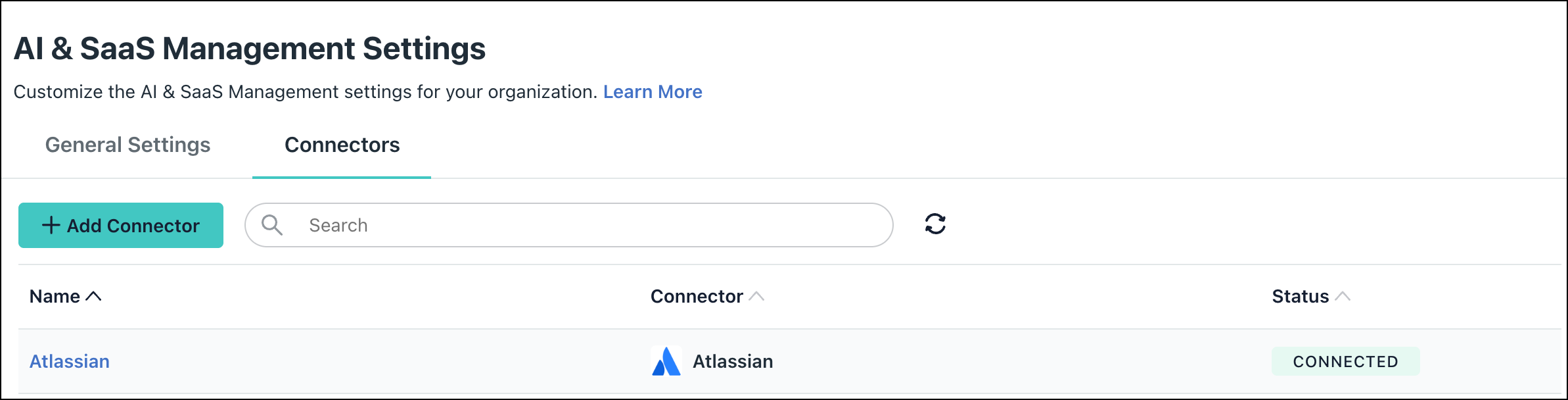
Under AI & SaaS Management Settings, click the Connectors tab, then click + Add Connector.
-
Click the Gemini Enterprise connector.
-
Enter the following information:
- Connector Name: Enter a unique, recognizable label for the integration.
- Project ID: Paste the Google Cloud project ID you retrieved earlier.
-
Click Connect. You will automatically be redirected to a secure Google OAuth consent interface.
-
Log in with your authorized Google account, review the read-only monitoring access scopes requested by the JumpCloud app, and grant consent.
-
Upon successful authorization, the screen will redirect you back to JumpCloud. Click Save Connector. You will now see Gemini Enterprise in your active list of Connectors.
If permissions are accidentally removed, or if the admin who configured left your organization, the connector will stop working and you will be prompted to Reconnect.

Required Permissions
Monitoring Viewer Access: This OAuth connection securely accesses Google Cloud Monitoring's timeSeries query paths to retrieve targeted token_count metrics and PublisherModel attributes.
Uninstall/Remove
-
On the Connector’s detail page, click on Delete Connector and follow the prompts.
-
To completely revoke the access permissions granted to JumpCloud, remove the application's OAuth access directly from your Google Account security controls or your organization's centralized Google Admin console.
Preventing Google Cloud Session Disconnections
Adjust your Google Cloud Session Control rules using one of these options to ensure an uninterrupted integration:
- Change your policy setting to Never require reauthentication for the account or organizational unit running the connector.
- Add the JumpCloud - SaaS Management app to your Google Workspace Trusted apps list, and ensure the Exempt trusted apps checkbox is selected in your session control rule.
For detailed steps on modifying these re-authentication policies, see Google Workspace Help: Set session length for Google Cloud services.
Was this information helpful?