Create a Command from a Template
Creating a new command from a command template can save you time and reduce errors when running custom commands on your devices. You must be an Admin with Billing permissions to create a command from a template.
The JumpCloud Commands Gallery contains curated Mac, Windows, and Linux commands that are available for import using the JumpCloud PowerShell Module.
To create a command from a template:
- Log in to the JumpCloud Admin Portal.
If your data is stored outside of the US, check which login URL you should be using depending on your region. If your organization uses LDAP, RADIUS, or requires firewall allow list configuration, the Fully Qualified Domain Names (FQDNs) will also be region specific. See JumpCloud Data Centers for the URLs, FQDNs, and IP addresses.
-
Go to Device Management > Commands.
-
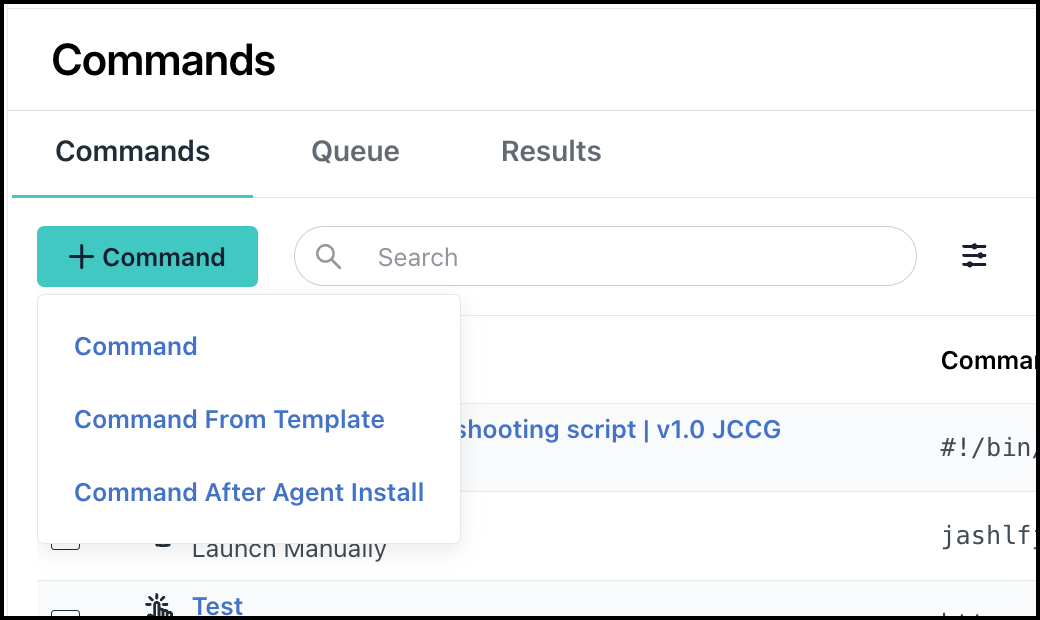
In the Commands page, click + Command, then select Command From Template.
-
In the Configure New Command from Template window, go to your specific OS tab (Windows, Mac, or Linux) and click Configure next to the template that you want to use.
-
In the New Command window, enter a unique name for the new command to differentiate it from other commands.
-
For Type, select Linux, Windows or Mac.
-
Make other necessary changes to the settings. For instructions on changing each field, see Create a Command Manually.
-
Select the Device Groups tab to select the device groups where this command will execute.
-
Select the Devices tab to select the devices where this command will execute.
-
(Optional) Select the Command Runners tab to select a user as a Command Runner with access to run the command. By default, Admins can run commands on all devices.
-
Click Save to create a new command.
-
Run the command by locating in on the Commands page and clicking Run Now.
-
Review the exit code that was reported by selecting the checkbox next to the command on the Commands page and selecting the Results tab. See Understand Command Results for a list of exit codes. If multiple commands are processed at runtime, only the last exit code is reported. Click view to see the results and log file.
Running an Ad Hoc Command on Devices
To run an ad hoc command on devices from the Devices panel:
- Click Device Management > Devices then again on the Devices tab.
- An aggregate list of all your devices for that org will be displayed. You can search or filter for a specific device.
- Click the Actions dropdown menu next to the device you want to run the ad hoc command, and select Run Command.
- A list of existing commands associated with that device will be displayed. You can search for a command, or create a new one.
- To create a new one, click New Command, then give it a Name.
Depending on the OS, some of the fields will be slightly different. For example, if it’s a Windows device, the option to run Windows Powershell will be available to select. For Mac and Linux, you’ll be required to select a user to run the command on the device under the Run as dropdown menu.
- Enter your Command, then under Timeout after, enter an amount of time in seconds.
- Under Time to Live (TTL) Settings, you can either Use Smart Defaults and select an amount of time from the dropdown menu, or Set Custom Duration and choose your own time to live.
- Then click Save And Run Command. This will save the command to the organization that the device is associated with and run the command on that device.
You can re-use this command but it won’t be bound to any devices since it’s being run once, manually.
- If you want to see or cancel the command, from the org’s admin portal, click Device Management > Commands > Queued for all commands being run on the device.
Was this information helpful?