Vault: Activate Password Backup Feature
In the event that the Vault platform becomes unavailable, you can still access your credentials offline by using the password backup feature. After activating the password backup feature, a unique backup key will be generated that will allow you to access all stored credentials offline in case of internet outages or any other platform unavailability.
This is a critical security configuration and should be set up by the primary account administrator.
Prerequisites:
- To access your passwords stored in the Vault Platform offline, you must:
- Have a connector installed locally or on a network you can access
- The password backup feature has been enabled in the administration settings
- Access to the printed or securely stored backup key
Activate Backup Feature
The backup key is company property and should not be treated as personal information by the administrator.
- Log in to the Vault platform.
- Go to Administration > Settings > Backup tab.
- Under Backup Key, Click Generate New Key.
- When the confirmation window appears, click Yes to activate the backup system.
The backup key will be displayed only once. Copy and store it to a secure location, like the JumpCloud Password Manager. If the backup key is lost, you can generate a new one; however, all data encrypted with the previous key will be lost, and a new backup file will be created.
General Help Commands
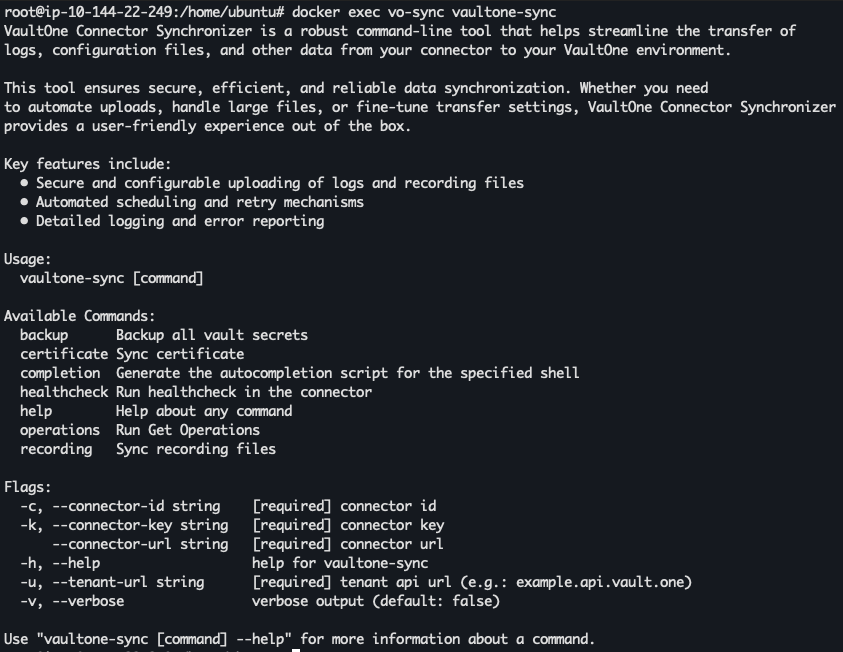
You can view all available commands and flags by running the root command docker exec vo-sync vaultone-sync on the new, unified CLI tool vaultone-sync. This displays the usage guide and a list of other available operations for example, healthcheck, certificate, recording, serving as a quick reference for the admin.
Break-the-Glass: Accessing Your Backup
To access the backup files, you can do the following:
- Connect to the Vault connector shell and run the
docker exec vo-sync vaultone-sync backup listroot command on the new unified CLI tool. A list of all the backup files is displayed. - On the new CLI, run
docker exec -it vo-sync vaultone-sync backup open <FILENAME.bkp>to open the specified backup file. - You will be prompted to:
- Confirm you want to open the backup file, type
Yfor Yes orNfor No - Provide a reason for accessing the backup - this will be logged for auditing purposes.
- Enter the Vault Key Passphrase to decrypt the file:
- The key will not be visible as you type
- Confirm you want to open the backup file, type
- Once authenticated, you can browse your data offline. When Vault becomes available again, you can resume normal operations.

If a backup file does not change from day to the next, it means there were no new records added to Vault. The most recent backup file will always be considered the latest.
Was this information helpful?