


 Subscribe to Help Center RSS Feed
The Local Firewall Control Policy lets you enforce and modify the behavior of the firewall in macOS. A firewall protects your devices against malicious or unnecessary network traffic.

This is a device level policy that applies system-wide to the device and all of its users. You can bind this policy to individual devices or device groups. For policies that apply to a specific user's profile across devices, see Get Started: Policies and Learn More section of this article.
Prerequisites
- Apple Mobile Device Management (MDM) must be configured for your organization and Mac computers must be enrolled in JumpCloud MDM. See Set up Apple MDM.
- See Agent Compatibility, System Requirements, and Impacts to learn more about device compatibility.
Considerations
- After applying the policy, the user must log out and log back in on the device for the changes to take effect.
Creating the Policy
To create a Local Firewall Controls policy for Mac computers, do the following:
Selecting the Policy Template
- Log in to the JumpCloud Admin portal.

If your data is stored outside of the US, check which login URL you should be using depending on your region. If your organization uses LDAP, RADIUS, or requires firewall allow list configuration, the Fully Qualified Domain Names (FQDNs) will also be region specific. See JumpCloud Data Centers for the URLs, FQDNs, and IP addresses.
- Go to Device Management > Policy Management. The Policy Management page is displayed.
- On the Policy Management page, click +Add New.
- Select Device Policy to assign the policy to devices and device groups. On the New Device Policy page:
- Select the macOS tab.
- Search and select the required policy and click Configure. The Details tab of the policy is displayed.
- On the Details tab, configure the required policy configuration settings.
- (Optional) In the Policy Name field, enter a new name for the policy or keep the default. Policy names must be unique.
- (Optional) In the Policy Notes field, enter details such as creation date of the policy, and information on testing and deployment of the policy.
Configuring the Policy
To configure the policy:
- Select Enable Firewall to configure the firewall. You must select this field to enable any additional fields.
- Select Block All Incoming Connections to block all new incoming network requests and to enable Stealth Mode.
- Select Enable Logging to create log files. This information is stored in /var/log/alf.log and /var/log/appfirewall.log files. This field is available only for Mac computers running macOS Monterey 12 or later.
- (Optional) If you selected Enable Logging, select Enable Private Data Collection to identify private information about the user or computer at the time of the log entry. You might want to advise your users that private data is being collected.
- (Optional) If you selected Enable Logging, choose the type of logging you want to collect:
- Throttled - Log only the minimum data associated with events.
- Brief - Log a single line item for each firewall action with moderate detail.
- Detail - Send all details that are collected. This field is available only for devices running macOS 12 Monterey or later.
- Select Enable Stealth Mode to make it more difficult for other devices on your network, friend or foe, to locate your Mac. This setting can also be enabled via Apple’s System Settings > Privacy & Security.
- Enter the app’s unique Bundle ID in the Application Bundle ID and set the Allow Connections field to True to to authorize the system connections.
- Select Allow Signed Built-in Software to permit built-in applications to receive incoming connections. This feature is available on macOS 12.3 and later
- Select Allow Signed Downloaded Software to permit downloaded signed software to receive incoming connections. This feature is available in macOS 12.3 and later.
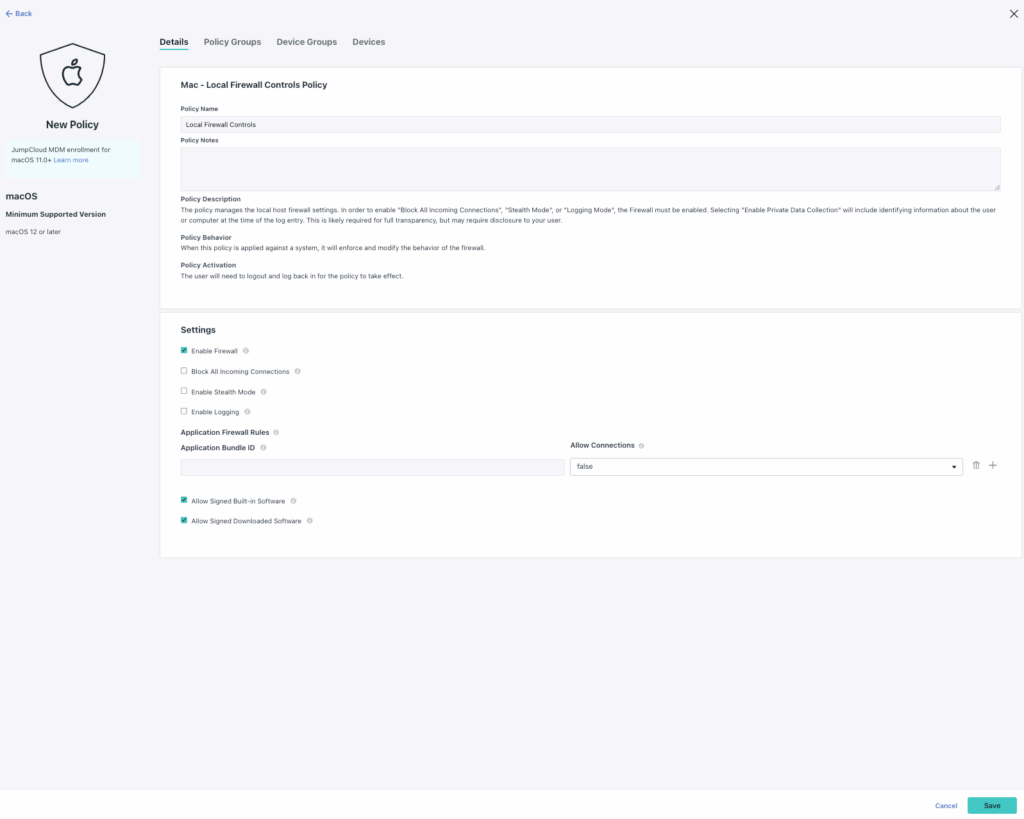
Applying the Policy
- (Optional) Select the Policy Groups tab. Select one or more policy groups where you want to add this policy.
- Select the Device Groups tab. Select one or more device groups where you want to apply this policy to. For device groups with multiple OS member types, the policy only applies when a user logs into a supported Windows device that is enrolled in MDM.
- Or, select the Devices tab. Select one or more devices where you want to apply this policy.
- Click Create Policy. A success message is displayed indicating the completion of policy creation.
Viewing Policy Status
- Select the Status tab.
- To see the last Result Log for a device where this policy is applied, click view.
- If any errors occur, they're listed in Exit Status. If you have an Exit Status of 0, no errors occurred when applying or enforcing this policy.
 In this Article
 Learn More