Connect


Self-service works best when it’s easy to reach. The JumpCloud User Portal already lets employees find applications, check account information, submit access requests, and complete assigned tasks. Now, you can make a focused set of those capabilities available to them in compatible AI tools such as ChatGPT, Claude, and Cursor.
The JumpCloud End User MCP Server connects those tools to the User Portal through the Model Context Protocol, which is an open standard that lets AI tools connect to other systems. Once you enable it, employees with User Portal access can ask an assistant to find an application, check the progress of an access request, review their password status, or respond to an approval task. They can take care of these routine needs in the AI tools where they’re already working.
IT keeps control of the connection. Employees authenticate with their own JumpCloud accounts through OAuth, their existing permissions continue to apply, and you can review or revoke active sessions from the Admin Portal.
One Protocol, Two Distinct Experiences
JumpCloud offers separate MCP servers for admins and end users. The distinction matters.
The JumpCloud MCP Server for Admins connects AI tools to organizational data and administrative capabilities. Depending on their permissions, admins can work with users, devices, groups, applications, Directory Insights™ events, and other JumpCloud resources.
The End User MCP Server has a different purpose. It connects employees and approvers to a focused set of capabilities from the User Portal. It does not give them administrative access or expose organization-wide management tools.
Put simply, the Admin MCP Server helps IT manage JumpCloud. The End User MCP Server helps employees manage their own JumpCloud information, applications, requests, and assigned tasks.

Also read: Meet the JumpCloud MCP Server to learn more about the admin experience.
Let Employees Handle Everyday Requests from Their AI Tools
The End User MCP Server focuses on the kinds of questions and actions employees regularly handle through the User Portal.
Employees and approvers can:
- View their own profile and employment details and update editable fields such as their name, addresses, phone numbers, or recovery email.
- Review password synchronization and expiration information and see which multi-factor authentication (MFA) methods are enrolled.
- Browse the SSO applications available to them, look up an application, retrieve its launch URL, and manage their favorites. In compatible chat clients, JumpCloud can also display an interactive application launcher. Selecting an application opens its SSO sign-in flow.
- Review their existing requests, submit a new request, follow its progress, and cancel a request that is still pending.
- See assigned approval tasks and submit their approval or denial.
These capabilities respect the roles people already have in JumpCloud. An employee can manage their own access requests. Only someone assigned an approval task can respond to it. An assistant can retrieve a launch URL only for an application the employee is already allowed to access.
When an employee needs access to something new, the request still follows your existing approval process. The MCP makes the workflow available through the AI tool; it doesn’t bypass the workflow itself.

Have you seen the JumpCloud AI Assistant yet? Meet JumpCloud AI Assistant: IT Admins’ New Right Hand.
Tie Every Connection to an Employee’s Own Account
Employees connect through OAuth, with each session tied to their JumpCloud account.
The End User MCP Server supports OAuth authentication only. When an employee connects an AI client, JumpCloud opens an authorization screen where they can review the requested actions and approve the connection. API-key authentication is not available for user connections.
From there, requests are evaluated against that employee’s existing JumpCloud permissions. Connecting an assistant does not give the employee a broader set of privileges. If they can’t access an application or perform an action through JumpCloud, connecting through the MCP doesn’t change that.
The same JumpCloud permission checks, audit logging, and security boundaries that apply in the User Portal also apply to actions performed through the End User MCP Server. This extends self-service into a new work surface without a separate route around your existing access controls.
Give IT Control over Availability and Session Duration
Employees cannot connect an AI client until you enable the End User MCP Server for your organization. You control that setting from Settings > JumpCloud AI in the Admin Portal.
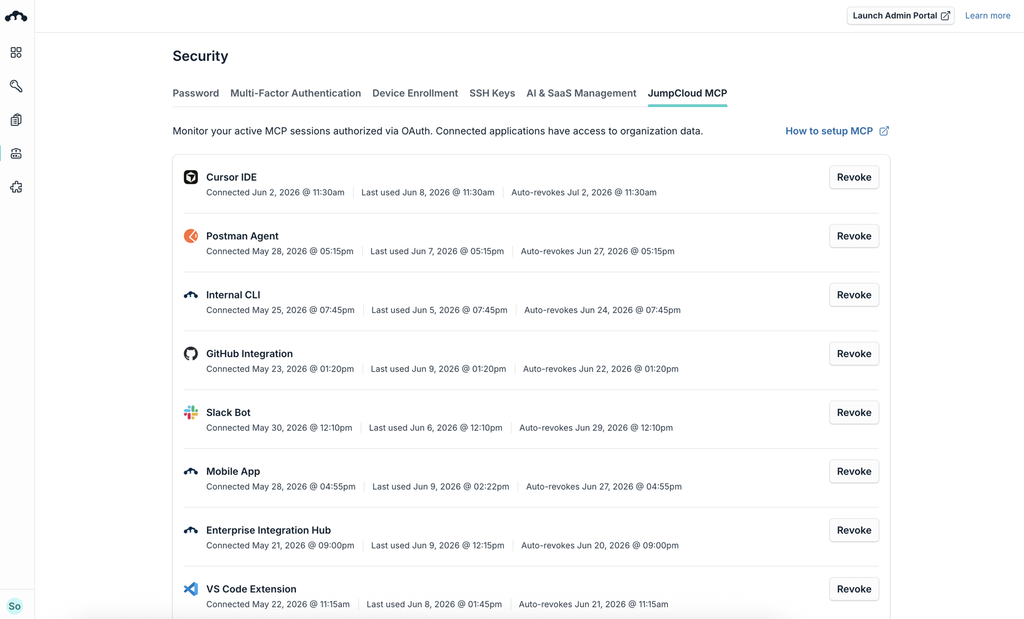
Once connections begin, the same area gives you an organization-wide view of active user sessions. For each session, you can see:
- The connected client
- The client ID and redirect URI
- The employee who authorized the connection
- When the connection was created
- When it was last used
- When it is scheduled to expire
If a connection should end immediately, you can revoke it. You can also select several sessions and revoke them in bulk.
Automatic revocation gives every session a defined lifespan. You choose how long sessions remain active, and JumpCloud revokes them when that period ends. The employee must then authenticate again before the client can reconnect.
This gives you practical control throughout the life of a connection. You decide when the capability becomes available, see which employees and clients have active sessions, and determine when those sessions must be renewed.
Let Employees See Their Side of the Connection
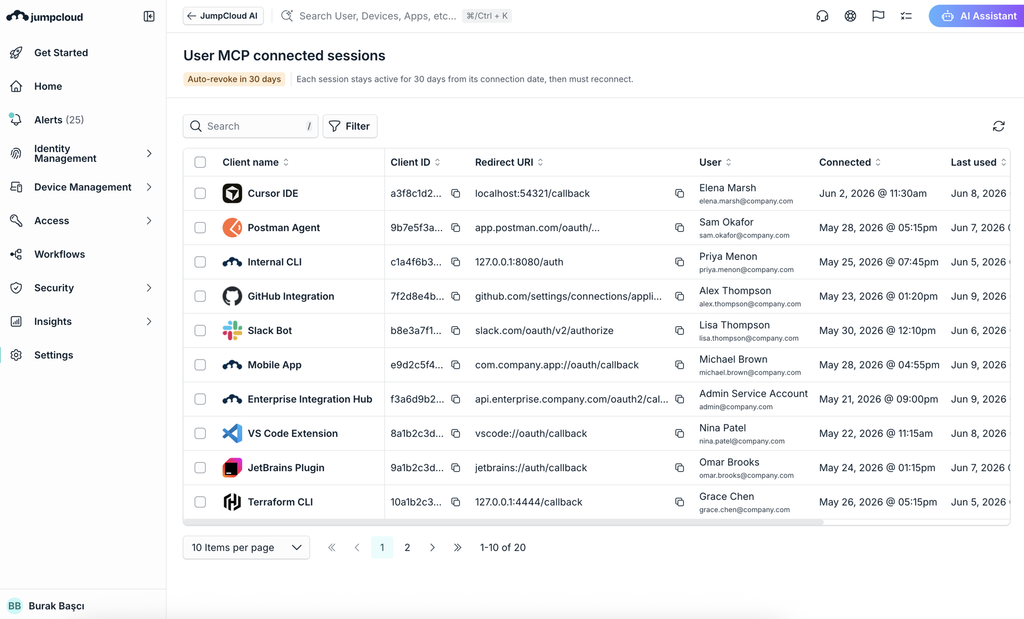
Session visibility is not limited to IT.
Employees can open Security > JumpCloud MCP in the User Portal to see their active MCP sessions. Each session shows the client name, connection date, last-used date, and automatic revocation date. If an employee no longer uses a client or no longer wants it connected, they can revoke that session themselves.
The two views serve different needs. You see active sessions across the organization and manage the policy around them. Each employee sees only their own sessions and can disconnect an individual client.
That shared visibility makes the relationship clear. Employees know which tools are connected to their accounts, while your team retains the broader view needed to manage MCP access across the organization.
For connection instructions, share Get Started: JumpCloud MCP Server for Users with your employees.
Draw a Clear Line Around Sensitive Identity Actions
Making self-service available through AI does not mean putting every identity action into a prompt.
The End User MCP Server concentrates on read operations and a defined set of actions. Employees can view information, update certain profile fields, manage access requests and favorites, and complete tasks assigned to them.
Actions involving credentials or more consequential changes remain in the User Portal. Employees cannot use the End User MCP Server to:
- Reset or change their password
- Enroll or remove MFA methods
- Manage SSH keys
- Enroll a device
That boundary gives employees useful capabilities without moving sensitive account changes into the AI experience. The End User MCP Server extends a defined portion of the User Portal self-service, not the entire portal.
Make Self-Service Fit the Way People Work Now
When employees work in AI assistants, selected identity and access tasks can now meet them there. The End User MCP Server makes that possible without separating those interactions from the permissions and session controls you already manage in JumpCloud.
To get started, enable the End User MCP Server from Settings > JumpCloud AI in the Admin Portal, then share the setup guide with your employees.
As AI agents begin accessing company resources in their own right, they need identities, permissions, and lifecycle controls of their own. Explore JumpCloud Agentic IAM to see how JumpCloud helps you discover, govern, and secure the agents entering your environment.