Get Started: JumpCloud MCP Server for Users
The JumpCloud MCP Server for Users connects your JumpCloud User Portal to compatible AI clients using the Model Context Protocol (MCP). Once you enable this feature, your users can check application access, submit access requests, update their profile, and complete tasks directly from the AI tools they already use, without opening the User Portal.
This gives your users a faster way to complete routine self-service tasks while keeping you in control. You decide when to enable the MCP Server for Users, and you can review and revoke connections at any time. Every action performed through MCP follows the same permissions, audit logging, and security boundaries as the User Portal, so users cannot do anything through MCP that they cannot already do in the User Portal.
Understanding the Benefits
JumpCloud's MCP Server for Users helps your users complete self-service tasks using the AI tools they already work in:
- View information: Profile and employment details, password status, MFA enrollment, and SSO application access
- Take action: Update profile fields, submit and manage access requests, complete assigned tasks, and manage favorite applications
- Stay in control: You can review and revoke user MCP connections at any time from the Admin Portal, and users can do the same from the User Portal
Prerequisites:
- Users need access to the JumpCloud User Portal
Considerations:
- High risk actions or those that require entering credentials, such as resetting a password, enrolling in multi-factor authentication (MFA), or managing SSH keys, remain User Portal only actions.
Supported Clients
JumpCloud's MCP Server for Users currently works with most AI clients that support MCP, including ChatGPT, Claude, and Cursor.
Enabling the MCP Server for Users
To enable the MCP Server for Users for your organization:
- Log in to the JumpCloud Admin Portal.
If your data is stored outside of the US, check which login URL you should be using depending on your region. If your organization uses LDAP, RADIUS, or requires firewall allow list configuration, the Fully Qualified Domain Names (FQDNs) will also be region specific. See JumpCloud Data Centers for the URLs, FQDNs, and IP addresses.
- In the left menu, click Settings.
- Click the JumpCloud AI tab.
- Toggle on MCP Server for users.
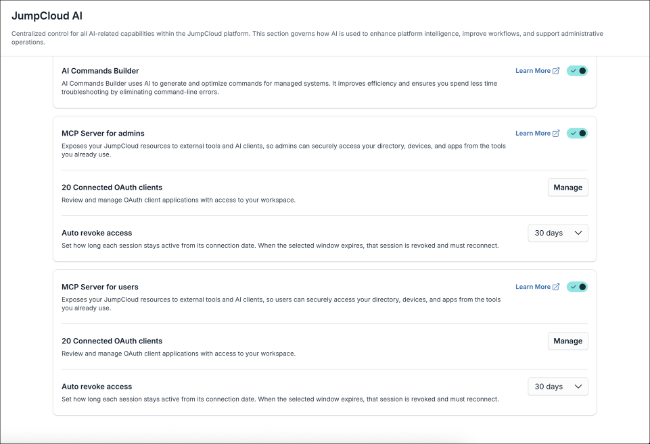
The MCP Server for users setting card includes the following elements:
- Connected OAuth clients: shows the number of active sessions, with a Manage button that opens the sessions list
- Auto revoke access: lets you set how long sessions stay active before they expire automatically
Using the MCP Server
The JumpCloud MCP Server for Users endpoint differs depending on your datacenter region:
- US:
https://usermcp.jumpcloud.com/v1 - EU:
https://usermcp.eu.jumpcloud.com/v1 - IN:
https://usermcp.in.jumpcloud.com/v1
The MCP Server for Users supports OAuth authentication only. API key authentication is not available for users. After you configure the MCP server in your AI client, your browser redirects you to JumpCloud to authenticate. See Authenticating to the MCP Server Using OAuth.
Connecting with ChatGPT
To integrate the JumpCloud MCP Server for Users with ChatGPT:
- Go to ChatGPT in your browser.
- Click your profile icon, then click Settings.
- Click Apps > Advanced Settings, then toggle on Developer mode.
- Return to Apps, then click Create an app.
- Enter a Name, for example JumpCloud.
- Under MCP Server URL, enter the JumpCloud MCP Server for Users URL for your datacenter region.
- Leave authentication as OAuth, then select the checkbox to agree.
- Click Create.
- Save your connector settings.
- Jump to Authenticating to the MCP Server Using OAuth.
Connecting with Claude
To integrate the JumpCloud MCP Server for Users with Claude:
- In Claude, click your account details at the bottom left, then click Settings.
- Click Connectors.
- At the bottom of the connectors list, click Add custom connector.
- In the Add custom connector dialog box:
- Enter a Name for the connector, for example JumpCloud.
- Under Remote MCP server URL, enter the JumpCloud MCP Server for Users URL for your datacenter region.
- Click Add.
- Next to the new connector, click Connect.
- Jump to Authenticating to the MCP Server Using OAuth.
Connecting with Cursor
To integrate the JumpCloud MCP Server for Users with Cursor:
- In Cursor, click Cursor Settings.
- Click Tools & Integrations > MCP Tools, then click New MCP Server.
- In the
mcp.jsonfile, enter the following configuration, using the correct MCP Server for Users URL for your datacenter region:
{
  "mcpServers": {
    "jumpcloud-mcp-users": {
      "url": "https://usermcp.jumpcloud.com/v1"
    }
  }
}
- Go back to Cursor Settings.
- Under Installed MCP Servers, click Connect next to jumpcloud-mcp-users.
- Jump to Authenticating to the MCP Server Using OAuth.
Authenticating to the MCP Server Using OAuth
If you configured your AI client to connect using OAuth, you need to approve access before the client can start using the MCP Server for Users.
To approve access to the MCP Server for Users:
- After you configure your AI client to connect using OAuth, your browser opens a consent screen when you connect.
- Under ...wants to access your JumpCloud account, review the requested actions, confirm the redirect URL is correct, then click Approve and continue.
- Your AI client is now connected to the MCP Server for Users and has access to the tools you authorized.
Managing Connected OAuth Sessions
After users authorize OAuth clients, you can monitor and revoke their active MCP sessions from the Admin Portal.
OAuth session data does not populate historically. Data appears only after a user establishes a new session or reconnects an existing one.
To monitor and manage connected OAuth clients:
- From the JumpCloud Admin Portal, go to Settings > JumpCloud AI.
- Under MCP Server for users, next to Connected OAuth clients, click Manage.
The User MCP connected sessions page displays the following information for each active connection:
| Column | Description |
|---|---|
| Client name | Name of the connected third-party application or client |
| Client ID | Unique identifier for the OAuth client session |
| Redirect URI | Callback URL used during the OAuth authentication process |
| User | The JumpCloud user who authorized the connection |
| Connected | Date and time when the session was initially authenticated |
| Last used | Date and time when the client last interacted with the JumpCloud MCP server |
| Auto-revokes at | Date and time when the session automatically expires and requires re-authentication |
To end an active connection immediately, click Revoke next to the session. In the Revoke client access dialog box, confirm the action.
When you select multiple sessions, bulk Revoke actions become available on the connected sessions page.
Configuring Auto Revoke Access
Set how long each user MCP session stays active after it connects. Expired sessions are revoked automatically and the client must reconnect.
To configure auto revoke access:
- From the JumpCloud Admin Portal, go to Settings > JumpCloud AI.
- Under MCP Server for users, next to Auto revoke access, select a time frame from the drop-down menu (for example, 30 days).
The Auto revoke access setting uses the same options as MCP Server for admins.
Viewing and Revoking Sessions in the User Portal
Users can review and revoke their own active MCP sessions directly in the User Portal.
To view MCP sessions:
- Log in to the JumpCloud User Portal.
- Click Security.
- Click the JumpCloud MCP tab.
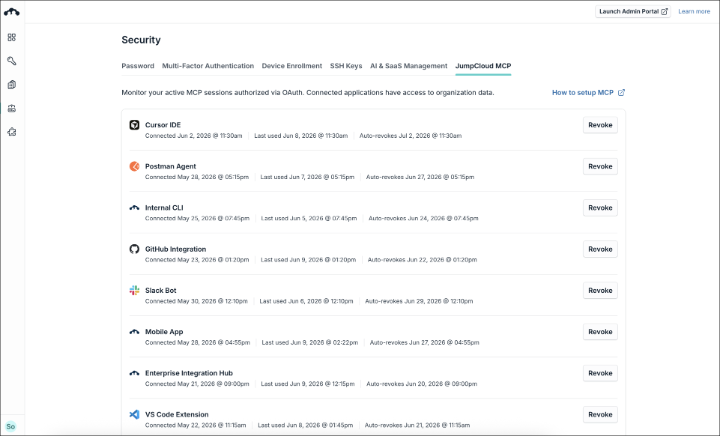
The JumpCloud MCP tab shows each authorized connection with the following information:
- Client name: name of the connected application
- Connected: date and time the session was established
- Last used: date and time the client last used the session
- Auto-revokes: date and time the session automatically expires
To revoke a session, click Revoke on the session card. In the Revoke client access dialog box, confirm the action.
If a user has no active sessions, the page title reads No MCP server sessions yet and prompts them to connect an OAuth client. Users can also click the How to setup MCP link on this page to open setup instructions.
Supported Tools
Supported Tools
The initial release of the MCP Server for Users is limited to read and low-risk write operations. Tools map to existing User Portal capabilities and are available only within the permissions a user already has in JumpCloud.
Profile and Identity
- get_profile: View the user's own profile and employment information
- update_profile: Update editable profile fields
Password
- get_password_status: Check password sync status and expiration
MFA
- get_mfa_status: View enrolled MFA methods
SSO Applications
- list_applications: View all applications the user has access to
- get_application: View details for a specific application
- launch_application: Retrieve the SSO launch URL for an application
- list_favorite_applications: View applications marked as favorites
- set_application_favorite: Add or remove an application from favorites
- list_my_applications: Lists applications as an interactive launcher within the chat client. Selecting an application opens its SSO login flow.
Access Requests
- list_access_requests: View existing access requests and their statuses
- create_access_request: Submit a new access request
- get_access_request: Retrieve the status and details of a specific request
- cancel_access_request: Cancel a pending access request
Tasks
- list_tasks: View pending tasks assigned to the user
- get_task: Retrieve details for a specific task
- complete_task: Submit a response for a task
FAQ
What is Model Context Protocol (MCP)?
MCP is an open standard that enables communication and synchronization of data between external tools, like JumpCloud, and AI models such as large language models (LLMs) and AI agents.
Does this replace the User Portal?
No. It extends supported User Portal capabilities to agent-connected tools. Actions that require credential input, and other excluded high-risk actions, remain in the User Portal.
Can users connect if I haven't enabled the feature?
No. Users cannot create MCP sessions until you enable MCP Server for users for your organization.
Can users use API keys to connect to the MCP Server for Users?
No. The MCP Server for Users supports OAuth only. API keys are not available to users.
Can users do anything through MCP that they cannot do in the User Portal?
No. Every action follows your existing permission checks, so users cannot do anything through MCP that they cannot already do in the User Portal.
Was this information helpful?