


 Subscribe to Help Center RSS Feed
A Simple Certificate Enrollment Protocol (SCEP) endpoint lets a Mobile Device Management (MDM) solution request and install certificates from a JumpCloud Certificate Authority (CA) without manual distribution.
JumpCloud MDM SCEP profiles cover Windows, macOS, and iOS. User certificate issuance through external MDMs (Microsoft Intune and Jamf Pro) is also supported by creating a SCEP endpoint with the Users profile.
Prerequisites
- Access to the JumpCloud Admin Portal with permission to manage Certificate Authority resources.
- An Active JumpCloud-managed Client Certificate Authority configured
- An MDM SCEP policy or profile (in JumpCloud MDM, Microsoft Intune, or Jamf Pro) where the generated endpoint URL and challenge password will be used.
Considerations
- Save the challenge password immediately. It is shown only once and cannot be recovered or revealed later. If the password is lost, regenerate it from the SCEP endpoint row.
- Each SCEP endpoint binds to a single Client Certificate Authority and a single profile, Users or Devices. Create separate endpoints if you need to issue both user and device certificates from the same CA.
- The endpoint hostname is region-specific. The URL hostname differs by data center. Examples: scep.jumpcloud.com for US, scep.eu.jumpcloud.com for EU, scep.in.jumpcloud.com for IN. Use the full URL exactly as shown in the success step.
Adding a SCEP Endpoint
To create a SCEP endpoint, capture its URL and challenge password, and prepare it for use in an MDM SCEP policy.
- Log in to the JumpCloud Admin Portal.
- Go to Security > Certificate Authority.
- Click the SCEP Endpoints tab.
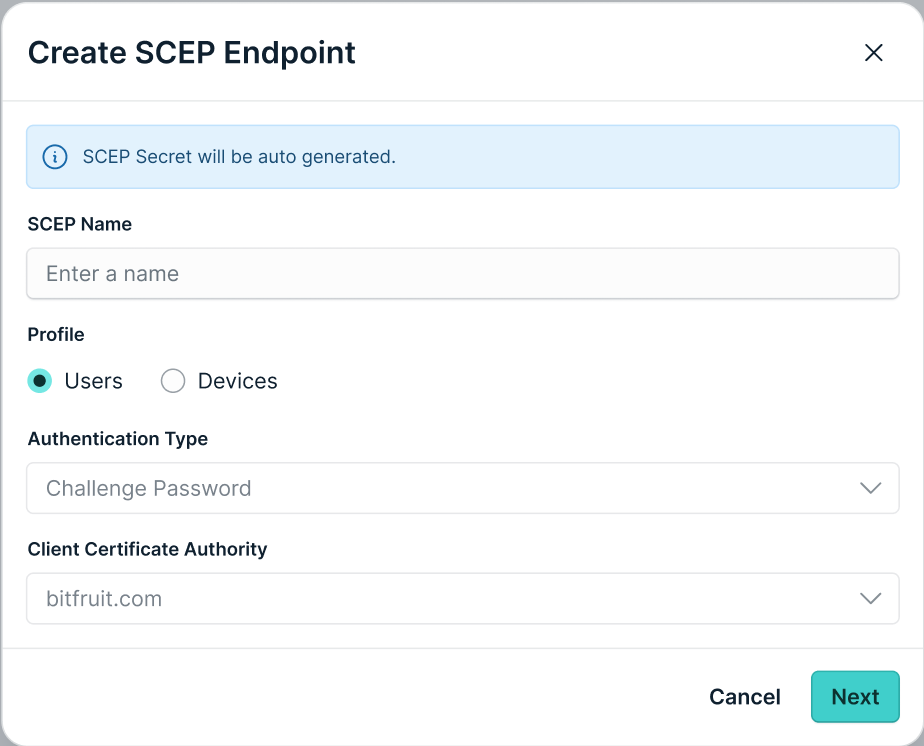
- Click + Add SCEP Endpoint. The Create SCEP Endpoint dialog opens.
- In the SCEP Name field, enter a name for the endpoint. For example: ‘Intune Device Certs’.
- Under Profile, select the verification type. Each endpoint enforces one type only:
- Users — the endpoint accepts only certificate signing requests with a user-scoped subject and issues user certificates.
- Devices — the endpoint accepts only requests with a device-scoped subject and issues device certificates.
- The Authentication Type drop-down is set to the default value of Challenge Password.
- From the Client Certificate Authority drop-down, select the CA that will issue certificates through this endpoint.
- Click Next.
The dialog updates to the success step and displays the generated endpoint details.
After the details are filled, copy the Unique Endpoint and Challenge Password and use them in MDM SCEP Policy.
Note: The Challenge Password is displayed only in this success step. After you click Close, JumpCloud does not show this password again anywhere in the Admin Portal. If you do not copy it now, you must regenerate it and update every MDM SCEP policy that uses this endpoint.
When the profile is selected as User, see Create a User Level Windows SCEP Profile Policy to learn more.
When the profile is selected as Device, see Create a Device Level Windows SCEP Profile Policy or Create a Device Level Mac or iOS SCEP Profile Policy to learn more.
Reviewing the SCEP Endpoints List
The SCEP Endpoints list displays the following columns:
| Field Name | Description |
|---|---|
| Name | The display name of the SCEP endpoint, set by the admin when the endpoint was created. |
| Profile | The verification type for this endpoint. Values are User or Device only. |
| CA ID | The identifier of the linked Client Certificate Authority that issues certificates through this endpoint. |
| Unique Endpoint | The full SCEP URL for this endpoint. Use the copy icon in the row to copy the value. |
| Created time | The timestamp when the endpoint was created. |
| trash icon | Row action that deletes the endpoint. |
Editing SCEP Endpoint Details
To view SCEP Endpoint details:
- Log in to the JumpCloud Admin Portal.
- Go to Security > Certificate Authority > SCEP Endpoints.
- Click the row for the endpoint you want to view. The Edit SCEP Endpoint is displayed.
Regenerating a Challenge Password
If the challenge password is lost or you suspect it is compromised, regenerate it from the SCEP Endpoints list. Regeneration immediately invalidates the existing password.
- Log in to the JumpCloud Admin Portal.
- Go to Security > Certificate Authority > SCEP Endpoints.
- Search and select the endpoint. The Edit SCEP Endpoint is displayed.
- On the Edit SCEP Endpoint pop-up, click Regenerate under Challenge Password. A confirmation prompt appears.
- Review the confirmation message and click the confirm action to proceed.

Regenerating the challenge password immediately invalidates the old password. Existing device certificates remain valid and connected, but no new devices can enroll and existing devices cannot renew until you update your MDM SCEP policy with the new challenge password.
- The success step displays the new challenge password. Click the copy icon next to the Challenge Password value. The icon changes to a green checkmark and a ‘Copied to clipboard’ confirmation appears.
- Select the I have securely copied the SCEP URL and Challenge Password. I understand I cannot view this password again. checkbox.
- Click Close.
- Update every MDM SCEP policy that uses this endpoint with the new challenge password, and redeploy the policies.
Deleting a SCEP Endpoint
- Log in to the JumpCloud Admin Portal.
- Go to Security > Certificate Authority > SCEP Endpoints.
- In the row for the endpoint, click the trash icon.
Deleting a SCEP endpoint stops all new enrollments and renewals through that endpoint. Devices already enrolled keep their currently issued certificates until expiry, but cannot renew.
 In this Article
 Learn More