


 Subscribe to Help Center RSS Feed
JumpCloud® AI & SaaS Management gives you visibility and control over shadow IT, including AI and SaaS app usage, within your org. Connectors detect shadow IT without adoption of a browser extension and provide a significant increase to valuable usage and security insights.
The Claude connector retrieves user lists and organization workspace information from the Anthropic API. Using periodic polling for regular updates, it captures new users and application associations to keep data accurate and up-to-date.
Claude User: Provides an up-to-date list of Anthropic Console workspace users.
Prerequisites:
- You must have a usage-based or seat-based Claude Enterprise plan.
- You must be a Primary Owner within your Enterprise organization.
Considerations:
- Based on your organization’s size, the initial collection of data may take some time, up to an hour.
- Seat-Based Plan Metrics: If your organization uses a seat-based plan, cost and usage data will only reflect your over-quota or extra usage.
Configuring Claude
- Log in to your Claude Enterprise account at claude.ai.
- Go directly to claude.ai/analytics/api-keys.
- Ensure the Analytics API toggle switch is turned on.
- Generate a new API key ensuring it is configured with the read:analytics scope.
- Copy and save the generated API key token safely.

For security reasons, you'll only see the API Key once. Save it in a secure location before closing the window.
Configuring JumpCloud
- Log in to the JumpCloud Admin Portal.
If your data is stored outside of the US, check which login URL you should be using depending on your region, see JumpCloud Data Centers to learn more.
- Go to Access > AI & SaaS Management > Settings.
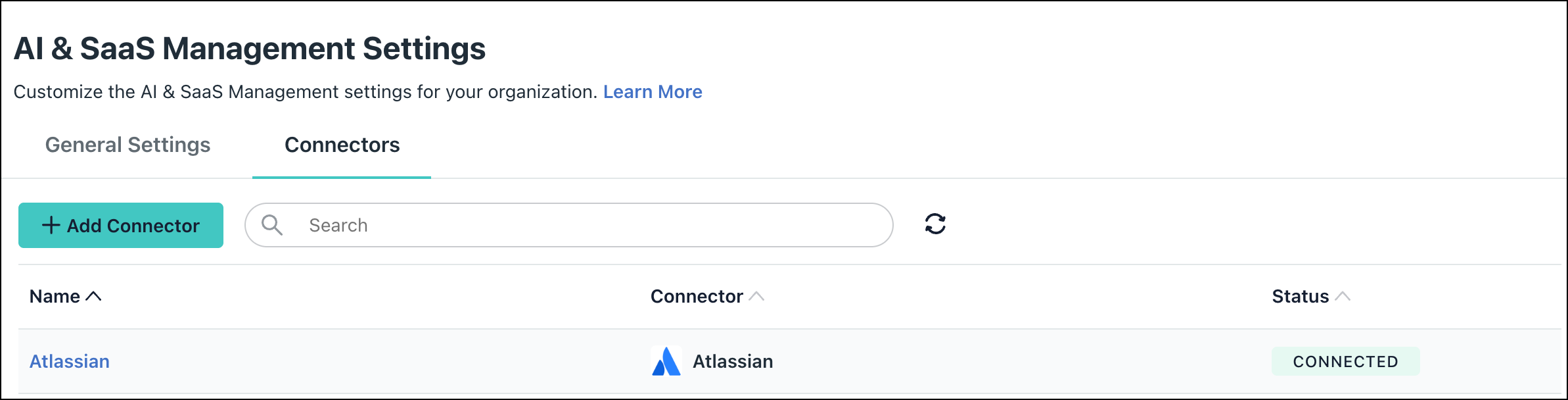
- Under AI & SaaS Management Settings, click the Connectors tab, then click + Add Connector.

- Click the Claude connector.
- Enter the following information:
- The Connector name.
- The API Key copied from the Anthropic Console.
- Click Connect and then Save Connector. You will now see Claude in your list of Connectors.

If permissions are accidentally removed, or if the admin who configured left your organization, the connector will stop working and you will be prompted to Reconnect.
Required PermissionsRead Analytics: This connector requires an API key generated with the explicit read:analytics scope to access per-user engagement metrics, platform token ingestion counts, and USD spend data.
Uninstall/Remove
- On the Connector’s detail page, click on Delete Connector and follow the prompts.
- To revoke the permissions granted to JumpCloud, delete or disable the API key from your Claude Enterprise Analytics configuration page.
 In this Article
 Learn More