


 Subscribe to Help Center RSS Feed
JumpCloud® AI & SaaS Management gives you visibility and control over shadow IT, including AI and SaaS app usage, within your org. Connectors detect shadow IT without adoption of a browser extension and provide a significant increase to valuable usage and security insights.
The ElevenLabs connector retrieves the user directory and seat allocations from the ElevenLabs API. Using periodic polling for regular updates, it captures new users to keep data accurate and up-to-date.
- ElevenLabs User: Provides an up-to-date list of workspace members and their assigned seat types.
- Historical Backfill: Your first sync automatically pulls the last 90 days of credit usage to populate your historical charts.
Prerequisites:
- You must have an ElevenLabs Scale, Business, or Enterprise multi-seat plan.
- You must be a Workspace Admin in ElevenLabs.
Considerations:
- Based on your organization’s size, the initial collection of data may take some time, up to an hour.
Configuring ElevenLabs
- Log in to your ElevenLabs account.
- Go to AI Voice Generator & Text to Speech Developers, and select API keys.
- Click create key.
- Add the necessary permissions to the key.
- Copy and save the generated API key string safely.

For security reasons, you'll only see the API Key once. Save it in a secure location before closing the window.
Configuring JumpCloud
- Log in to the JumpCloud Admin Portal.
If your data is stored outside of the US, check which login URL you should be using depending on your region, see JumpCloud Data Centers to learn more.
- Go to Access > AI & SaaS Management > Settings.
- Under AI & SaaS Management Settings, click the Connectors tab, then click + Add Connector.

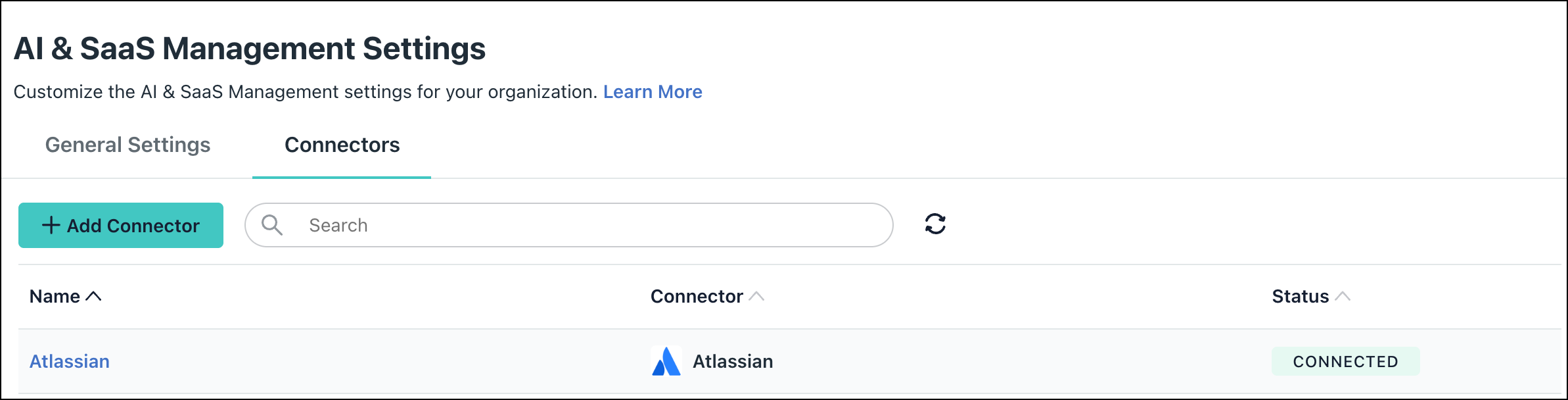
- Click the ElevenLabs connector.
- Enter the following information:
- The Connector name.
- The API Key copied from ElevenLabs.
- Click Connect and then Save Connector. You will now see ElevenLabs in your list of Connectors.

If permissions are accidentally removed, or if the admin who configured left your organization, the connector will stop working and you will be prompted to Reconnect.
Required Permissions
- Workspace Access: This connector requires an API key configured with workspace:access and workspace-analytics:access permission scopes to securely retrieve workspace member structures and centralized credit usage metrics.
Uninstall/Remove
- On the Connector’s detail page, click on Delete Connector and follow the prompts.
- To revoke the permissions granted to JumpCloud, delete the master API key from your AI Voice Generator & Text to Speech Developers > API keys dashboard.
 In this Article
 Learn More