


 Subscribe to Help Center RSS Feed
JumpCloud® AI & SaaS Management gives you visibility and control over shadow IT, including AI and SaaS app usage, within your org. Connectors detect shadow IT without adoption of a browser extension and provide a significant increase to valuable usage and security insights.
The GitHub Copilot connector retrieves organization Copilot user allocations and CLI-reported token usage (prompt and output tokens) via an automated OAuth connection. Using periodic polling for regular updates, it maps subscription data to manage platform spend and security.
GitHub Copilot User: Provides an up-to-date list of organization members assigned to an active Copilot seat.
Prerequisites:
- You must use a GitHub account with permissions to view Copilot organization usage metrics (typically an Organization Owner or a member explicitly granted metrics access by your tenant policy).
Considerations:
- User Matching Constraints: GitHub APIs do not reveal user email addresses. Matching relies entirely on the unique GitHub username handle, which may affect automated matching if accounts aren't linked via identity provider details.
- CLI Metrics Limitation: Ingested AI token metrics are strictly derived from CLI-side token usage. Developer actions confined solely to the IDE without CLI token interactions will not produce token rows.
- Model and Cost Tracking: This API path does not supply model names or associated usage costs; individual model breakdowns are unavailable, and baseline usage costs map as 0.
- Sync Time: Based on your organization’s size, the initial collection of data may take some time, up to an hour.
Configuring GitHub Copilot
- Log in to GitHub and navigate to your organization's landing page.
- Look at your browser's address bar to identify your exact Organization Slug.
Example: If your organization URL is https://github.com/your-org-name, your slug is your-org-name. - Copy and save this name. You'll need this to complete the JumpCloud configuration.

For security reasons, you'll only see the API Key once. Save it in a secure location before closing the window.
Configuring JumpCloud
- Log in to the JumpCloud Admin Portal.
If your data is stored outside of the US, check which login URL you should be using depending on your region, see JumpCloud Data Centers to learn more.
- Go to Access > AI & SaaS Management > Settings.
- Under AI & SaaS Management Settings, click the Connectors tab, then click + Add Connector.

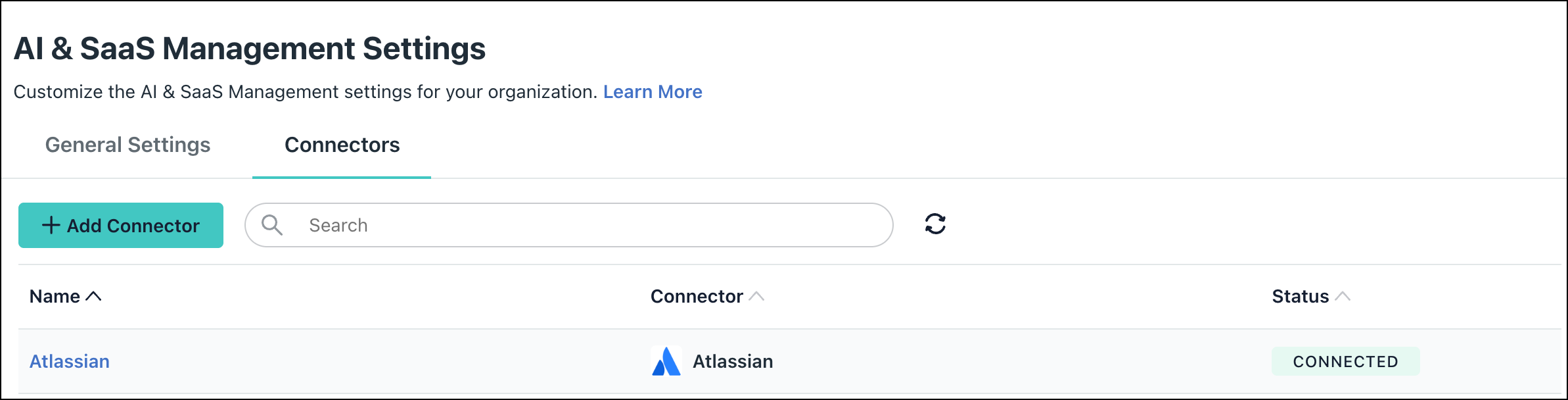
- Click the GitHub Copilot connector.
- Enter a unique Connector name.
- In the Organization Slug field, paste the organization name you retrieved from GitHub.
- Click Connect. You will automatically be redirected to a secure GitHub authorization interface.
- If prompted, log in to GitHub as an owner, review the access scopes requested for the JumpCloud app, and click Authorize.
- Upon successful authorization, the screen will redirect you back to JumpCloud. Click Save Connector. You will now see GitHub Copilot in your list of Connectors.

If permissions are accidentally removed, or if the admin who configured left your organization, the connector will stop working and you will be prompted to Reconnect.
Required Permissions
Organization Metrics Access: The OAuth connection securely accesses GitHub's daily and 28-day Copilot reporting data.
Uninstall/Remove
- On the Connector’s detail page, click on Delete Connector and follow the prompts.
- To revoke permissions entirely, go to your GitHub organization Settings, select OAuth app policy in the sidebar, locate the authorized AI & SaaS Management application, and click Deny access.
 In this Article
 Learn More