


 Subscribe to Help Center RSS Feed
If you're experiencing page load failures, authentication loops, or unexpected browser behavior, JumpCloud Support may request a HAR file to analyze the communication between your browser and the server.
An HTTP Archive (HAR) file is a JavaScript Object Notation (JSON) formatted file that records network activity within a browser session. These files are valuable for troubleshooting advanced Single Sign-On (SSO) issues because they provide a complete chronological snapshot of all network requests.
Prerequisites:
- A Mac computer with the Safari browser installed.

HAR files may contain sensitive information such as session cookies or personal data. Review the contents or consult your security team before sharing files externally.
Enable Developer Tools in Safari
Before you can record network activity, you must enable Safari's hidden development menu.
- Open Safari.
- In the top menu bar, go to Safari > Settings.
- Click the Advanced tab.
- Select the Show features for web developers checkbox and close the window.
Reproduce the Issue
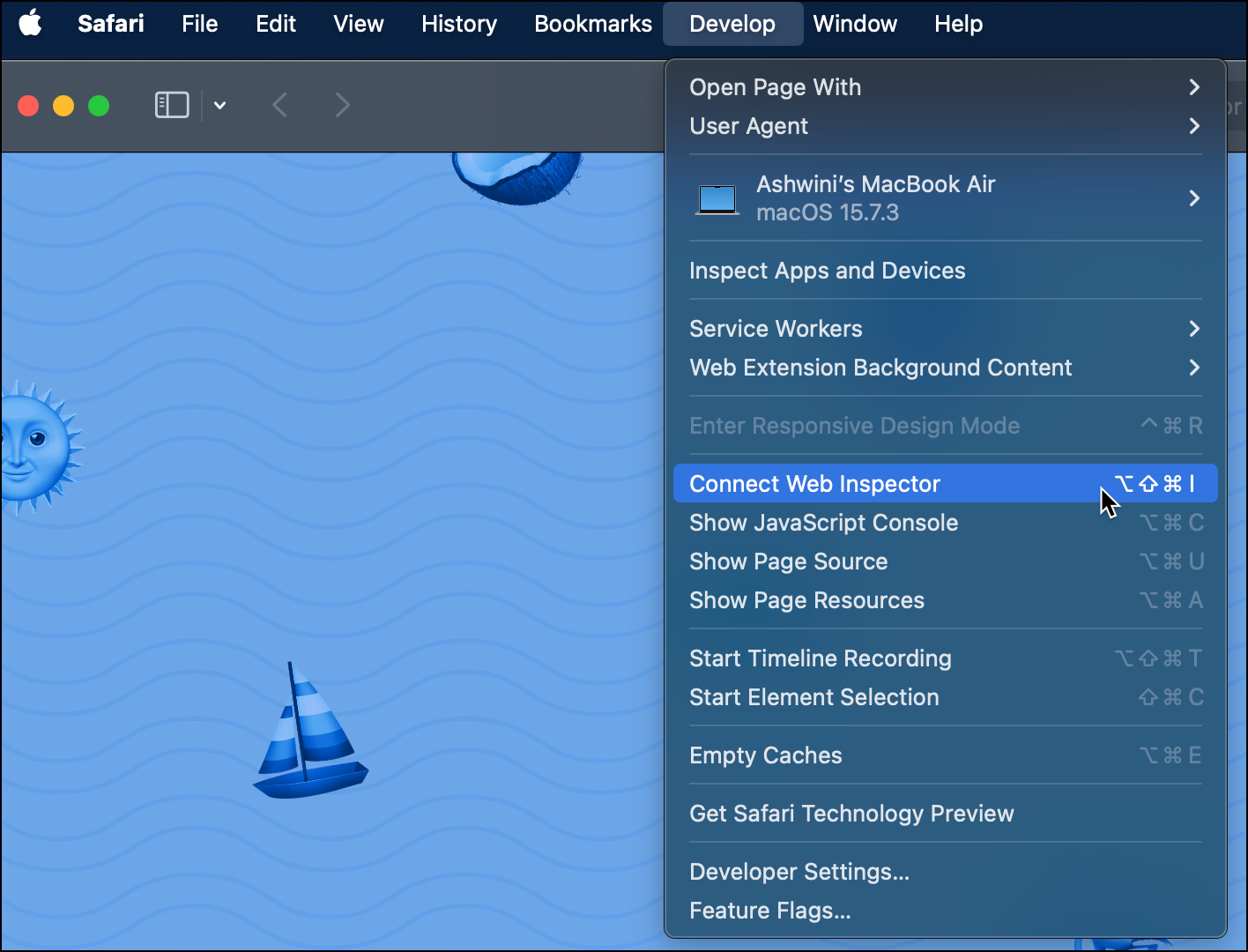
- From the top menu bar, click the Develop menu.
- Select Show Web Inspector.

- In the Web Inspector window, click the Network tab.
- Perform the action that causes the issue (e.g., login or page navigation).

The recording starts automatically once the Network tab is open. You will see requests appear in the list as you browse.
Export the HAR File
- Once you have reproduced the issue, right-click any item in the Network tab list.
- Select Export HAR.
- Choose a location on your device and save the file.
- Attach this file to your JumpCloud Support case for analysis.
 In this Article