


 Subscribe to Help Center RSS Feed
Admins can configure and enforce specific Multi-factor authenticators while configuring conditional access policies for any resource. The Admin can select from a number of available factors such as JumpCloud Go, TOTP, etc.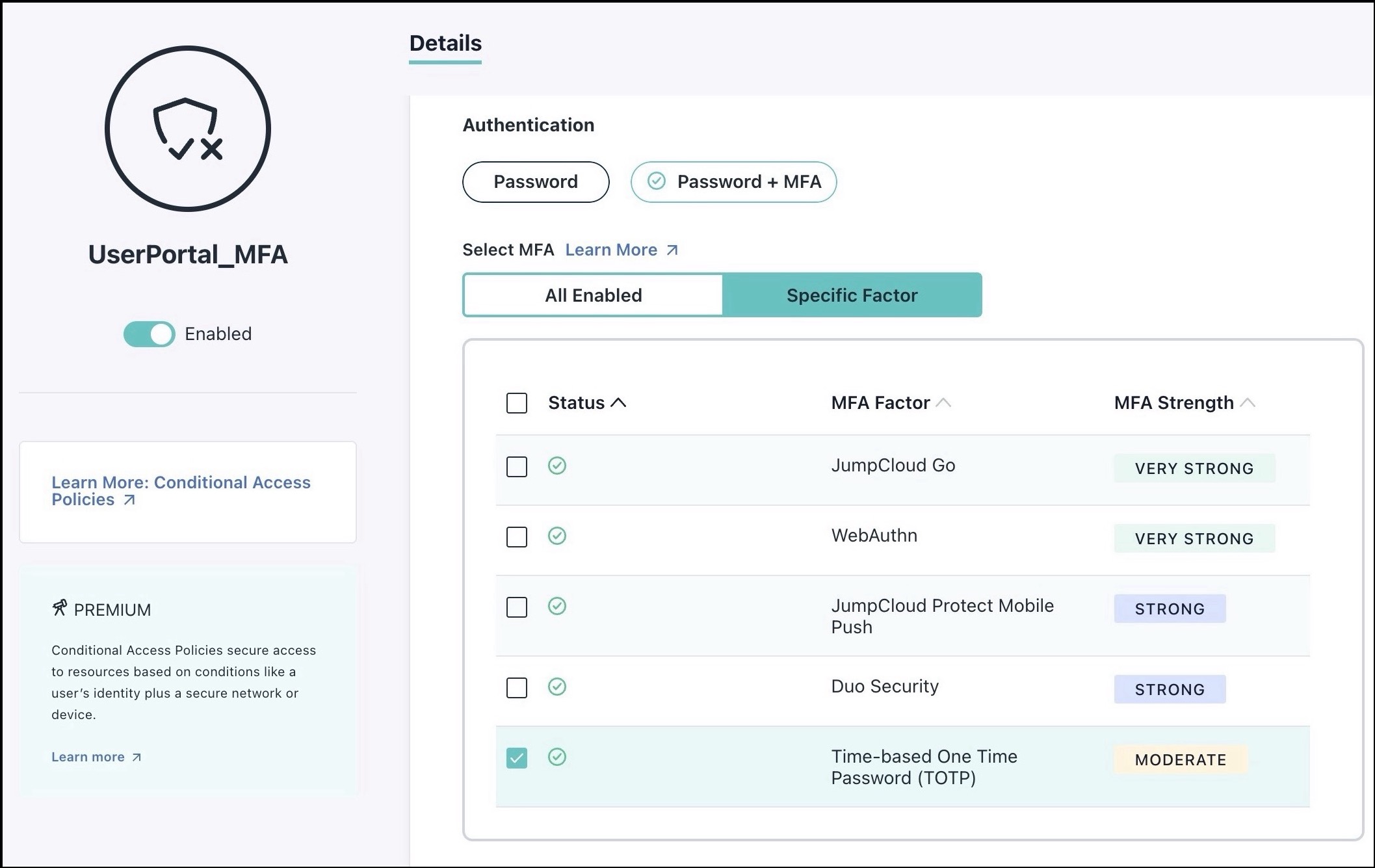
Here are some use cases for various multi-factor authenticators in relation to JumpCloud Go:

IIn the following use cases, it is assumed that the JumpCloud Go browser extension is present on the users’ devices when JumpCloud Go is enabled.
Choosing MFA in Conditional Access Policies
| Admin-Configured MFA in CAP | User MFA enrolment Status | Resulting User Experience |
| JumpCloud Go | Registered |
JumpCloud Go grants access. Note: User portal prevents selecting JumpCloud Go as the only factor |
| Other MFA only (non-JC Go) | Registered |
The administrator-configured MFA is enforced. Note: If the device is registered with JumpCloud Go, users benefit from passwordless login but must still complete the required MFA factor. |
| JumpCloud Go + Other MFA | Registered | JumpCloud Go takes precedence over other authenticators to provide a seamless access experience. |
| JumpCloud Go + Other MFA | Device Not Registered/MFA nor enrolled |
User Portal: Users are prompted to register for JumpCloud Go. If they choose an alternate login method, they must enroll for other required MFA factors. SSO/Admin Portal: Users are redirected to the User Portal with instructions to register their device. For other factors, they are prompted to complete enrollment as mandated by the policy. |
| JumpCloud Go | Not Registered |
Users will see an error message with instructions to register their device for JumpCloud Go before accessing the Admin Portal or SSO applications. Note: CAP for User Portal prevents selecting JumpCloud Go as the only factor. |
When JumpCloud Go is the primary factor for SSO applications, users may still be prompted to verify their identity via local device biometrics or security keys.
The JumpCloud tray app specifically supports JumpCloud Push, TOTP, and Cisco Duo. Since tray app password resets are governed by the User Portal CAP, administrators must include at least one of these factors in the policy.
FAQs: Multi-factor Authenticators in CAP
If an Admin requires an MFA method, an unenrolled user accessing an app (governed by CAP) will be denied access until they visit the user portal to enroll. After enrollment, users can access their apps directly.
You must select at least one factor or select All Enabled.
Yes. Users can authenticate with any of the allowed multi-factor authenticators.
The JumpCloud Go extension must be installed for the user to complete authentication.
JumpCloud Go will provide credentials, and then the user will be prompted for the CAP configured MFA, ensuring admin settings are honored.
 In this Article
 Learn More