Vault: Add and Access Databases
JumpCloud PAM allows administrators to register databases and control how users connect to them. This article covers how to add a new database entry and how to connect to a database as a user.
note
The actions available in the Databases menu depend on your role. Users with administrative permissions can add and manage database entries. Users with Connect-only access will see the database list but not the Add Database button.
Adding a Database
- In JumpCloud PAM, click Databases in the left sidebar.
- Click + Add Database.
- On the General tab, complete the following fields:
- Name: A descriptive name to identify this database entry.
- URI: The hostname or IP address of the database server.
- Connector: Select the Vault Connector that has network access to this database. The Connector must be deployed in the same network segment as the database for the connection to succeed.
- Provider: Select the database engine.
- Supported providers include PostgreSQL, MySQL, MariaDB, SQL Server, Oracle, Firebird, DB2 (LUW), DB2 (iSeries), Clickhouse, Apache Kyuubi, and Other. PAM supports relational SQL databases only. If your database engine is not listed, select Other, as long as it is a relational SQL database. Non-relational databases are not supported for now.
- Port: The port used for the database connection. This is pre-populated based on the selected provider.
- Database Name: The name of the specific database to connect to.
- Use Default Connection String: When enabled, the connection string is generated automatically based on the fields above.
- DB Shield: Enable this option to activate session isolation for this database. When enabled, a DB Shield tab will appear with additional security and recording settings (covered below).
- Tags (optional): Labels to help organize database entries.
- Notes (optional): Any additional context.
- On the Credentials tab, click + Add Credentials to associate one or more stored credentials with this database. Each credential defines the username and password used to authenticate against the database.
- On the Sharing Preferences tab, define which users and user groups have access to this database, and what they can do. For each user or group, you can configure the following permissions:
- Connect: Allows the user to establish a session with this database.
- View Detail: Allows the user to view the database configuration details.
- Manage: Allows the user to edit or delete this database entry.
- When selecting a user in this tab, you can also define which credential that user will use to connect, and whether they can view the credential secret.
- On the Rules tab, you can associate blocking rules with this database. Click + Add Blocking Rule to create a new rule scoped to this database, or click Import Rules to import rules previously created in the Blocking Rules menu. For details on how blocking rules work and how to configure them, see Vault: Configure Database Blocking Rules.
- If you enabled DB Shield on the General tab, go to the DB Shield tab to configure session security settings. Available settings include:
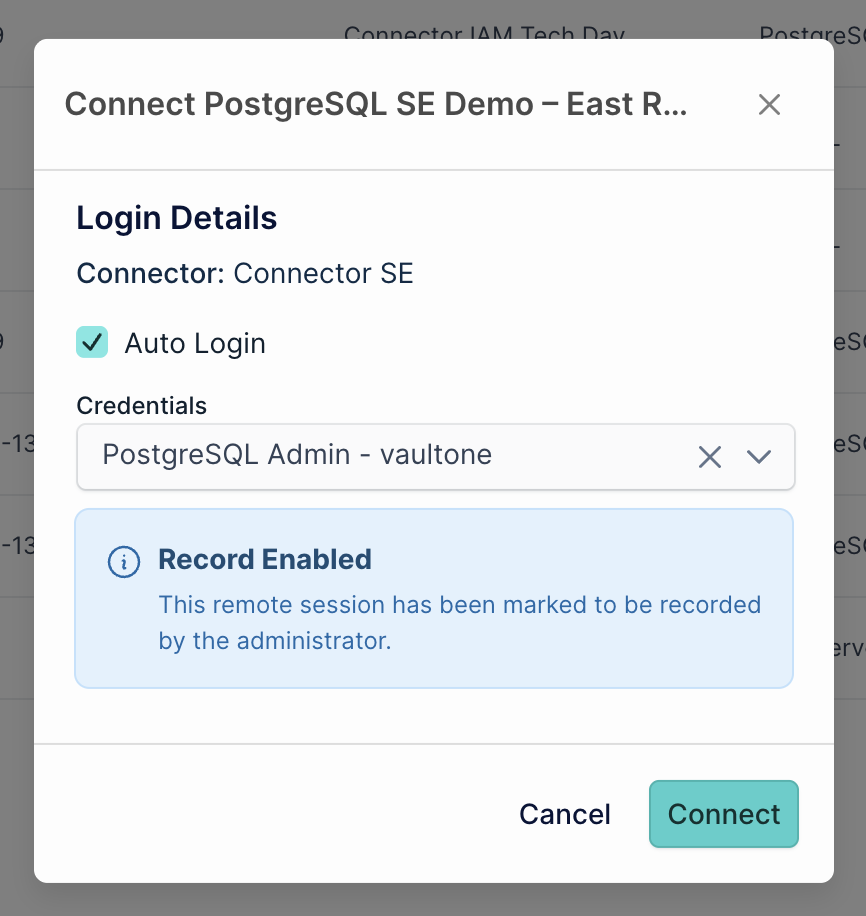
- Record Video: When enabled, the database session is recorded for auditing purposes. Users will see a "Record Enabled" notice when connecting.
- Access Control: Options to disable file transfer, disable clipboard access, and allow or restrict DevTools.
- Display Settings: Configure image quality, compression level, and color depth for the isolated session.
- Click Save.
Connecting to a Database
- In JumpCloud PAM, click Databases in the left sidebar.
- Locate the database you want to connect to and click the Connect icon in the Actions column.
- A connection modal will appear. Review the login details and select the credential to use for this session. If video recording is enabled for this database, a Record Enabled notice will be displayed, indicating that the session will be recorded by the administrator.
- Click Connect to start the session.
Was this information helpful?