The Identity Perimeter: Why MFA Claims are the Only Proof That Matters
In the modern security landscape, identity is the new perimeter. As the traditional network firewall dissolves, simply verifying a user's initial login via Single Sign-On (SSO) —even with Multi-Factor Authentication (MFA) is no longer the finish line—it’s just the first checkpoint.
A successful login only confirms that the user had access to a factor (i.e., a specific category of evidence used to prove a user's identity). True security at the identity perimeter requires the Service Providers (SPs) to not just ask "Who is this user?" but also "How did they prove it?" This is where MFA Claims come in.
Why a Successful Login Isn’t Enough
- The Vanishing Firewall: With remote work and cloud-native apps, you can't rely on a "safe" office network. The identity of the user is the only thing standing between your data and the open web.
- Context is King: A password can be stolen, but the context of the login (like a hardware token or biometric check) provides the high-fidelity trust that modern security demands.
- Continuous Verification: Moving toward Zero Trust means that a user’s login is a continuous process, not a one-time event.
Why MFA Claims are Critical for Zero Trust
The MFA Claim is an assertion, sent from your Identity Provider (IdP) to the SP, that details the specific method of multi-factor authentication used. This is essential because it:
- Enforces Granular Access: Allows the Service Provider to grant access based on the strength of the authentication method. For example, a low-security task might be allowed with SMS MFA, but a high-security action (like deleting data in AWS) can be restricted to only users who authenticated with a FIDO2 Security Key.
- Meets Compliance Requirements: Many regulations require evidence of strong, specific authentication methods. MFA claims provide the auditable, technical proof that a user met a high-security hurdle.
- Provides Context for SPs: A stolen password plus a single-factor session cookie is useless if the SP requires a specific MFA claim to process the request. It adds an essential layer of continuous, context-aware verification.
How MFA Claims Work in Practice
The claim's format depends on the SSO protocol in use:
MFA Claims
| Protocol | The “MFA Claim” Attribute | Example of Claim Values | Purpose |
|---|---|---|---|
| SAML 2.0 | AuthnContextClassRef | urn:oasis:names:tc:SAML:2.0:ac:classes:PasswordProtectedTransport (Password login) …:classes:SmartcardPKI (MFA) | Specifies the type of authentication performed (e.g., password, hardware key, mobile push*). |
| OIDC | AMR (Authentication Methods References) | ["mfa", "otp", "rsa"] or ["mfa", "hwk"] | A JSON array that lists the authentication methods used, where mfa confirms multi-factor and the other values indicate specific factors. |
OIDC typically handles the AMR claim automatically, whereas SAML requires explicit configuration. See the below table.
| MFA Method | MFA Value in AMR Claim |
|---|---|
| apikey | swk |
| duo | mfa |
| pwd | pwd |
| totp | otp |
| unk | |
| wan | hwk |
| push | mfa |
| uv | |
| durt | hwk |
| durt_uv | hwk |
| ext_idp |
Configuration Options: Choosing Your Strategy
Configuring MFA claims—particularly within a platform like JumpCloud—typically involves three tactical paths. Selecting the right one isn't just about your security preference; it is a matter of technical alignment with the Service Provider's ability to process incoming data at the identity perimeter.
1. The “One Size Fits All” Approach
Option: Send a single value for all successful MFA factors.
- When to use it: Ideal for SPs that only require a high-level confirmation that the multi-factor (MFA) was successfully used to login. The SP effectively treats all MFA methods as a single, trusted credential at the identity perimeter.
- How it works: You provide one universal URL or URN (e.g.,
http://schemas.microsoft.com/claims/authnmethodsreferences/mfa). No matter the method, the SP receives this exact string.
2. The “Granular” Approach
Option: Send specific factors.
- When to use it: Use this for compliance-heavy applications (e.g., AWS, financial platforms, HR systems) that enforce context-aware policies or different "trust levels” based on factor strength. For example, it might allow a user to view files with SMS MFA, but require a FIDO2 Security Key to delete them.
- How it works: You’ll use a Factor Mapping table. You map each individual MFA method to a specific value required by the SP.
- Example: JumpCloud Protect →
urn:oasis:names:tc:SAML:2.0:ac:classes:MobileTwoFactorUnregistered - Example: WebAuthn (Security Key) →
urn:oasis:names:tc:SAML:2.0:ac:classes:Fido
- Example: JumpCloud Protect →
3. The “Hybrid” Approach
Option: Send both single value and specific factors simultaneously.
- When to use it: This is the "cover all bases" strategy. It’s useful if you have a suite of applications sharing the same assertion, where some apps look for a general "MFA=True" flag while others look for the specific method used. Some SPs will utilize the single value as a preliminary flag to confirm MFA completion, then proceed to verify the assertion for specific factor details.
- How it works: The SAML assertion will include both the generic identifier and the specific factor details simultaneously.
Quick Comparison Table
| Strategy | Best For… | Complexity |
|---|---|---|
| Single Value | Standard apps (Slack, Zoom, etc.) | Low |
| Specific Factors | Compliance-heavy apps (AWS, Financial tools) | Medium |
| Hybrid | Mixed environments / Large-scale deployments | Medium |
Configuring MFA Claims for JumpCloud SSO Connectors
JumpCloud just made it easier to lock down your identity perimeter by adding a dedicated MFA Claims setting to both preconfigured and custom SAML connectors. This optional feature allows your Service Providers (SPs) to instantly verify not just that a user logged in, but that they successfully completed a specific, strong MFA step before granting them access.
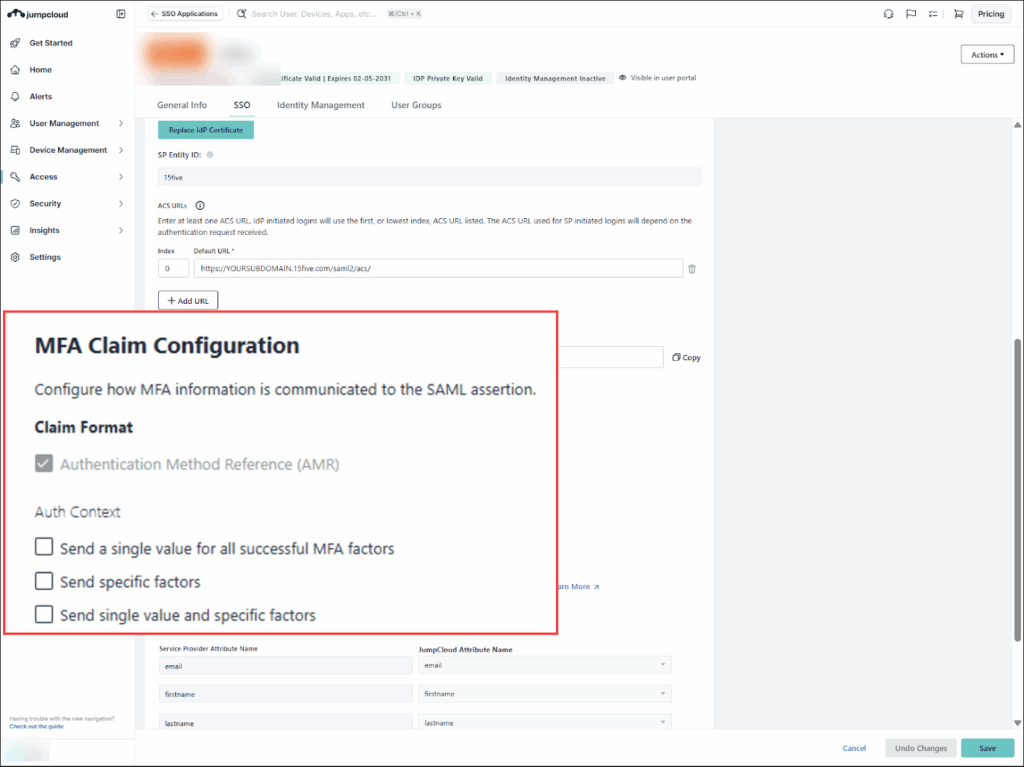
Unlike OIDC, which handles the MFA claim automatically, you can now manually configure these critical security signals for your SAML connectors—whether they're brand new or already in use. To begin, go to Access > SSO Applications and then the SSO tab in your connector and scroll down to the MFA Claim Configuration section:
Before you click Save, check your Service Provider’s documentation. Most providers (like AWS, Salesforce, or Google) have a very specific list of URNs they support. If you send a value they don’t recognize, the login will fail—even if the user successfully completed their MFA!
Was this information helpful?