AI & SaaS Management: Microsoft Entra ID Connector
JumpCloud® AI & SaaS Management gives you visibility and control over shadow IT, including AI and SaaS app usage, within your org. Connectors detect shadow IT without adoption of a browser extension and provide a significant increase to valuable usage and security insights.
The Microsoft Entra ID Connector retrieves users lists and data from the Microsoft Graph API, enabling seamless integration with third-party apps authenticated via Microsoft credentials. It captures new users and login events to keep data accurate and current. This connector also ensures data integrity and security because it is configured via OAuth with read-only permissions.
- Microsoft Entra ID accounts: Provides an up-to-date list of Microsoft Entra ID users.
- Third-Party app discovery: Offers visibility into tools connected via "Login with Microsoft," enabling organizations to track app usage and identify potential security risks, particularly in environments with numerous applications.
Considerations
- Based on your organization’s size, the initial collection of data may take some time, up to an hour.
Configuring JumpCloud
- Log in to the JumpCloud Admin Portal.
If your data is stored outside of the US, check which login URL you should be using depending on your region. If your organization uses LDAP, RADIUS, or requires firewall allow list configuration, the Fully Qualified Domain Names (FQDNs) will also be region specific. See JumpCloud Data Centers for the URLs, FQDNs, and IP addresses.
-
Go to Access > AI & SaaS Management > Settings.
-
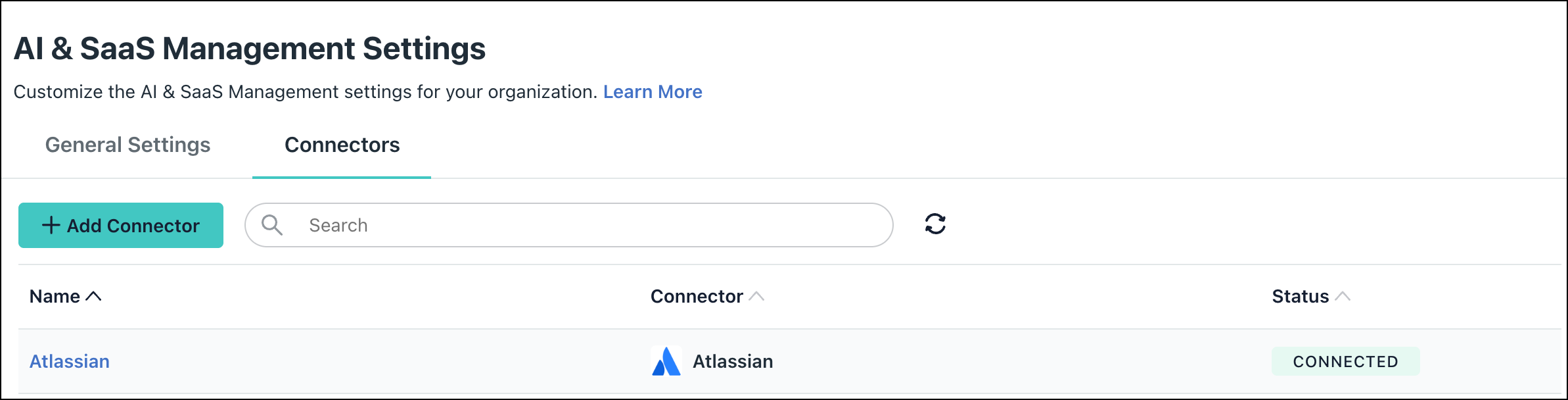
Under AI & SaaS Management Settings, click the Connectors tab, then click + Add Connector.
-
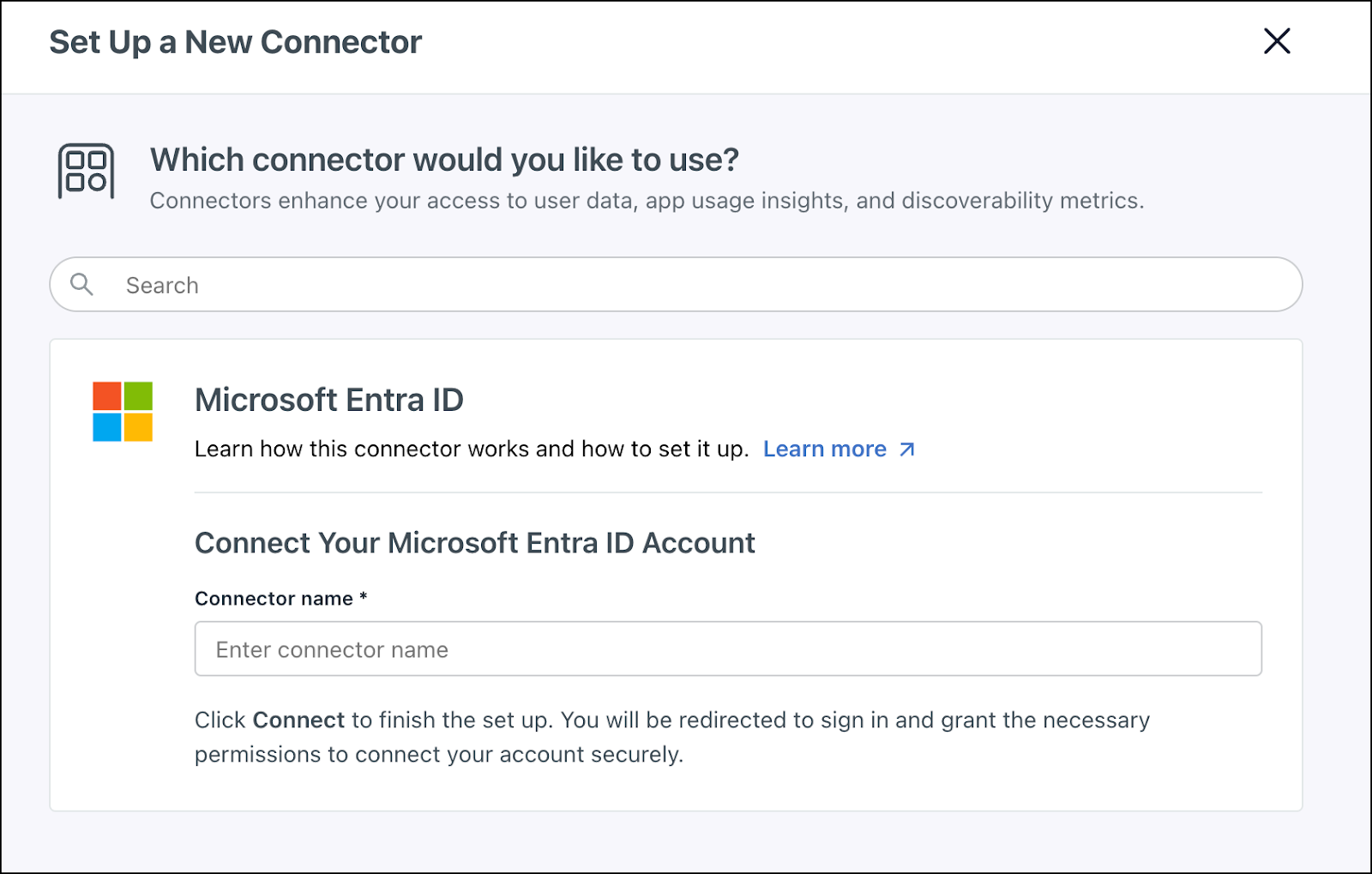
Select Entra ID and click Connect.
-
Enter a name and click Connect.
-
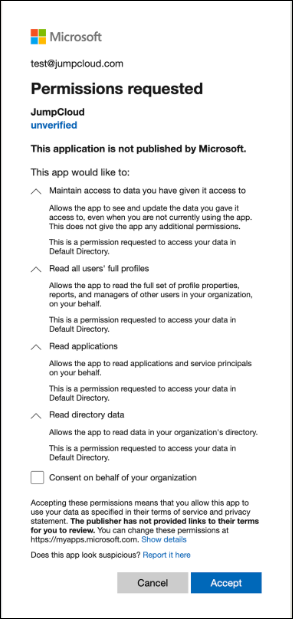
Follow the redirect prompts from Microsoft.
-
You will now see Entra ID in your list of Connectors.
If permissions are accidentally removed, or if the admin who configured left your organization, the connector will stop working and you will be prompted to Reconnect.

Required Permissions
- Read all users' full profile: Allows JumpCloud to list the users in your directory.
- Read applications: Allows JumCloud to list OAuth permissions in your directory.
- Read directory data: Allows JumCloud to list OAuth permissions in your directory.
- Manage access to data you have given it access to: Manage OAuth token.
Uninstall/Remove
- On the Connector’s detail page, click on Delete Connector and follow the prompts.
Was this information helpful?