Connect


The best security policies are the ones that don’t need you. Not because the problem goes away, but because the system handles it before it actually becomes one. JumpCloud’s Conditional Access policies work in the background, continuously checking device health, enforcing standards at the point of access, and course-correcting without waiting for IT to step in. Think of it less as a ruleset and more as an immune system for your fleet: one that detects, responds, and recovers on its own.
This post walks through four specific policies worth setting up in JumpCloud, what each one does under the hood, and how to roll them out without causing unnecessary disruption.
1. Block Access from End-of-Life Operating Systems
Once an OS vendor stops issuing security patches, whether that’s Microsoft dropping support for Windows 8.1 or Apple moving on from macOS 12, any vulnerability discovered after that date is effectively permanent. There’s no fix coming. Attackers know this, and they actively scan for unpatched, legacy systems.
The cleanest way to handle this is a hard deny at the application access level. In JumpCloud, you can configure a Global Deny rule targeting specific OS versions. A reasonable starting baseline:
- Windows: Block any version below Windows 10 22H2
- macOS: Block macOS 12 (Monterey) and earlier

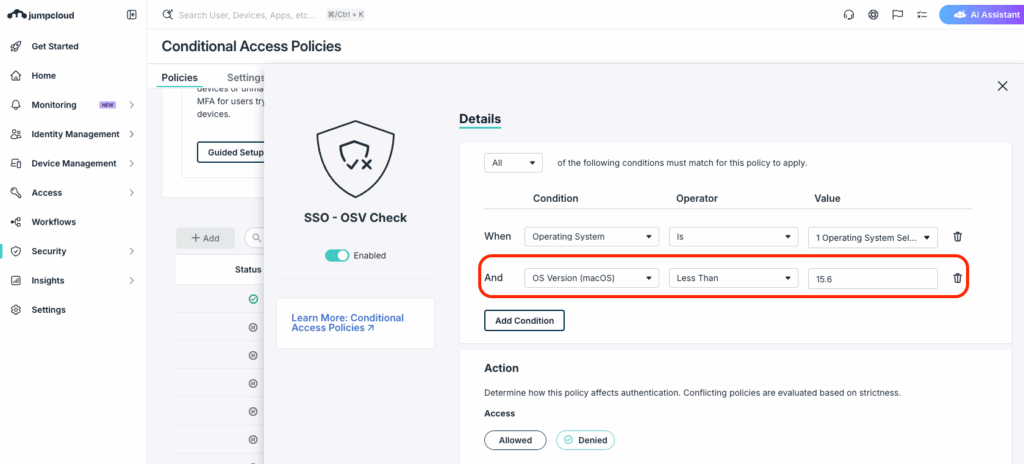
JumpCloud supports version configurations in 4-octet format (e.g. 10 / 10.2 / 10.2.345 / 10.2.345.789). You’ll need to enter the equivalent build number rather than the release name when configuring the policy.
This won’t require you to manually track which devices are running outdated software. The policy checks the device at authentication time and denies access if the OS doesn’t meet your threshold. You can also configure custom messages to guide users on how to upgrade their OS, so instead of hitting a dead end, they get clear next steps on what’s needed to restore access.
2. Set a Minimum macOS Version Across Your Fleet
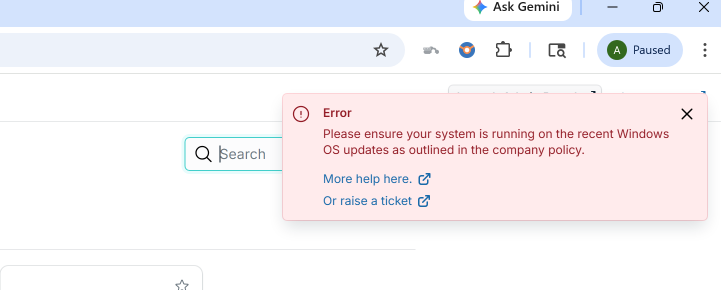
End-of-life blocking handles the worst-case scenario, but there’s a middle tier worth addressing too. Apple doesn’t backport security patches to older macOS releases, even ones that aren’t technically end-of-life. If your fleet is spread across multiple major versions, devices on older releases are quietly missing security updates that Apple only ships to current versions.
JumpCloud’s version operators let you set a definitive floor using “Greater Than or Equal To” logic. Setting a minimum of macOS 14.0 (Sonoma) means any device running an older version will be blocked from accessing managed applications like Google Workspace, Salesforce, or whatever you’ve connected until the user upgrades.
This shifts accountability in a useful way. Instead of your IT team chasing down individual machines, the access control itself creates the incentive. Users who need access to do their jobs will update; users who don’t update get flagged as an outstanding issue to resolve.
3. Lock Down Specific Builds During a Zero-Day Event
The first two policies handle steady-state hygiene. This one designed specifically for incidents.
When a critical vulnerability is disclosed, the kind where a patch ships the same day and every security team is scrambling, you can’t rely on your usual patch cycle. You need to know that your users are specifically on the build containing the fix, not just “roughly current.”
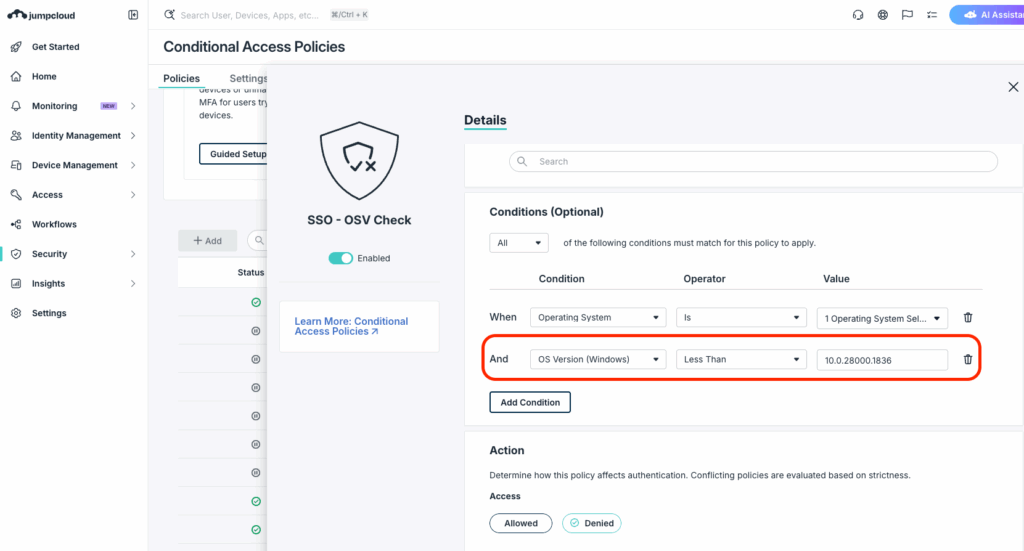
JumpCloud supports version strings in a.b.c.d format, which will enable you to handle this situation. When a critical patch drops, update your Conditional Access policy to require that exact build using “Greater Than or Equal To.” For example, if Microsoft releases a patch as part of Windows 11 build 10.0.22621.2428, you set that as the condition. Anyone on an older build, even one from a week ago, gets quarantined from sensitive resources until they update.
This is effectively a real-time patch enforcement mechanism. Users who’ve already installed the patch keep working normally. Everyone else gets a clear signal that something requires their attention.
4. Enforce CrowdStrike Falcon Agent Health
A fully patched OS is necessary but not sufficient. If CrowdStrike Falcon isn’t running on a device or has been tampered with, you’ve lost visibility into it. It could be compromised right now and you’d have no way of knowing.
JumpCloud’s Conditional Access currently supports CrowdStrike as its EDR integration. If CrowdStrike is already part of your stack, this is straightforward to enable: turn on the Falcon toggle within your policy and set a minimum Zero Trust Assessment (ZTA) score as a condition of access. The policy evaluates real-time telemetry from the Falcon agent, not just whether the software is installed.
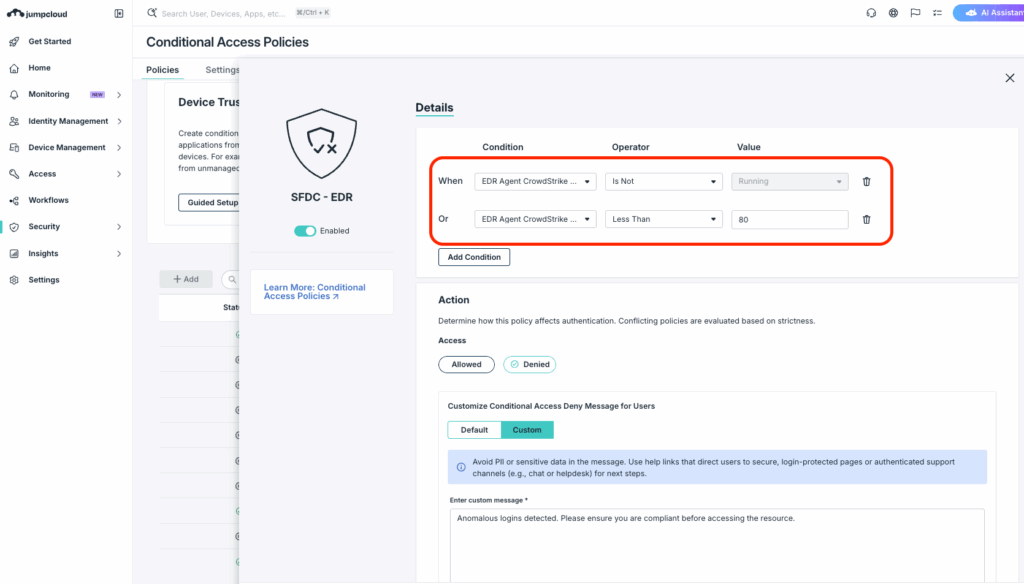
With this, if a user disables their agent, or if CrowdStrike detects anomalous activity and drops the device’s risk score, JumpCloud triggers an automatic denial response at the identity level before any application access is granted.
See It Working in Your Environment
Reading about Conditional Access policies is one thing. Knowing which of your devices would actually fail them right now is another.
JumpCloud’s free trial gives you full access to Conditional Access, including OS version enforcement, EDR integration, and the reporting tools you need to understand your current exposure before you enable a single block. No sales call required to get started.