


 Subscribe to Help Center RSS Feed
The MFA Enrollment Settings feature allows administrators to secure their organization by mandating multi-factor authentication enrollment while providing a flexible, time-bound onboarding experience for end-users. Admins can require a Primary MFA Factor, an optional Backup MFA Factor (SMS), and establish global Grace Periods to ensure necessary MFA enrollment hygiene in their organization and prevent lockouts.
Administrator Configuration (Admin Portal)
Requiring a Primary MFA Factor and Grace Period
Administrators can mandate all users to enroll in at least one primary authentication method.
Eligible Primary Factors:
- Time-based One-Time Password (TOTP)
- Push Notifications
- WebAuthn / Passkeys
- Duo Security

JumpCloud Go is not part of the enrollment flow after logging into the user portal. Grace period applies only to the eligible Primary factors above.
To mandate all users to enroll in at least one primary authentication method:
- Log in to the JumpCloud Admin portal.
- Navigate to MFA Configurations > Settings.
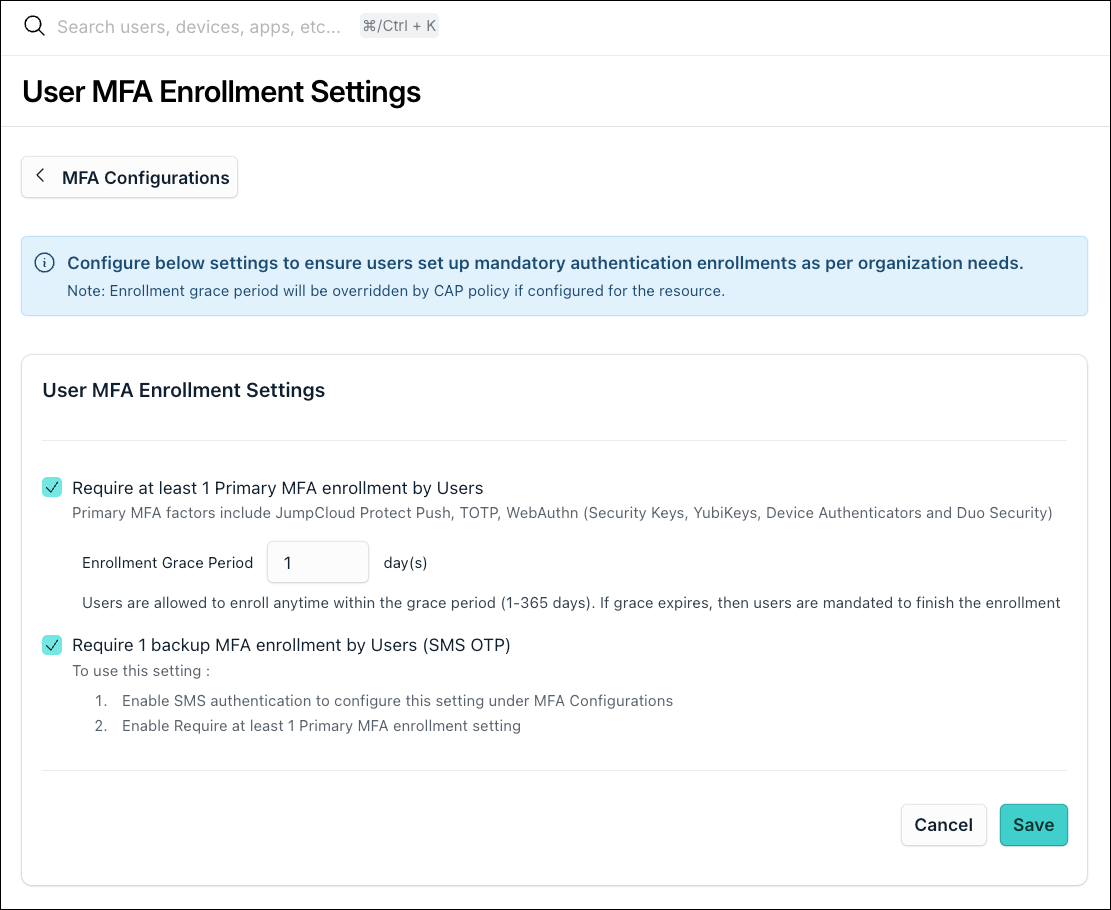
- Under User MFA Enrollment Settings, select the Require 1 Primary MFA factor enrollment checkbox. Also enter the grace period. Users will be allowed to enroll anytime before the grace period expires.



- TOTP Only enrollment Override: Enabling this setting globally overrides the TOTP-only enrollment grace period for existing or new users. This setting is present under Identity Management > Users. Select a specific user, go to Details and select the Require Multi-factor Authentication on the User Portal checkbox.
NOTE: This is applicable only for TOTP. - CAP Interaction: If Conditional Access Policy (CAP) settings are configured to Allow with no MFA, enabling this organization-wide setting will still trigger the enrollment workflow for users, adhering to the configured grace period.
- Grace Period
- Within Grace period: After logging in with user credentials, the users will see an enrollment modal with Maybe Later. They can skip and enroll later (as per the grace period set by the administrator). Within the grace period, users can enroll via the enrollment screen or prefer to self-enroll by going to Security > Multi Factor Authentication.
- Grace period Expires : If users are not enrolled to the factors and the grace period expires, the enrollment is mandatory to complete before they get access to the resource.
Requiring a Backup MFA Factor in the Admin Console
To ensure account recovery and business continuity, admins can mandate a secondary backup factor.
- Dependency: The ability to require a backup factor is strictly dependent on SMS MFA being globally activated and the Primary MFA enrollment rule being enabled for securing access.
Dynamic MFA Enrollment Policy Recalculation
Whenever an Administrator modifies and saves the primary enrollment requirements, backup requirements, or grace period settings, the system instantly executes a background recalculation.
The updated settings apply to all active user sessions in the user portal during their next evaluation (e.g., login, resource access, or session refresh).
Conditional Access Policy Support and Restrictions
Conditional access policies (CAPs) when enforced during resource access, override the grace period set in the MFA Configuration settings for primary and backup MFA enrollment. The CAP forces the enrollment in a gated session without offering grace period if mandated specifically for MFA.
CAPs can be set either via default fallback Conditional Access Policy (Under Security → Conditional Access Policies → Default Access Policies) or through configuration of an exclusive CAP in the Admin portal.
The factors shown for enrollment by the users depends on what has been configured in the CAP and what methods have been enabled by the Administrator in the organization.
If the users are not enrolled for any MFA factor yet and a CAP is enforced, the enrollment is mandatory for the users before they continue to access the resource.
User Enrollment Workflows (User Portal)
Post-Login (During Active Grace Period)
When a user logs in with valid credentials, has zero factors enrolled, and the admin-defined settings of Minimum one primary and backup are configured with grace period still active:
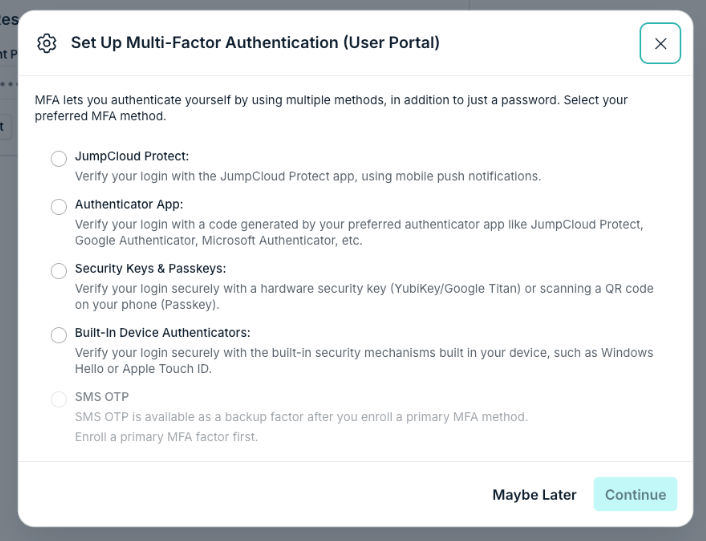
- Post-Login Screen: The user is presented with an MFA enrollment screen.
- Factor Filtering: Only eligible primary factors are shown as configured by the Administrator. SMS is displayed as an unselectable backup option and can’t be used until a primary factor is enrolled.

- Deferral ("Maybe Later"): The user can click Maybe Later and access the portal. They can finish enrollment later before the grace period expires.
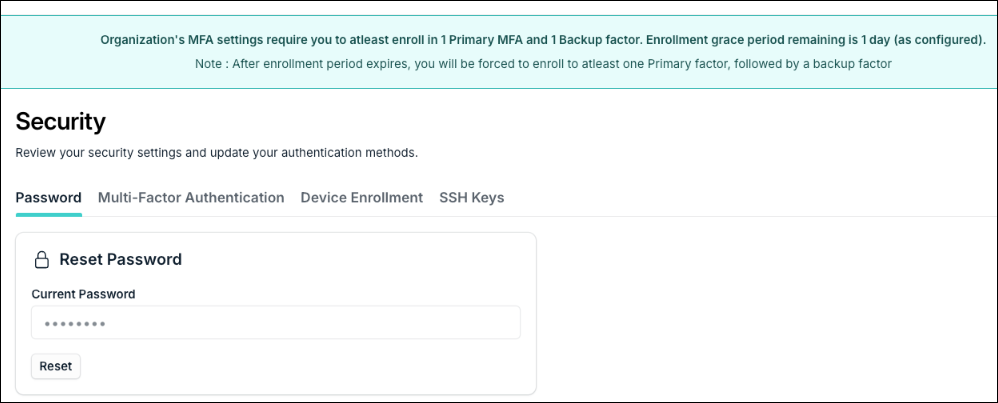
- In this scenario, a persistent, visible banner appears on the Security page of the user portal. This banner displays the current enrollment settings configured by admins within the organization along with a live countdown timer displaying time till the exact expiration of the grace period.
- If the user decides to enroll in a primary factor during this grace period:
- The system immediately channels them into the SMS backup enrollment workflow (if required by the admin).
- Upon successful completion, the persistent countdown banner is removed permanently.

Post-Login (After Grace Period Expiry)
When a user logs in with valid credentials but has no enrolled factors after the grace period has expired:
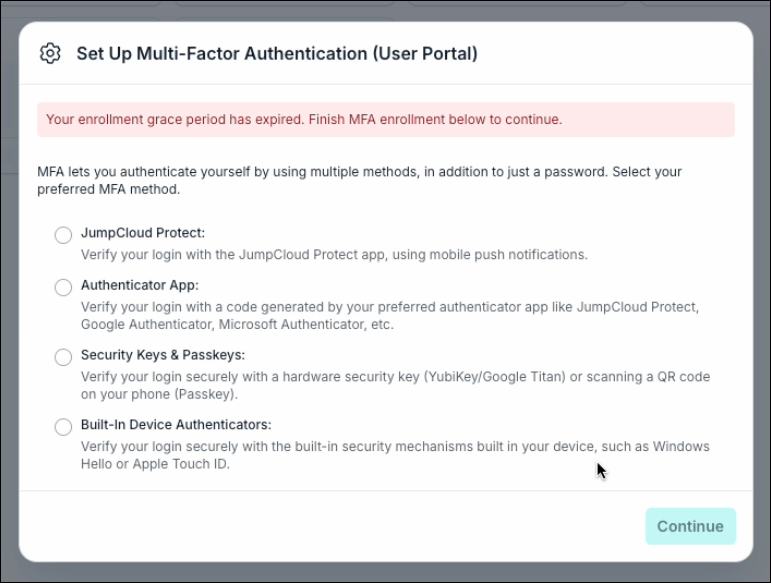
- Mandatory Gate: Access to the user portal or any corporate resources is completely blocked.
- UI Experience: After the user logs in, the expired grace period message is explicitly shown forcing the user to complete primary enrollment before proceeding.

Transitioning from Primary to Backup Enrollment
If an admin requires a backup factor, SMS is enabled in MFA configurations within the admin portal, and a user logs in with any primary factor already configured:
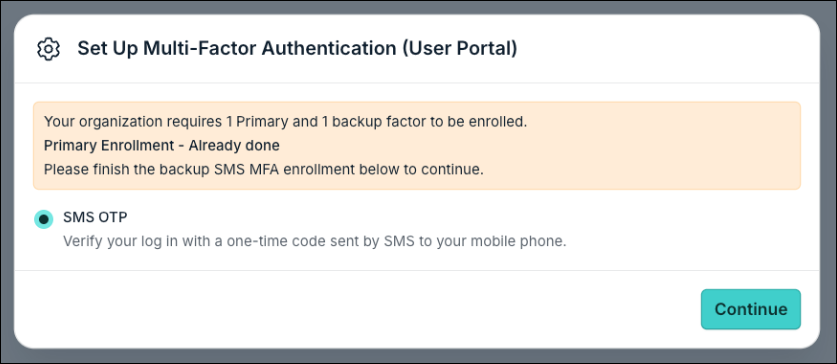
- The login sequence triggers a dedicated enrollment modal specifically guiding the user to enroll their SMS MFA.
- The enrollment does not show the full primary factors list again, highlighting only the outstanding SMS MFA enrollment requirement. Users can click Continue to proceed.

Resource Access and Enforcement Overrides
Step-Up and Resource Access Challenge
When a user attempts to access a resource protected by an MFA-enabled CAP:
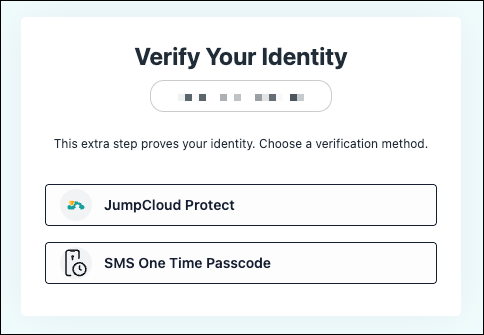
- Primary First: The system prioritizes and offers primary methods (e.g., WebAuthn, Push, TOTP) first if enrolled already.
- Backup Factor: If the primary factor is unavailable, users can choose by clicking "Choose a different way" for SMS MFA (if enrolled already).

 In this Article
 Learn More