


 Subscribe to Help Center RSS Feed
Use JumpCloud policies to customize, manage, and secure devices in your organization. The Recovery Lock policy secures access to macOS Recovery on Mac computers with Apple silicon by requiring a password. This enhances physical security of your Mac computers by preventing unauthorized user access to macOS Recovery and its associated functions, such as the startup options menu and security settings.

To ensure optimal security, combine this policy with the Activation Lock policy. See Create a Mac or iOS Activation Lock Policy to learn more.
Prerequisites:
- This policy is supported on Mac computers with Apple silicon running macOS 11.5 and later.
- Apple Mobile Device Management (MDM) must be configured for your organization and Mac computers must be enrolled in JumpCloud MDM. See Set up Apple MDM.
- To assign a policy to a device, you need an active device running the JumpCloud agent on a supported OS. See Get Started: Devices.
- To assign a policy to a device group, you need a device group. See Get Started: Device Groups.
Considerations:
- Only 1 Recovery Lock policy is allowed per organization.
- For automatically generated passwords:
- Passwords must be entered as shown, including hyphens.
- Passwords are rotated 60 minutes after viewing.
- Deleting this policy, unbinding it, or unenrolling Mac computers from MDM automatically clears the Recovery Lock password.
- A known issue in macOS Ventura 13 and macOS Sequoia 15 may cause Mac computers to start up in macOS Recovery after a software update, whether or not Recovery Lock is enforced. Apple addressed this in subsequent macOS updates. See Apple’s What's new for enterprise in macOS Ventura and What's new for enterprise in macOS Sequoia to learn more.
Creating a Recovery Lock Policy
To create a Recovery Lock policy:

If your data is stored outside of the US, check which login URL you should be using depending on your region. If your organization uses LDAP, RADIUS, or requires firewall allow list configuration, the Fully Qualified Domain Names (FQDNs) will also be region specific. See JumpCloud Data Centers for the URLs, FQDNs, and IP addresses.
- Log in to the JumpCloud Admin Portal.
- Go to Device Management > Policy Management.
- In the All tab, click (+).
- On the New Policy panel, click the Mac tab.
- Locate the Recovery Lock policy, then click configure.
- (Optional) In Policy Name, enter a new name for the policy or keep the default. Policy names must be unique.
- (Optional) In Policy Notes, enter details like when you created the policy, where you tested it, and where you deployed it.
- Under Settings, choose a Password Creation Method for the password that users will have to enter to access macOS Recovery:
- Select Automatically generate a unique password to let JumpCloud set a unique Recovery Lock password for each Mac bound to the policy. Users will be required to enter this password if they need to access macOS Recovery.
- Note: JumpCloud automatically saves the Recovery Lock password for each Mac to view later. Jump to Accessing Recovery Lock Passwords to learn more.
- (Optional) Select Automatically rotate password to automatically regenerate a new recovery lock password on each Mac depending on your specified interval. Enter a value between 1-365 days.
- Select Specify a password to set a single static password for all Mac computers bound to this policy.
- In the Password field, enter a password that meets the following requirements:
- At least 6 characters
- Must be alphanumeric (numbers and uppercase letters only)
- At least one uppercase letter and one number
- No more than 2 sequentially repeating characters (for example FFF)
- No ascending or descending characters (for example 123)
- In the Password field, enter a password that meets the following requirements:
- Select Automatically generate a unique password to let JumpCloud set a unique Recovery Lock password for each Mac bound to the policy. Users will be required to enter this password if they need to access macOS Recovery.
- Go to the Devices tab to bind the policy to a device, or the Device Groups tab to bind it to a group of devices.
- Click Save.
After saving the policy, Recovery Lock should be immediately enforced, however it may take a few minutes depending on device connectivity status. If the device is offline when the policy is bound, JumpCloud MDM will enforce Recovery Lock upon device resuming internet connectivity. You can view its status to determine if it applied successfully in the Device Details > Highlights tab.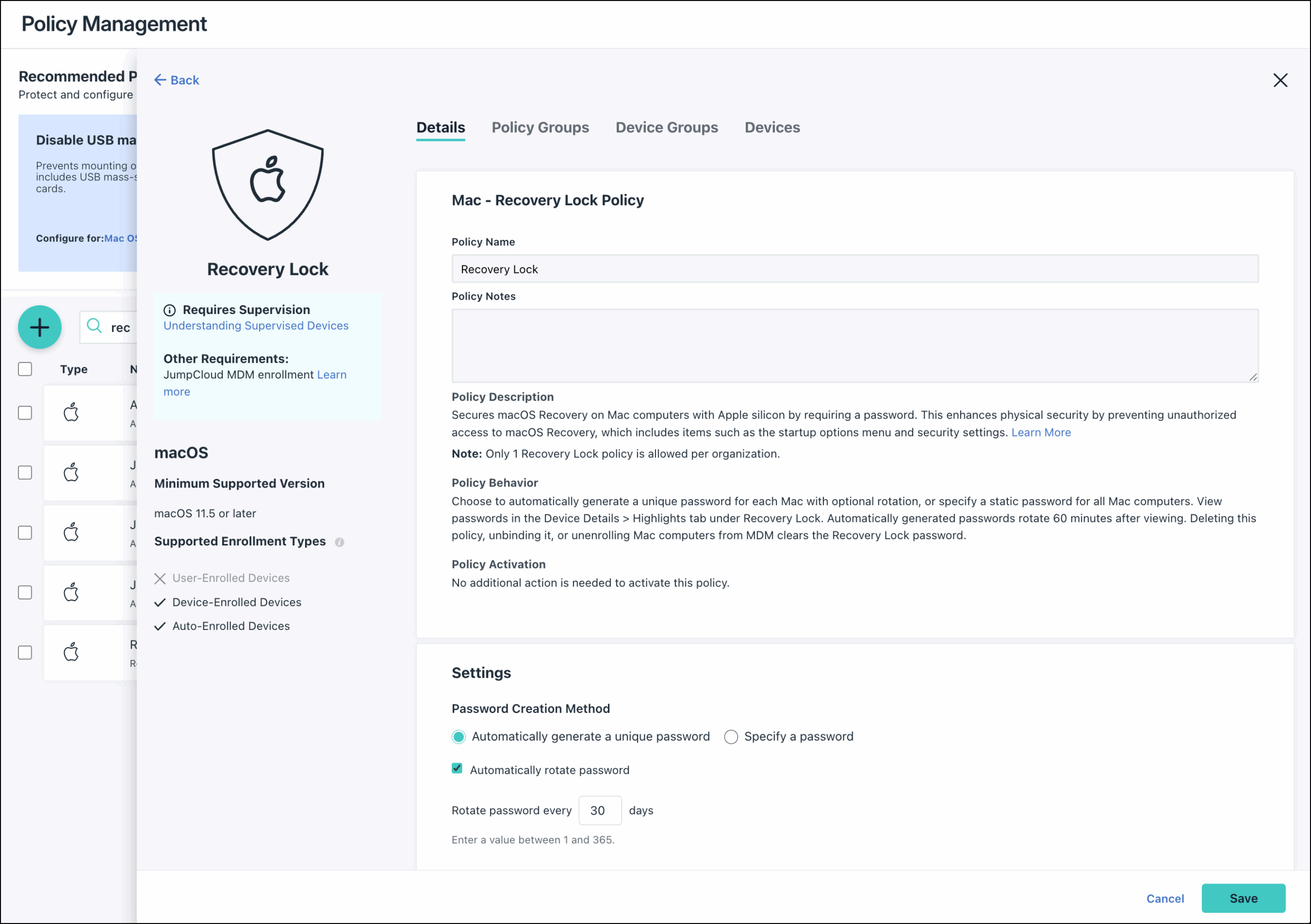
Accessing Recovery Lock Passwords
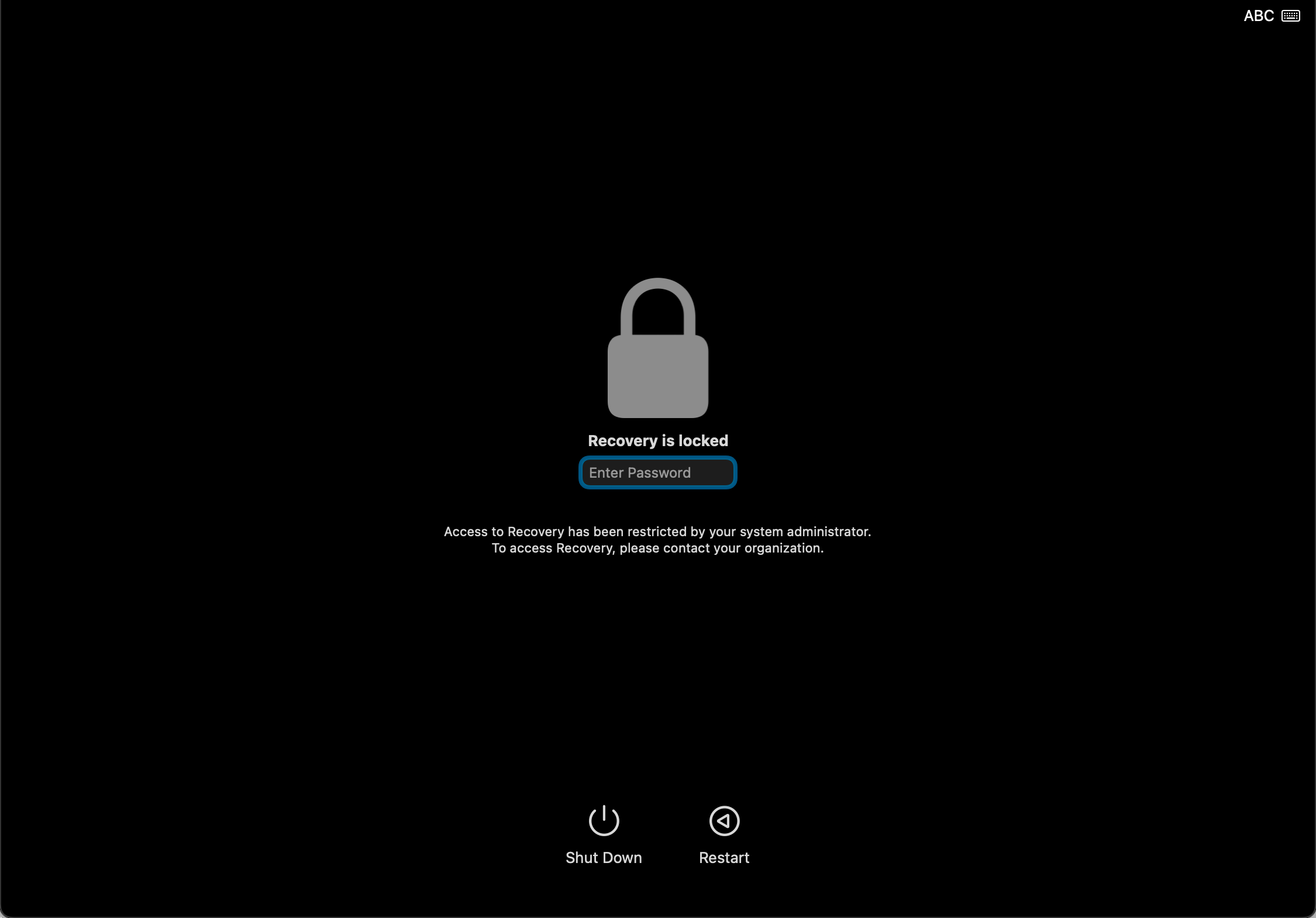
If you need to access macOS Recovery on a Mac after enforcing the policy, you can view the saved password in JumpCloud.
To access Recovery Lock passwords:
- From the JumpCloud Admin Portal, go to Device Management > Devices.
- In the Devices list, select the desired Mac.
- In the Highlights tab, under Recovery Lock, click View Password.
Automatically generated passwords rotate 60 minutes after viewing them.
- Enter this password as shown, including hyphens (-) on the Mac to enter macOS Recovery.

 In this Article
 Learn More