


 Subscribe to Help Center RSS Feed
JumpCloud Vault provides administrators with two complementary tools for auditing platform activity: Audit Logs and Session History. Audit Logs capture every operation performed within the platform at the API level, giving administrators a complete record of who did what and when. Session History goes deeper, providing a full record of privileged access sessions, including video recordings, keystroke logs, and query history, depending on the resource type.
Use Audit Logs for broad operational visibility and compliance reviews.
Use Session History when you need to investigate what happened during a specific connection to a server, website, or database.
Audit Logs
Audit Logs record every operation performed in the platform, from user creation and deletion to resource access and configuration changes. Each entry captures the user who performed the action, the service and action name, the IP address and browser used, the duration of the request, and its success or failure status.
To access Audit Logs, go to Administration > Audit Logs.
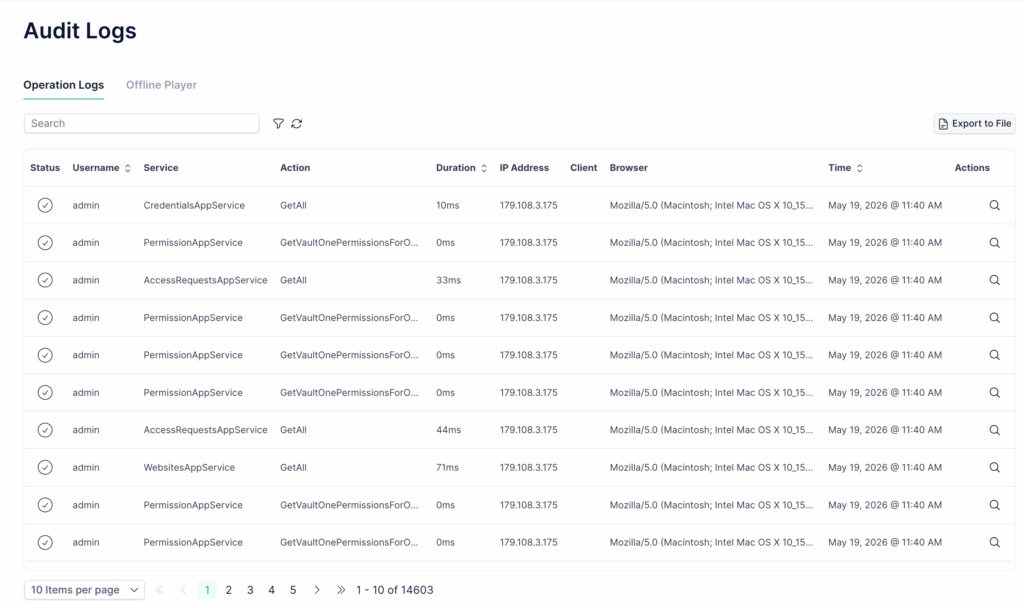
Reading a log entry
Each row in the Operation Logs table represents a single platform operation.
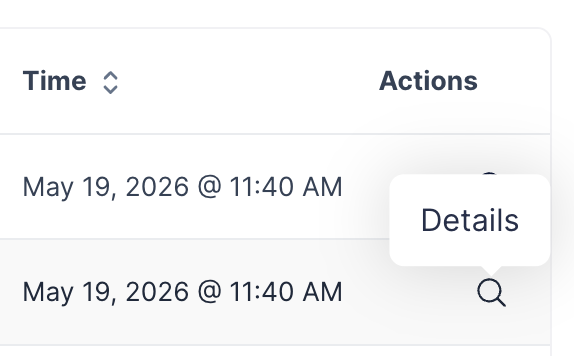
To see the full detail of any entry, click the magnifying glass icon in the Actions column. The Audit Log Detail panel shows:
- User Information: username, IP address, client, and browser
- Action Information: service name, action name, timestamp, duration, and error state (Success or failure)
- Parameters: the input data passed with the request, shown as JSON
- Custom Data: additional context when available
Filtering logs
The log table can be filtered to narrow down results.
Click the filter icon next to the search bar to open the Filter panel. Available filters include:
- Date Range: defaults to the last 7 days
- Service: filter by the internal service name
- Action: filter by specific action (for example, OpenConnection to see all session starts, or DeleteUser to audit user deletions)
- Error State: filter by All, Success, or failed operations (Error)
- Browser: filter by the browser string
- Duration (ms): set a min/max range to surface slow or anomalous operations
Exporting logs
To export the full log for offline analysis or compliance reporting, click Export to File in the top right of the Audit Logs screen. The export starts immediately and the file downloads automatically when ready.
Offline Player
The Offline Player is the second tab within the Audit Logs screen. It is used to play session recording files that have been downloaded from Session History.
Any video downloaded from the platform, regardless of resource type (website, server, or database), can be opened here. The Offline Player preserves the full viewing experience, including keystroke timestamps, alongside the video.
Session History
Session History provides a record of every privileged access session brokered through the platform. It is the primary tool for investigating what happened during a specific connection to a server, website, or database.
To access Session History, go to Administration > Session History.
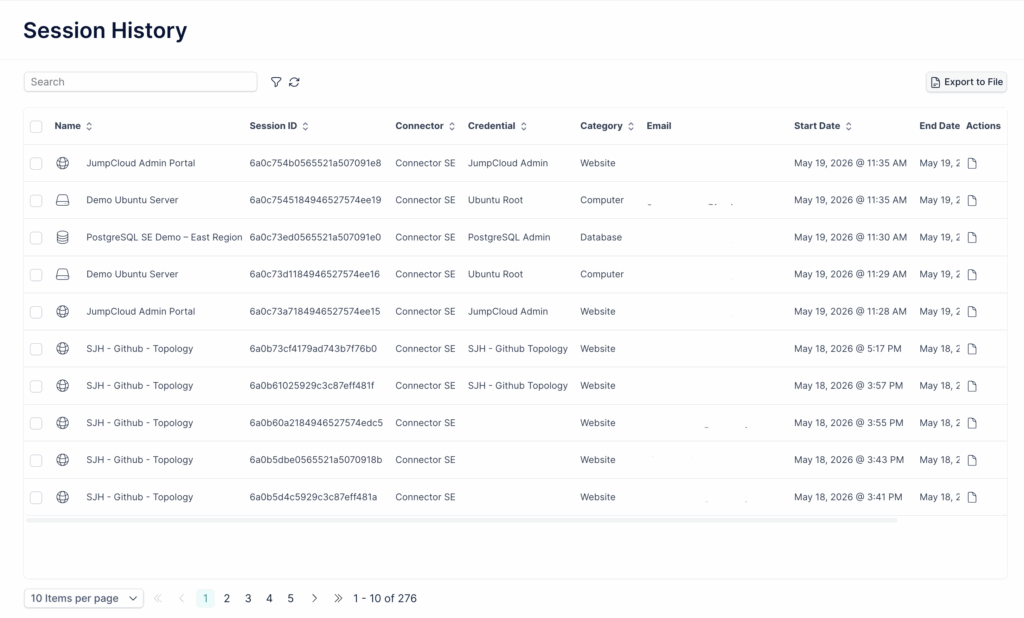
Each row represents a completed or active session. The table shows the resource name, the session ID, which connector brokered the session, which credential was used, the resource category, the start and end time, and the session status.
Filtering sessions
Click the filter icon to open the Session History filter panel. Available filters include:
- Date Range
- Connector: filter by the connector that brokered the session
- Users: filter by the user who initiated the session
- Has Recording: filter for sessions that have a video recording (Yes, No, or All)
- Category: filter by resource type (Websites, Computers, Databases)
- Resource Name
- Session ID
- Resource ID
- Duration: set a min/max range in HH:MM format
Viewing session files
To inspect the recordings and logs for a specific session, click the file icon in the Actions column. The Session Files modal opens. What is available depends on the resource type:
Websites
For website sessions, Session Files may include a Video recording and a Keystroke Audit file. The video shows on-screen activity and mouse movement. The Keystroke Log panel, visible within the video player, displays every key pressed during the session with timestamps, allowing administrators to review exactly what was typed and when.
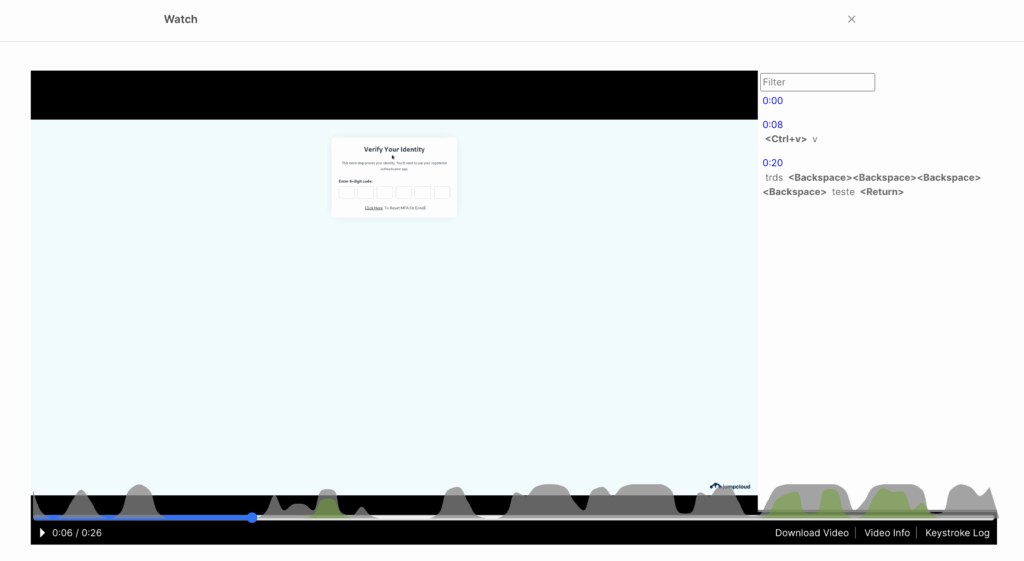
Servers
For server sessions, Session Files include a video recording with the integrated Keystroke Log panel. The video and keystroke data are synchronized, so each command can be located at the exact moment it was executed. The Keystroke Audit can also be downloaded as a standalone text file, but viewing it inside the player is recommended because the standalone file does not include timestamps.
Databases
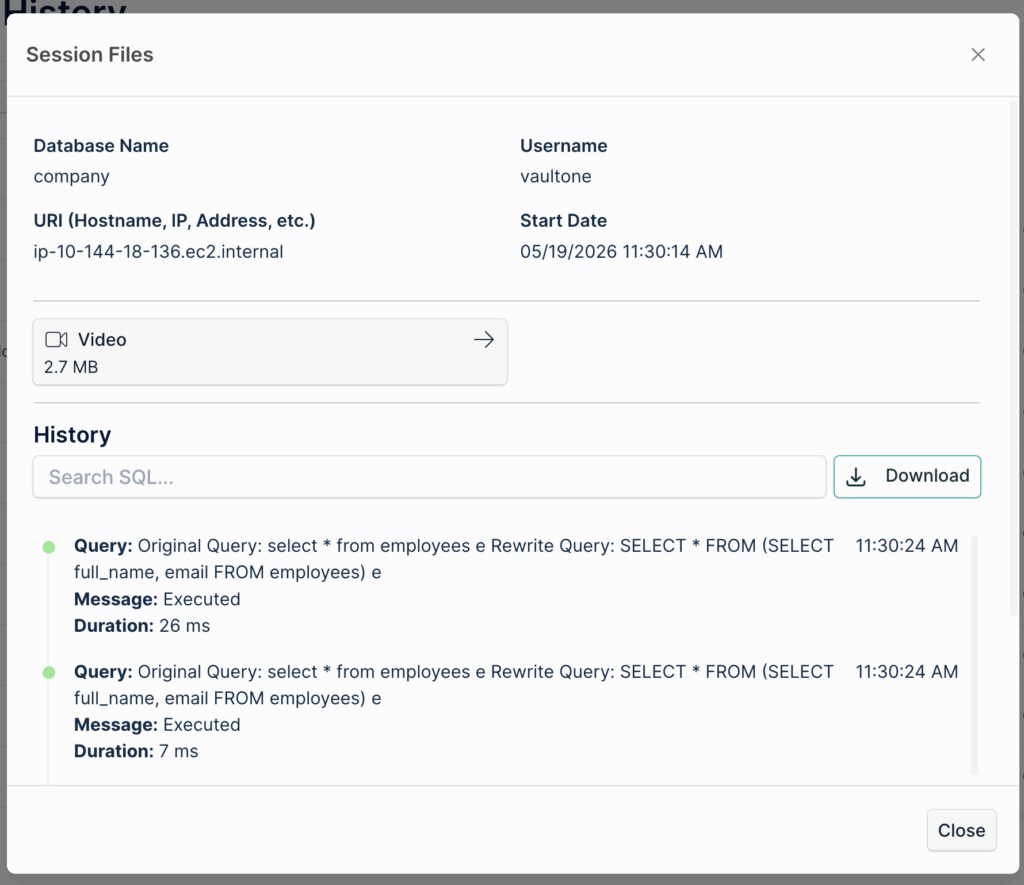
For database sessions, Session Files include a Video recording and a Query History log. The History section lists every SQL query executed during the session, along with the message returned by the database (for example, "Executed" or a blocking rule alert) and the duration of each query. This is particularly useful for identifying unauthorized or anomalous queries.
Even if video recording is disabled for a database resource, query history is always captured. Administrators can review the full query log for any database session regardless of whether a video is available.
Downloading session videos
Videos can be downloaded directly from the Session Files modal or from within the player using the Download Video button.
Downloaded files use a proprietary format and must be opened using the Offline Player in Administration > Audit Logs.
Live Session Monitoring
In addition to reviewing historical logs and recordings, administrators can monitor active sessions in real time through the Connectors screen.
To view active sessions, go to Administration > Connectors. In the Actions column for any connector, click the eye icon. This opens a panel showing all sessions currently active through that connector, including the username, the resource being accessed, the credential in use, and the session start time.
Live session monitoring is available for sessions on resources where video recording is enabled. For any active session, administrators can:
- Watch the session live by clicking the eye icon next to the session entry, which opens a real-time view of the user's screen
- Disconnect the session immediately by clicking the disconnect icon, terminating the user's access to the resource
This capability is particularly useful when an administrator detects unexpected or suspicious activity and needs to intervene without waiting for the session to end.
Data Retention
JumpCloud Vault retains audit and session data for the following periods:
- Audit Logs (Operation Logs): 90 days. Entries older than 90 days are automatically removed.
- Session History recordings: 1 year. Session videos, keystroke logs, and query history are available for up to 12 months from the date of the session.
 In this Article