Get Started: Workflows
Overview
JumpCloud Workflows is a centralized automation feature built into the Admin Portal. It helps you automate common identity, device, and access tasks using a no-code/low-code workflow builder UI instead of complex scripts.
With Workflows, you design automations using three core building blocks:
- Triggers – events that start a workflow (for example, a new user is created, group membership changes, or a scheduled time is reached)
- Conditions – rules that control the path a workflow takes (for example, checking attributes, group membership, or other criteria)
- Actions – tasks the workflow performs (for example, adding a user to a group, sending a notification, modifying an attribute, or calling an external API)
With Workflows, you can find templates for common tasks such as onboarding/offboarding, handling inactive users or devices, and enforcing device compliance, or you can design your own flows from scratch.
Key Features
In the Workflows section, you can:
- Create and edit custom workflows with drag-and-drop components.
- Enable and monitor workflows from the Workflows section governed by your existing admin roles.
- Use prebuilt templates for common use cases like onboarding, off boarding, and device compliance.
Start with a template to see best practices in action. Templates are your quickstart guide to create workflows for common use cases. They contain predefined actions, conditions, and triggers that are required to achieve a specific use case and require minimal user inputs (enter only what is needed).
Prerequisites
- Ensure you have an Administrator or Administrator with Billing role to begin using workflows.
- Ensure that all necessary groups, policies, commands, notification channels, and so on, are created and available for use in a workflow.
User Roles
Only users with Administrator or Administrator with Billing roles can create and manage workflows.
How does this work?
Workflows in JumpCloud run as automated flows that react to events, evaluate logic, and then perform actions across your environment.
At a high level, each workflow follows the same pattern:
- An event triggers the workflowWorkflows start when a defined trigger fires such as a user is added, suspended, or device is added.
- Conditions decide what should happen nextAfter the trigger fires, the workflow evaluates one or more conditions to decide which path to take. Conditions can check attributes (for example, user or device attributes).
- Conditions can check group membership or other state.
- Actions make changes or call systemsIf the conditions are met, the workflow then performs one or more actions such as:
- Updating a user (for example, modifying attributes or state).
- Adding or removing users from groups.
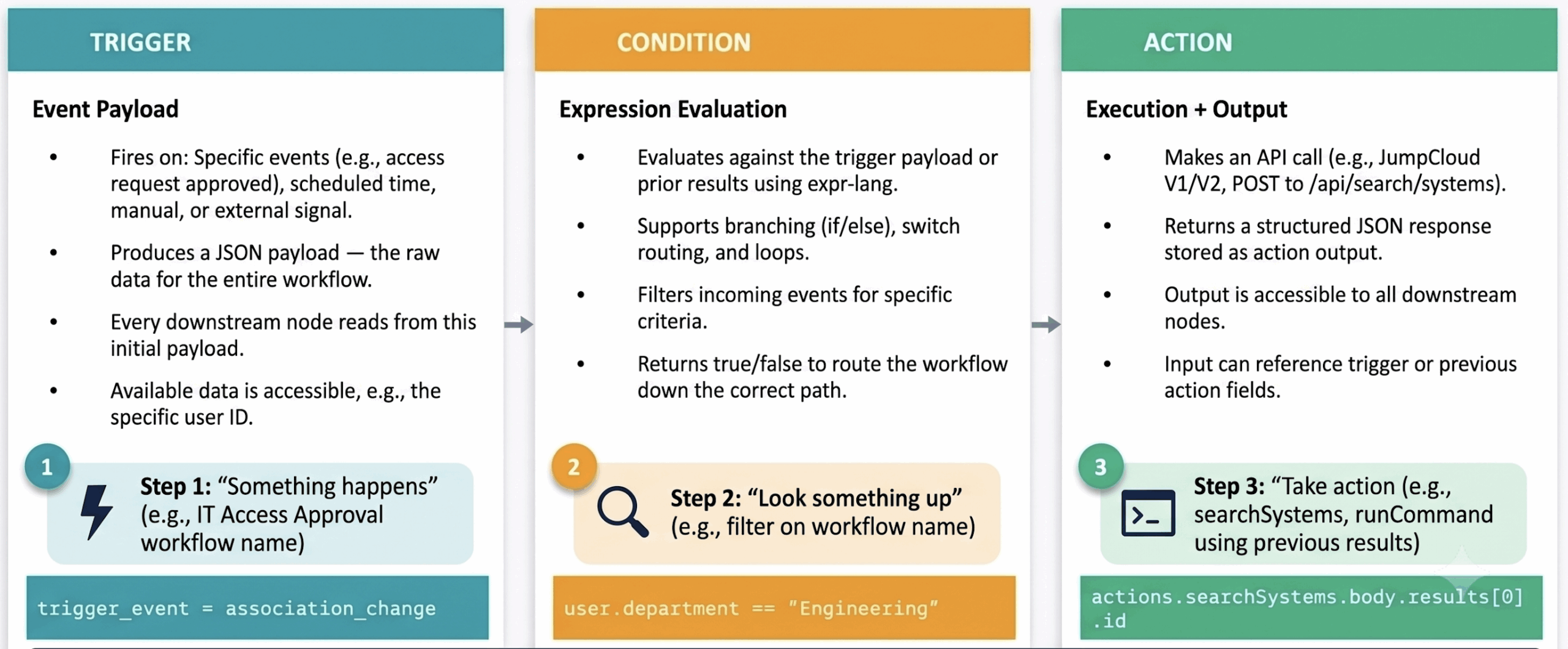
In practice, this means you design a flow once using triggers, conditions, and actions and JumpCloud runs it automatically every time the defined event occurs, replacing manual steps and scattered scripts with a consistent, workable automation.
You design and manage workflows in the Workflows section of the Admin portal.
- You can create your own workflows. See Create Workflows to learn more.
You can create workflows in two ways:- from scratch using a drag‑and‑drop visual builder that lets you place triggers, conditions, and actions on a canvas and configure them easily.
- from predefined templates that are designed for specific use cases and require minimal inputs.
- You can enable, disable, edit, and delete workflows, and review status and history from one place.
Was this information helpful?