


 Subscribe to Help Center RSS Feed
This Single Sign-On (SSO) workflow lets the JumpCloud-managed identity be asserted via the SAML protocol to an application. SAML configuration guides for each of the application service providers supported by JumpCloud can be found in the Apps & Integrations section of the JumpCloud Help Center. Find a specific SSO configuration guide by searching for an application's name in the search bar at the top of the page.
Using SSO Applications with JumpCloud
Selecting an SSO Application
Select an application you want to connect with JumpCloud using a prebuilt SAML 2.0-based SSO connector.
You may see some applications in the list with a BETA flag. We're evaluating these connectors in various real-world environments so we can gather feedback to enhance their performance. You may also see some applications with a JIT Provisioning label. This signals that you can provision users to that application using Just-In-Time Provisioning.
If there isn't a prebuilt connector for an application you want to connect to JumpCloud, you can use the Custom SAML 2.0 connector.
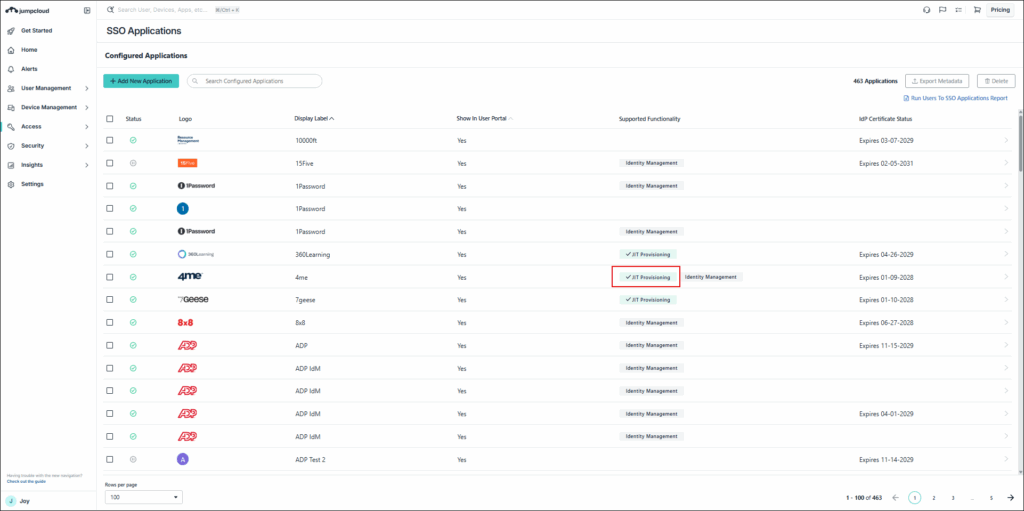

Some applications use a shared login with the services they provide. For example, the Atlassian connector provides SSO to JIRA, Confluence, and BitBucket. When you search for these applications, the Atlassian connector shows up in the search results because that’s the connector the applications share a login with.

You can connect on-prem/legacy applications that use LDAP to JumpCloud's LDAP services. See Use Cloud LDAP.
Configuring Your SSO Application
You can set various SAML configurations, with JumpCloud acting as the app's "IDP," or identity provider.
To use metadata
Once you've created your connector, you can export or import metadata to populate connector attributes for supported applications. To apply metadata for an application you’re connecting, click Export Metadata and then upload it to the service provider. If supported, you can also click Copy Metadata URL and paste it into the service provider's configuration page.

Be aware that if you upload more than one metadata file, you’ll overwrite the attribute values applied in the previously uploaded file.
To manually configure
If metadata is not available, you can manually configure the connector. Each application connector has explicit instructions required to establish the connection. Refer to an application's SAML / SSO connection documentation for information on setting up your application to integrate with JumpCloud.
See SSO Application Connector Fields for more information about JumpCloud's configuration options.
Managing Employee Access to Applications
Users are implicitly denied access to all JumpCloud resources, including applications. JumpCloud admins must explicitly grant access to SSO applications through the use of user groups.
To grant access to a user group
- Log in to the JumpCloud Admin Portal.
If your data is stored outside of the US, check which login URL you should be using depending on your region, see JumpCloud Data Centers to learn more.
- If you haven't already created a user group, create a new group. See Get Started: User Groups.
- If the group exists, go to Access > SSO Applications and select the SSO application.
- Select the User Groups tab.
- Select the user group(s) and then click Save.
Configuring Authentication from the Application Service Provider
The service provider (SP) typically provides SAML configuration parameters to set up SSO from a compatible IdP like JumpCloud.
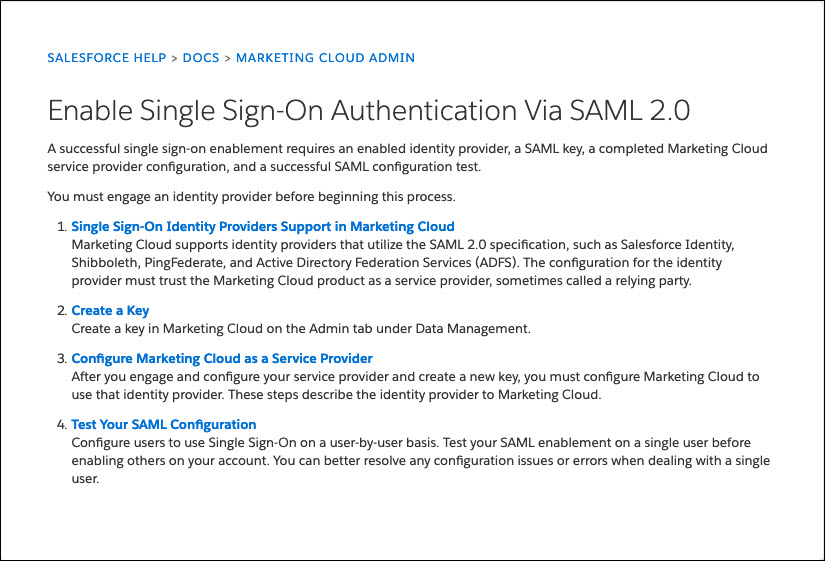
The following image shows Salesforce's instructions for setting up the Marketing Cloud for SAML SSO.
End User Experience
After you configure both the IdP and SP for SSO, employees can access the applications in two ways:
- IdP-Initiated - Access from the JumpCloud User Portal
- SP-Initiated - Access directly from the application
IdP-Initiated
For IdP-initiated SSO, users access an SP application from the JumpCloud User Portal.
User workflow for IdP initiated SSO
- Log in to the JumpCloud User Portal.
If your data is stored outside of the US, check which login URL you should be using depending on your region, see JumpCloud Data Centers to learn more.
- Go to Applications.
- Click an application tile to launch the application. JumpCloud asserts the user's identity to the SP and is authenticated without the user having to log in to the application.
SP-Initiated
For SP initiated SSO, users access a SP application from the SP application's login.
SP-initiated SSO isn't supported by all SP applications.
User workflow for SP initiated SSO
- Go to the SP application login.
- Generally, there is either a special link or an adaptive username field that detects the user is authenticated through SSO. This varies by SP.
- Login redirects the user to JumpCloud. The user enters their JumpCloud credentials.
- After the user is logged in successfully, they are redirected back to the SP and automatically logged in.
Additional User Experience Considerations
- Session timeout in JumpCloud is independent of SSO service providers. In situations where users of SSO applications experience a User Portal timeout (depending on session timeout settings), keep in mind:
- Session timeout is completely independent of the service provider when configuring the JumpCloud User Portal Session Duration in the Admin Portal
- Some connectors will support passing along a Constant Attribute to dictate the duration of a user session before expiry. An example of this is Amazon AWS's "SessionDuration"
- MFA Claim Configuration can be configured for high-security applications, like SalesForce.
- A few connectors support SLO (Single Logout). This is not related to session timeouts; SLO is a configuration that will push the user to the JumpCloud User Portal when logging out of the service provider application
- JumpCloud users' email addresses are formatted in all lowercase which may cause issues with SSO and legacy applications that have case sensitive user names
Are you a visual learner? JumpCloud offers two courses:
 In this Article
 Learn More