Connect


You can give a manager a list of employees and permissions. But that list alone won’t tell them whether the access still fits the work. They may recognize everyone on the list, but still not know what the group memberships allow.
To make a useful decision, they need to connect those permissions to someone’s current work. That may mean finding an application owner or searching for an old project approval. Your review request has become a search task with a deadline. Simply going ahead and approving the access can feel like an easier way to finish.
That is rubber-stamping: approving access without checking whether it still fits the person’s work. You can reduce this by making the decision clear and giving reviewers a way to resolve doubts. More deadline reminders alone won’t supply the information they’re missing.
The Business Reason Behind a Permission
“Quarterly financial reporting: read and update reporting files” gives a manager a clear link to an employee’s duties. It may also help them spot access that belonged to a previous role.
The description needs to reflect the actual access. A friendly label can still hide broad permissions. Someone may need an application without needing admin rights inside it. Your reviewer should know exactly what the campaign covers.
Four questions help bring the decision into focus:
What can this person do with the access?
Which part of their current role requires it?
Does a short-term task or an exception apply?
Who can clarify anything the reviewer shouldn’t be able to assess?
Consider an employee who has changed roles but still helps with quarterly reporting during a handover. “Still employed” gives you little to go on. A clearer note would say, “Helps with quarterly reporting during the handover. Review access again on December 31.” This records the short-term need and when to check again.
That example also shows the limit of mandatory comments. You can require a justification, but the manager still needs to confirm that the handover continues. A longer text field won’t help if they lack that information.
NIST SP 800-53 control AC-6(7) calls for regular reviews to check whether assigned privileges are still needed. You should reassign or remove privileges as needed to reflect business needs. When you review access, you’re checking the reason for granting it. A previous approval doesn’t establish that the reason still holds.
Who Can Answer the Access Review Question?
Your managers, application owners, and IT team bring different knowledge to a review:
- Managers know each employee’s current tasks and duties.
- Application owners know what each permission allows in their systems.
- IT teams trace group memberships and assess what an access change will affect.
A manager who confirms an employee’s reporting duties may still need the application owner to explain a permission. That doesn’t necessarily make the manager the wrong reviewer. They may need an answer before deciding. In other cases, reassignment is appropriate because someone else understands the work or resource better.
Giving reviewers a named contact means they can ask about a permission without first tracking down its owner.
Your deadline also needs to allow for that exchange. Whatever your policy for missed deadlines, track unanswered items apart from the choices reviewers made.
Plan Around Your Reviewers’ Workload
You may see several small campaigns on your schedule. A department head may receive all of them in the same week, alongside their usual work.
Too many review items can lead to reviewer fatigue and rubber-stamping. Missing context makes those decisions harder.
Looking across campaigns gives you a better basis for planning:
- Check for reviews already underway before assigning another campaign to the same people.
- Group related access so reviewers can assess it with less repeated research.
- Stagger campaigns to leave room for questions.
- Let your risk assessment and policy guide how often you review access.
Bulk actions can help reviewers apply the same decision to several people. To assess whether those decisions were informed, sample the reasons behind them rather than judging by selection size.
Use automation to assign reviews and send reminders with fewer manual follow-ups. Planning around reviewers’ workloads gives them time to assess access and resolve questions before the deadline.
Use Activity to Inform the Decision
An employee’s activity can give you a reason to question access, but it needs context. A quarterly reporting tool may sit idle between reporting periods. Someone who has changed roles may keep using an application out of habit. Their new duties may no longer justify that access.
Before drawing a conclusion from a missing login, check which events your system captures and how far back records reach. A blank activity field may reflect the logging window. Your reviewer still needs to establish whether the employee has a current reason for access.
What to Examine After the Review
Once the campaign closes, look at situations where access was retained, and where it was revoked. Spot where the process helped people and where it left them guessing. Using that sample, check if reviewers:
- Gave reasons that connect access to current work.
- Checked known role changes and short-term tasks.
- Followed through on questions they could not resolve themselves.
Use recurring questions and reassignments to identify where the process needs attention. If several reviewers ask about the same group, improve its description. If items are frequently reassigned, check whether you assigned the right reviewers.
Treat approval rates and speed as prompts for a closer look. Quick decisions and few removals may reflect well-maintained access. Compare them with the reasons recorded, and avoid revocation targets that could encourage reviewers to remove legitimate access.
Use what you find to improve the next campaign’s descriptions, reviewer assignments, and timing.
Put Your Review Process Into Practice with JumpCloud
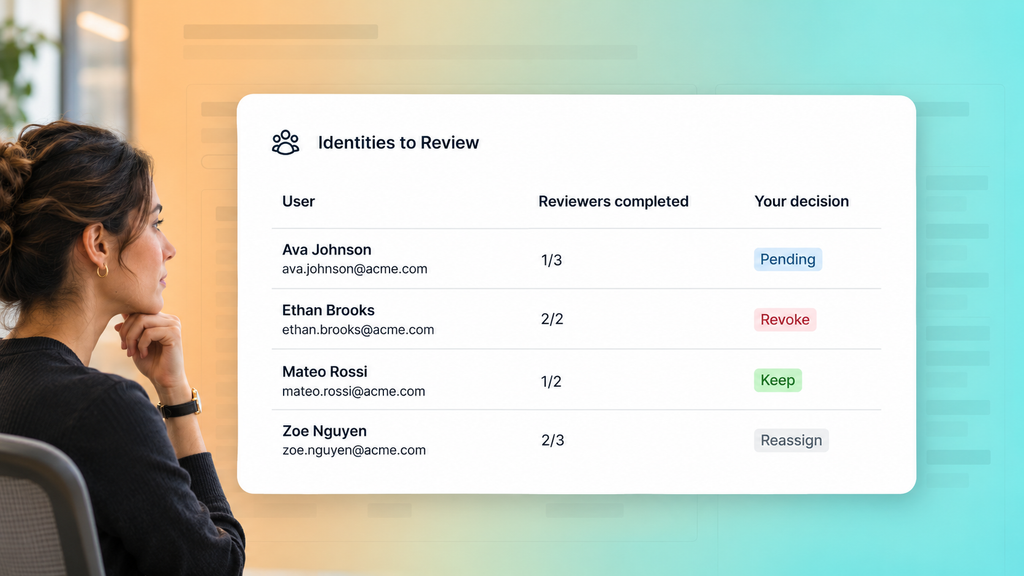
Use JumpCloud Access Certification to run campaigns for single sign-on (SSO) application access and user group membership.
- Choose the managers, resource owners, administrators, or reviewer groups identified in your review plan. Add stages where the decision needs input from more than one reviewer. Administrator reviews use a single stage.
- Let reviewers route an item to someone better placed to decide by enabling reassignment for supported reviewer types.
- Require comments where you need a record of why access was kept or revoked.
Non-admin reviewers complete their assigned reviews in the JumpCloud User Portal. For application reviews, last access comes from JumpCloud Directory Insights™ SSO events within its 90-day window. Reviewers can weigh this record alongside what they know about the employee’s work.
Follow Through on Decisions and Preserve Evidence
A completed review tells you that decisions have been recorded. You still need to confirm that the resulting access changes happened and retain the evidence you need.
- Track every access change. After a final revocation, your chosen settings can remove the reviewed group membership. You can set this to happen right away or on a schedule after the review phase closes. Follow up on changes that remain outstanding.
- Check the effect on access. Removing a membership affects access granted through that group. Other access paths or the account inside the application may need separate action.
- Export and retain your evidence. Save campaign reports and the supporting Directory Insights events to meet your policy for keeping records. Directory Insights retains events for 90 days, so export the events you need before that window expires.
Further reading: Do you also manage AI agents? Explore the gaps in point-in-time audit evidence in AI Agents Need Always-On Evidence.
Clear context helps reviewers make informed choices. Tracking access changes and keeping reports helps you show what happened after each review. See how access reviews work in JumpCloud to connect those steps in your next campaign.