Users: Access Certification Campaigns
Access Certification lets you review assigned identities in the JumpCloud User Portal and record Keep, Revoke, or Reassign decisions. You do not need Admin Portal access to complete these reviews. Campaigns that your IT Admin creates in the Admin Portal appear in the user portal under Tasks > Reviews when you are assigned as a reviewer.
This article covers the user portal reviewer experience only. Administrators who review under the Administrator reviewer type complete reviews in the Admin Portal, not the User Portal.
Prerequisites
-
The global Enable Access certification toggle button is turned on in Admin Portal settings. When it is turned off, reviewer notifications stop and the campaigns list is not visible in the user portal.
-
A work email is stored on your JumpCloud directory user record so reviewer emails can be delivered.
-
You are assigned as a reviewer on an Access Certification campaign (for example, Users manager, Resource owner, or User group).
Considerations
-
Campaigns stay listed until Closed: After you submit decisions for every assigned identity, the campaign stays visible in read-only mode until it moves to Closed in the Admin Portal. When it is Closed, it is removed from your Campaigns tab.
Once the decision is submitted, it cannot be changed because it is immediately sent to the next reviewer, if one exists. -
Default filter is Pending: On the campaign review page, Your Decision defaults to Pending.
-
Self-review is not permitted: Your own identity is excluded from your identities list. If the reviewer step is a User group with other members, those members review the item. The item is escalated to an administrator only when you are the sole eligible reviewer.
-
Reassign is campaign-controlled: Reassign appears only when Reassign review is enabled for the campaign. It does not apply to the Administrator reviewer type.
-
Last accessed uses Directory Insights in this release: For Application access campaigns, last accessed comes from Directory Insights (DI) within the 90-day retention window.
Accessing Campaigns
-
Log in to the JumpCloud User Portal.
-
In the left navigation, go to Tasks > Reviews.
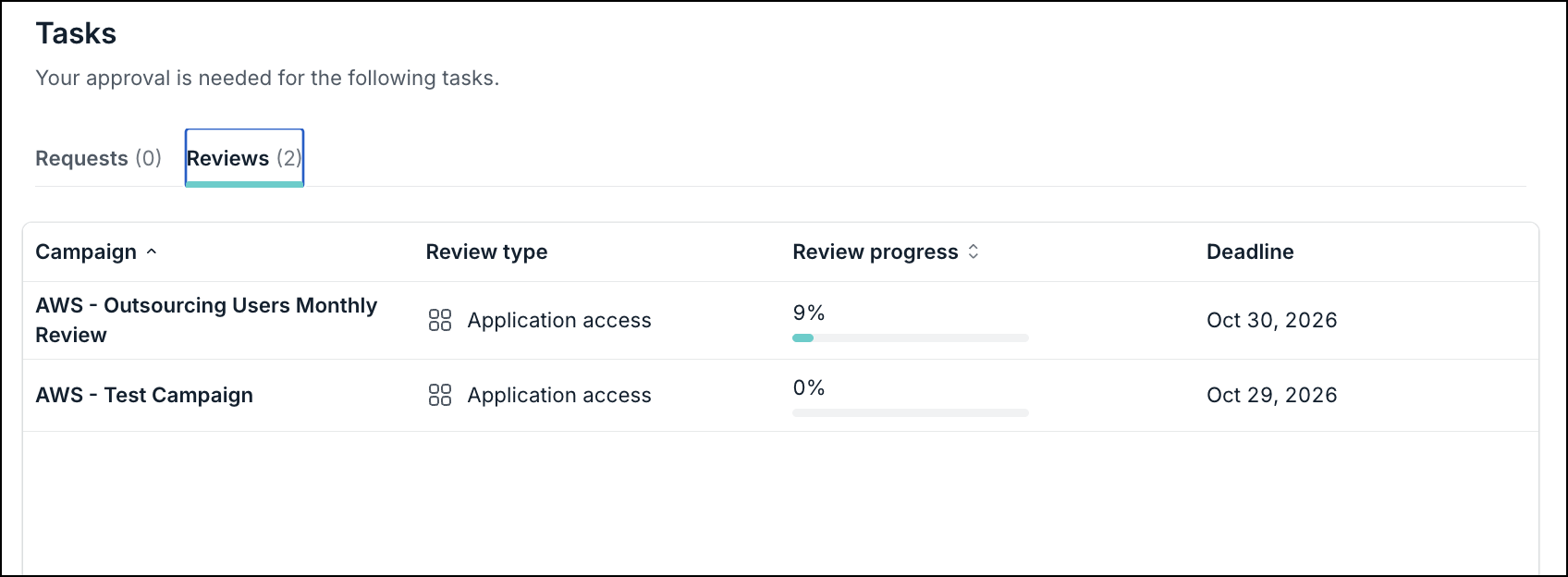
The Campaigns details page shows the details of the campaign.
When an administrator turns off Enable Access certification, Active campaigns pause for reviewers and this list is not visible in the user portal.
Viewing Assigned Campaigns
The Reviews tab lists every campaign assigned to you, including campaigns where you have no remaining pending decisions. Campaigns leave this list only when they move to Closed in the Admin Portal.
The table displays the following columns:
| Column | Description |
|---|---|
| Campaign | The campaign name. Click the name to open the campaign review detail page. |
| Review type | The type of access under review, shown with an icon. Examples: Application access, Group membership. |
| Review progress | A percentage bar for the identities assigned to you that already have a decision. For example: 17%. |
| Deadline | The date by which you must complete all decisions. |
You can sort columns. When results exceed the page size, pagination controls appear: page size selector, first, previous, next, and last.
If you have submitted decisions for all assigned identities, you can still open the campaign and view decisions and identity details. Keep, Revoke, and Reassign are not available.
Reviewing Campaign Identities
On the campaign review page, the campaign details are visible. The campaign description appears below the title when one was provided.
Directly below the campaign name, two status badges are displayed:
-
Review progress: Your personal completion percentage for this campaign.
-
Remaining days: Days left in the review window.
The page has two panels. The left panel is the identities table. The right panel shows details and decision controls for the selected identity. The first identity row is selected by default, and the right panel loads that identity.
Click the All Reviews button in the upper-left corner to return to the Reviews tab.
Searching and Filtering Identities
The table action bar includes:
-
Search: Filters the table in real time by identity name or email.
-
Filter: Opens the Apply filters panel.
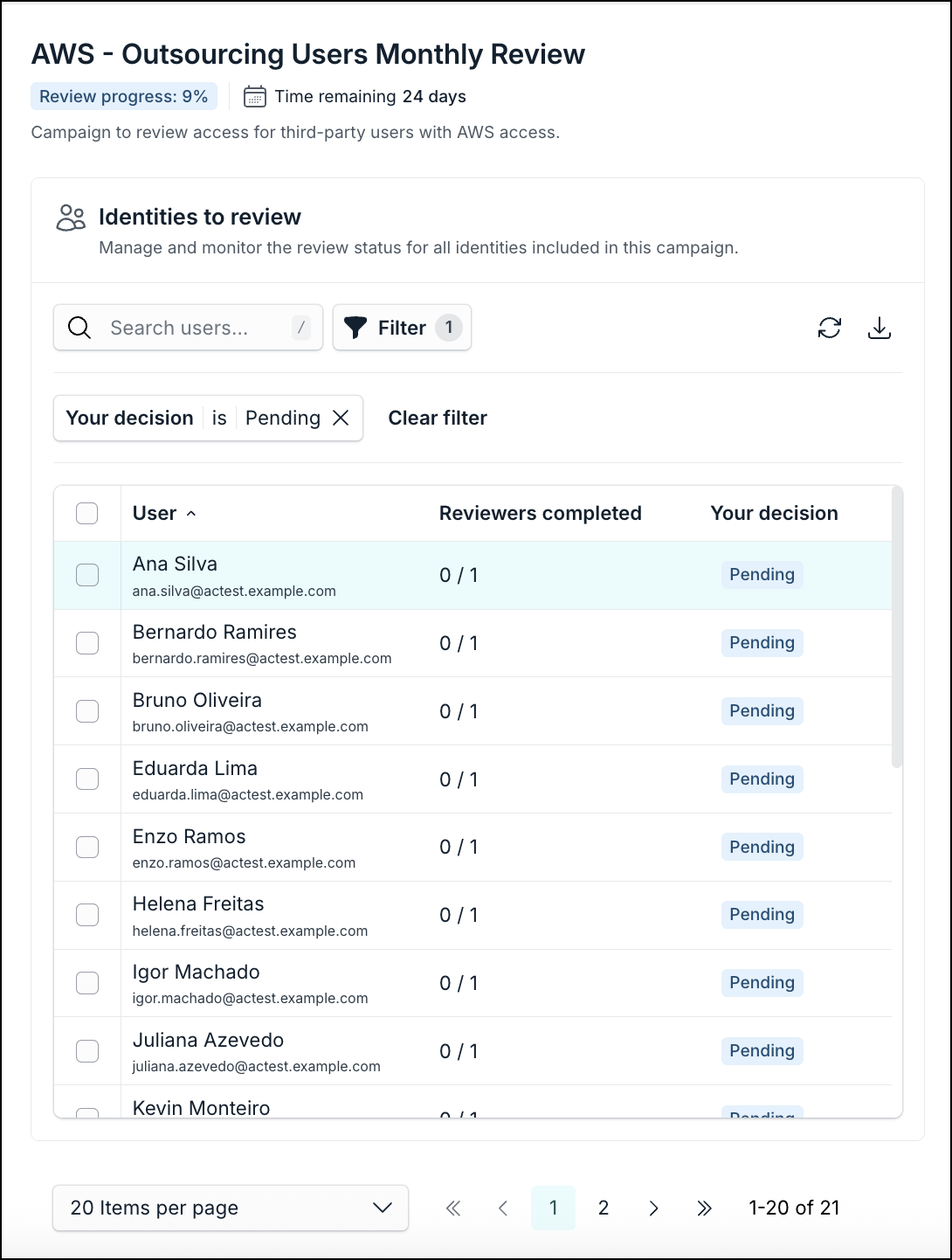
Your Decision (Statuses) is a multi-select menu with Keep, Revoke, Pending, Reassign, and No response options. Pending is applied after loading the page.
Additional filters uses the helper text Filter identities by directory attributes. and includes:
-
User status — Multi-select: Active, Suspended, Staged.
-
Company — Drop-down; set to All companies by default.
-
Department — Drop-down; set to All departments by default.
-
Cost center — Drop-down; set to All cost centers by default.
-
Employee type — Drop-down; set to All employee types by default.
-
Last accessed — An operator dropdown (for example, Is before) paired with a date picker (Select date).
The Apply filters panel footer shows the count of active filters (for example, 1 Filters applied) and includes Cancel, Clear all, and Apply.
Downloading Your Identities List
Click the Download icon to export your current identities list in CSV and JSON. The export reflects the applied filter.
Identities Table Columns
| Column | Description |
|---|---|
| User | Full name and email address. Click the name to open the identity in the right panel. Click elsewhere on the row to select the row checkbox. |
| Reviewers completed | Step completion for the reviewer chain. For example: 0 / 1 or 1 / 2. |
| Decision | Status from your perspective: Pending, Keep, Revoke, or Reassign. |
The identity displayed in the right panel is highlighted in the table. Your own identity is excluded from this list.
Using Bulk Actions
When you select one or more rows, a selection count appears (for example, 5 users selected) and a bulk action bar appears at the bottom of the table:
-
Keep: Records a Keep decision for all selected identities. A confirmation modal is required before the decision is applied.
-
Revoke: Records a Revoke decision for all selected identities. A confirmation modal is required before the decision is applied.
-
Reassign: Opens the Reassign review modal for all selected identities.
-
Dismiss (×): Clears the selection and hides the bulk action bar.
Selecting the header checkbox selects all identities on the current page.
Using the Identity Side Panel
The side panel is always visible next to the identities table. It is not collapsible. Clicking an identity name updates the panel without a page reload.
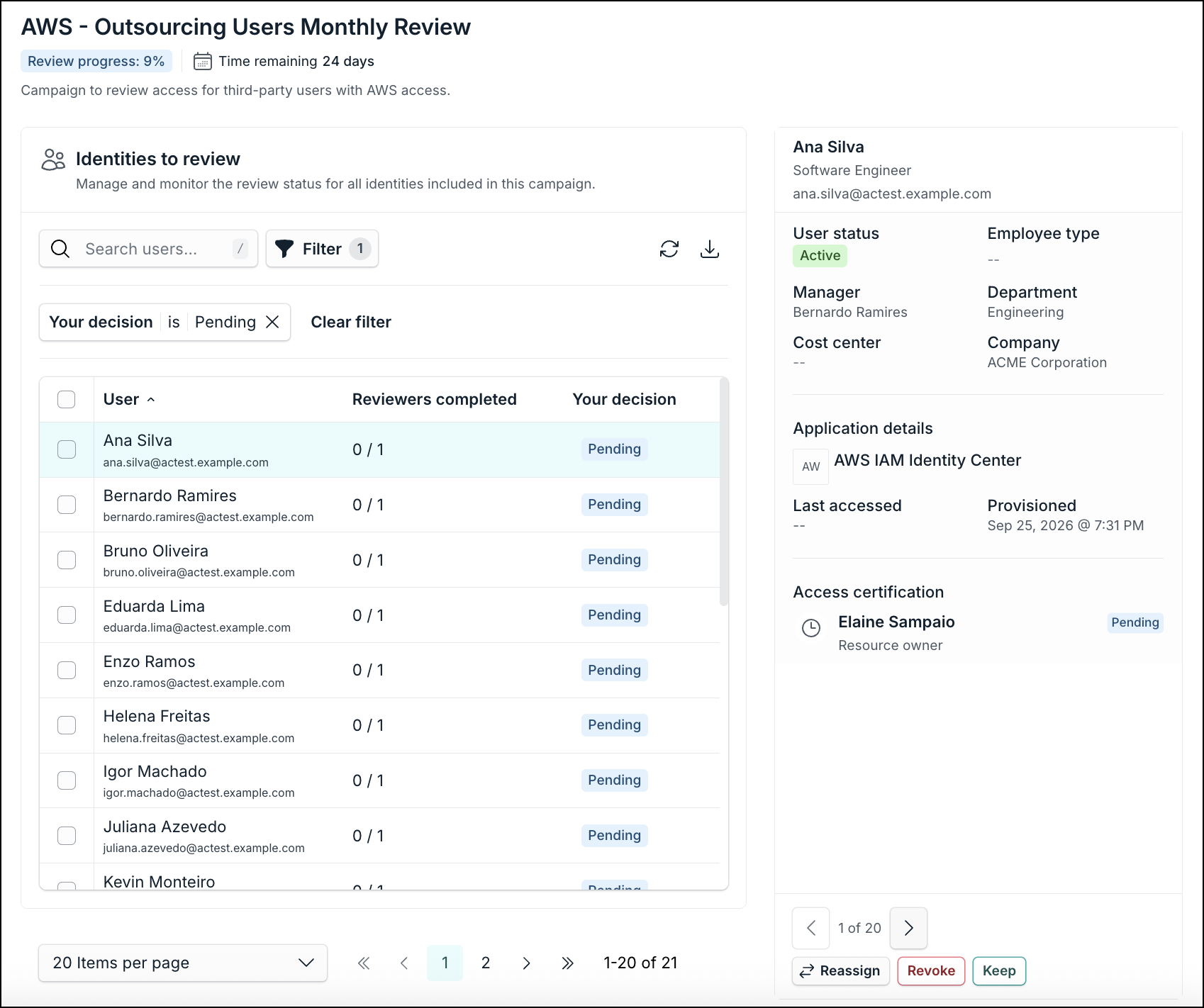
A position indicator shows [N] of [Total] for the selected identity in the current filtered view, with previous (←) and next (→) arrows. For example: 1 of 5.
Reviewing User Details
The panel header shows the identity's full name, job title, and email address.
The User details section displays:
-
User status: Active, Staged, or Suspended, shown as a badge
-
Employee type: For example, Internal or Contractor
-
Manager: Full name
-
Department
-
Cost center
-
Company
Reviewing Application Details
The Application details section appears only for Application access campaigns.
-
Application name and logo or icon
-
Last accessed: Date of the user's last activity in the application. This field is always present for application campaigns.
-
Provisioned: Date the user was provisioned to the group
Reviewing User Group Details
The User group details section appears only for Group membership campaigns.
-
Group name
-
Type: Group type (for example, Static, Dynamic)
-
Users: Total number of members in the group
-
Resources: Number of resources associated with the group
-
Provisioned: Date the user was provisioned to the group
Reviewing the Access Certification Section
This section identifies the reviewer chain type (for example, Manager review or Group owner review).
Each step in the reviewer chain lists reviewer name, role, and current decision status (for example, Pending, Keep, Revoke). Your own step is labeled You (reviewer). In a multi-step chain, steps are listed in order with individual statuses.
In a sequential chain, a Revoke decision concludes the review for that identity. Later reviewers do not receive that identity. A Keep decision passes the identity to the next reviewer. If a reviewer's window expires, the review passes to the next reviewer and the previous reviewer can no longer submit decisions for that identity.
Recording Keep or Revoke Decisions
The side panel footer is fixed. It contains the decision buttons and identity navigation.
When the identity decision is Pending, or you have not yet submitted a decision for your step, the following buttons can appear:
-
Reassign: Opens the Reassign review modal. Shown only if reassignment is enabled in the campaign configuration.
-
Revoke: Opens a confirmation modal: Record Revoke for [Name]? with Cancel and Confirm.
-
Keep: Opens a confirmation modal: Record Keep for [Name]? with Cancel and Confirm.
If the campaign requires justification from reviewers, a Justification text field appears in the Keep and Revoke confirmation modal. Confirm stays disabled until you enter justification.
After you confirm Keep or Revoke:
-
The Decision column in the table updates immediately.
-
The panel advances to the next identity with a Pending decision.
Once the decision has been submitted by the Reviewer, it can't be changed. Only the Administrator can modify a decision.
If the item review is not completed during the review window, the If no response action configured by the administrator will be executed.
When you have submitted decisions for all assigned identities, Keep, Revoke, and Reassign are not shown. The panel is read-only. Decisions and justifications appear as read-only labels. The campaign remains on the Campaigns tab until it is Closed in the Admin Portal.
Reassigning Review Items
Use Reassign when you are not the right person to review an identity and the campaign allows reassignment.
-
Click Reassign in the decision footer for one identity, or click Reassign in the bulk action bar.
-
In the Reassign review modal, select a new reviewer and enter a justification.
-
Click Reassign.
For a single identity, the modal title is Reassign review. The body reads: Select a new reviewer for [Name] ([email]).
For bulk reassign, the modal indicates the number of identities. For example: Select a new reviewer for 3 identities.
The modal contains:
-
New reviewer: Required searchable drop-down of users in the organization. The identity being reviewed is excluded. For bulk reassignment, all identities in the current selection are excluded.
-
Justification: Required free-text area. Helper text: Required. Shown on the audit trail.
Reassign stays disabled until both fields are filled. Cancel dismisses the modal without changes.
On confirm:
-
The identity is removed from your queue.
-
The identity is assigned to the selected reviewer, who receives a notification.
-
The identity's Decision column updates to Reassign.
If the recalculated review window per remaining reviewer is less than 5 days, a warning is shown that available review time is short.
Receiving Reviewer Email Notifications
Multiple identities for the same event are grouped into one message. Reviewer emails are sent to each reviewer's work email in the JumpCloud directory.
Reviewer emails are always active for Email. They are not individually toggleable. No reviewer or administrator emails are sent when Enable Access certification is off.
| Notification | When it is sent |
|---|---|
| New items to review | When a campaign starts and you have assigned identities. One message covers all identities assigned to you. |
| Item(s) reassigned to you | When another reviewer reassigns one or more identities to you. Simultaneous reassignments from the same action are one message. Separate actions or different users send separate messages. |
| Review reminder | At the mid-point of the window when the window is longer than 5 days, and when 1 day remains. The message states how many identities are still pending. |
| Review phase complete | When the review phase closes at the End Date or when an admin ends the campaign early. Confirms that no further action is required. There is no separate early-end reviewer email. |
| Campaign canceled | When a campaign you were assigned to is canceled. Outstanding items no longer require action. |
Without reassignments, you can receive up to 3 notifications per campaign. Reassigned items add more messages.
If you are an administrator acting under the Administrator reviewer type, the same templates apply, but links and the call to action route to the Admin Portal.
Understanding Sequential Reviews and Reassignment Windows
When the campaign uses All reviewers must decide sequentially, each step must finish before the next begins. Each step has a response window. The default per-step window is the campaign duration divided by the number of reviewer stages.
When you reassign an identity, that identity's review window is recalculated from remaining campaign time divided by reviewers still pending in the chain.
For example: Consider a 30-day campaign with 2 reviewers (15 days each). If you reassign on day 10 with 20 days remaining, the new window per reviewer is 10 days each.
Completing Reviews as a User Group Member
If the reviewer step is a User group:
-
When All group members must review is enabled, every member of the selected group must submit a decision for each identity before that stage is complete.
-
Users added to the reviewer group during the campaign can pick up pending items for that group step.
-
Users removed from the reviewer group during the campaign cannot submit new decisions. Decisions they already submitted remain on the audit trail.
Learn More
Was this information helpful?