Manage Access Certification
Access Certification lets you run structured access review campaigns for Single Sign-On (SSO) applications and user groups. You create and manage campaigns in the JumpCloud Admin Portal, assign reviewers, track Keep and Revoke decisions, automate remediation, and download closed-campaign exports for audit.
Prerequisites
-
The following plan tiers include Access Certification: Platform Prime / A la carte add-on.
-
An Admin with Administrator, or an Admin role with Access Certification permission set to Full Access (create and manage campaigns) or View (read-only). See Understanding Access Certification Permissions.
-
For Application access campaigns: at least one SSO application connected to your organization, with at least one user group that has access to that application.
-
For User group membership campaigns: at least one user group in your organization.
-
Reviewers must have a work email in the JumpCloud directory so they can receive email notifications.
The Access certification permission scopes will be available for Custom Admin Roles for GA release.
Considerations
- Email is the only notification channel for now.
- One user group per campaign.
- When a campaign moves from Scheduled to Active, JumpCloud freezes a snapshot of the target group's members for that run. Users added after activation are excluded from the current run. Users removed after activation remain in the Identities table until the campaign closes.
- Reviewer groups (when Reviewer type is User group) resolve live from current group membership. Members added mid-campaign can pick up pending items. Members removed mid-campaign cannot submit new decisions. Prior decisions remain on the audit trail.
- Remediation runs as System, not as the deciding Admin. An Admin with Full Access can record a Revoke that removes group membership even if they lack edit permission on that group elsewhere in the Admin Portal.
- Directory Insights retains events for 90 days.
- Email notification templates are system-defined and are not customizable in this release.
- Non-admin reviewer workflows in the User Portal are covered in Users: Access Certification Campaigns.
Understanding Access Certification
What Access Certification Does
Access Certification is JumpCloud's Identity Governance and Administration (IGA) layer for periodic access reviews. You can use it to:
-
Create one-time or recurring campaigns that review Application access or User group membership.
-
Assign reviewer chains (Administrator, users manager, resource owner, or user group) with optional multi-step requirements.
-
Collect Keep, Revoke, and Reassign decisions from assigned reviewers in the Admin Portal.
-
Execute remediation on a configured timeline (immediately on Revoke, or after the review phase closes).
-
Download closed-campaign exports in .csv, .json, and .pdf formats.
Key Capabilities
-
Campaign lifecycle: Campaigns move through Scheduled, Active, and Closed states. Recurring campaigns return to Scheduled after a run. One-time campaigns return as Inactive.
-
Admin Queue: A consolidated list of pending review and remediation tasks assigned to the Admin.
-
Campaign Detail: Identity table with search, filters, bulk actions, and an identity side panel for decisions and overrides.
-
Closed-campaign downloads: Export campaign outcomes as CSV, JSON, or PDF, including a sign-off flow for the PDF audit report.
-
Directory Insights: Sixteen
access_certification_*event types cover campaign, review, remediation, and settings actions.
Campaign Lifecycle
| State | What it means |
|---|---|
| Scheduled | Not yet started. Includes future one-time campaigns and recurring configurations. Default Status filter is Enabled. |
| Active | The review window is open, or the review is complete with remediation still pending. |
| Closed | Terminal read-only record of a completed or ended-early run. Edits to the Scheduled configuration do not change Closed records. |
Lifecycle transitions:
-
Scheduled > Active: When the start date is reached, or when you click Start campaign.
-
Active > Closed: When the review phase ends (by end date or End campaign early), after remediation handling.
-
After a run concludes, the configuration returns to Scheduled as Enabled (recurring) or Inactive (one-time). A Closed copy of that run is kept for audit.
Accessing Access Certification
-
Log in to the JumpCloud Admin Portal.
-
Go to Access > Access Certification.
-
The Campaigns page opens. The Scheduled tab is displayed.
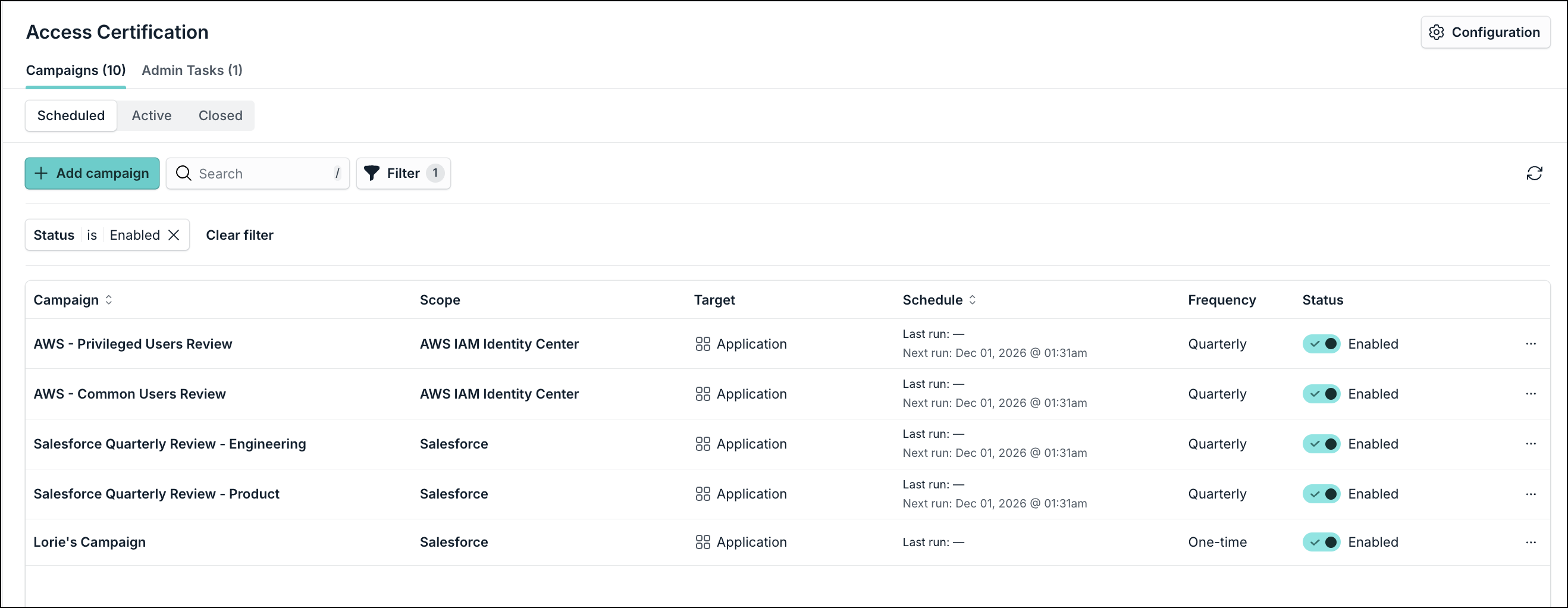
Access Certification Settings can be opened in the upper right corner on the Access Certification page. See Configuring Access Certification Settings to learn more.
Working with the Campaigns List
The Campaigns page has three tabs: Scheduled, Active, and Closed.
Scheduled Tab
Use the Scheduled tab to manage campaigns that have not yet started, including recurring configurations and one-time campaigns with a future start date.
Following actions can be performed on this page:
-
Add campaign: Create a new campaign by opening the campaign creation wizard.
-
Search: Filters the table in real time by campaign name.
-
Filter: Opens a filter panel with:
-
Scope: Text input with an operator (for example, is).
-
Target: Dropdown (set to All targets by default). Values include Application and User group.
-
Frequency: Dropdown (defaults to All frequencies). Available values: One time, Monthly, Quarterly, Semi-annual, Annually.
-
Status: Dropdown (set to Enabled by default). Values: Enabled, Inactive.
-
-
The filter panel shows how many filters are applied and includes Clear all and Apply options.
Following information is displayed for each campaign:
| Column | Description |
|---|---|
| Campaign | Campaign name. Clicking opens the wizard at Step 6 (Summary), same as Edit. |
| Scope | Target user group for the campaign. |
| Target | Application or User group. |
| Schedule | Last run and next run dates. |
| Frequency | Monthly, Quarterly, Semi-annual, Annually, or one-time/ad-hoc. |
| Status | Enabled or Inactive (Disabled). |
| Three dot menu | You can edit, copy, start, or delete a campaign by clicking this option. |
You can also perform the following actions by clicking the three dot menu:
-
Edit: Opens the wizard at Summary with current settings. From Summary you can jump to any step.
-
Copy: Duplicates the campaign with settings pre-filled. Name and description are blank. Opens the wizard at Scope.
-
Start campaign: Starts the campaign immediately and moves it to Active, regardless of the configured start date. For recurring campaigns, the manually started instance does not change the next scheduled run date.
-
Delete: Removes the recurring or scheduled configuration after confirmation. Does not delete closed historical records.
Active Tab
Visit the Active tab to monitor campaigns that are in progress or awaiting remediation.
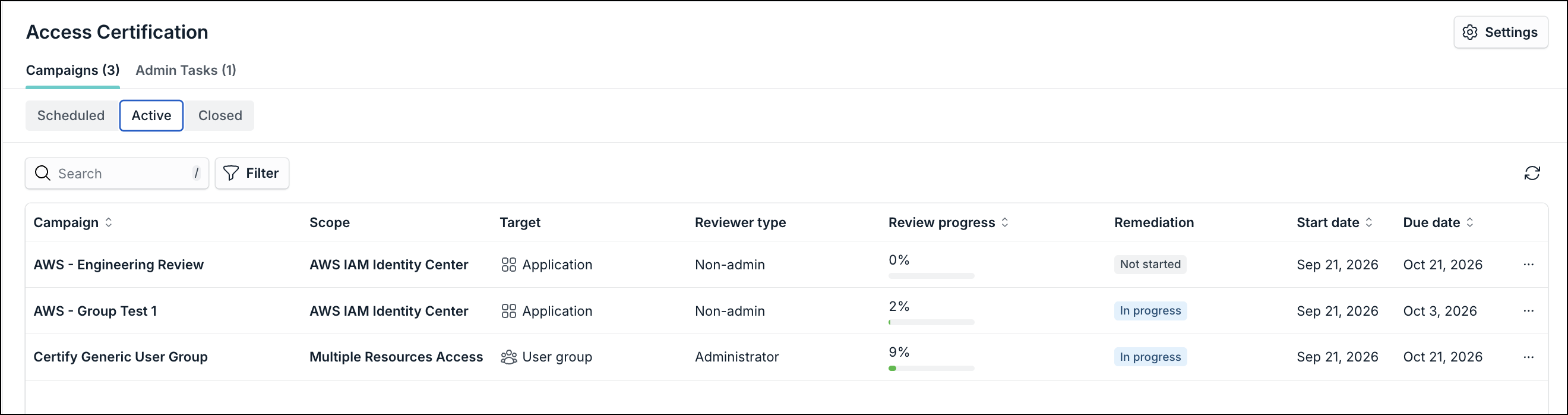
Following options are available on this page:
-
Search: Filters by campaign name.
-
Filter: Scope, Target, Frequency, Reviewer progress (percentage with More than / Less than / Equal), and Remediation (Pending, No action, Completed, Scheduled).
Table columns
| Column | Description |
|---|---|
| Campaign | Opens Campaign Detail. |
| Scope | Hyperlink to the associated user group. |
| Target | Application or User group. |
| Reviewer type | Administrator or Non-admin. |
| Review progress | Percentage of decisions recorded over total identities in scope. |
| Remediation | Not started, In progress, or Scheduled. |
| Start date / Due date | Review window dates. |
| Three dots menu | Extend or end the campaign |
Note: If you click End Campaign option, choose one of the following options:
-
End review and execute remediation: Closes the review phase. Undecided identities follow the campaign's If there is no response policy. Pending remediations execute. The Closed record shows Remediation Completed.
- End review and cancel remediation: Closes the review phase. No remediation runs (including if-no-response actions). The Closed record shows Remediation as Canceled.
Closed Tab
The Closed tab is a read-only archive of completed and canceled campaign runs. Configuration and outcomes are frozen at the time of close.
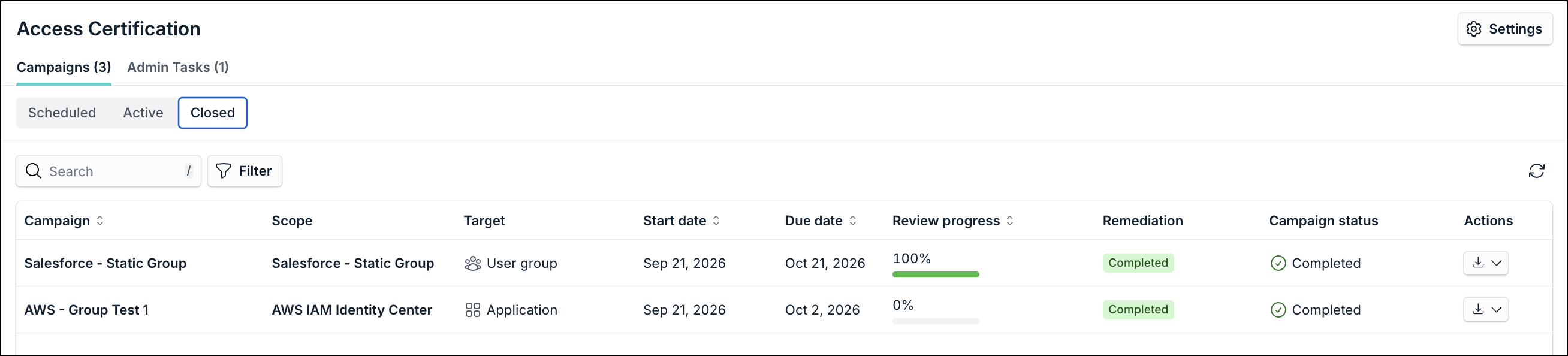
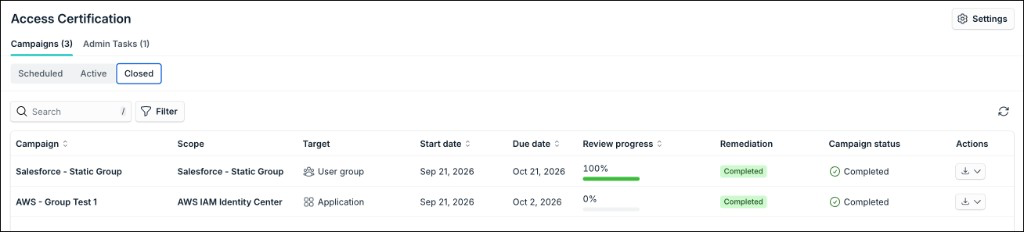
Table columns include Campaign, Scope, Target, Reviewer type, Review progress, Remediation (Completed or Canceled), Start date, Due date, and Actions.
The Download option on each row offers .csv, .json, and .pdf. See Downloading Closed Campaign Exports to learn more.
Using the Admin Queue
Admin Queue page consolidates pending tasks that need admin attention.

| Column | Description |
|---|---|
| Task type | Task type. |
| Campaign | Hyperlink to Campaign Detail. |
| Scope | Hyperlink to the user group. |
| Target | Application or User group. |
| Review progress | Percentage bar and number. |
| Remediation status | Current remediation state. |
| Start date / Due date | Campaign dates. |
Task types
-
User review: You are the assigned reviewer and identities remain Pending while the review window is open.
-
Campaign remediation: Review progress is 100% and remediation actions are Scheduled.
Clicking a row opens the Campaign Details. Items leave the queue when all decisions are recorded (User review) or all remediations finish (Campaign remediation).
Creating a Campaign
-
Log in to the JumpCloud Admin Portal.
-
Go to Access Certification > Campaigns.
-
On the Scheduled tab, click Add campaign.
The wizard has six steps: Scope, Schedule, Reviewers, Notifications, Remediation, and Summary.
Step 1: Entering Scope Details
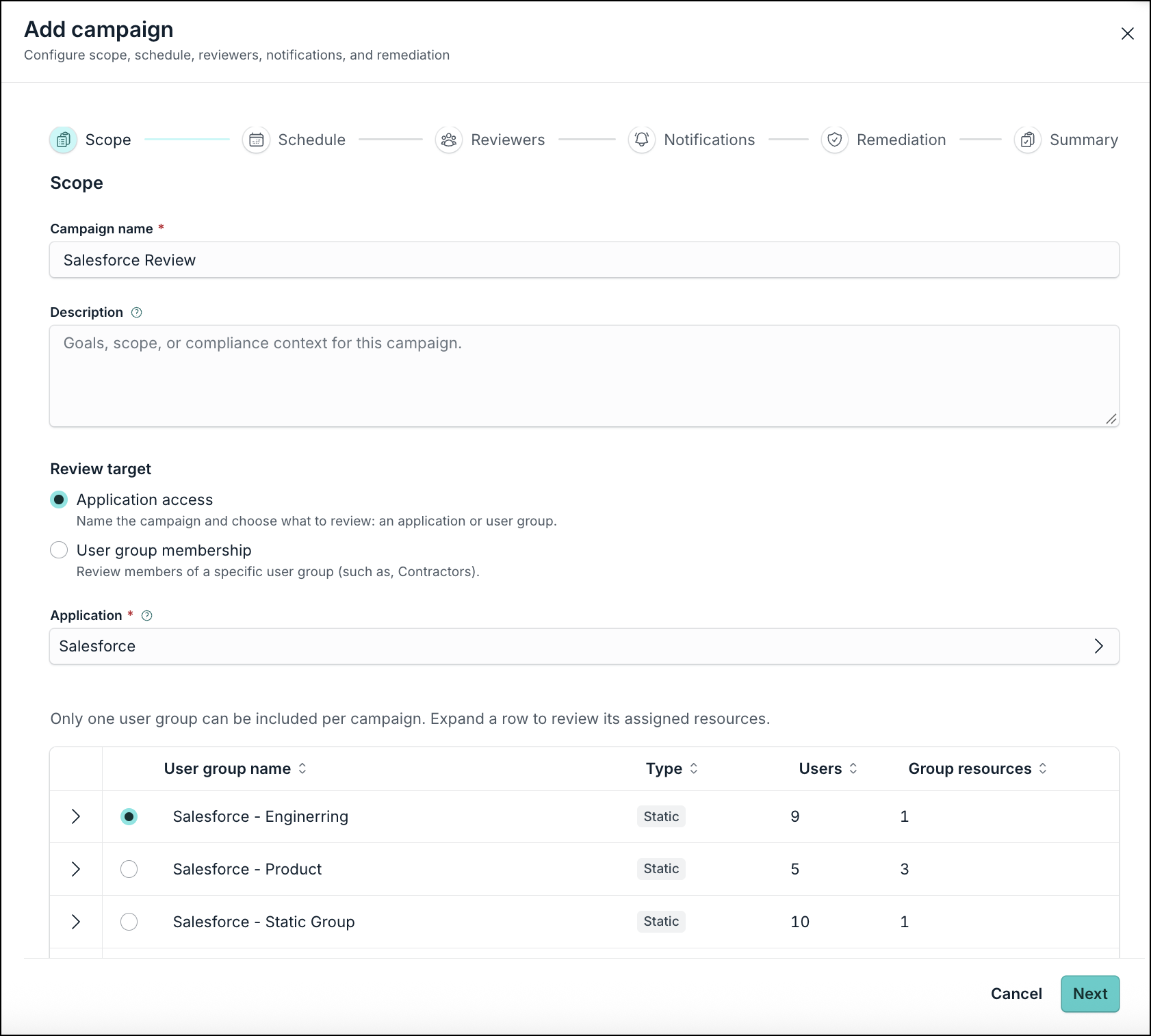 Configure what the campaign reviews.
-
Campaign name (required)
-
Description (optional): The content added in this field is visible to the reviewer in the user portal.
-
Review target (required):
-
Application access: Review users who have access to a specific SSO application. When this radio button is selected, an Application search field appears. Selecting an application lists user groups that have access to that app.
-
User group membership: Review members of a directory group (for example, Contractors). When this radio button is selected, a User group search field appears. The Administrator can expand and view the resources of each group to understand the blast radius of access to the selected group's resources.
-
While the campaign is Scheduled, membership changes on the target group update the scope preview. When the campaign activates, JumpCloud freezes the member snapshot for that run.
Step 2: Schedule
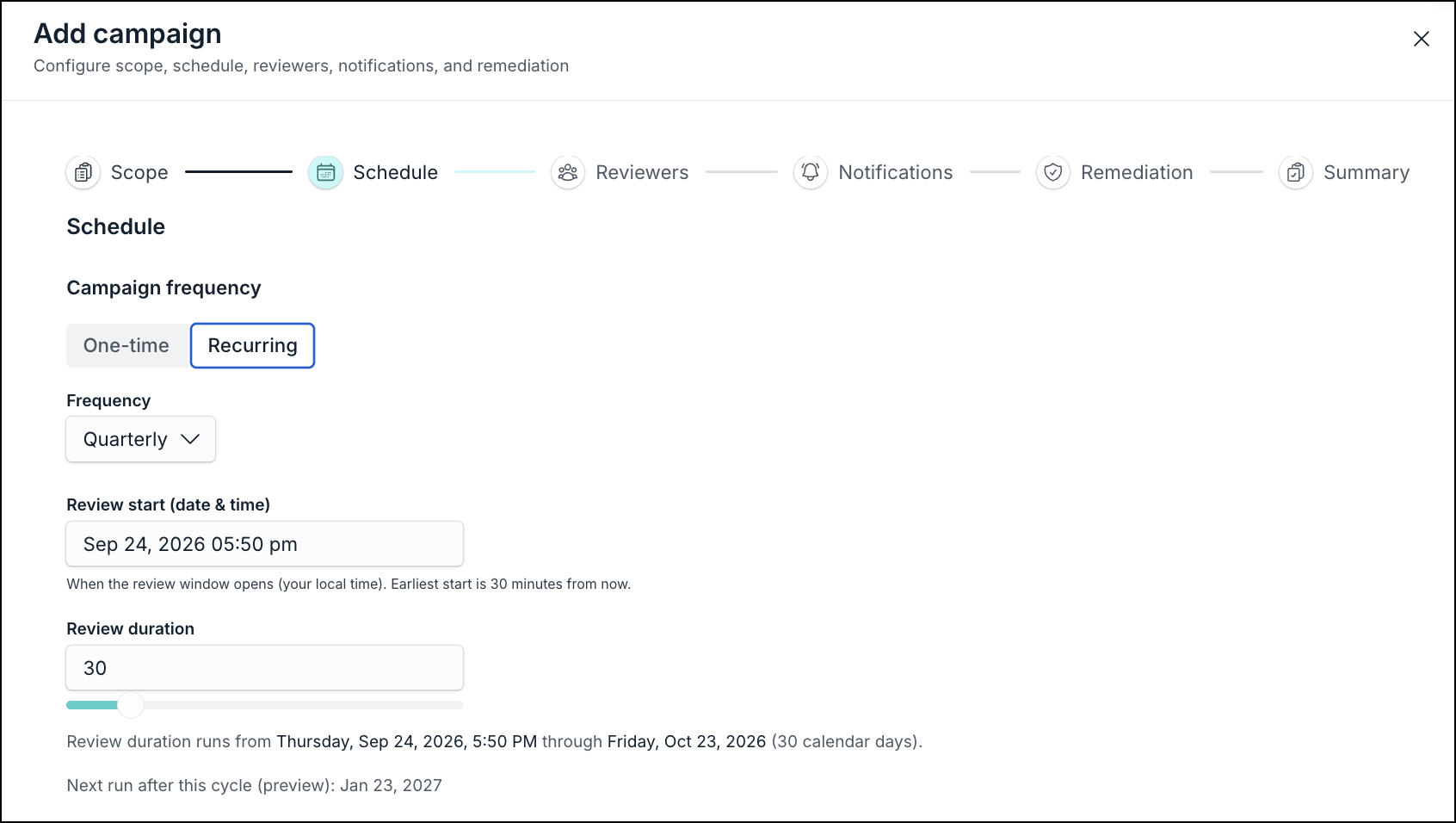
-
Campaign Frequency: One-time (default) or Recurring.
- Cadence (required when Recurring frequency is selected): Monthly, Quarterly, Semi-annual, or Annually.
-
Review start (required): Date and time in your local time zone. The earliest selectable time is 30 minutes from the current time.
-
Review duration (required): 1 to 180 calendar days. Set to 30 days by default. Use the numeric field or slider.
-
A duration preview shows: Review duration runs from [start] through [end] ([N] calendar days). For recurring campaigns, it also shows the next-run preview.
Step 3: Reviewers
Configure one or more reviewer stages on this page.
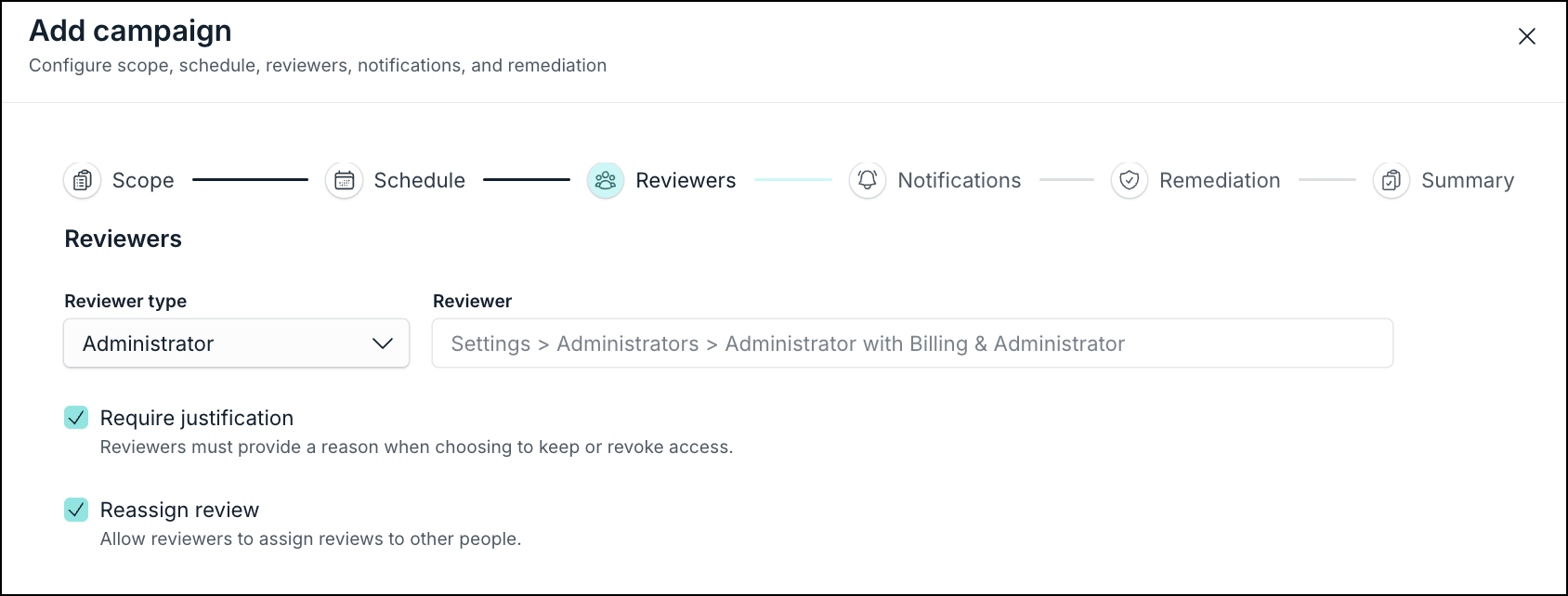
Reviewer type options (each type can be used only once per campaign):
| Reviewer type | Behavior |
|---|---|
| Administrator | No individual selection. All admins with Full Access to Access Certification can act. Listed as All administrators (Full Access). No additional stages can be added. Reassign review is disabled. |
| Users manager | Reviewer is User > Employment Info > Manager Attribute (read-only). Fallback approver must be assigned when users manager attribute is not set. |
| Resource owner | Search and select a specific user by name or email. |
| User group | Search and select a user group. Optional All group members must review checkbox. Eligible reviewers resolve from live group membership. |
Click the (+) button to add another stage. Click the (×) button to remove a stage.
When more than one stage is configured, Reviewer requirement can be selected as follows:
-
All reviewers must approve (default)
-
At least one must approve
-
All reviewers must approve sequentially: Shows Response window per reviewer (default = review duration ÷ number of stages). When a window expires, the identity advances to the next reviewer.
Additional options (on by default):
-
Require justification: Reviewers must enter a comment before Keep or Revoke. Admin Keep, Revoke, and Override always require justification, even if this checkbox is cleared.
-
Reassign review: Shows Reassign for Users manager, Resource owner, and User group reviewer types. These options are not available for Reviewers.
Step 4: Notifications
This step configures reviewer notifications for the campaign. Administrator notifications are managed in Settings.
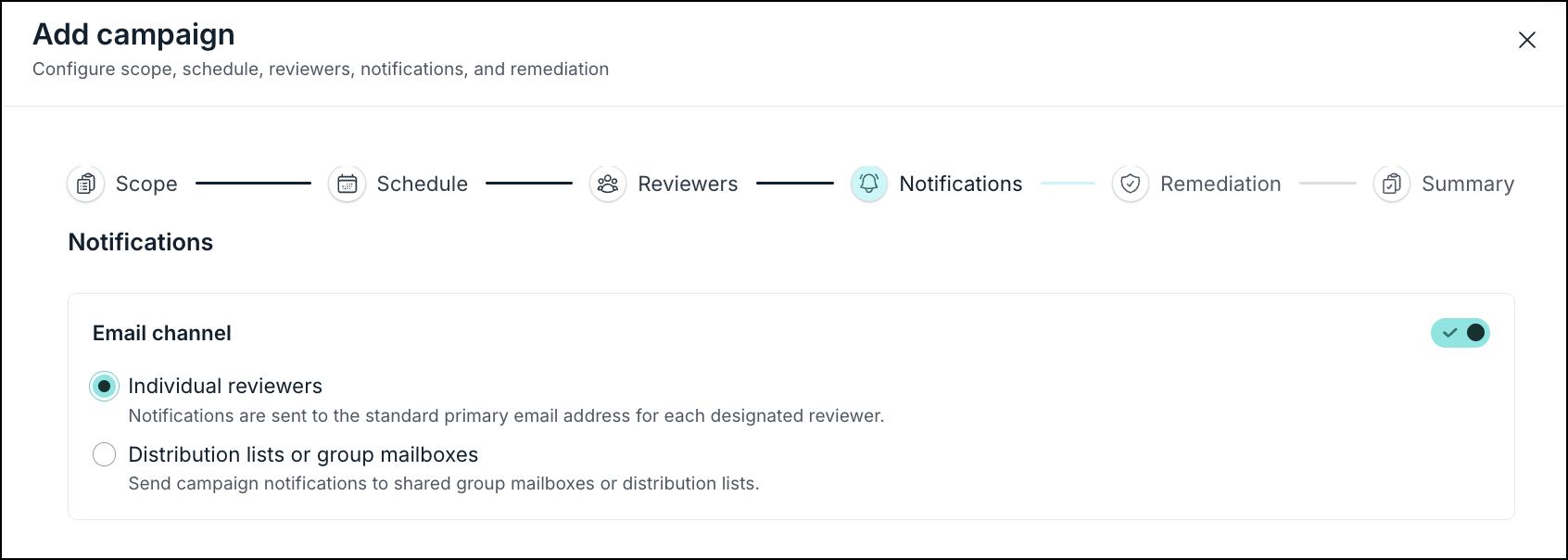
-
Email (enabled by default):
-
Direct to listed reviewers (selected by default) — Sends to each reviewer's work email in the directory.
-
Distribution lists / group mailboxes — Select one or more org-managed email channels configured in JumpCloud.
-
Reviewer reminder timing:
-
When items are first assigned (one message covering all assigned identities).
-
When identities are reassigned to the reviewer.
-
Mid-point reminder when the review window is longer than 5 days.
-
When 1 day remains in the review window.
Step 5: Remediation
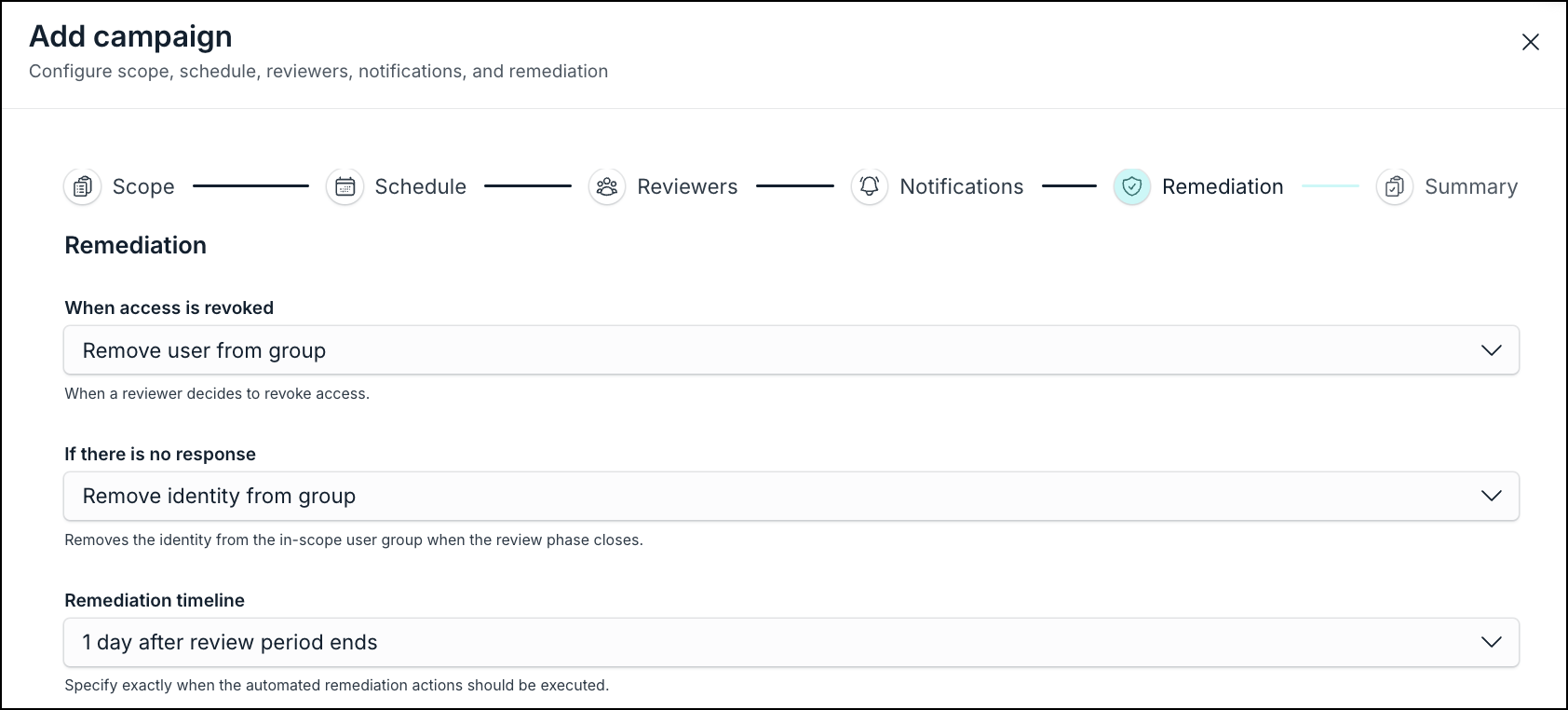
-
On revoke (required; set to Remove identity from group by default):
-
Remove user from group: Removes the identity from the in-scope user group and cascades downstream access.
-
Suspend identity: Suspends the identity in the JumpCloud directory. It is Available only for User group membership campaigns and hidden for Application access campaigns.
-
-
If there is no response (required; set to No action by default):
-
No action: Access is maintained.
-
Remove identity from group
-
Suspend identity (User group membership campaigns only)
-
-
Remediation timeline (required; set to Immediately after the reviewer submits their decision by default):
-
Immediately after the reviewer submits their decision
-
1 day after the review phase closes
-
5 days after the review phase closes
-
Custom date: Date and time picker. Minimum: day after the review phase closes. For recurring campaigns, maximum is at least 1 day before the next cycle starts.
-
Step 6: Summary
Review read-only sections: Campaign, Scope, Schedule, Notifications, Reviewers, and Remediation. Each section has Edit to return to that step.
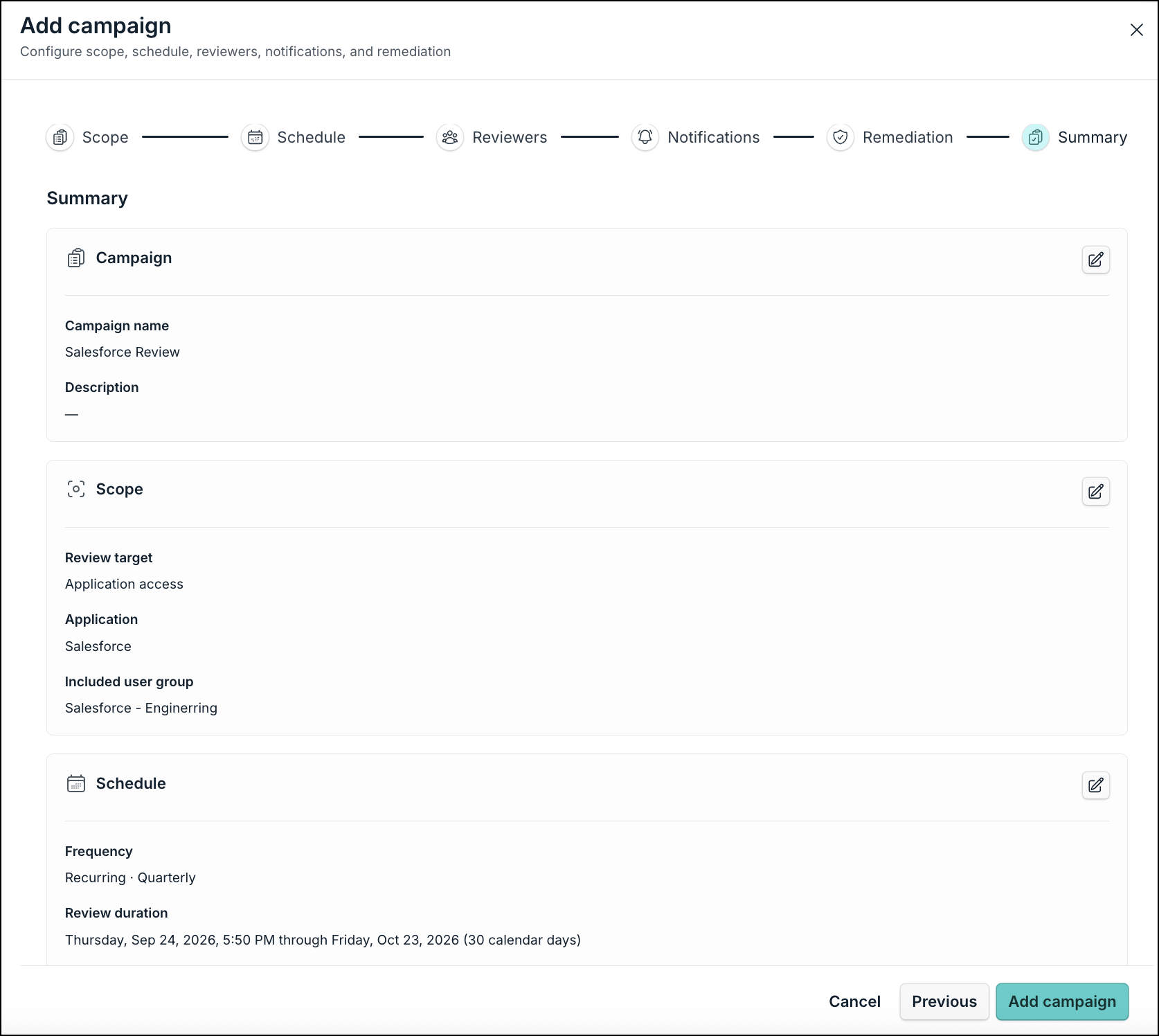
-
Click Add campaign.
-
JumpCloud validates required fields, creates the campaign, redirects to the Scheduled tab, and shows a success toast message.
-
Click Cancel to close without saving. If fields contain data, a confirmation warns that unsaved data will be lost.
Managing an Active Campaign
Opening Campaign Detail
-
On the Active tab, click the campaign name.
-
The campaign detail page opens with status badges, a campaign summary panel, the identities table, and the identity side panel.
Following information is displayed on this page:
Header badges (active)

-
Review progress: 0% gray, 1–99% blue, 100% green.
-
Remediation status: Not started, In progress, Scheduled, Completed, or Canceled (as applicable).
-
Remaining time: Days left in the review window. It turns red when fewer than 3 days remain.
You can perform the following actions for each active campaign: Extend campaign, End campaign early, View configuration.
Campaign summary panel shows Target type, Scope, Status, Reviewer, Duration, Remediation actions, Remediation timing, Review progress, and Remediation status.
- User group campaigns show a User group details panel: Group name, Type, Users, Resources.
Click View configuration button to open a read-only modal having information about Scope, Schedule, Notifications, Reviewers, and Remediation.
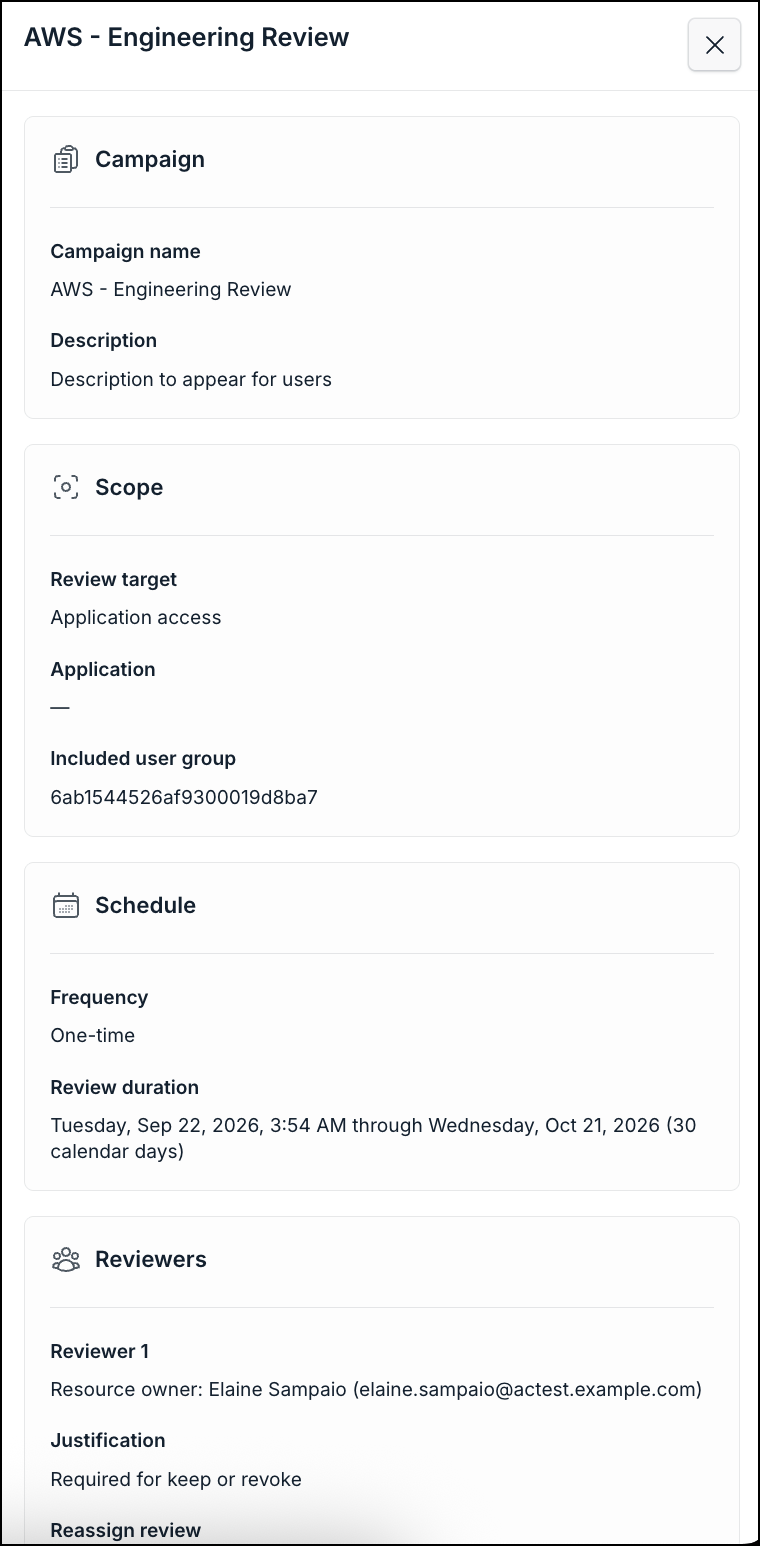
Working with the Identities Table
The table loads with the first identity selected and the side panel populated. Click an identity name to open that identity in the side panel. Click elsewhere on the row to select the checkbox.
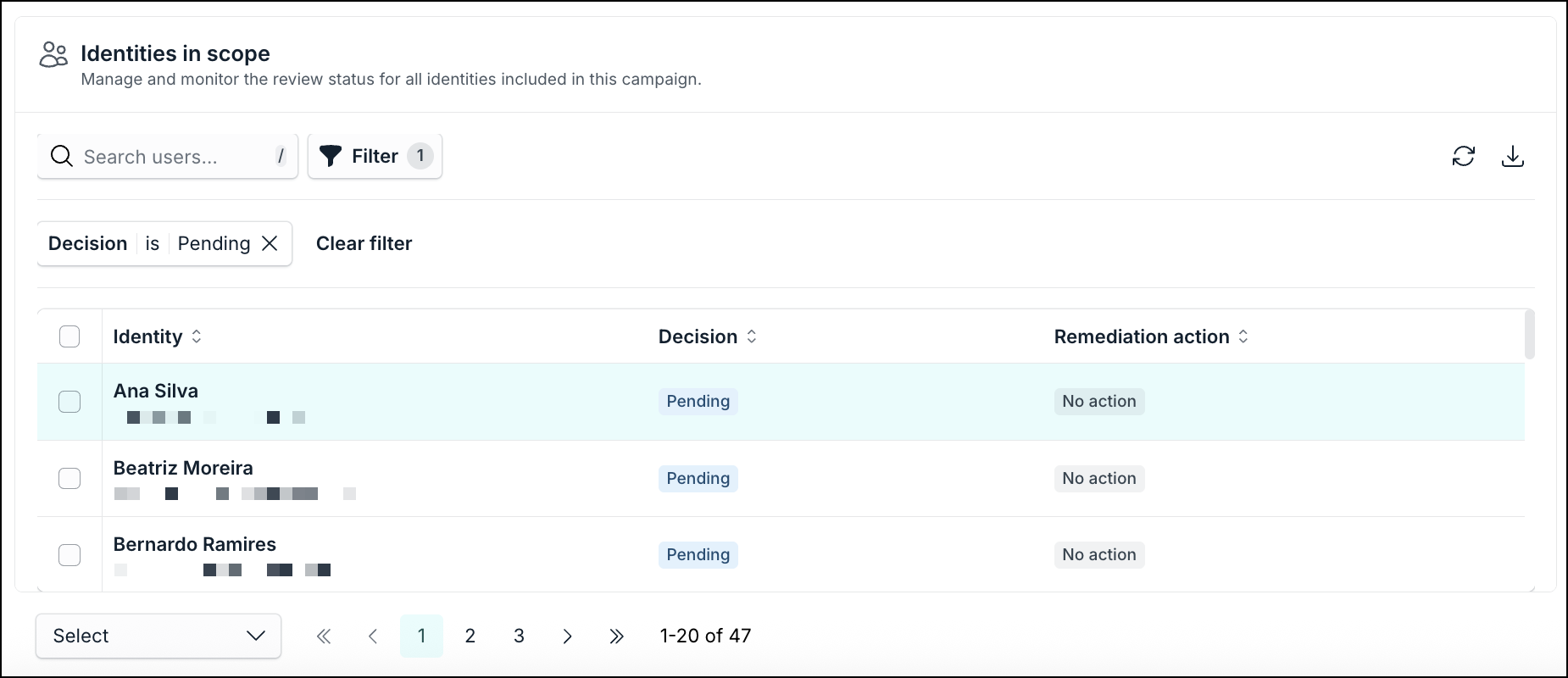
| Column | Description |
|---|---|
| Identity | Name and email. |
| Reviewers completed | Step indicator (for example, 2 / 3). |
| Decision | Pending, In progress, Keep, or Revoke. |
| Remediation action | No action, Scheduled, or Completed. |
Decision values
-
Pending: No decision yet.
-
In progress: Multi-step only; at least one reviewer has decided but the chain is incomplete.
-
Keep; Final; access maintained; no remediation.
-
Revoke: Final; triggers remediation per campaign policy.
You can perform following actions on this page:
-
Search: Filters by name or email.
-
Filter: Opens Apply filters:
-
Decision: Keep, Revoke, Pending, In progress.
-
Remediation action: Pending, No action, Completed, Scheduled.
-
Additional filters: User status (Active, Suspended, Staged), Company, Department, Cost center, Employee type, Last accessed (operator + date).
-
You can perform following Bulk actions (when rows are selected):
-
Keep / Revoke: Require admin justification regardless of campaign setting.
-
Override: Available only when selected identities have a final Keep or Revoke and Remediation action is Scheduled or No action (not Completed). Override concludes the review chain. Justification is required.
-
Reassign: Available when Reassign review is enabled and reviewer type is not Administrator. Justification is required. The identities being reviewed cannot be selected as the new reviewer.
User Details
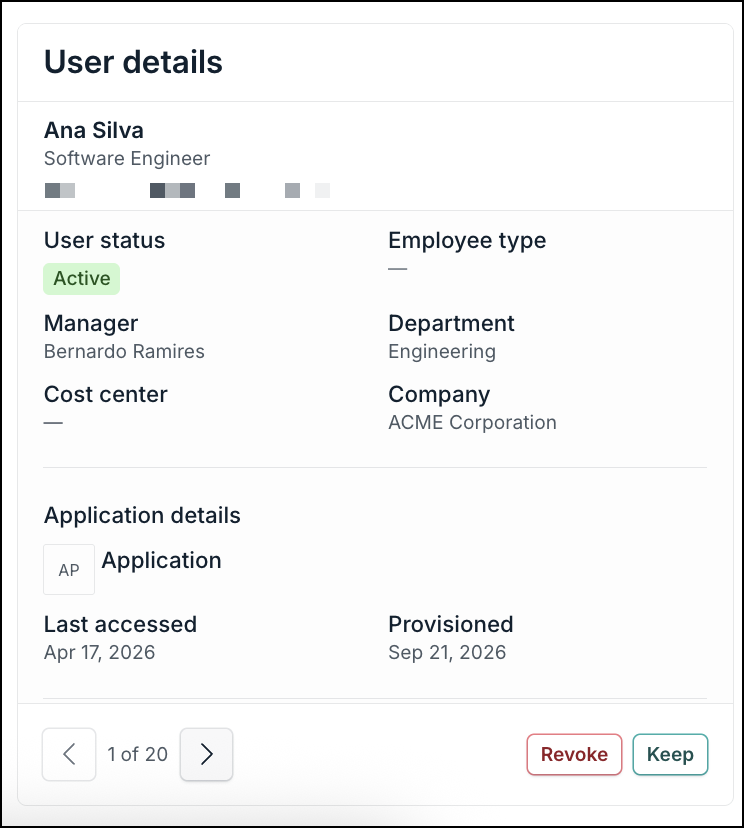 The User Details section displays the following information:
-
User details: Name, Title, Email, User status, Employee type, Manager, Department, Cost center, Company.
-
Application details (application campaigns): Application name, Last accessed, Provisioned.
- Last accessed option uses Directory Insights SSO login events within the 90-day retention window. If no event exists, the field shows No access record in the last 90 days.
-
Access certification: Reviewer chain with name, role, decision status, timestamp, and justification. For user group reviewer steps before a decision, the label shows the group name and eligible reviewer count.
You can perform following actions on this page:
-
Keep, Revoke, and (optional) Reassign.
-
After a final Keep or Revoke, while remediation is still Scheduled or No action, those buttons are replaced by Override.
-
When remediation is Completed, decision and Override buttons are hidden.
For closed campaigns, decisions appear as read-only labels with no action buttons.
Downloading Closed Campaign Exports
On a closed Campaign Detail page, the header shows Review progress, Remediation status, Report sign off (Pending or Completed), and Time remaining as Closed. When sign-off is Completed, a truncated SHA-256 document hash appears next to the badge. View configuration and Download actions are available.
-
Open a closed campaign from the Closed tab.
-
Click the Download button.
-
Choose .csv, .json, or .pdf.
When you choose .pdf and if the report is still pending for sign-off, the Download audit report modal appears with following options:
-
Download: Saves the PDF without signing off. Status remains Pending.
-
Download & Sign off: Downloads the PDF and records you as the certifying admin. Status becomes Completed. This cannot be undone.
-
Cancel: Closes the modal.
After the first sign-off, clicking .pdf downloads the file directly with no modal. There is no separate View report button and no in-browser report preview on Campaign Detail.
Detailed PDF report structure (integrity metadata, combined decisions table, and before/after access state snapshot) is documented when the Reviewer Experience documentation ships.
Configuring Access Certification Settings
On the Access Certification page, click the settings button in the upper right corner. Configure the settings as follows.
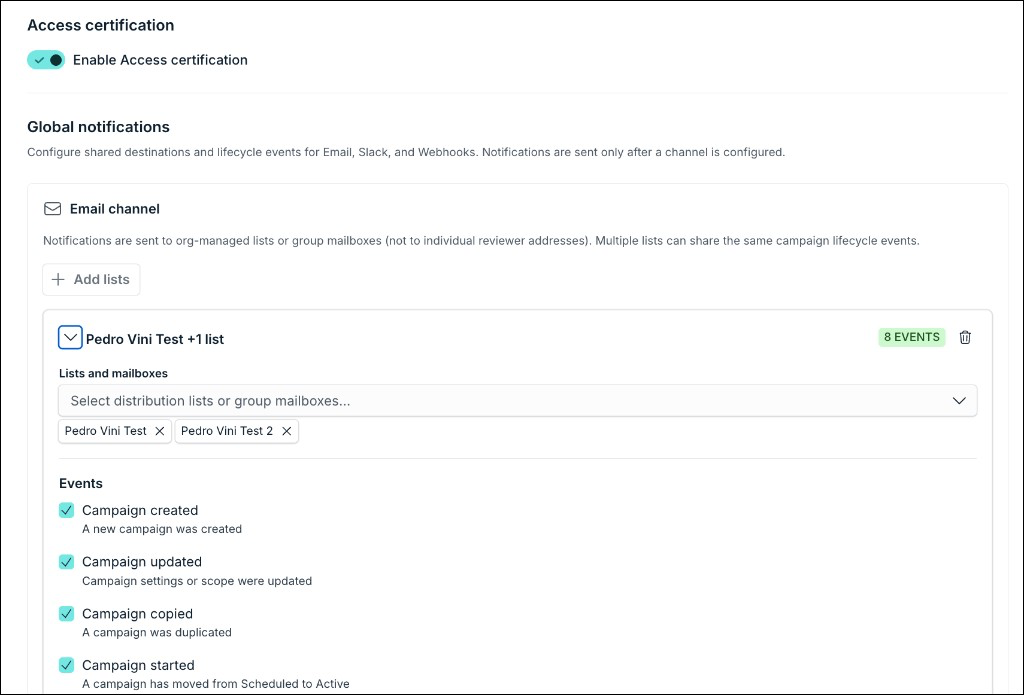
Turn the Enable Access certification toggle on to use this feature.
When the toggle is Off:
-
Existing campaign data is preserved. Admins can still view and edit campaigns.
-
Active campaigns pause for reviewers: notification delivery stops. Admins can still end campaigns, run remediation, and download reports.
-
Scheduled campaigns move to Disabled and do not start on schedule.
-
New campaigns cannot be created.
When you turn on the toggle again, reviewer notifications resume for campaigns still inside their original window. Disabled scheduled campaigns require manual reactivation.
Global Notifications (Email)
Administrator notifications use org-managed distribution lists or group mailboxes and not individual reviewer addresses. Email notification templates are system-defined and are not customizable.
You can add one or more email channel blocks. Each block selects channels and maps toggleable events (all enabled by default):
| Event | When it fires |
|---|---|
| access_certification_campaign_created | A new campaign was created |
| access_certification_campaign_updated | Campaign settings or scope were updated |
| access_certification_campaign_copied | A campaign was duplicated |
| access_certification_campaign_started | Scheduled → Active |
| access_certification_campaign_completed | Review phase concluded; campaign moved to remediation |
| access_certification_campaign_ended_early | Manually closed before review completed |
| access_certification_campaign_canceled | Campaign canceled |
| access_certification_campaign_extended | Review deadline extended |
When the Enable Access certification toggle button is off, no administrator or reviewer emails are delivered.
Understanding Access Certification Permissions
Access Certification is a dedicated permission scope in JumpCloud Custom Roles with three levels: Full Access, View, and No Access.
Default Role Mapping
| Admin role | Access Certification level |
|---|---|
| Administrator | Full Access |
| Administrator with Billing Only | No Access |
| Help Desk Admin | No Access |
| Custom Roles created before Access Certification GA | No Access (opt-in) |
Only admins who manage custom roles can change an admin's Access Certification scope.
Full Access
-
Create, edit, copy, extend, end, and delete campaigns.
-
View all campaigns in the organization.
-
Act as reviewer when the Reviewer type is Administrator.
-
Submit Keep, Revoke, and Reassign decisions on assigned identities.
-
View, download, and sign off audit reports.
-
Manage Settings.
-
See Access Certification in Admin Portal navigation.
View
-
See Access Certification in navigation and view all campaigns read-only.
-
Open Campaign Detail and inspect all sections.
-
View and download audit reports.
-
Cannot create or mutate campaigns, decide, sign off, or change Settings.
-
Cannot act as an Administrator-type reviewer.
-
Mutating actions are hidden or disabled with tooltip: You need Full Access to Access Certification to perform this action.
No Access
-
Access Certification is hidden from navigation.
-
Direct URL access shows: You do not have access to this feature.
-
Cannot act as an Administrator-type reviewer.
-
If scope is downgraded while the admin has pending non-Administrator reviewer assignments, Full Access admins see a Reassign reviewer prompt for those items.
Remediation Execution Independence
Remediation is executed by System, not by the deciding Admin. Audit trail records:
-
Decision by — the admin who submitted the decision.
-
Remediation executed by — System.
Learn More
Was this information helpful?