


 Subscribe to Help Center RSS Feed
You can configure the install certificate for your Windows devices using this policy.

This is a user level policy that applies to a user's profile across managed devices. You can bind this policy to individual users or user groups. For policies that apply system-wide to a device and all of its users, see Get Started: Policies and Learn More section of this article.
Prerequisities
- Devices must be enrolled in Windows MDM (Mobile Device Management).
- Target devices must be running Windows 10 version 1511 [10.0.10586] or later. This policy is supported on the following Windows editions:
- Windows Pro
- Windows Enterprise
- Windows Education
- Windows SE
- IoT Enterprise
- IoT Enterprise LTSC
- For more information on device compatibility, see Agent Compatibility, System Requirements, and Impacts.
Creating the Policy
To create a user level Install Certificate policy for Windows devices, do the following:
Selecting the Policy Template
- Log in to the JumpCloud Admin portal.

If your data is stored outside of the US, check which login URL you should be using depending on your region. If your organization uses LDAP, RADIUS, or requires firewall allow list configuration, the Fully Qualified Domain Names (FQDNs) will also be region specific. See JumpCloud Data Centers for the URLs, FQDNs, and IP addresses.
- Go to Device Management > Policy Management. The Policy Management page is displayed.
- On the Policy Management page, click +Add New.
- Select User Policy to assign the policy to users and users groups. On the New User Policy page:
- Select the Windows tab.
- Search and select the required policy name and click Configure. The Details tab of the policy is displayed.
- On the Details tab, configure the required policy configuration settings.
- (Optional) In the Policy Name field, enter a new name for the policy or keep the default. Policy names must be unique.
- (Optional) In the Policy Notes field, enter details such as creation date of the policy, and information on testing and deployment of the policy.
Configuring the Policy
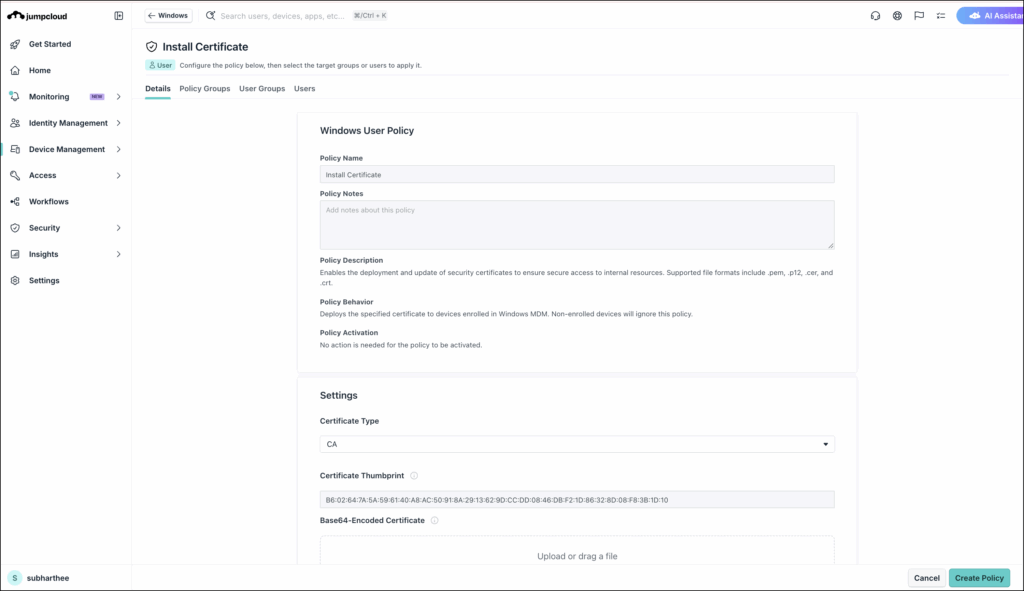
- In the Settings field, select the settings you want enabled for this policy:
- In the Certificate Type field, the default value is CA.
- In the Certificate Thumbprint field, enter the unique ID (Thumbprint) of certificate found in Certificate Properties. Remove any extra spaces or hidden characters while entering it.
- In the Base64-Encoded Certificate field, upload the certificate you want to deploy using this policy.
Accepted file extension types are .pem, .cer, .crt, and .p12.
Applying the Policy
- (Optional) Select the Policy Groups tab. Select one or more policy groups where you want to add this policy.
- Select the User Groups tab. Select one or more user groups where you want to apply this policy. For user groups with multiple OS member types, the policy only applies when a user logs into a supported Windows device that is enrolled in MDM.
- Or, select the Users tab. Select one or more users to whom you want to assign this policy.
- Click Create Policy. A success message is displayed indicating the completion of policy creation.
Viewing Policy Status
- Select the Status tab.
- To see the last Result Log for a device where this policy is applied, click view.
- If any errors occur, they're listed in Exit Status. If you have an Exit Status of 0, no errors occurred when applying or enforcing this policy.
 In this Article
 Learn More