Connect


The hard truth of IT administration is that even simple tasks take too long. You spend time manually writing scripts, digging through documentation for specific flags, and debugging minor syntax errors. Managing devices across Windows, Mac, and Linux means constantly switching between PowerShell, Bash, and other shell languages.
This constant context switching is a major bottleneck in your workflow.
A common task like needing a command to “find all files larger than 1GB on a Windows machine” shouldn’t require 15 minutes of perfect recall.
That’s the exact reason JumpCloud introduces the AI Commands Builder: to help you stop wasting hours for scripting.
Stop Typing. Start Deploying.
JumpCloud AI Commands Builder allows you to instantly generate device command scripts using natural language (plain English).
Instead of manually writing scripts or searching for the exact syntax, you simply describe what you want the command to do. For example, you can type: “find all files larger than 1GB on Windows machines.”
The AI then generates a functional script draft (PowerShell, Bash, or shell script) for the specified operating system. Instead of starting from a blank script, you can describe what you want to accomplish, and AI will generate a starting version of the command for you, as an IT admin, to review, edit, and save.
The core idea is:
- Speed: Go from idea to executable script in seconds.
- Accuracy: Reduce syntax errors and context-switching fatigue (Windows, Mac, Linux).
- Control: The AI provides the first draft, but you remain the final reviewer to edit, refine, and verify the script before deploying it to your devices.
It acts as an assistant that handles the heavy lifting of initial script generation.
The 3-Step Workflow: From Prompt to Deployment
Forget the blank screen. The entire process of command creation is condensed into three simple, friction-free steps within the JumpCloud Admin Portal:
Step 1: Write the Intent, Not the Syntax
Navigate to DEVICE MANAGEMENT > Commands and start a new command. After selecting the command type (Windows, Mac, or Linux), jump down to the Generate Script with AI section.
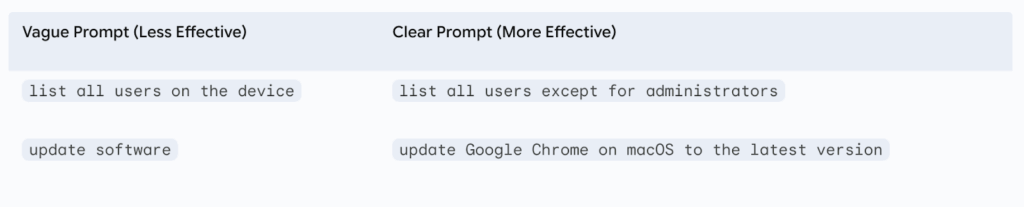
This is where clarity matters. The AI works best when your intent is precise. Instead of vague requests, be specific about exclusions or conditions:
Step 2: Review and Edit
After entering your clear prompt and clicking Generate, the AI instantly produces a script draft. At the same time, the Command’s Description field automatically updates with a summary of the script’s function, helping you maintain a clean, documented command library effortlessly.
Your Role: The Final Editor.
This is not a replacement for your expertise; it’s a co-pilot. You must always review the script for logic and alignment with your infrastructure. If you need a different version, simply update the prompt and click Generate again. You can also use the Undo & Redo icons to quickly switch between different versions the AI generated.
Step 3: Target and Deploy
Once the script is perfected and reviewed, complete the command setup:
- Select the desired Event (Run Manually, Scheduled, Repeating, etc.).
- Choose your target Device Groups or specific Devices.
- Click Save.
The command is now ready to run, deploying your perfectly tailored script across your fleet in minutes.
Control, Security, and Trust
The AI Commands Builder is an acceleration tool, not an autopilot. Trust is built on transparency, which is why we emphasize the critical role you play in the final security and accuracy check.
1. The Human Review is Non-Negotiable
You are the final authority. While the AI is powerful, it cannot understand the unique context of your environment. Always review the script and manually edit it to exclude critical accounts. You are ultimately responsible for the security implications of any script you run.
2. Guarding Against Hallucinations and Complexity
The AI is a master of common, well-documented scripting tasks. However, its generated output can occasionally be incorrect (a concept known as “AI Hallucination”). Always verify the script’s logic and syntax.
Additionally, the tool may struggle with:
- Highly complex or multi-step processes that require deep knowledge of your organizational infrastructure.
- Vague requests that lead to generic or inaccurate scripts.
For these reasons, it is best used as a starting point that you refine,or for tasks that require specific, crystal-clear prompts.
3. Your Data is Secure.
We know data privacy is paramount. JumpCloud processes your prompts and the resulting script drafts securely. No customer data, prompts, or outputs are used to train or improve third-party models. Your security and privacy remain fully protected.
Immediate Wins: Scripts You Can Build Today
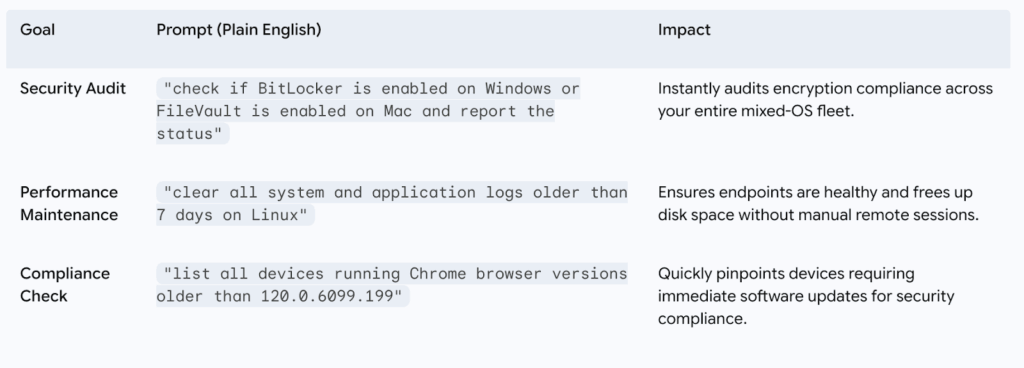
Let’s look at the immediate, tangible results. JumpCloud AI Commands Builder is designed to instantly eliminate the friction and cross-OS challenges that currently slow down your day. Here are three high-impact commands you can stop wasting time on and start deploying today:
Frequently Asked Questions (FAQ)
You can describe virtually any script you need in plain English. The AI is designed to understand common IT administration tasks across various operating systems. For example, you could type:
- List all users who haven’t logged in for 30 days
- Check if FileVault is enabled
- Find and delete files older than 90 days in the Downloads folder
The AI will generate a basic PowerShell, Bash, or shell script draft to get you started.
We have implemented guardrails to detect and block non-IT-related prompts. If you ask for a joke or a recipe, the system will respond with a friendly message reminding you to keep the input relevant to scripting or device management tasks.
We don’t officially support non-English prompts at this time. For the best and most accurate results, we recommend using clear, concise English.
Deploy Your First AI-Generated Command
The AI Commands Builder is a fundamental shift in how you manage your fleet. It provides the speed of automation with the security of human oversight.
You no longer have to choose between managing your mixed-OS environment quickly and managing it securely.
- You get back: The time previously lost to syntax lookups and minor debugging.
- You retain: The absolute authority and final security check on every command deployed.
Ready to streamline your workflow? Get started with JumpCloud.