


 Subscribe to Help Center RSS Feed
You can now configure additional attribute filters to enhance the events in your rule conditions and make them more specific to generate more focused alerts and notifications. These filters are specific to each event and can help monitor more specific variations that trigger an event.
To add an event attribute filter to a specific event:
- Create an Insight rule by following steps in Create an Insights Rule.
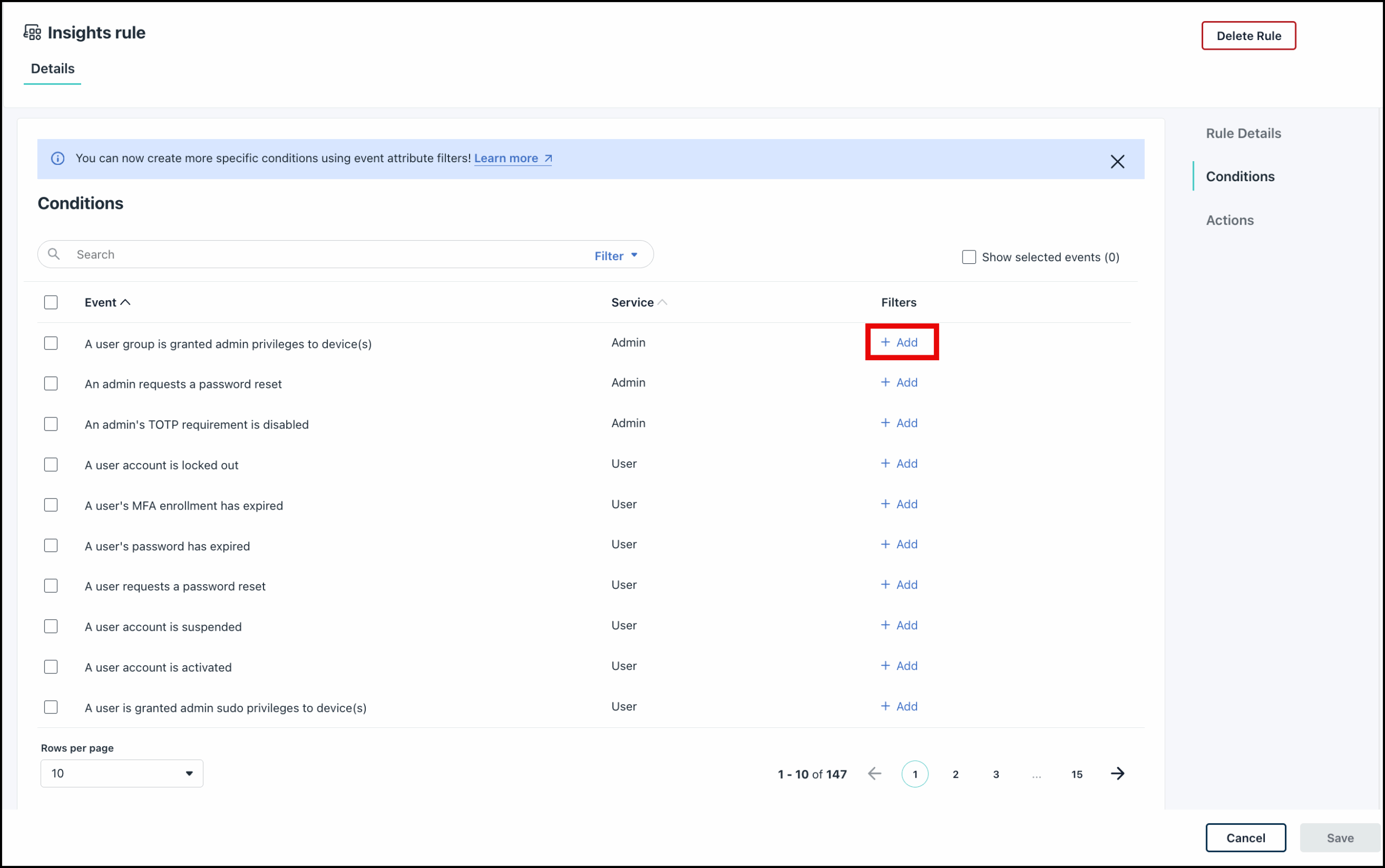
- In the Conditions section, search and select the event for which you want to add additional attribute filters and click + Add. See Insight Alert Events for a list of all available events.

The Add filters page is displayed in the default Filter by Fields view. - On the Add Filters page, add your specifications for the filters.
- Select All or Any from the dropdown to set the matching logic.
- Next go ahead and add your variables. Click the Select Key dropdown to select the Key value.
- Select the Operator. Jump to the List of Operators section to learn more about each operator.
- Next, specify the target Value to match the selected Key. The input field for the Value is dynamic, depending on the Key value that you selected earlier.
- Click +Add to add more filters. You can add up to 25 filters.

The variables available in the Key value dropdown will depend on the type of event that you select.
- (Optional) If you wish to add more advanced filters, click Switch to Expression Language and then on the confirmation dialog click Switch.
This will display the Expression Language view.
If you have created any filters in the Filter by Fields mode, these filters will be copied and available in the expression language mode.
- Use the advanced Expression Language editor to define complex, custom filter conditions using logical statements and syntax.

- Currently, we only support filters with boolean logic limited to the operators mentioned under List of Filter Operators.
- To understand the different components that can be used in expression logic, see Expr’s documentation on Language Definition.
- Jump to Sample Expressions for Event Filters to view some examples for reference. You can also use the filters copied from the Filter by Fields mode as reference to understand the components that are supported.
You can click Switch to Filter by Field to revert to the default mode. However, all your changes including the filters created in the Filter by Fields mode will also be lost.
- Once you’ve added filters as required, click Save.
This will only save the filter and you will be redirected to the rule creation page. The event filter is not saved until you save the rule.
Editing an Existing Event Attribute Filter
To edit an event attribute filter:
- Go back to the Conditions section of your Insights rule.
- Click the Edit icon next to the event to modify the filters. This will take you to the filter page displayed exactly as you last saved it - either in the Filter by Fields view or the Expression Language view.
- You can add, edit, or delete filters as required.
- Once you are done, click Save. You can click Cancel to retain the original filter setting and go back to the rule creation page.
List of Filter Operators
There are different operators available on the filter creation page, and the selection of these operators depends on the data type of the Key value that you choose for the filter.
If the Key value is a string, the following operators are available:
- Equal to: The key value exactly matches the specified target value
- Not equal to: The key value does not match the specified target value
- Contains: The key value includes the specified target value anywhere within it
- Starts with: The key value begins with the specified target value
- Ends with: The key value concludes with the specified target value
- In: The key value is one of the items within a specified list or set of criteria
If the Key value is an integer, the following operators are available:
- Equal to: The Key value is exactly the same as the specified target value
- Not equal to: The Key value is not the same as the specified target value
- Less than: The Key value is smaller than the specified target value.
- Greater than: The Key value is larger than the specified target value
- Less than or Equal to: The Key value is smaller than or the same as the specified target value.
- Greater than or Equal to: The Key value is larger than or the same as the specified target value.
If the Key value is a date/time, the following operators are available.
- Equal to: The date/time is exactly the same as the specified target value.
- Before: The date/time is earlier than the specified target value.
- After: The date/time is later than the specified target value.
Sample Expressions for Event Filters
The following are examples of expression language used to create specific event filters.
String Comparisons
- To check if resource type is a user group
Scenario: Filter events where the resource being created is a user group."
Expression:resource.type == "user_group" - To check if authentication method is API key
Scenario: Identify events initiated via API authentication rather than UI.
Expression:auth_method == "api key" - To check if the initiator is an admin
Scenario: Verify that the action was performed by an admin user.
Expression:initiated_by.type == "admin" - To check if resource name contains "Dynamic"
Scenario: Identify dynamically created user groups by name pattern.
Expression:resource.name contains "Dynamic"
Geographic/Location Checks
- To check if event originated from the United States
Scenario: Filter events by country for compliance or security audit.
Expression:geoip.country_code == "US" - To check if event is from North America continent
Scenario: Regional filtering for event processing.
Expression:geoip.continent_code == "NA" - To check if latitude is above equator
Scenario: Geographic hemisphere validation
Expression:geoip.latitude > 0
Numeric Comparisons
- To check if user agent major version is at least 2
Scenario: Verify API client meets minimum version requirements.
Expression:int(useragent.major) >= 2 - To check if longitude is in Western hemisphere
Scenario: Validate geographic location is west of Prime Meridian.
Expression:geoip.longitude < 0
Null Type Check
- To check if provider is null
Scenario: Identify events where no external identity provider is involved.
Expression:provider == nil
Array Type Expressions
- To check if changes array is not empty
Scenario: Verify the event contains actual changes to process.
Expression:len(changes) > 0 - To check if tags array contains geoip lookup failure
Scenario: Detect events with geolocation resolution issues.
Expression:"_geoip_lookup_failure" in tags - To check if any change is for memberQuery field
Scenario: Detect events that modify the dynamic membership query configuration.
Expression:any(changes, {.field == "memberQuery"}) - To check if memberQuery filters array has multiple conditions
Scenario: Identify complex dynamic groups with more than one filter rule.
Expression:len(filter(changes, {.field == "memberQuery"})[0].to.filters) > 1 - To check if any memberQuery filter contains "costCenter"
Scenario: Detect dynamic groups that filter users based on cost center attribute.
Expression:any(filter(changes, {.field == "memberQuery"})[0].to.filters, {# contains "costCenter"}) - To check if memberQuery uses Filter queryType
Scenario: Verify the dynamic group uses filter-based query rather than other methods.
Expression:filter(changes, {.field == "memberQuery"})[0].to.queryType == "Filter"
Complex/Nested Expressions
- To check if initiator email is a staging environment email
Scenario: Identify test/staging events by email domain pattern.
Expression:initiated_by.email contains "stg01@jumpcloud.com" - To check if event is recent (within expected timestamp format)
Scenario: Validate timestamp exists and starts with expected year.
Expression:timestamp startsWith "2025"
Complex Expressions with AND/OR Operators
- To detect suspicious automated API activity from outside allowed regions
Scenario: (Security Alert) Flag events that are automated (Python Requests) AND originating from outside the US or Canada. This could indicate unauthorized API access from foreign locations.
Expression:useragent.name == "Python Requests" && (geoip.country_code != "US" && geoip.country_code != "CA") - To identify high-risk dynamic group creation
Scenario: (Compliance Check) Detect dynamic user groups that have multiple filter rules AND no exemptions AND were created via API (not UI). These groups may need additional review as they auto-populate members without manual oversight.
Expression:(any(changes, {.field == "memberQuery"}) && len(filter(changes, {.field == "memberQuery"})[0].to.filters) > 1) && any(changes, {.field == "memberQueryExemptions" && len(.to) == 0}) && auth_method == "api key" - To check for admin actions during off-hours or from unexpected locations
Scenario: (Security Monitoring) Flag admin-initiated events that either come from outside North America. These warrant additional security review.
Expression:initiated_by.type == "admin" && (geoip.continent_code != "NA") - To validate legitimate directory service operations
Scenario: (Audit Filter) Identify events that are valid directory operations: must be from directory service AND (eitheruser_grouporsystem_groupresource type) AND have at least one change recorded.
Expression:service == "directory" && (resource.type == "user_group" || resource.type == "system_group") && len(changes) > 0 - To detect cost center or department-based dynamic groups
Scenario: (HR integration check) Find dynamic groups that filter by organizational attributes. The memberQuery filters should contain either "costCenter" OR "department" keywords, indicating HR-driven group membership.
Expression:any(changes, {.field == "memberQuery"}) && (any(filter(changes, {.field == "memberQuery"})[0].to.filters, {# contains "costCenter"}) || any(filter(changes, {.field == "memberQuery"})[0].to.filters, {# contains "department"})) - To flag potentially problematic group configurations
Scenario: (Configuration validation) Identify groups that might have issues: either (no provider set AND using dynamic membership) OR (has multiple significant changes). These need manual review.
Expression:(provider == nil && any(changes, {.field == "membershipMethod" && .to == "DYNAMIC_AUTOMATED"})) || ( len(changes) > 5)
Here's a Sample of Event Structure for Reference:
{
"timestamp": "2025-09-08T06:40:15.336Z",
"geoip": {
"region_name": "Ohio",
"region_code": "OH",
"latitude": 39.9625,
"country_code": "US",
"timezone": "America/New_York",
"continent_code": "NA",
"longitude": -83.0061
},
"event_type": "group_create",
"organization": "68be7a4aa989a03ee1aae8ea",
"provider": null,
"@version": "1",
"resource": {
"name": "Dynamic_user_group",
"type": "user_group",
"id": "68be7a4f8a029a0001935d0e"
},
"service": "directory",
"changes": [
{
"to": "68be7a4f8a029a0001935d0e",
"field": "id"
},
{
"to": "Dynamic_user_group",
"field": "name"
},
{
"to": {
"queryType": "Filter",
"filters": [
"costCenter:$eq:Atlanta::Tampa:Denver[{fdsa | FDSA}]",
"department:$eq:!@#$%^&*()-_+=,<>:; \ fdsa"
]
},
"field": "memberQuery"
},
{
"to": [],
"field": "memberQueryExemptions"
}
],
"auth_method": "api key",
"client_ip": "3.17.202.62",
"useragent": {
"minor": "32",
"device": "Other",
"os_name": "Other",
"version": "2.32",
"name": "Python Requests",
"major": "2"
},
"tags": [
"_geoip_lookup_failure"
],
"initiated_by": {
"email": "admin@abc.com",
"type": "admin",
"id": "68be7a4aa989a03ee1aae8e8"
}
}
 In this Article
 Learn More