AI & SaaS Management: Okta Connector
JumpCloud® AI & SaaS Management gives you visibility and control over shadow IT, including AI and SaaS app usage, within your org. Connectors detect shadow IT without adoption of a browser extension and provide a significant increase to valuable usage and security insights.
The Okta connector retrieves users lists and data from the Okta API. It captures new users and login events via periodic polling for real-time updates. This connector also ensures data integrity and security because it is configured via OAuth with read-only permissions.
Prerequisites
- To configure the connector, you must have access to Okta Admin Console.
Considerations
- Based on your organization’s size, the initial collection of data may take some time, up to an hour.
Configuring Okta
- In the Okta Admin Console, go to Security > API > Tokens.
- Click Create token.
- Enter a name for the token.
- Under API calls made with this token must originate from, select Any IP.
- Click Create token. Copy the generated token.
Configuring JumpCloud
- Log in to the JumpCloud Admin Portal.
If your data is stored outside of the US, check which login URL you should be using depending on your region. If your organization uses LDAP, RADIUS, or requires firewall allow list configuration, the Fully Qualified Domain Names (FQDNs) will also be region specific. See JumpCloud Data Centers for the URLs, FQDNs, and IP addresses.
-
Go to Access > AI & SaaS Management > Settings.
-
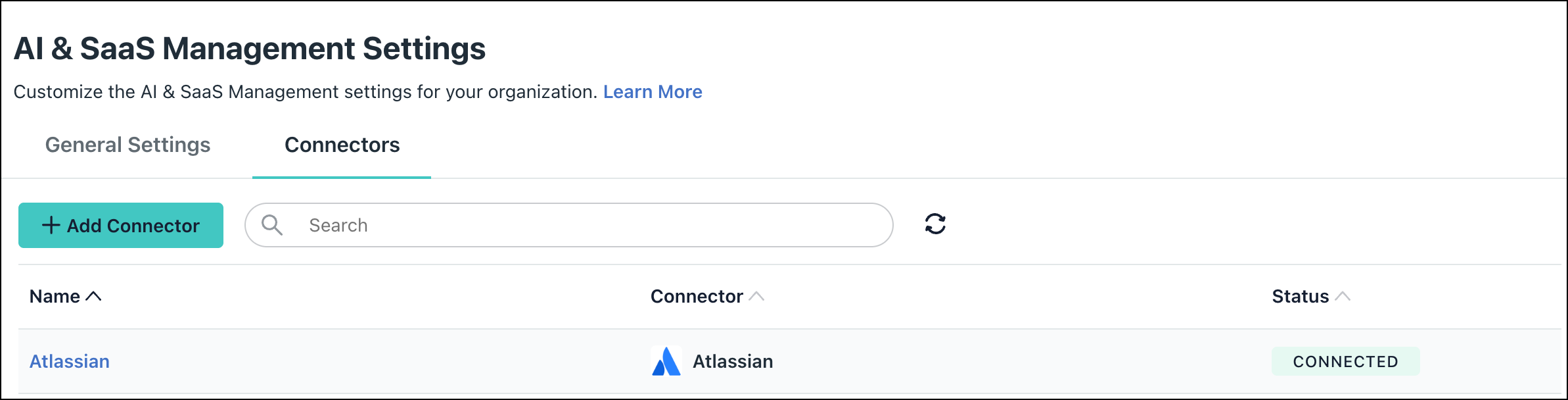
Under AI & SaaS Management Settings, click the Connectors tab, then click + Add Connector.
-
Select Okta and click Connect.
-
Enter a name and click Connect.
-
Enter the token copied from the previous section step 3.
-
In the Okta Subdomain field, enter your subdomain.
-
Click Save Connector.
-
You will now see Okta in your list of Connectors.
If permissions are accidentally removed, or if the admin who configured left your organization, the connector will stop working and you will be prompted to Reconnect.

Required Permissions
- Permission List
- Permission Scope
Uninstall/Remove
-
On the Connector’s detail page, click on Delete Connector and follow the prompts.
-
To revoke permissions granted to JumpCloud, go to the Okta Admin Console > Security > API > Tokens and revoke the generated token.
Was this information helpful?