Webhook Use Case: JumpCloud to Azure Integration Setup
JumpCloud can automatically send real-time notifications to external applications and cloud services using webhooks. By integrating JumpCloud with Azure Logic Apps (or Azure Functions), you can route directory events, system security alerts, and access request workflows into the Microsoft Azure ecosystem—enabling automated actions such as creating Azure DevOps work items, posting messages to Microsoft Teams, triggering Azure Automation runbooks, or ingesting data into Microsoft Sentinel.
In this document, you will learn how to integrate Azure with the JumpCloud Admin Portal by setting up a webhook channel.
Prerequisites
- Ensure you have access to the JumpCloud Admin Portal with Administrator privileges.
- Ensure you have Webhooks, Directory Insights / Alerts, or Access Requests enabled for your organization.
- Ensure you have an active Azure Subscription with permissions to create and configure Azure Logic Apps (Consumption or Standard) or Azure Functions.
- Ensure you have permissions to connect downstream Azure services (for example, Azure DevOps, Office 365 Outlook, or Microsoft Teams).
Creating the Incoming Webhook Trigger in Azure Logic Apps
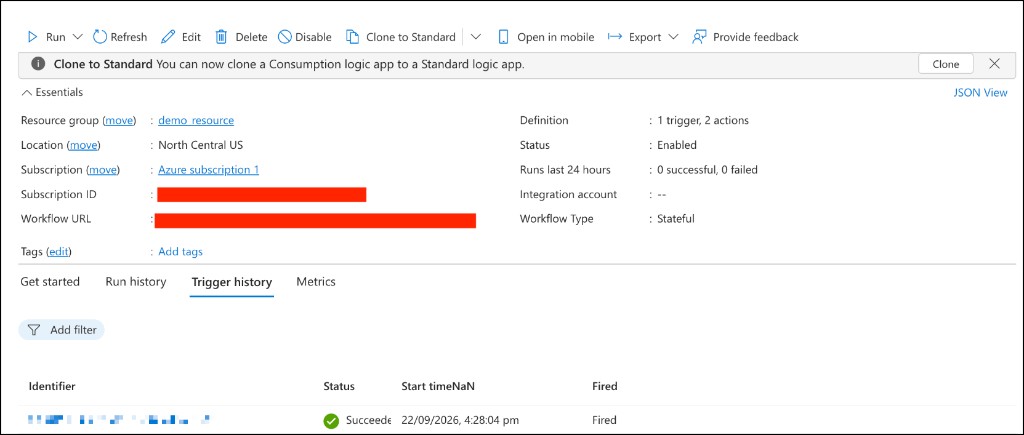
First, create a Logic App in Azure and configure an HTTP request trigger to receive JumpCloud webhook payloads.
-
Sign in to the Azure Portal.
-
Search for and select Logic Apps, then click + Add / Create.
-
Choose your Subscription, Resource Group, Logic App Name, Region, and Plan type (Consumption is recommended for event-driven workflows).
-
Click Review + Create, then Create.
-
Open the newly created Logic App and launch the Logic App Designer.
-
Select the trigger: When a HTTP request is received.
-
Under Request Body JSON Schema, click Use sample payload to generate schema.
-
Paste a sample JumpCloud webhook payload (for example, for System Alerts / Directory Insights):
{
  "alert_title": "Suspicious Login Detected",
  "event_description": "Multiple failed login attempts detected",
  "occurred_at": "2026-09-23T09:00:00Z",
  "priority": "HIGH",
  "status": "OPEN",
  "rule_id": "rule-12345",
  "initiated_by": "john.doe@example.com",
  "source_name": "JumpCloud Directory",
  "source_type": "DirectoryInsights",
  "source_url": "https://console.jumpcloud.com",
  "di_event": {
    "event_type": "user_login",
    "client_ip": "192.0.2.1",
    "username": "john.doe",
    "organization": "org-67890"
  }
}
- Go to Insights > Directory in the JumpCloud Admin Portal and check the JSON for a specific event to know the event details.
- See Webhook Payload Fields to learn more about specific fields in the webhook payload.
- See Access Requests Webhook Payload Data to learn more about Access Requests related fields in the webhook payload.
- For Access Requests, fields are nested under
di_event(for example,triggerBody()?['di_event']?['workflow']?['name'],triggerBody()?['di_event']?['initiated_by']?['username']).
- Click + New step to add desired actions based on your workflow requirements:
- Azure DevOps: Select Create a work item (Issue, Task, or Bug) and map fields like
alert_titleto Title andevent_description/di_eventto Description. - Microsoft Teams: Select Post message in a chat or channel to notify your SecOps/IT team.
- Office 365 Outlook: Select Send an email (V2) with alert details.
- Azure Sentinel / Log Analytics: Select Send Data (preview) to stream events for security monitoring.
- Azure DevOps: Select Create a work item (Issue, Task, or Bug) and map fields like
- Click Save in the Logic App Designer.
- Expand the When a HTTP request is received trigger and copy the generated HTTP POST URL (this URL includes the SAS token authentication parameters:
?sp=...&sig=...).
Configuring the Webhook Channel in JumpCloud
Next, log in to the JumpCloud Admin Portal and create a webhook channel. See Create Webhook Channels to learn more.
While configuring the webhook, include the following details:
-
In the left navigation, go to Org Settings > Notifications > Webhook Channels (or click + Create Webhook Channel).
-
In the Name / Label field, enter a descriptive name (for example,
Azure-LogicApp-SecurityAlertsorAzure-DevOps-Notifier). -
In the URL field, paste the HTTP POST URL copied from Azure Logic Apps.
-
Configure Authentication:
- Azure Logic Apps (default SAS URL): Select None (authentication is handled via the query parameters in the URL).
- Azure Functions (with Function Key): Select None, expand Headers, click + Add Header, and set:
- Key:
x-functions-key - Value: your Azure Function key
- Key:
- Custom OAuth / API Management: Select Bearer Token and supply the token, or configure custom Authorization headers under Headers.
-
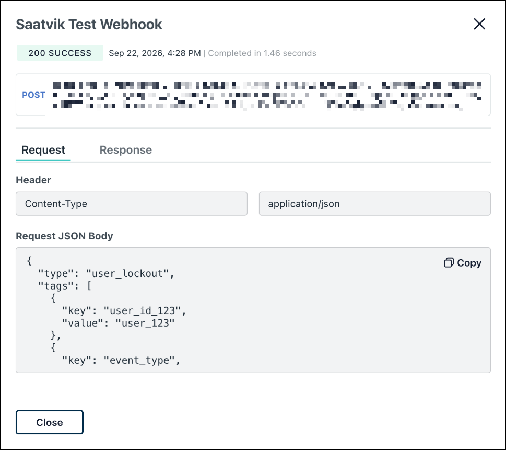
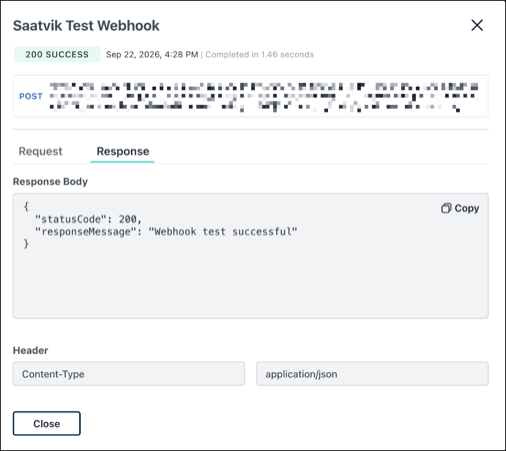
Click Test Webhook to send a test event to Azure and confirm successful receipt in the Logic App runs history.
-
Click Save.
Configuring the Insights Rule in JumpCloud Admin Portal
Next, configure an Insights Rule to receive alert notifications. See Create an Insights Rule to learn more.
While configuring the rule, ensure the following:
- In the Conditions section, select the specific events that you want to be notified for (for example, suspicious logins, password changes, or admin role assignments).
- In the Alert Actions section, select the appropriate Azure webhook channel from the Select Notification Channels dropdown.
- (Optional) To be notified for alert resolution and acknowledgement events, select the respective checkboxes.
- Click Save Rule.
After setup, any of the selected events will trigger a webhook notification that Azure Logic Apps uses to run your configured actions.
Configuring Webhook Notifications in Access Requests Settings
You can select existing webhook channels within the JumpCloud Admin Portal to receive event notifications related to Access Requests.
- Log in to the JumpCloud Admin Portal.
- Go to Access > Access Requests.
- Follow the steps in Configuring Access Requests Settings to complete the Webhook Notification configuration.
- Ensure you select the events that you want to receive notifications for (for example, Request Submitted, Request Approved, Request Denied, or Access Granted).
- Click Save.
After setup, any of the selected events will trigger a webhook notification that Azure Logic Apps uses to run your configured actions.
Verification and Troubleshooting
- Verify Azure execution: In the Azure Portal, open your Logic App and check Overview > Runs history. Click any run to inspect the received input payload and verify step-by-step execution.
- Inspect JumpCloud logs: In JumpCloud, go to Insights > Directory to view raw JSON events and verify the schema matches your Azure Logic App parsing logic.
- Payload mappings: If fields appear empty in Azure DevOps or Teams, ensure dynamic expressions in Logic Apps match the JSON structure (for example,
triggerBody()?['alert_title']for Alerts ortriggerBody()?['di_event']?['workflow']?['name']for Access Requests).
Was this information helpful?