Users: Manage Apps Using the Self Service App Catalog
The JumpCloud Self Service App Catalog lets you manage software applications assigned to you by your IT admin. You can independently browse, install, and uninstall approved software directly on your device without admin access or waiting for IT support.
Prerequisites:
- Your IT admin must configure and assign applications to your device before they appear in the catalog. See Get Started: Self Service App Catalog to learn more.
Considerations:
- If your IT admin has not assigned any self service applications to your device, the catalog is empty when you open it.
- If you do not see the JumpCloud icon in the system tray or menu bar, or you do not see App Catalog under Self Service, contact your IT admin. Your admin controls whether these options appear on your device.
Understanding the Workflow
- Admin Configuration: Your IT admin creates an application in the Admin Portal, sets the delivery method to Self Service, and assigns it to your device or device group.
- User Access: You open the App Catalog from the JumpCloud macOS Menu Bar App or Windows Tray App to view, install, and manage your available software.
Opening the Self Service App Catalog
The steps to open the Self Service App Catalog differ slightly depending on your device type.
Windows
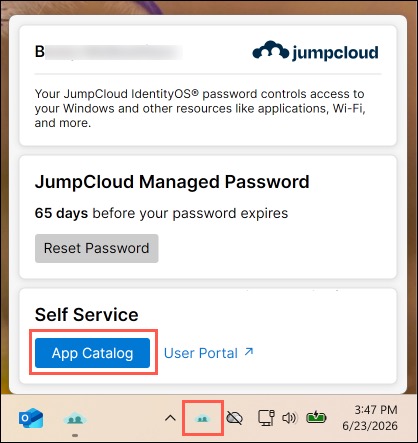
To access the Self Service App Catalog, launch the JumpCloud Tray App on your device:
- On Windows, in the bottom right system tray, click the JumpCloud icon.
- Under Self Service, click App Catalog.
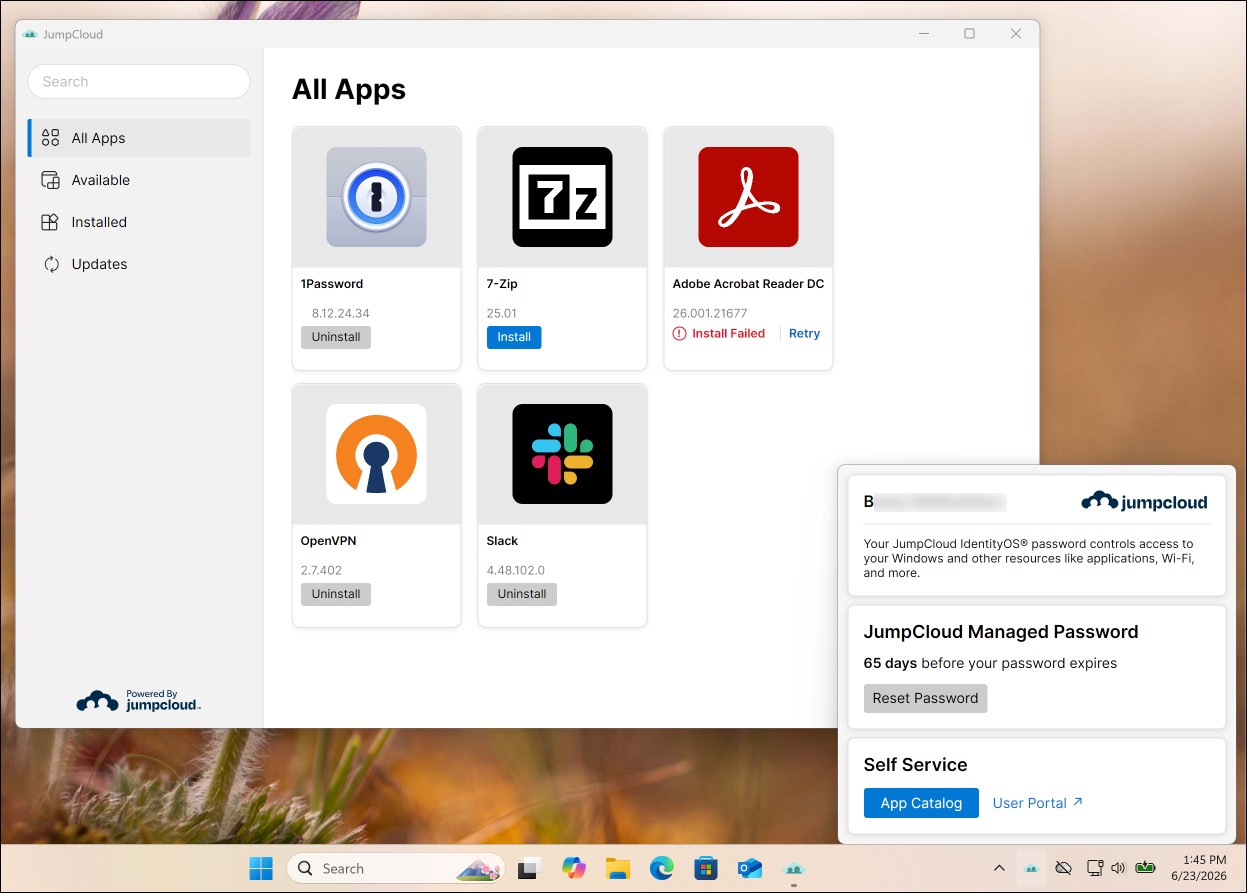
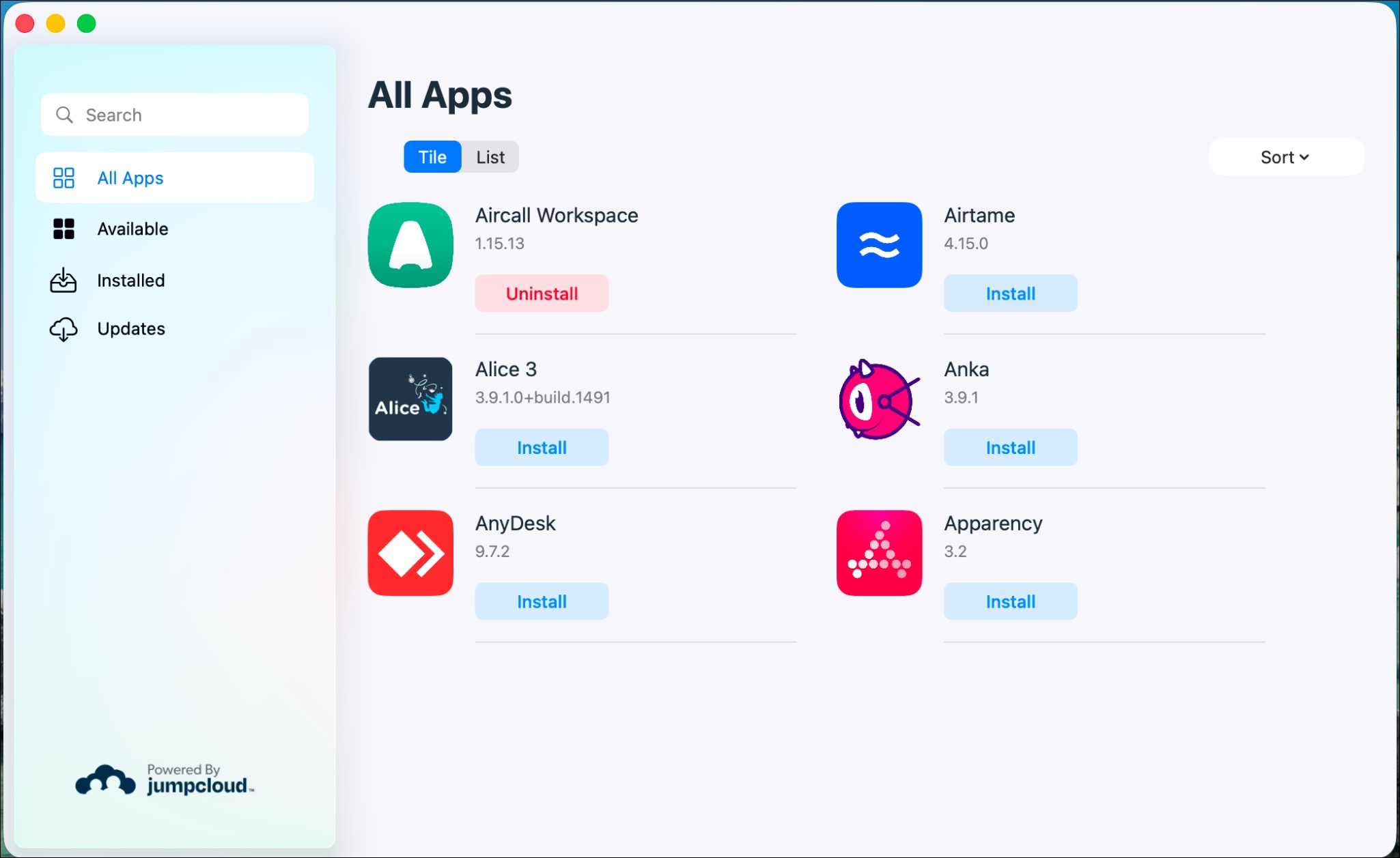
By default, the App Catalog opens All Apps and shows all applications assigned to your device.
macOS
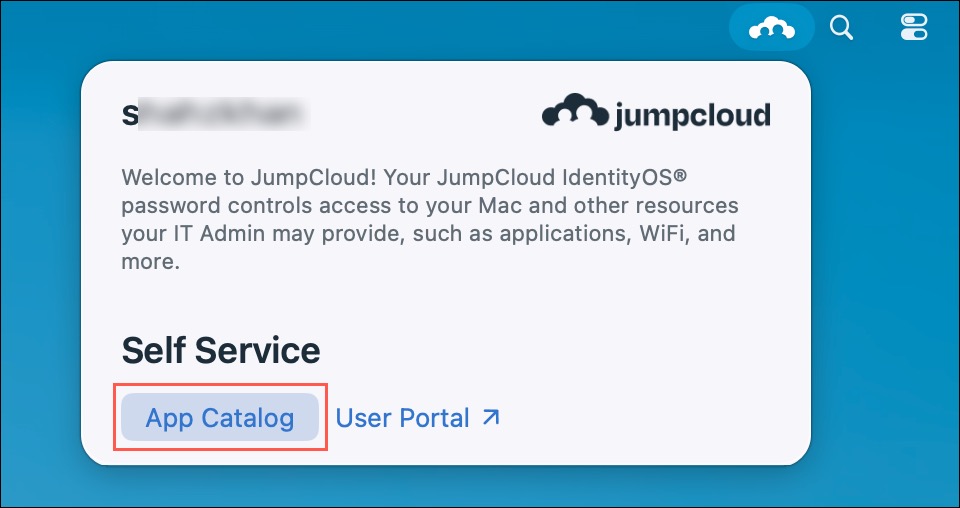
To access the Self Service App Catalog, launch the JumpCloud Menu Bar App on your device:
- On macOS, in the top right, click the JumpCloud icon.
- Under Self Service, click App Catalog.
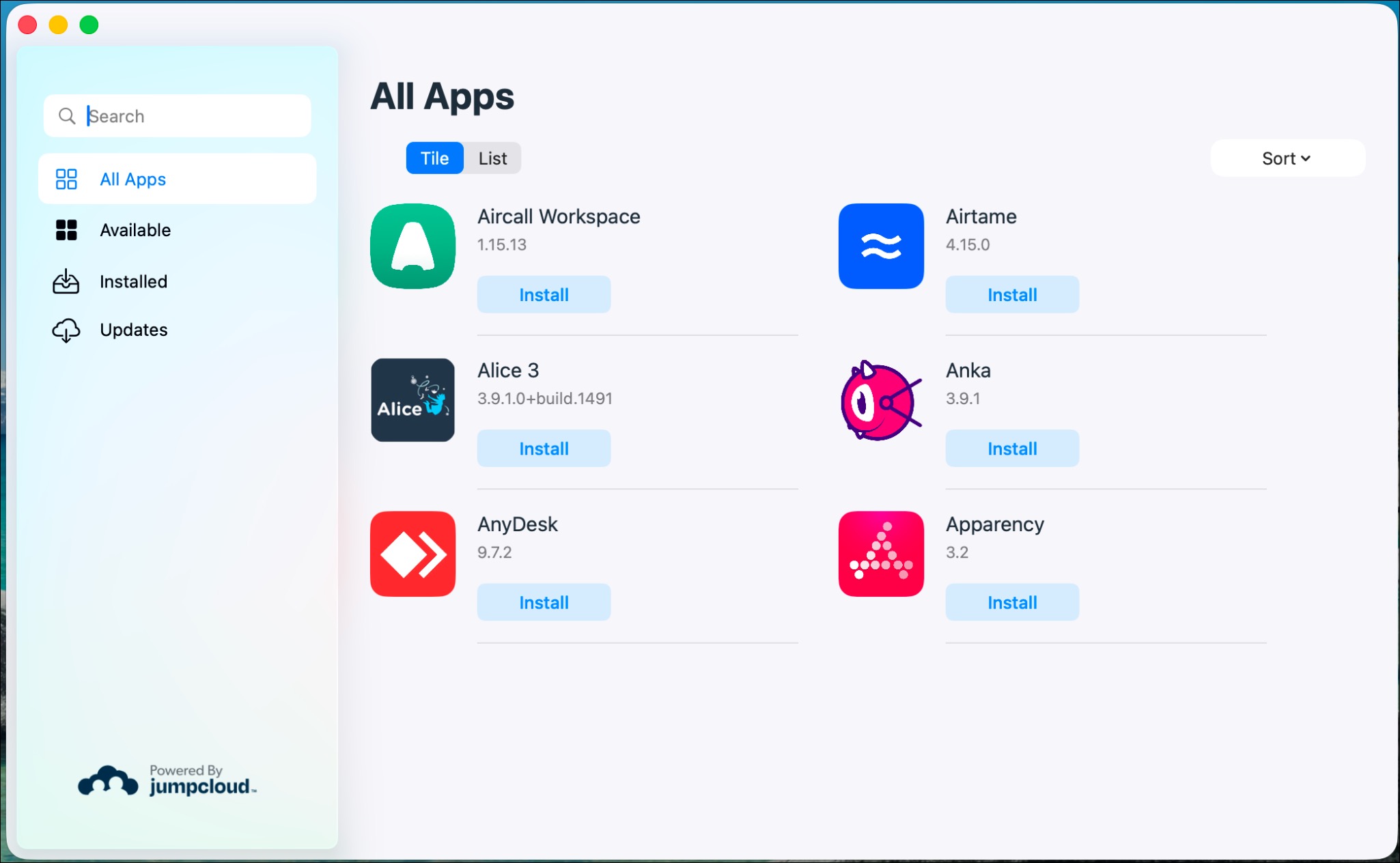
By default, the App Catalog opens All Apps and shows all applications assigned to your device.
Installing and Uninstalling Applications
- In the left-hand menu, click Available to view applications you can download, or click Installed to view applications already on your device.
- Find the application you want to manage.
- To install an application, click Install.
- To remove an application, click Uninstall.
Searching for an Application
- In the top left, click the search bar.
- Enter the name of the application. Search results appear as you type.
Updating Applications
- In the left-hand menu, click Updates.
- If updates are available, find the application you want to update and click Update.
- If all your applications are up-to-date, a No Results Found message appears.
Viewing Application Status
You can view the real-time status of your applications directly in the catalog. Statuses include: Not Installed, Pending, Installing, Reinstalling, Uninstalling, Installed, and Install Failed.
Was this information helpful?