Users: Create Access Requests from the JumpCloud Menu Bar (Tray App)
The JumpCloud Menu Bar App lets users log in to their devices using their JumpCloud credentials and access the User Portal without having to re-enter their passwords. See Use the JumpCloud Menu Bar to learn more.
If you want admin privileges for your JumpCloud managed device, you can use the JumpCloud Menu Bar (Tray App) and directly create a device admin access request.
Creating an Access Request in the JumpCloud Menu Bar
On Mac computers, the JumpCloud menu bar app provides a convenient way for you to create a device admin access request.
The menu bar icon can be hidden by your Admin, and you should contact your Admin if you're unable to locate the menu bar app on your device.
To create a device admin access request:
- Click the JumpCloud logo in the menu bar to open the JumpCloud menu bar app.
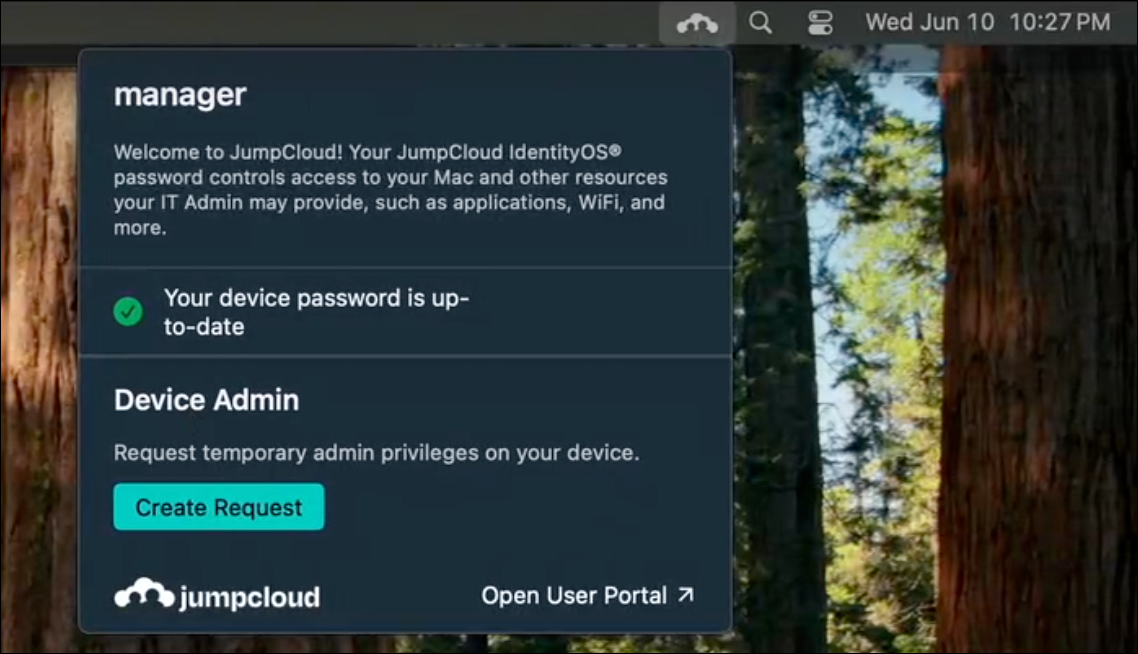
- In the Device Admin section, click Create Request.
- Select the Request Name from the drop-down.
- In the Duration dropdown, select the duration for which you want temporary admin privilege.
- Provide a valid reason describing why you need temporary admin privilege.
- Click Submit Request.
Your request will be submitted. You can check the status in the Device Admin section of the tray app. Your request stays Pending until an admin approves the request. If you wish to cancel the request, click Cancel Request.
Once your request is approved, the status changes to Approved and a Start Session button appears.
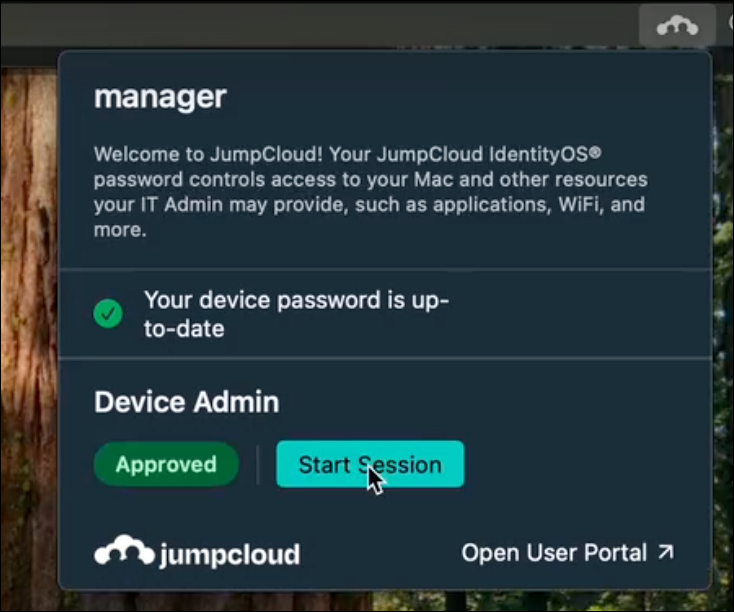
To begin performing admin tasks on your current device, click Start Session. You will see a floating timer displaying the remaining time.
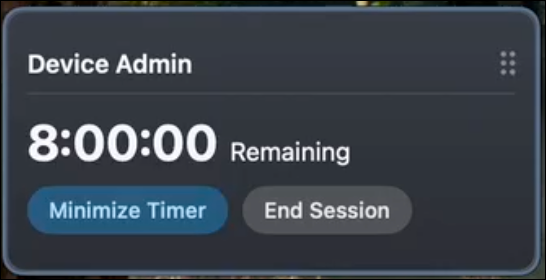
Access is temporary and will automatically expire once the specified duration ends. Once done, you can click End Session to stop using admin privileges before the specified time ends**.**
Your admin may revoke this access manually at any time before it automatically expires.
Creating an Access Request in the Windows Tray App
Windows users can use the JumpCloud Windows Tray app to log in to the JumpCloud User Portal, and directly create a device admin access request.
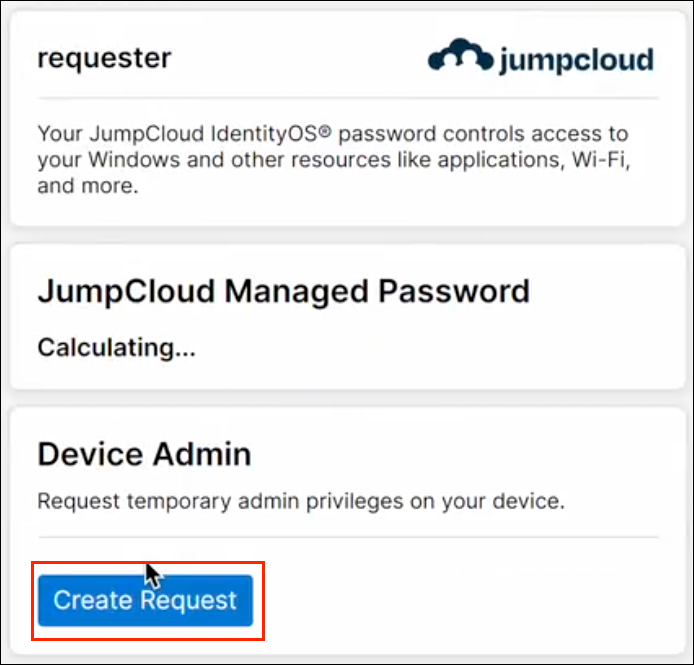
The JumpCloud Windows app only appears in your system tray if you sign in with your JumpCloud username and password.
To create a device admin access request:
- Launch your JumpCloud Windows Tray app.
- In the Device Admin section, click Create Request.
- Select the Request Name from the drop-down.
- In the Duration dropdown, select the duration for which you want temporary admin privilege .
- Provide a valid reason describing why you need temporary admin privilege.
- Click Submit Request.
Your request will be submitted. You can check the status in the Device Admin section of the tray app. Your request stays Pending until an admin approves the request. If you wish to cancel the request, click Cancel Request.
Once your request is approved, the status changes to Approved and a Start Session button appears.
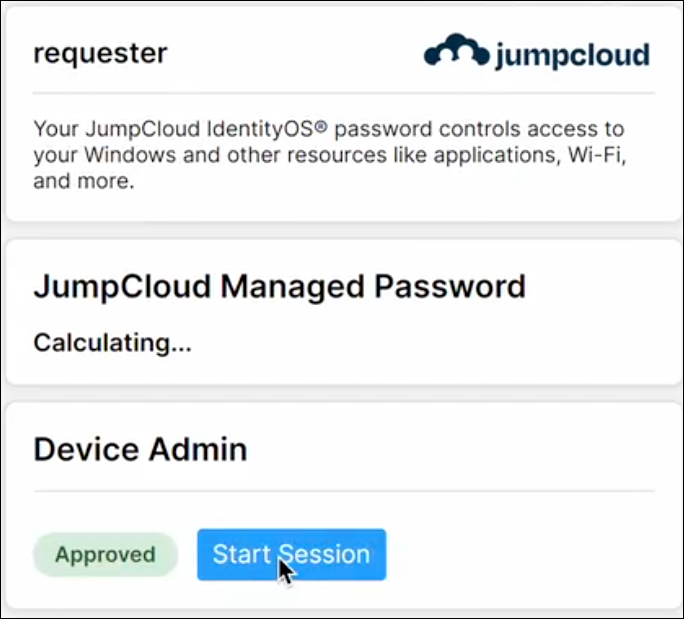
To begin performing admin tasks on your current device, click Start Session. You will see a floating timer displaying the remaining time.
Access is temporary and will automatically expire once the specified duration ends. Once done, you can click End Session to stop using admin privileges before the specified time ends**.**
Your admin may revoke this access manually at any time before it automatically expires.
Was this information helpful?