Use RDP Direct Access from a Mac
Direct Access connects you to a Windows server with the RDP app on your own computer instead of the browser. On a Mac, that app is Windows App, formerly known as Microsoft Remote Desktop.
The User Portal cannot open Windows App by itself. You install a small app on your Mac, the RDP Connector, that opens Windows App for you when you select Direct Access. You install it once.
Prerequisites
- A Windows server with the RDP protocol in JumpCloud PAM that you have access to.
- Network access from your Mac to the Jump Server on the Shell Port. The default is 2222. Your administrator can confirm the port.
Installing the RDP Connector
- Check the chip of your Mac. Select the Apple menu, then About This Mac. The Chip line shows Apple silicon (for example, Apple M4) or Intel.
- Download the RDP Connector for your chip:
- Open the downloaded file and drag VaultOne RDP Connector to the Applications folder.
- Allow the app in macOS. Select the Apple menu, then go to System Settings > Privacy & Security > Accessibility.
- Turn on VaultOne RDP Connector.
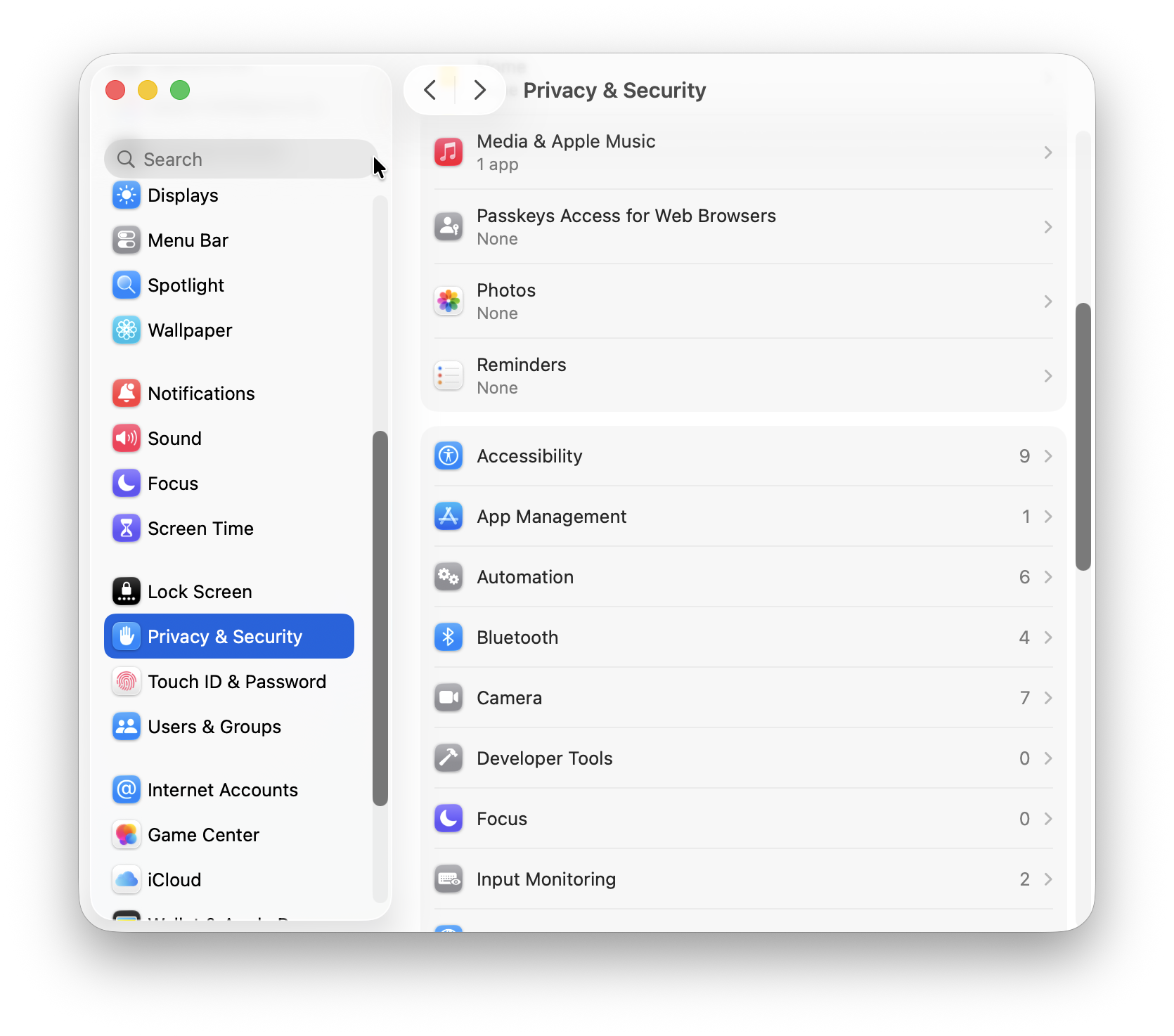
The app keeps the name VaultOne RDP Connector, so look for this name in the Applications folder and in System Settings.
If you see an error about an outdated RDP Connector, download and install the latest version again with the same steps.
Installing Windows App
Install Windows App from the Mac App Store. Direct Access needs it to open the RDP session.
Connecting with Direct Access
- Sign in to the JumpCloud User Portal and find the server that you want to access.
- Select Connect.
- In the connection window, check the credential in Credentials, then select Direct Access.
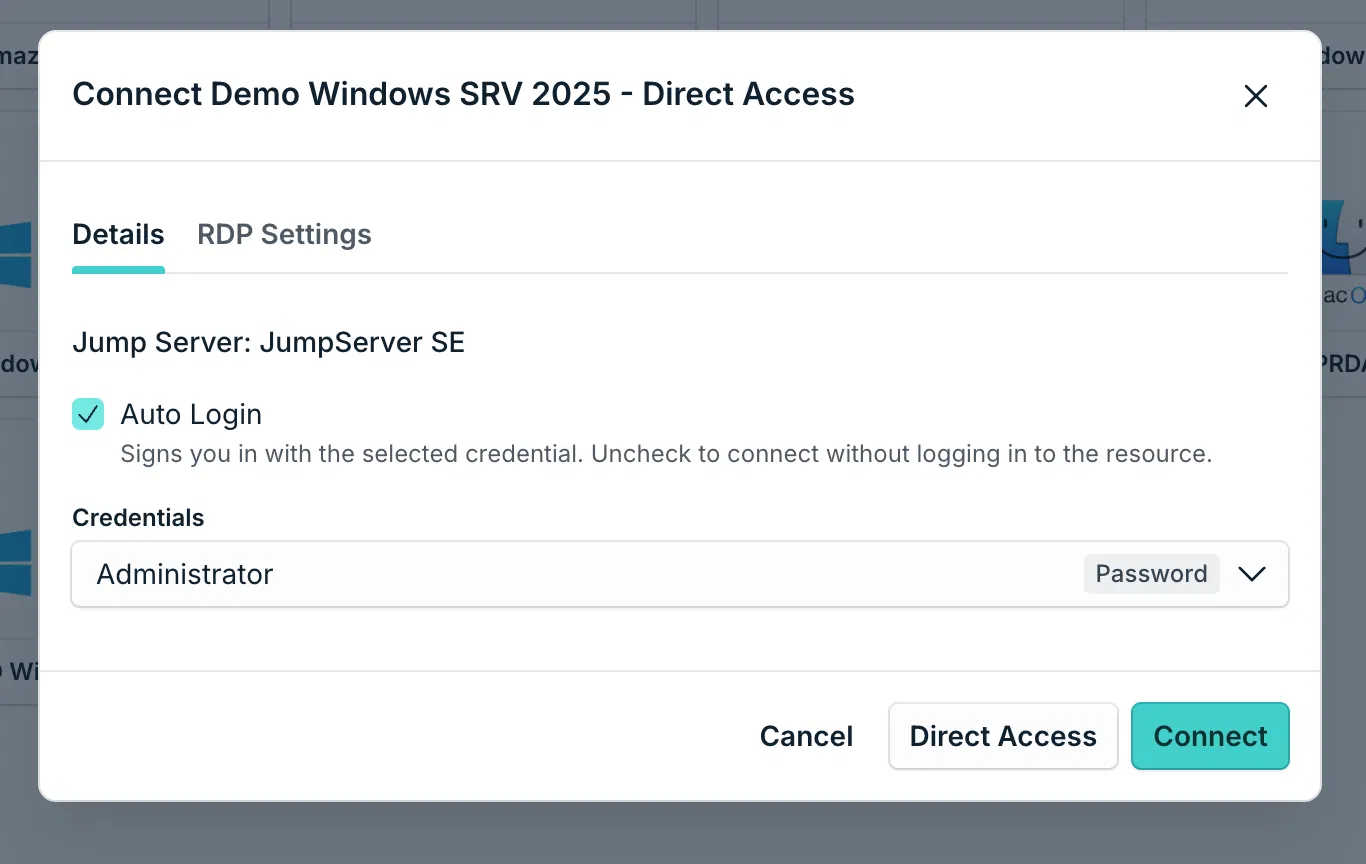
- If your browser asks for permission to open the RDP Connector, allow it.
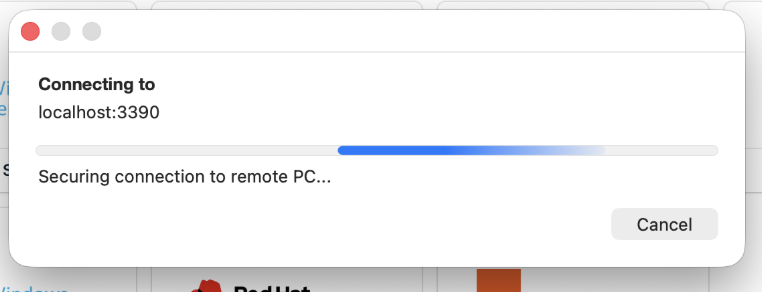
Windows App opens and connects to the server.
Was this information helpful?