Use MFA Codes with Privileged Credentials
Many websites ask for a one-time code (MFA) after the username and password. With JumpCloud PAM, you can store that MFA together with the credential. PAM generates the code, so users do not need a personal authenticator app or the phone that holds it.
This article is about the MFA of the account that PAM signs in to, for example a Privileged Website. It does not set up MFA to sign in to JumpCloud itself.
Who this article is for: Administrators who create Privileged Credentials, and users who need to view an MFA code for a resource they can access.
Why Store MFA in PAM
Without PAM, the MFA of a shared or privileged account lives in the hands of one person. With PAM, the company manages it.
- The MFA leaves the user’s hands. The MFA key stays in PAM, next to the password. The company controls it, not each person.
- Stronger sign-in. The user connects with the password and the MFA code, both supplied by PAM.
- Less work for users. JumpCloud Go fills in the username, the password and the MFA code automatically.
- Audit trail. Every time someone views an MFA code, PAM records the event in Directory Insights.
How It Works
- You add the MFA key, or the QR code, of the account to a credential in PAM.
- PAM generates a new code every 30 seconds.
- When a user connects to the Privileged Website, JumpCloud Go fills in the credential and the MFA code. If the user needs the code, they can view and copy it.
Selecting the Credential Type
You can store MFA in three types of credentials.
| Credential type | Use it when |
|---|---|
| Password | The account signs in with a username and password, and also requires a one-time code. |
| Key | The account signs in with a private key, and also requires a one-time code. |
| 2FA | You only need to store the MFA. This credential type has no password or key, only the MFA. |
Before You Begin
| Requirement | Details |
|---|---|
| MFA key or QR code | When you turn on MFA in the website or service, it shows a QR code and the same secret as text, called the MFA key or setup key. Keep one of them. You need it in PAM. |
| Admin permission | Your Admin Portal role must allow you to create and edit Privileged Credentials. |
| Privileged Website | Optional. Add the website in PAM if users will connect to it with this credential. |
1. Add MFA to a Password or Key Credential
- In the JumpCloud Admin Portal, open Privileged Credentials.
- Create a new credential, or open an existing credential of type Password or Key.
- In the General section, select Credential has MFA.
- Add the MFA of the account in one of these ways:
- Enter the setup key in MFA key.
- Turn on Upload QR Code image and upload the QR code image of the account.
- Select Save.
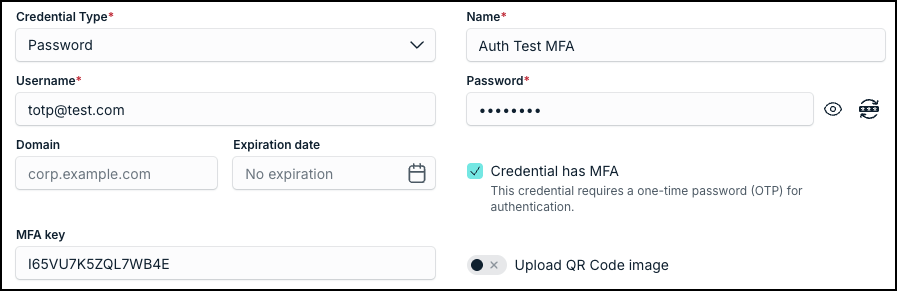
| Field | What it does |
|---|---|
| Credential has MFA | Tells PAM that the credential requires a one-time password (OTP). Selecting it shows the MFA fields. |
| MFA key | The secret that PAM uses to generate the codes. |
| Upload QR Code image | Lets you upload the QR code instead of typing the key. PAM reads the key from the image. |
2. Create a 2FA Credential
Use the 2FA type when the credential only stores the MFA.
- In Privileged Credentials, create a new credential.
- In Credential Type, select 2FA.
- Enter a Name.
- Enter the MFA key, or turn on Upload QR Code image and upload the QR code.
- Select Save.
3. Associate the Credential with the Privileged Website
Associate the credential with the Privileged Website in the same way as any other credential. For the steps, see Add and Edit Privileged Websites with Web Shield.
When a user connects, JumpCloud Go fills in the username, the password and the MFA code automatically. The user does not need to type or copy anything.
4. View an MFA Code
You can also view the code when you need it, for example to complete a sign-in manually.
From the Admin Portal
In Privileged Credentials, a credential with MFA shows a lock with a clock icon in the Actions column. A 2FA credential shows only this icon, because it has no secret to view.
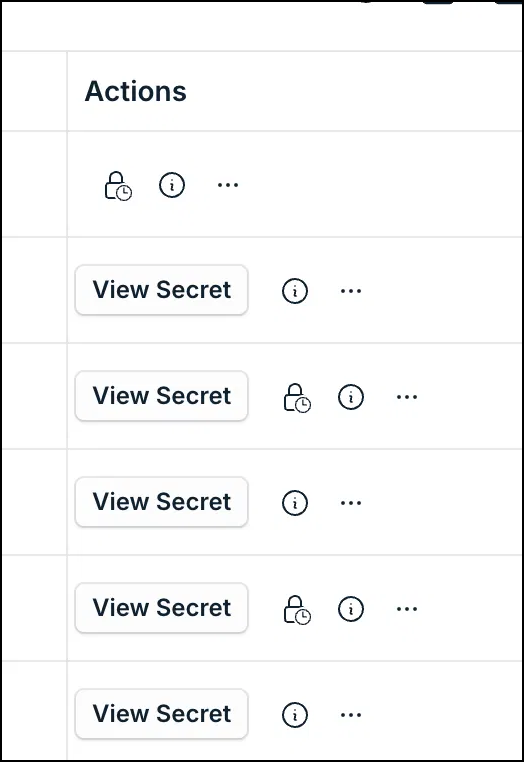
- Select the lock and clock icon of the credential.
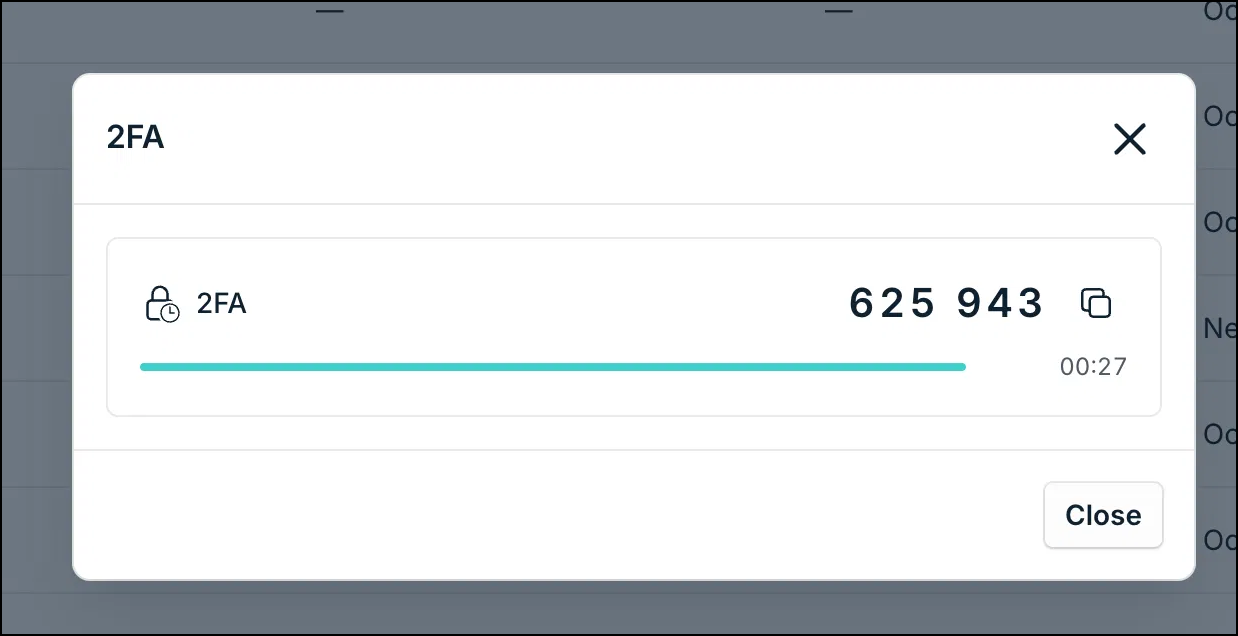
- Read the code in the window. The bar and the timer show how long the code is valid.
- Select the copy icon to copy the code, then select Close.
From the User Portal
- In the JumpCloud User Portal, find the Privileged Website.
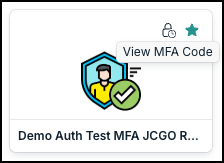
- Select the lock and clock icon on the resource card. The tooltip says View MFA Code.
- Copy the code and paste it into the verification field of the website.
The code changes every 30 seconds. If the timer is almost over, wait for the new code before you paste it.
5. Audit Who Viewed an MFA Code
PAM records an event every time someone views an MFA code. Viewing a code is a sensitive action, so you can use this record to review it.
- In the JumpCloud Admin Portal, open Directory Insights.
- Look for the event Credential MFA Code Viewed:
pam_credential_view_mfa_code
- Expand the event to see who viewed the code, the credential, and when.
Best Practices
| Practice | Why |
|---|---|
| Move the MFA to PAM and remove it from personal authenticator apps | The company keeps control of the MFA of privileged accounts, even when someone leaves. |
| Store the MFA key only in PAM | The key can generate every code. Do not keep copies in other places. |
| Limit who can view and edit the credential | Anyone who can view the code can complete the second step of the sign-in. |
| Review the Credential MFA Code Viewed events | It shows who viewed codes and when. |
Was this information helpful?