Understand JumpCloud Windows Login Changes
JumpCloud has enhanced the login experience for all managed Windows devices by updating the password sync and multi-factor authentication (MFA) flows. This change enhances the login experience by preserving the Credential Manager and related application access after off-device password resets.
Considerations:
- Users with unmanaged, local accounts with no password set may see a password prompt in some scenarios. They can press Enter or click the arrow icon to log in.
Understanding Key Features and Improvements
The updated Windows login experience offers several changes and benefits:
- Sync passwords seamlessly at device login or via the JumpCloud Tray App after an off-device password change (For example: in the User Portal or Admin Portal).
- Bypass the password sync step by clicking I don't know my old password if the previous password is unknown. Other than the Windows Data Protection API (DPAPI) and Credential Manager being cleared, there are no negative consequences to skipping this.
- Navigate temporary passwords set by Admins smoothly. For example, if an Admin resets a user password to a temporary value by selecting Force user to set their own password at first login, the user is prompted to first provide their previous password. The user can select I don't know my old password to skip this flow, and then set a new password to log in.
- Set a default MFA method. The MFA method defaults to Push initially. If the user prefers to use a Time-based One-Time Password (TOTP), they can select Use one-time password. JumpCloud saves this preference as the default going forward.
Changing Passwords Off-Device
When a password is changed off-device, the user is prompted to provide their previous password at device login or via the JumpCloud Tray App. Off-device password changes typically originate from these sources:
- User-initiated changes: The user changes their password in the User Portal or another location.
- Admin-initiated resets: An Admin resets the user's password in the Admin Portal. See Reset Passwords to learn more.
If an Admin selects Force user to set their own password at first login (which is now a default setting in the Admin Portal), the user is prompted to complete the password sync flow when they log in to their device. Because the user likely does not know their previous password in this scenario, they can click I don't know my old password to skip this step and proceed.
Understanding the User Experience
The following section overviews the experience users encounter when logging in, syncing, and resetting their password in the updated login window.
Standard Login
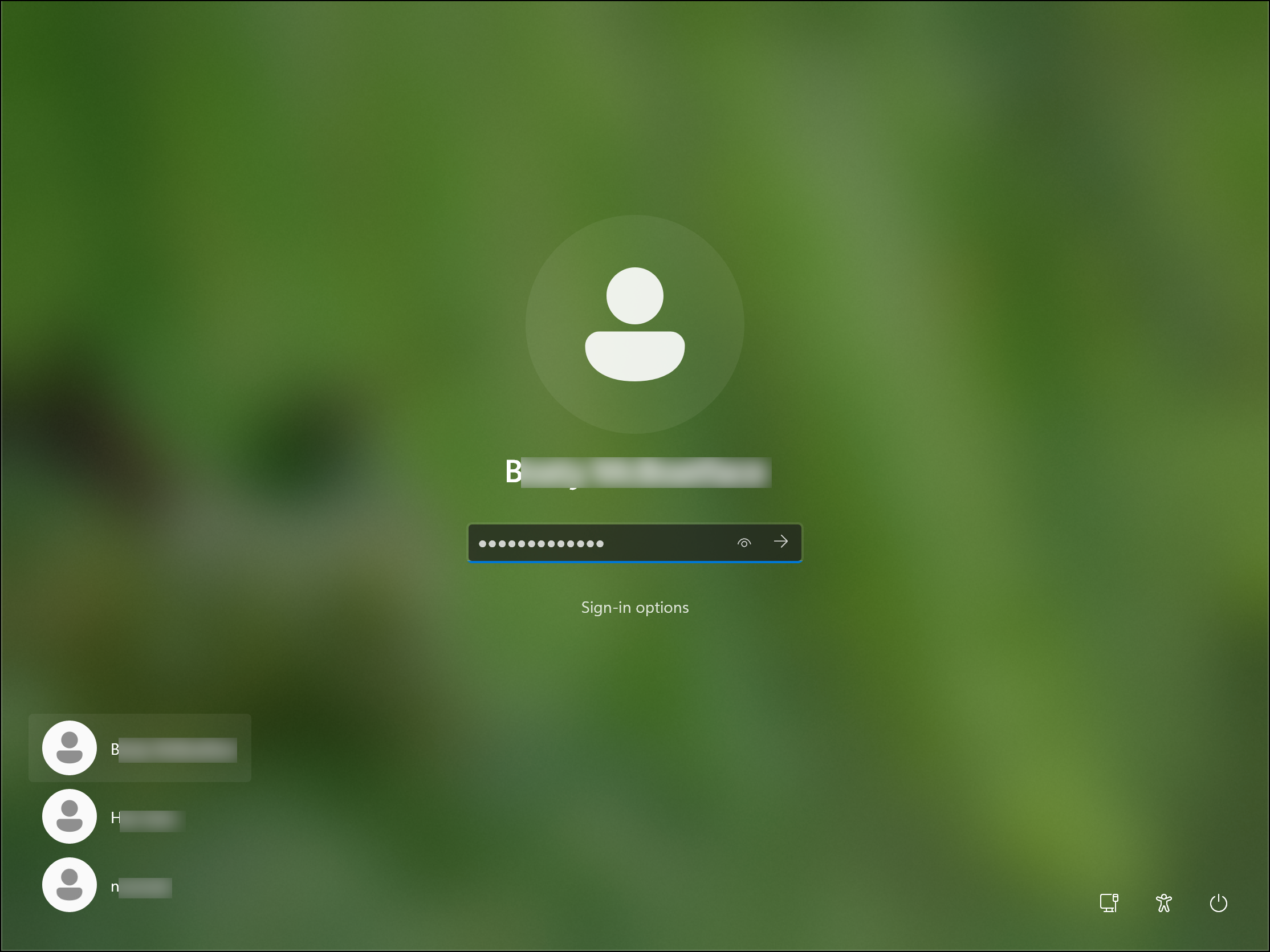
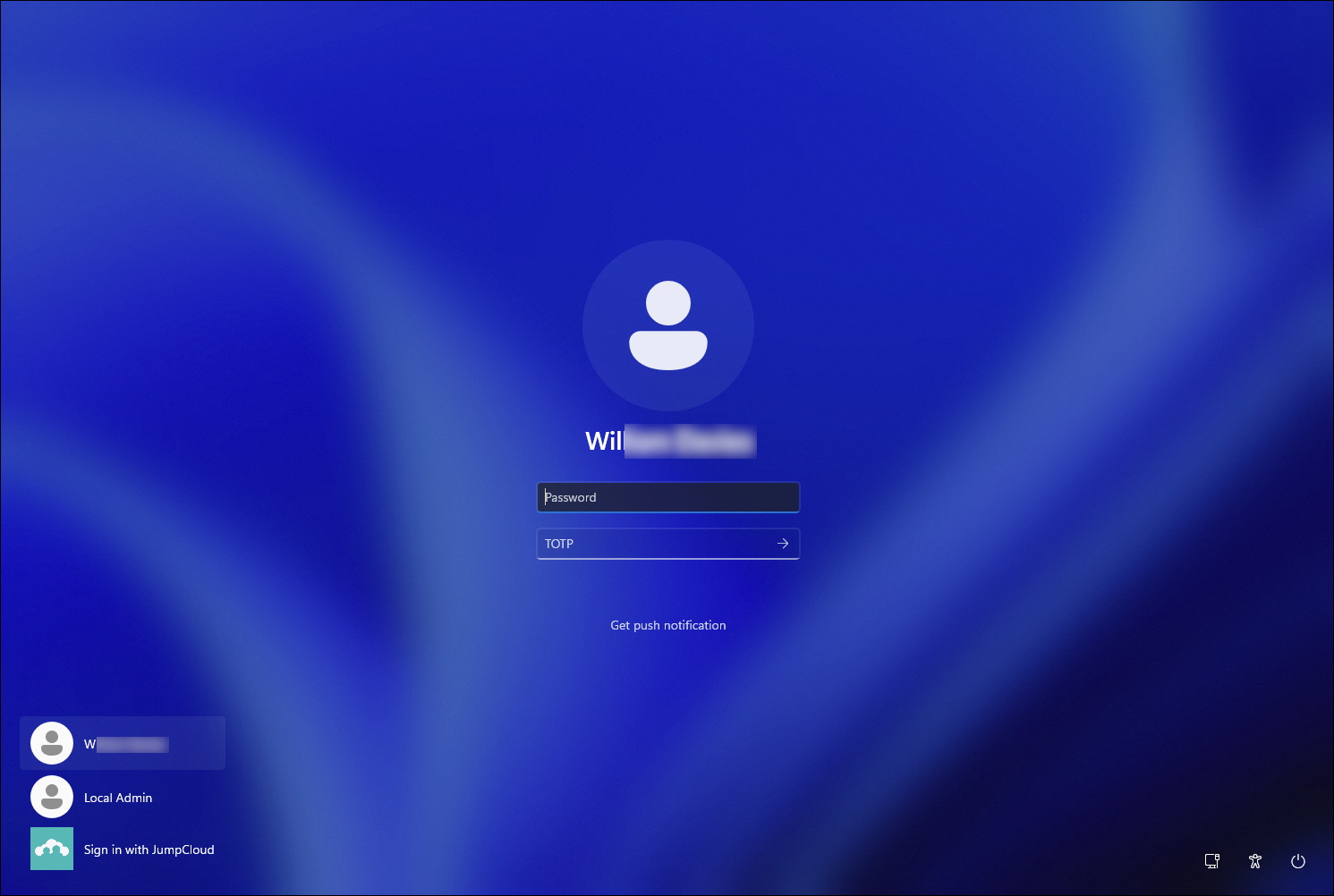
Users log in to their device by entering their password, and MFA if you’ve enforced it.
If you’ve enforced device MFA, users can switch between MFA methods by clicking Get push notification or Use one-time password depending on their current selection.
Login without device MFA:
Login with device TOTP MFA:
Password Sync
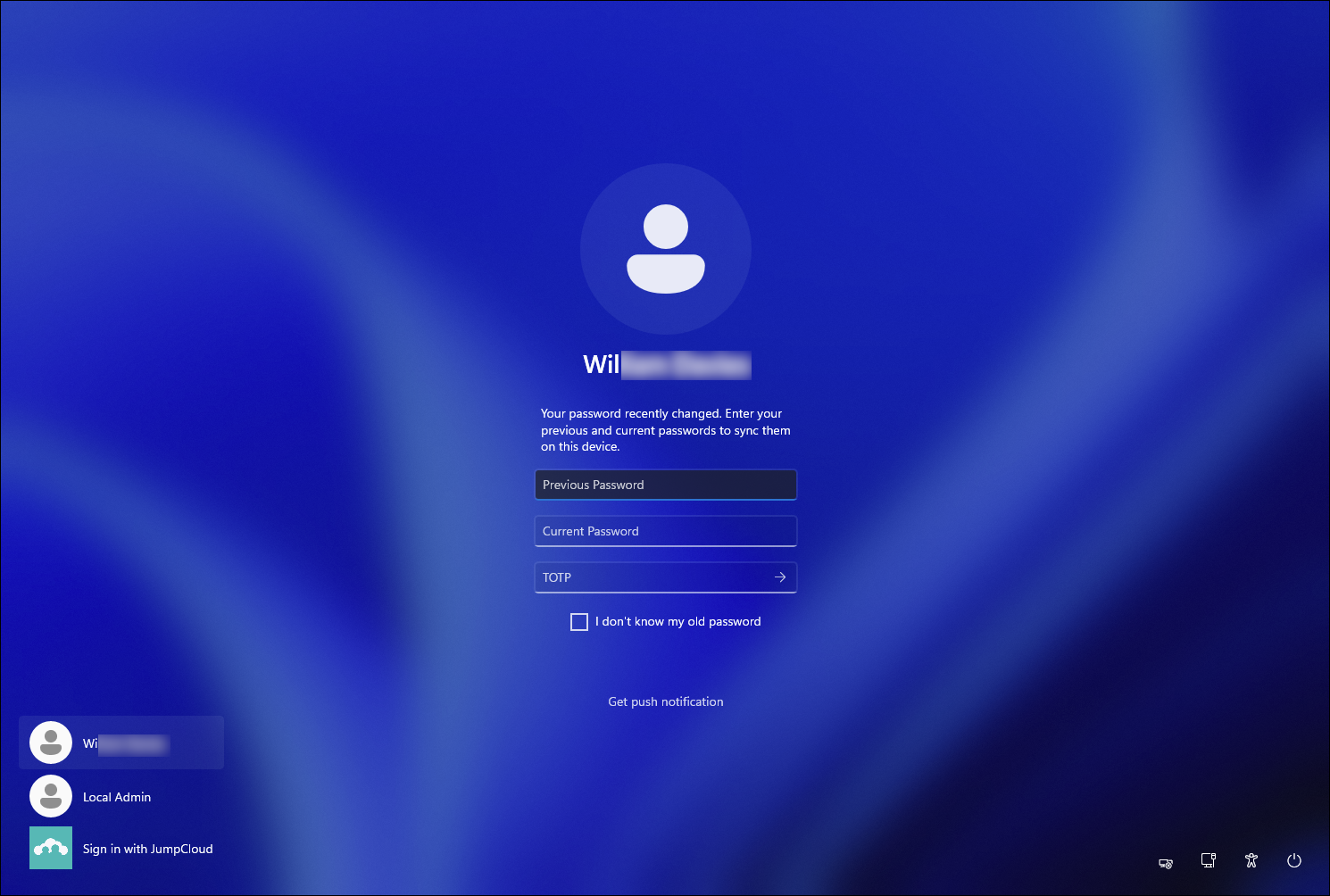
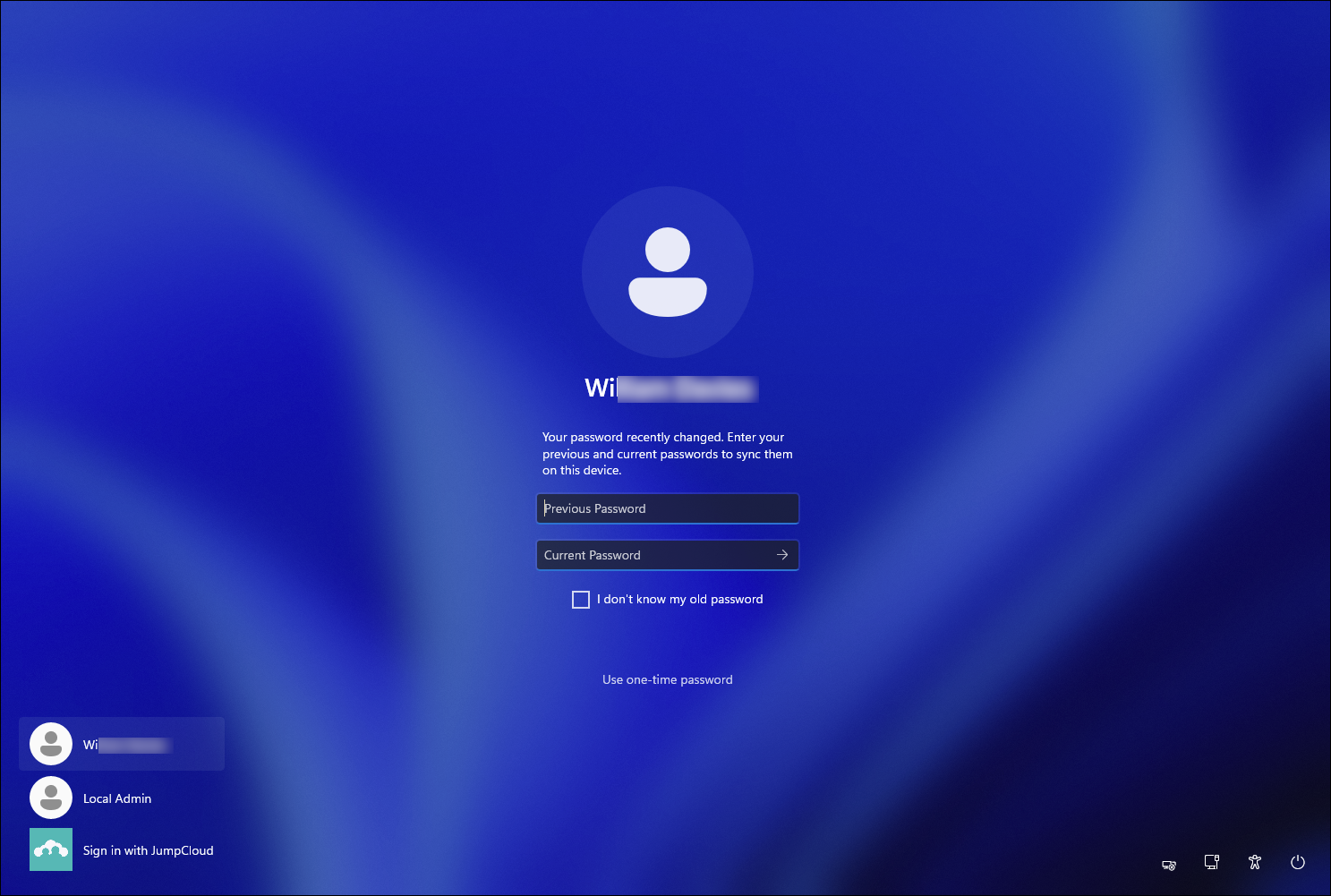
When a user’s password changes off of the device (for example in the User Portal or by an admin in the Admin Portal), they’re prompted to sync their password.
If an Admin resets the user’s password and selects Force user to set their own password at first login, users can select I don't know my old password to skip this step and proceed to setting a new password. Jump to Forcing Users to Set Passwords at First Login to learn more.
Password sync with TOTP MFA:
Password sync with Push MFA:

Forcing Users to Set Passwords at First Login
If an Admin resets the user’s password and this option was selected, the user sees the password sync prompt first as pictured in the previous section. They select I don’t know my old password, which skips the sync and prompts the user to set a new password, where they click OK.
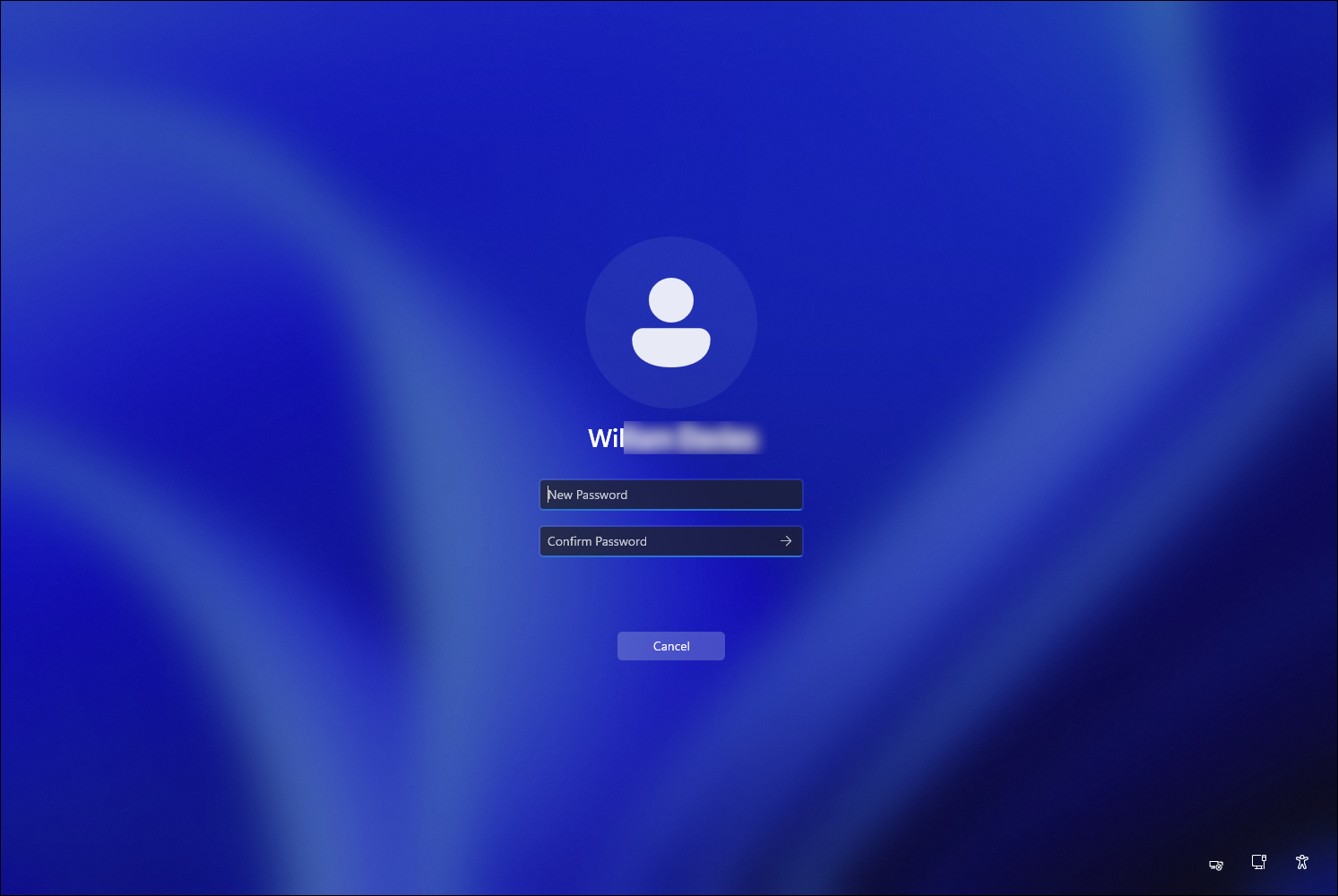
The user can now set a new password:

Questions or Feedback?
Reach out to your dedicated Account Manager, Customer Success Manager, or JumpCloud Support if you have any questions or concerns. We're here to help ensure a smooth transition for your organization.
Was this information helpful?