Understand Access Risk Factors
Overview
Access Risk evaluates every login event against nine distinct risk factors. Each factor is designed to detect a specific category of suspicious behavior. When a factor triggers, it contributes to the overall risk score for that login event.
Signals are compared against the user's behavioral baseline — which is built from the user's last 60 days of activity or last 50 successful login events, whichever is available. This means each signal is personal to the user; an unusual location for one user may be completely normal for another.
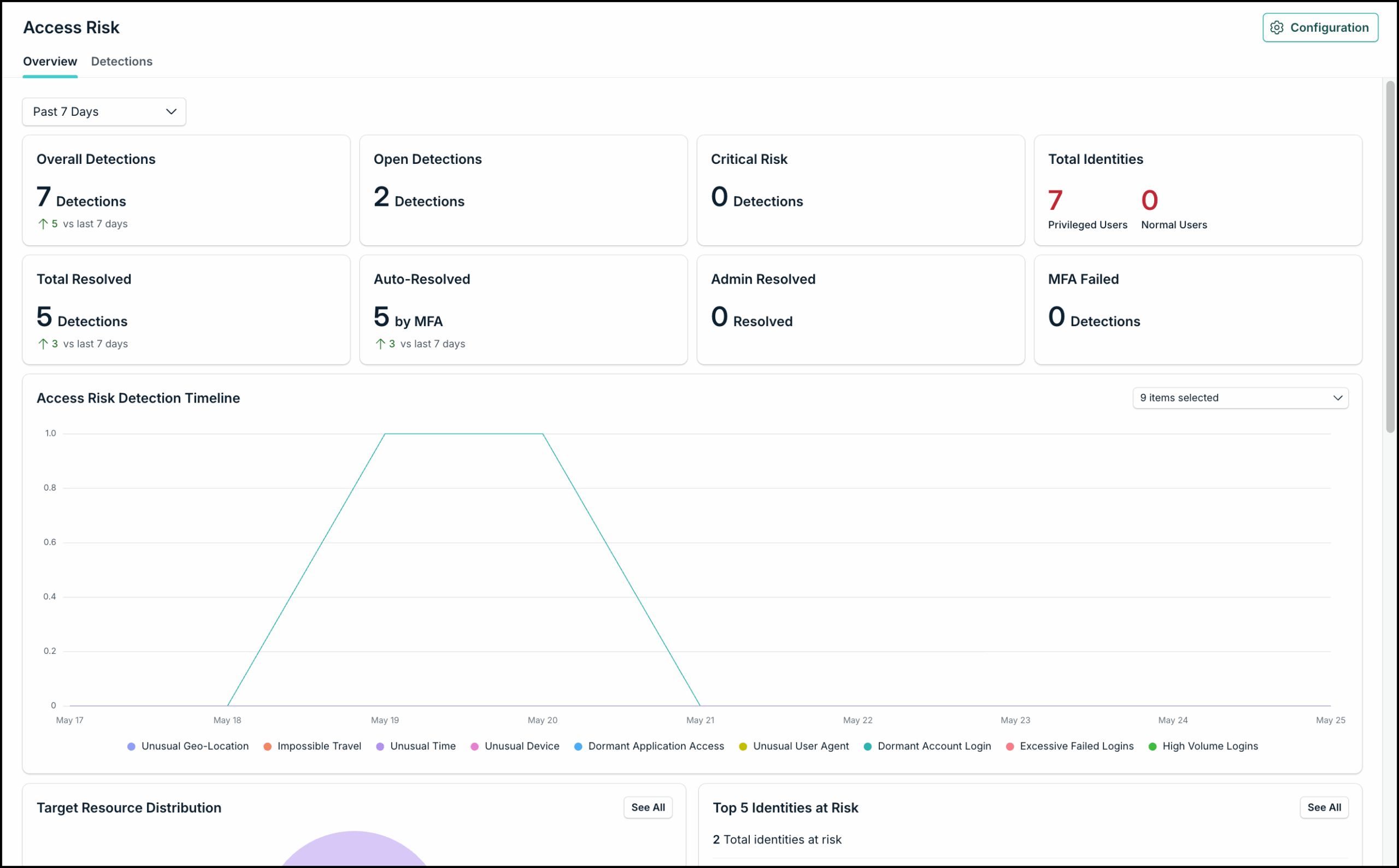
| Risk Factor | What it Detects | When it Triggers |
|---|---|---|
| Dormant Account Login | Detects authentication attempts from accounts that have been inactive longer than the configured dormant-account threshold. | Triggers when a dormant account attempts to authenticate. Review whether the account should still be active and whether the activity is expected. |
| Dormant Application Access | Detects authentication attempts to SSO applications the user has not accessed within the configured dormant-application threshold. | The user authenticates to a federated SSO app they have not previously accessed. This helps identify potentially unnecessary or unexpected application access, supporting privilege right-sizing, and license optimization |
| Excessive Failed Logins | Tracks unusually high volumes of failed authentication attempts | Failed login activity significantly exceeds the user’s baseline authentication patterns, which are established using average login behavior over rolling 24-hour periods, indicating potential password guessing or credential attack activity |
| High Volume Logins | Monitors a surge of login activity within 24 hours | Login frequency exceeds the user's typical rate by a significant margin within a short window |
| Impossible Travel | Flags sequential logins from distant locations that are physically impossible to reach in the time elapsed | A user logs in from two locations in a timeframe that would require exceeding realistic travel speed (for example, New York and Tokyo within one hour) |
| New Device | Detects the first login by a managed user to a managed JumpCloud device that has not previously been associated with that user. This applies only to device login events with the login_attempt event type. Because both the user and device are already managed, this signal has relatively lower value on its own and is disabled by default. | Triggers when a managed user signs in to a managed JumpCloud device that is new to that user. This may be expected during device provisioning, replacement, or reassignment. Do not enable this factor for shared, call-center, kiosk, hot-desk, lab, or other multi-user devices. |
| Unusual ASN | Flags logins from unfamiliar networks, Internet Service Providers (ISPs), or data centers | The login originates from an Autonomous System Number (ASN) that is not in the user’s baseline — for example, an ISP, hosting provider, or data center network that user has not authenticated from before. |
| Unusual Geo-Location | Identifies logins from unfamiliar geographic locations | The login originates from a country, region, or city the user has not previously logged in from |
| Unusual Time | Flags login attempts made outside of user’s established access patterns | The login occurs at a time that deviates from the user’s typical authentication behavior |
| Unusual User Agent | Detects login attempts from a browser and operating system combination that differs from what is normally observed for the user. | Triggers when the browser or operating system is unusual for that user. Browser and OS versions are not used to establish the baseline or detect deviations, helping avoid false positives caused by routine browser or operating system upgrades. |
How Risk Factors Combine
A single factor detection does not necessarily mean a login is high-risk. Access Risk considers the combination of factors that are detected together. For example:
- A login detected with only Unusual Time may be low severity — the user simply worked late
- A login with Geo-location, Unusual Device, and Unusual Browser all detected together will be scored significantly higher — these factors together suggest the login is coming from someone other than the usual user
- A login with Impossible Travel detected on its own is almost always Critical, because that pattern has very few legitimate explanations
Enabling and Disabling Risk Factors
All nine risk factors are enabled by default. You can disable any risk factor you don't want to track from the Risk Factors section of the Configuration page. Disabling a signal stops it from contributing to future risk scores. It does not affect detections that have already been created.
Understanding the Factors in Detail
Let's understand the following risk factors in detail:
New Device
New Device is intended for environments where users are normally assigned dedicated managed devices.
Because the detection represents a new user-to-device association, rather than an unmanaged or unknown device, many detections may be legitimate—for example, when a device is newly provisioned, replaced, or reassigned.
Best practices:
- Leave this factor disabled unless device assignments are generally stable.
- Do not enable it for shared-device environments such as call centers, kiosks, hot desks, labs, or shift-based workstations.
- Investigate it alongside other context such as device management status, location, and other risk factors.
- A New Device detection by itself should generally be treated as a lower-confidence signal.
Unusual ASN
Unusual ASN identifies authentication activity from a network that is new for that user. An Autonomous System Number (ASN) represents the network provider behind the source IP — for example, an Internet Service Provider (ISP), hosting provider, or data center.
Access Risk compares the ASN on the login against the user's behavioral baseline. The factor triggers when the login originates from an ASN that is not in that baseline — a network the user has not authenticated from before.
This can help surface account takeover or credential abuse when an attacker authenticates from an unfamiliar ISP, cloud host, or data center, even if other attributes look plausible.
Best practices:
- Enable this factor primarily where your population authenticates from a small, predictable set of networks — call centers, single-ISP offices, or environments with dedicated, stable egress routing. Use custom risk policies to target specific applications or user groups if appropriate, rather than all access events.
- Confirm whether the user recently changed ISP, VPN, or work location in a way that would introduce a new ASN. Review the source IP, location, device, and authentication result together with other risk factors on the same event.
- Treat Unusual ASN as a behavioral signal rather than proof of compromise on its own; prioritize events that also show other risk factors in combination with unusual ASN.
- The "Score trusted ASN logins at reduced severity" toggle does not apply to the Unusual ASN factor (since it is already set to low severity by default), Trusted IPs/ASNs are still applicable to it.
Unusual User Agent
Unusual User Agent identifies changes in the type of browser or operating system normally used by a user.
To reduce false positives, the detection does not rely on frequently changing attributes such as browser or operating system versions when establishing a baseline or identifying deviations. For example, a routine Chrome version upgrade should not by itself make the user agent unusual.
The detection primarily uses more stable attributes such as:
- Browser name
- Operating system name
Best practices:
- Treat this as a behavioral signal rather than proof of compromise.
- Review whether the authentication came from a known and managed device.
- Correlate it with other factors such as unusual location, new device, or unexpected authentication activity.
- A new browser or operating system may be legitimate if the user changed devices or intentionally changed how they access resources.
For managed-device environments, device management status can provide important additional context. An unusual browser or OS observed on a known managed device may be lower priority than the same activity from an unmanaged or unexpected device.
Dormant Account Login
Dormant Account Login identifies authentication activity from an account that has been inactive longer than the configured threshold. This can help surface accounts that may no longer be required or credentials that are being used unexpectedly after a long period of inactivity.
Best practices:
- Confirm whether the account should still be active.
- Review the source device, location, and authentication result.
- Investigate recent password, MFA, or account changes where relevant.
- Disable accounts that are no longer required.
Best Practices for Access Risk Detection
Use risk factors based on how users and devices operate in your environment. A detection that represents normal behavior will generate noise rather than a useful security signal.
When investigating a detection:
- Review the user and authentication event.
- Determine whether the device is known and managed.
- Check whether there is an expected operational explanation.
- Look for other risk factors or unusual attributes on the same event.
- Compare the activity with the user's recent authentication patterns.
- Take remediation action when activity cannot be verified or is suspected to be unauthorized.
Multiple independent risk signals occurring together generally warrant more attention than a single behavioral change.
Understand Risk Scores and Severity
Every login event in your organization passes through Access Risk evaluation. The system checks each of the nine enabled risk factors against the user's established behavior profile. If any deviation is detected, it contributes a weight to the overall risk score.
The final risk score for a login is the sum of all contributing factors. This produces a numerical score that represents how far the login has deviated from the user's normal behavior.
A login from Berlin is not inherently risky — but it is risky if the user has never logged in from Berlin before. Access Risk scores logins against each user's personal baseline, not against organization-wide thresholds. This is why the same behavior can be normal for one user and suspicious for another.
Severity levels
The numerical risk score is mapped to one of three severity levels, which are what you will see most often in the dashboard and detections list.
| Severity | What it Means | Typical Action |
|---|---|---|
| Low | A single minor deviation from established profile, or a pattern that is weakly suspicious on its own | Review periodically. Safe to auto-resolve via MFA in most cases |
| Medium | Multiple deviations, or a single stronger signal such as login from a new country | Review and investigate the user's recent activity before dismissing |
| Critical | High-confidence indicator of an account takeover — for example, impossible travel or login from a dormant account with multiple other anomalies | Investigate immediately. Consider forcing a password reset, reviewing session activity, and contacting the user to confirm |
Was this information helpful?