Troubleshoot: Your Connection Has Been Ended
When you connect to a server, database, or other resources in Privileged Access Management (PAM), the session can stop with the message Your connection has been ended. This usually means that the installation of the Jump Server is incomplete or damaged.
To fix it, install the Jump Server again from the Admin Portal. Installing again uses the same procedure as an update, and it does not remove your resources or credentials.
This article is for administrators who manage Jump Servers in PAM.
Users cannot connect to resources through this Jump Server during the installation. Plan for 10 to 20 minutes of downtime, and run the steps outside business hours when possible.
Your connection has ended.
Symptoms: A PAM session to a server, database, or other resource stops and shows Your connection has been ended.
Resolution: Reinstall the Jump Server from the Admin Portal for the same Jump Server that shows the error. Do not remove Docker containers or volumes by hand. The installer replaces the containers by itself. Removing volumes by hand can delete session recordings that were not uploaded yet, SSH keys, and certificates.
Before you begin:
-
You have access to the Admin Portal with permission to manage Jump Servers.
-
You have root access to the Linux host where the Jump Server is installed.
-
In the Admin Portal, go to Access > PAM > Jump Servers.
-
Find the Jump Server that shows the error. In the Actions menu of that row, select Install Jump Server.
-
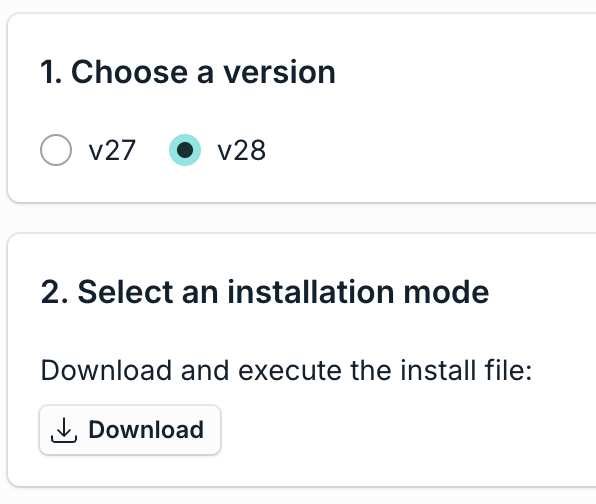
Choose the version to install. If you do not need a specific version, choose the latest one.
-
Under the download and execute option, select Download to save the installation file.
-
Transfer the file to the Linux host where the Jump Server is installed. You can also paste the content of the file into a text editor on the host, such as nano.
-
On the host, switch to the root user:
sudo su
- Make the file executable and run it. Replace the file name with the name of the file that you downloaded:
chmod +x install-jump-server.sh\ ./install-jump-server.sh
-
Wait for the installation to finish.
-
Return to the Admin Portal and select Check Connection under 3. Check jump server connection. A successful result shows a message that the server can only be accessed from the application.
Use the file from the same Jump Server that shows the error. Each installation file is linked to one Jump Server. If you run the file of another Jump Server on this host, the connection can fail.
How do I verify the Jump Server after reinstalling?
Symptoms: The reinstall finished, and you need to confirm that the Jump Server is healthy before users reconnect.
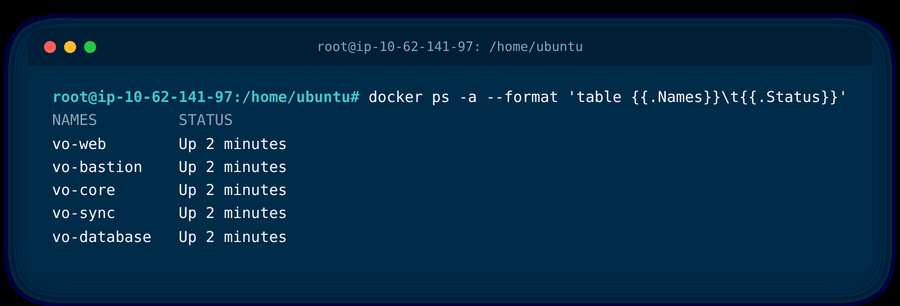
Resolution: Confirm that all five containers are up, then confirm the portal status and version.
- On the host, run this command:
docker ps -a --format 'table {{.Names}}\t{{.Status}}'
- Check that the five containers vo-web, vo-bastion, vo-core, vo-sync, and vo-database are listed, and that the status of each one starts with Up.
- In the Admin Portal, check that the Jump Server shows Online and that the Version column shows the version that you chose.
Then connect to the server again. If the error continues, contact JumpCloud Support.
Was this information helpful?