Troubleshoot: Windows Password Rotation Errors
The password rotation script changes the password of an account on your Windows server and saves the new password in Privileged Access Management (PAM). When a rotation fails, the script shows an error message. This article lists the errors that the script can show on Windows and how to fix each one. Find your message in the list below.
The script cannot reach PAM.
Symptoms: The script shows an error that starts with Response Code: This Problem.
The network of the computer cannot connect to the PAM API.
Resolution:
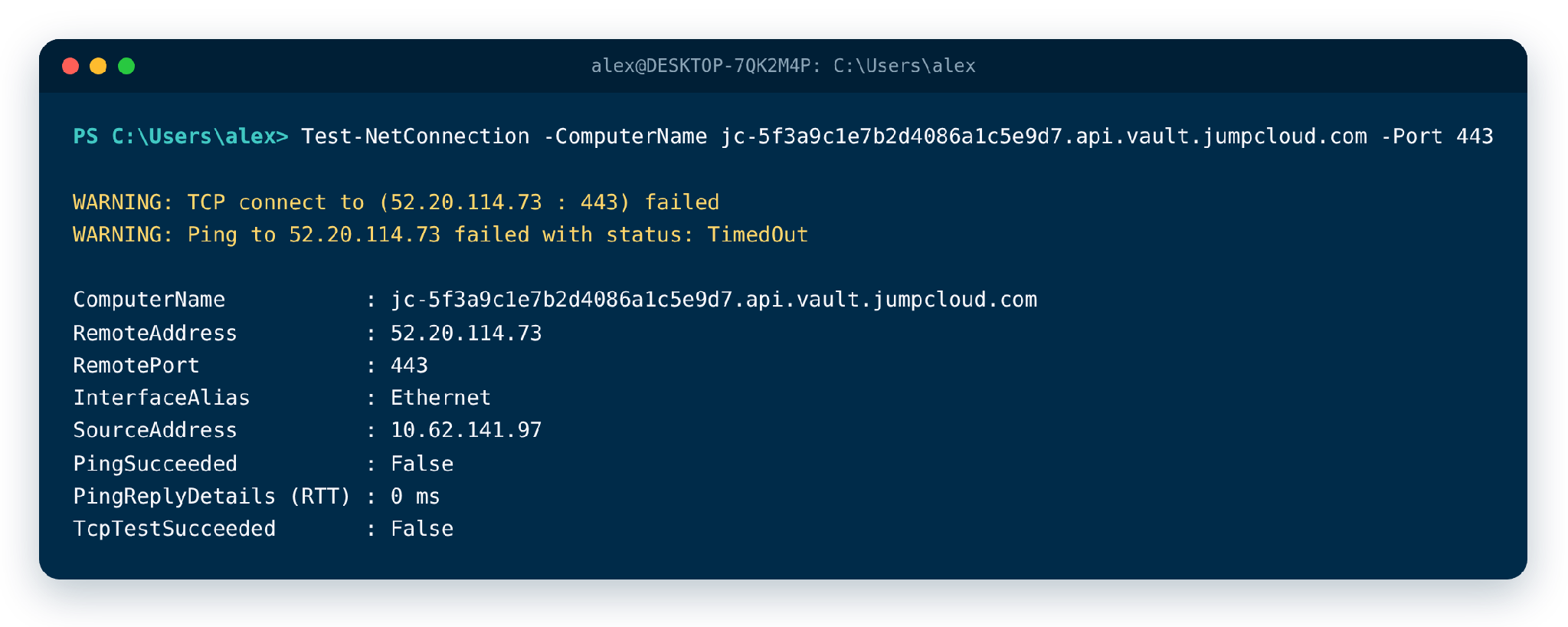
- On the Windows server, open PowerShell and test the connection to the PAM API on port 443. In the command, replace the value after jc- with the ID of your organization.
Test-NetConnection -ComputerName jc-5f3a9c1e7b2d4086a1c5e9d7.api.vault.jumpcloud.com -Port 443
-
If TcpTestSucceeded is False, the computer cannot reach PAM. Ask your network team to allow outbound HTTPS on port 443 from the server to the PAM API address of your data center, and check any proxy or firewall on the way.
-
Run the script again.
Too many requests.
Symptoms: The script shows Response Code: 429.
PAM received too many password rotation requests in a short time.
Resolution: Wait at least one hour, and then run the script again.
Administrator privileges are required.
Symptoms: The script shows You need administrator privileges to continue using this script.
The password rotation script always requires administrator permissions.
Resolution: Run the script again with a user that has administrator permissions.
Access denied for an Active Directory user.
Symptoms: The script shows an access denied error for an Active Directory user.
The user who runs the script does not have elevated permissions.
Resolution: Run the script as a user with administrator permissions. If that user cannot be an administrator, give the user the Reset Password permission for this action.
The credential does not rotate because of a version mismatch.
Symptoms: The script shows This credential doesn't rotate because the version is different!.
The last rotation attempt ended with a version mismatch, so PAM does not rotate the password again until you synchronize it.
Resolution:
-
In PAM, find the credential.
-
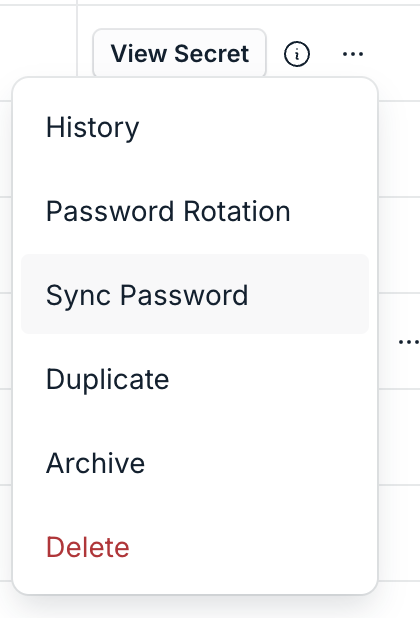
Select Actions > Synchronize password.
-
Enter the current password of the user.
-
Select Confirm.

The script cannot be authenticated in PAM.
Symptoms: The script shows Could not authenticate in Vault API.
This error can happen for any of these reasons:
-
Password rotation is not enabled for the credential in PAM.
-
The asset used for password rotation was changed or updated.
-
The authentication key was changed in PAM, but not in the script.
Resolution:
-
In PAM, generate a new authentication key for the credential.
-
On the computer that runs the script, delete the .passwordRotation file. The file is in the folder %LOCALAPPDATA%\VaultOne\PasswordRotation\user of the credential>. For example, for the user svc-backup, run this command in PowerShell:
Remove-Item -Force "\$env:LOCALAPPDATA\VaultOne\PasswordRotation\svc-backup\\passwordRotation"

- Start the script again and enter the new authentication key.
The user is not found on the computer.
Symptoms: The script shows <user> not found. Please, ensure the user exists and try again.
The user in the PAM credential does not exist on this Windows computer.
Resolution: Check that the user exists. For example, for the user svc-backup, run this command in PowerShell:
Get-LocalUser -Name svc-backup
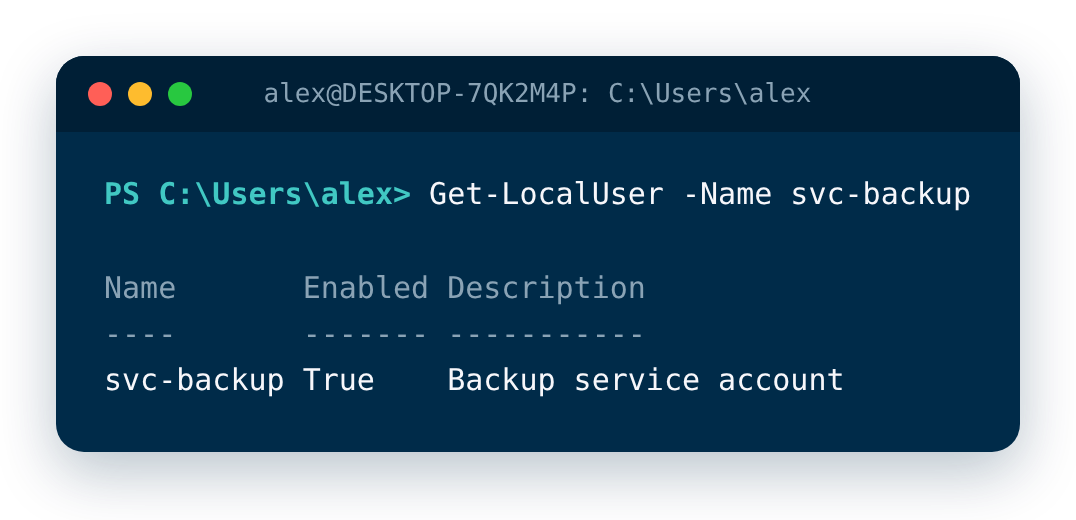
If the user does not exist, correct the username in the PAM credential, or create the account on the server.
The user is not found in the domain.
Symptoms: The script shows <user> not found in your domain. Please, ensure the user exists in your domain and try again.
The user in the PAM credential does not exist in the domain of the computer.
Resolution: Check that the user exists in the domain where the computer is, for example in Active Directory Users and Computers. If the user does not exist, correct the username in the PAM credential.
Was this information helpful?