Troubleshoot: Web Shield Fails on Waiting for Extension
When you open a website that uses Web Shield, the session runs in an isolated browser on the Jump Server. During the setup, the Jump Server installs the JumpCloud Go™ extension in that browser, so Privileged Access Management (PAM) can sign you in to the website automatically. The Jump Server downloads the extension from the Chrome Web Store.
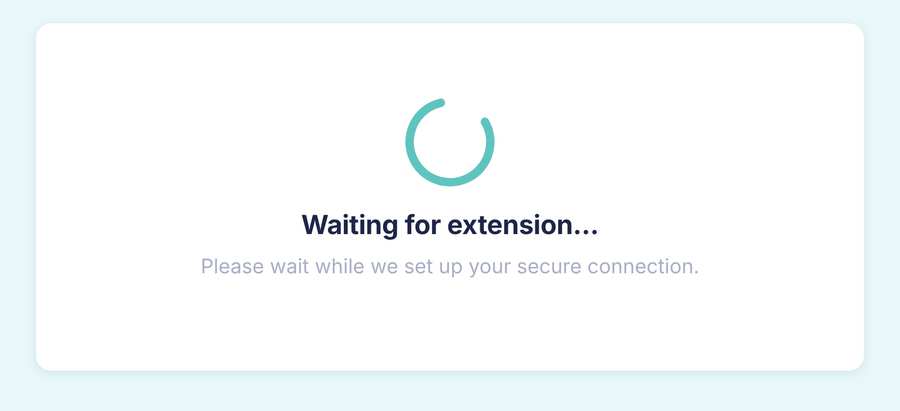
If the Jump Server cannot reach it, the session stays on Waiting for extension... and then fails with Connection Failed.

This article is for administrators who manage Jump Servers and network access in PAM.
This problem only happens with Web Shield. When Web Shield is turned off, the extension runs in the browser of the user, and the Jump Server does not take part in the session.
Web Shield stays on Waiting for extension then fails with Connection Failed.
Symptoms: A Web Shield session remains on Waiting for extension... and then fails with Connection Failed.
Resolution: Test whether the Jump Server host can reach the Chrome Web Store. If it cannot, remove a local host block if present, then allow outbound HTTPS access in the network.
Before you begin:
-
You have root access to the Linux host where the Jump Server is installed.
-
You know which Jump Server the website uses. This is the Jump Server assigned to the website resource.
-
You can contact your network or firewall team if they need to allow access.
Test access to the Chrome Web Store
- Open a terminal on the host and switch to the root user:
sudo su
- Send a request to the Chrome Web Store:
curl -I [<u>https://chromewebstore.google.com</u>](https://chromewebstore.google.com)
- Check the result:
- Any HTTP response, such as HTTP/2 200: the Jump Server reaches the Chrome Web Store. Continue with network allow steps only if the session still fails, because a proxy or a policy can block only the download of the extension.
- Timeout, connection refused, or TLS error: the Jump Server cannot reach the Chrome Web Store. Continue with the host block check.

Check for a block on the host
A domain can be blocked on the Linux host itself, for example in the /etc/hosts file, and not only in the firewall.
- Search the file for the two domains:
grep -E 'chromewebstore.google.com|clients2.google.com' /etc/hosts
- If the result shows lines that start with 0.0.0.0, the host blocks the domains.
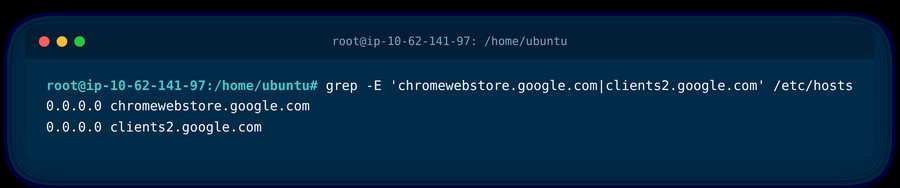
- Make a copy of the file, and then remove the lines of the two domains:
cp /etc/hosts /etc/hosts.bak\ sed -i '/chromewebstore.google.com/d' /etc/hosts\ sed -i '/clients2.google.com/d' /etc/hosts
-
Run the Chrome Web Store test again. You must get an HTTP response.
-
Open the website again with Web Shield.
If the /etc/hosts file is clean and the curl command still fails, the block is in the network path, such as a firewall, a proxy, or a secure web gateway. Continue with the network allow steps.
Allow access in the network
- Ask your network or firewall team to allow outbound HTTPS (TCP 443) from the host of the Jump Server to these domains:
- chromewebstore.google.com
- clients2.google.com
-
Ask the team to check that no proxy, SSL inspection policy, or URL category blocks Chrome Web Store or Google services.
-
Run the Chrome Web Store test again, and then open the website again with Web Shield.
If the error continues after these steps, contact JumpCloud Support.
Was this information helpful?