Troubleshoot: Linux and Unix Password Rotation Errors
The password rotation script changes the password of an account on your Linux or Unix server and saves the new password in Privileged Access Management (PAM). When a rotation fails, the script shows an error message and writes it to a log file. This article lists the errors that the script can show on Linux and Unix and how to fix each one. Find your message in the list below.
Run the script twice the first time. The first run only stores the authentication key on the server. The second run rotates the password.
The script must run as root.
Symptoms: The script shows Please run as root.
The script changes the password of a user on the server, which requires root permissions.
Resolution: Run the script as root or with sudo.
sudo ./PAM_PasswordRotationInstaller.sh
Required libraries are missing.
Symptoms: The script shows The libraries required for the script are missing, followed by the names of the missing libraries.
The script needs curl and openssl, and one or both are not installed on the server.
Resolution: Install the libraries that the script lists, and then run the script again. For example, on Debian and Ubuntu:
sudo apt install curl openssl
The user is not found on the server.
Symptoms: The script shows <user> not found. Please, ensure the user exists and try again.
The user in the PAM credential does not exist on this server.
Resolution: Check that the user exists. For example, for the user svc-backup, run this command:
id svc-backup
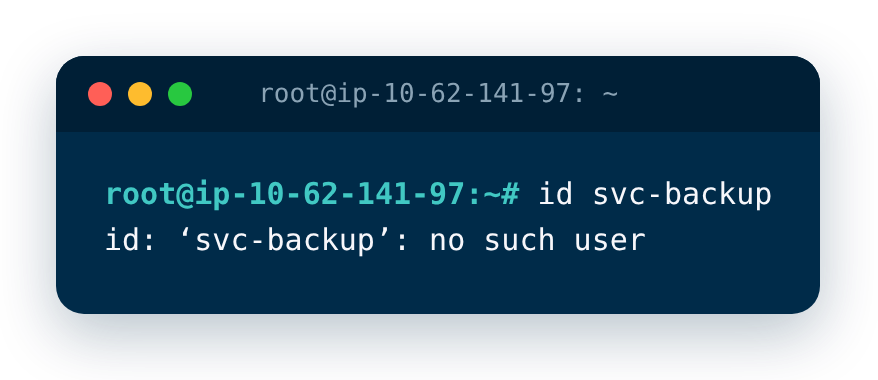
If the command shows no such user, correct the username in the PAM credential, or create the user on the server. Check that the username is written exactly as it is on the server.
The script cannot reach PAM.
Symptoms: The script shows Response Code: 000.
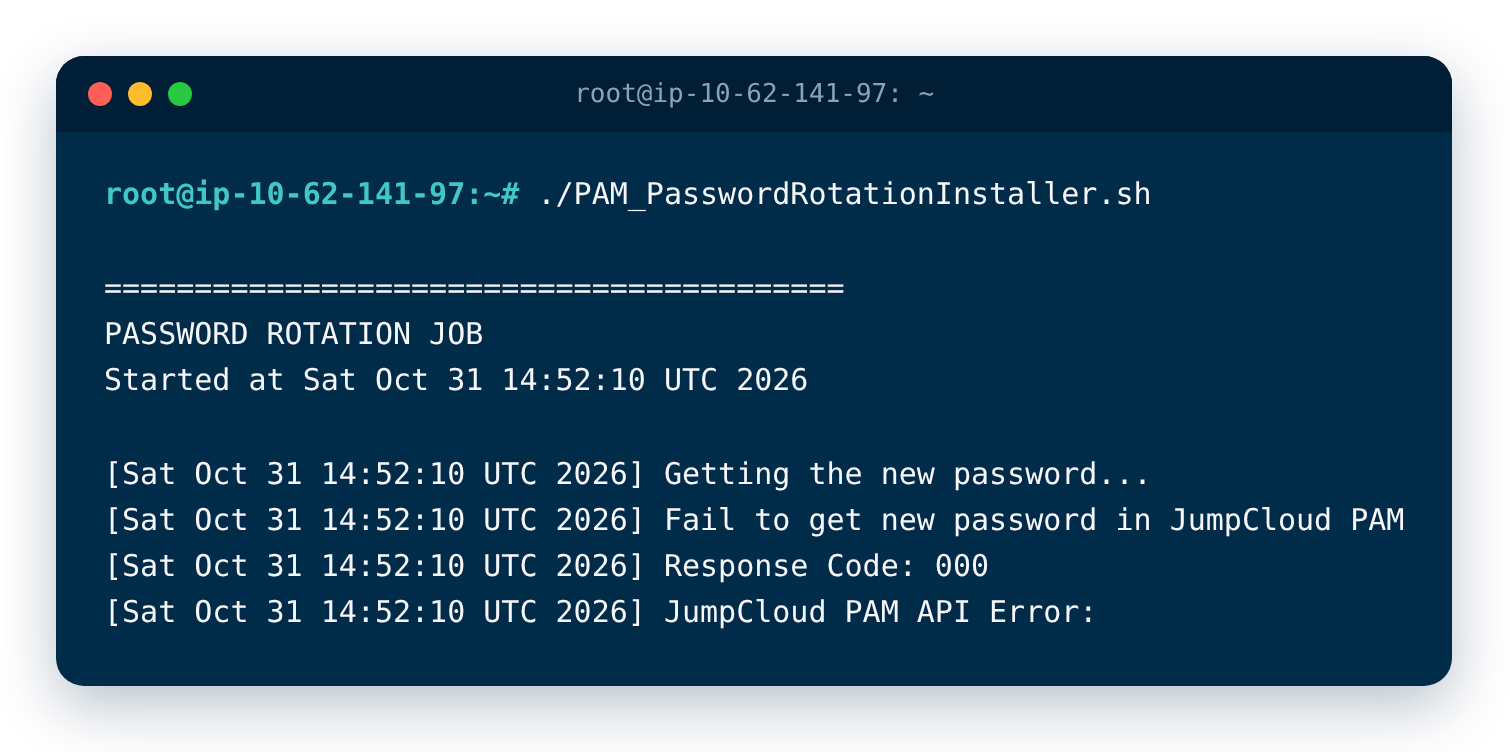
000 is not an HTTP status. The script did not receive any response from the PAM API, which points to a problem in the network, a firewall, a proxy, or TLS inspection on the server that runs the script.
The script connects to the PAM API directly from the server. It does not use the Jump Server, so the Jump Server logs do not show this error.
Resolution:
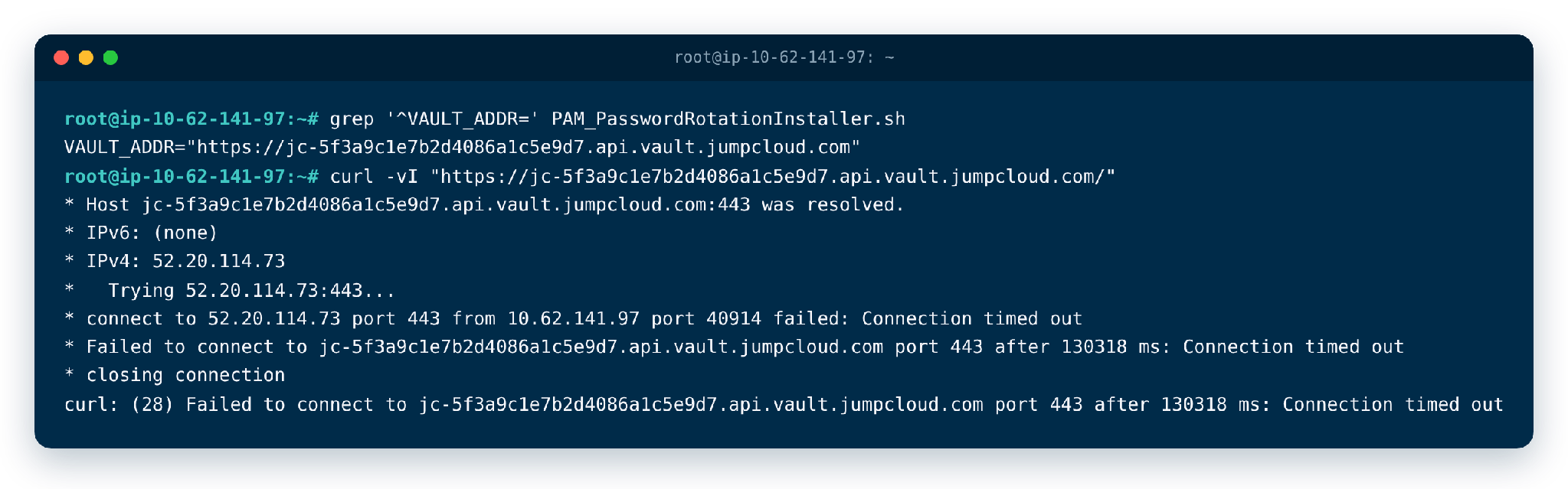
- On the server that runs the script, find the address of the PAM API. The address is in the line that starts with VAULT_ADDR in the script file. Run the command in the folder where you saved the script.
grep '^VAULT_ADDR=' PAM_PasswordRotationInstaller.sh
- Test the connection to that address. Replace the address in the command with the one from step 1.
curl -vI "[<u>https://jc-5f3a9c1e7b2d4086a1c5e9d7.api.vault.jumpcloud.com/</u>](https://jc-5f3a9c1e7b2d4086a1c5e9d7.api.vault.jumpcloud.com/)"
-
Compare the result of the test:
-
The TLS handshake completes and curl shows an HTTP status such as 200, 401, or 404: the network path is fine, and the problem is somewhere else.
-
Timeout with no response: the server cannot reach the address on port 443.
-
Connection reset by peer right after the TLS handshake starts: a firewall or proxy is dropping the connection.
-
Certificate error, such as curl error 60: TLS inspection is replacing the certificate.
-
DNS resolution failure: the server cannot resolve the address.
-
-
Fix the problem that the test shows:
-
Allow outbound HTTPS on TCP port 443 from the server to the address from step 1.
-
Exclude that address from SSL/TLS inspection. The script checks the certificate, and an intercepted connection fails.
-
If your network requires a proxy, set https_proxy in the environment where the script runs. sudo removes proxy variables from your shell, so a proxy set in your own session is not used when the script runs as root.
-
-
Run the curl command again and check that the TLS handshake completes. Then run the script again.
Too many requests.
Symptoms: The script shows Response Code: 429.
PAM received too many password rotation requests in a short time.
Resolution: Wait at least one hour, and then run the script again.
The script cannot be authenticated in PAM.
Symptoms: The script shows Response Code: 401 and Could not authenticate in JumpCloud PAM API.
The authentication key is not valid. This can happen for any of these reasons:
-
Password rotation is not enabled for the credential in PAM.
-
The asset used for password rotation was changed or updated.
-
The authentication key was changed in PAM, but not in the script.
Resolution:
-
In PAM, generate a new authentication key for the credential.
-
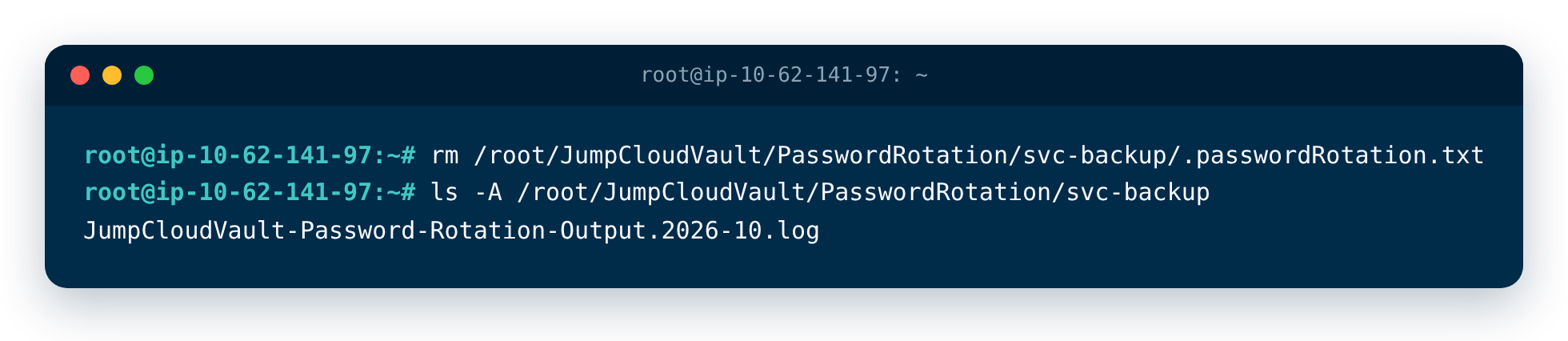
On the server that runs the script, delete the .passwordRotation.txt file. The file is in the folder $HOME/JumpCloudVault/PasswordRotation/<user of the credential>, where $HOME is the home folder of the user that runs the script. For example, for the user svc-backup and the root user, run this command:
rm /root/JumpCloudVault/PasswordRotation/svc-backup/.passwordRotation.txt
- Run the script again and enter the new authentication key when the script asks for it.
Was this information helpful?