Troubleshoot: JumpCloud Login Options Missing on Windows
As of version 2.107.6, the JumpCloud Windows agent and credential provider no longer require the dependencies covered in this article. If your devices are on this version or later, you do not need to perform these troubleshooting steps. See JumpCloud Agent Release Notes for April 6, 2026 to learn more.
The JumpCloud agent requires specific dependencies for JumpCloud-specific features to function on Windows devices. The agent attempts to install these dependencies automatically, but if this process fails, the device may revert to default Windows login behavior. This prevents certain JumpCloud features from working.
Symptoms
Users may experience the following symptoms on an affected Windows device:
- The user is not prompted for MFA on device log in, even if it is enforced for both the user and the device by the admin.
- Users attempting to reset their password via CTRL+ALT+DEL may receive an error or cause the device password to fall out of sync with JumpCloud.
- The Sign-in with JumpCloud option does not appear on the device login window, even when the Self-Service Account Provisioning (SSAP) feature is enabled.
Cause
If any one of the dependencies fails to install automatically, the device reverts back to Windows default login behavior, which does not support specific JumpCloud functionality.
To check for the presence of dependencies:
- On a Windows device, go to Start > Settings.
- Go to Apps > Apps & Features or Installed Apps.
- In the App list, search for the presence of the following:
- Microsoft Visual C++ 2022 Redistributable
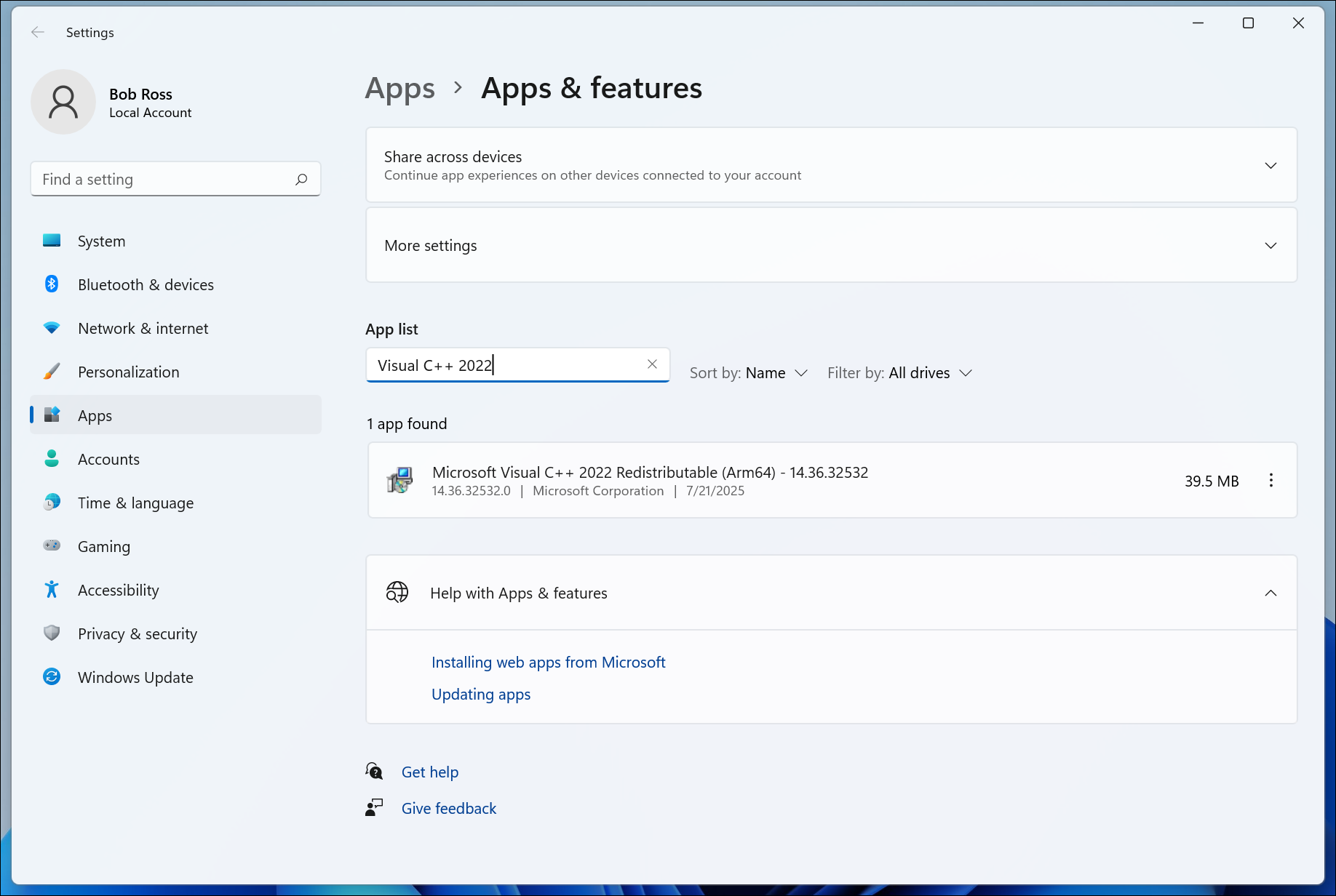
- Microsoft ASP.NET Core 8.0.x
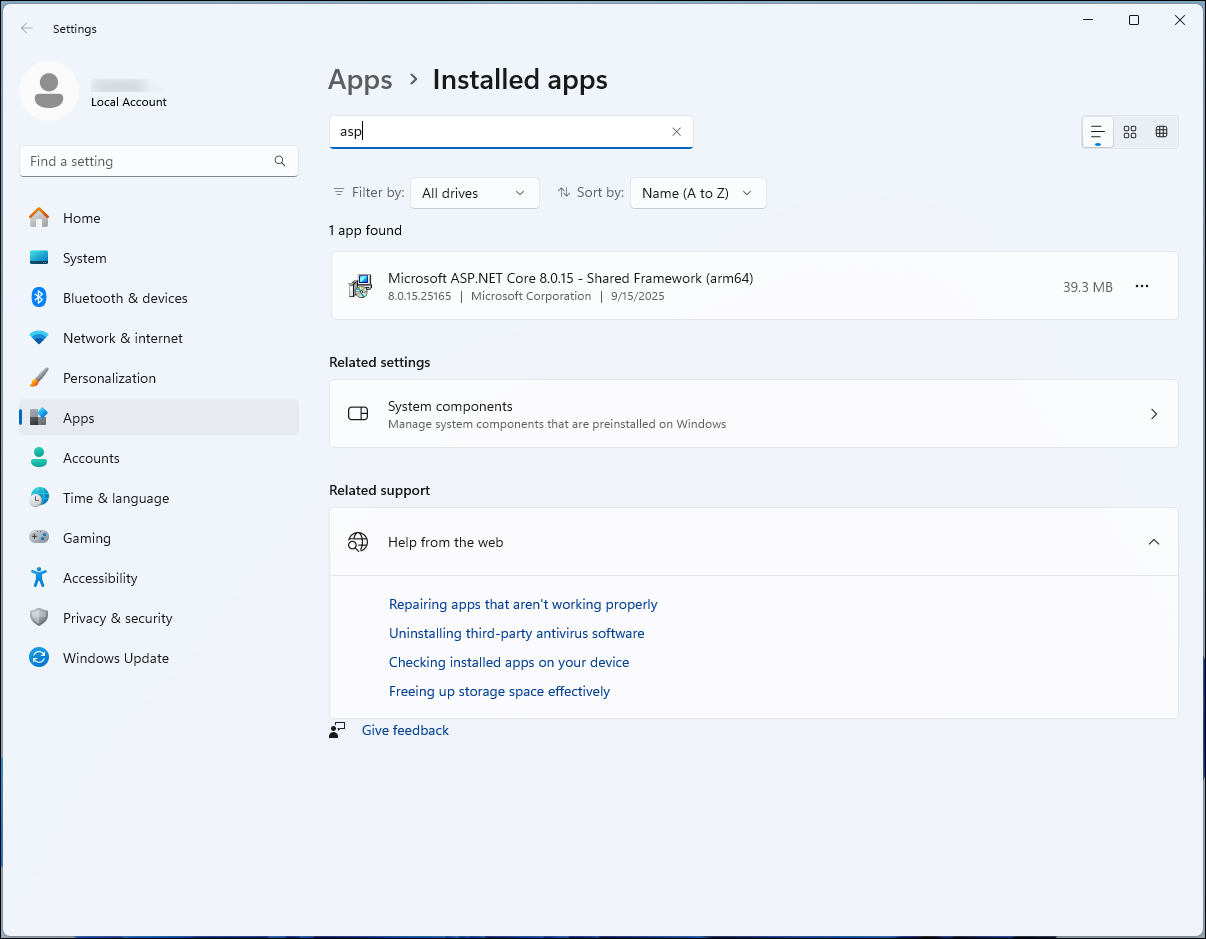
- Windows Desktop Runtime - 8.0.x
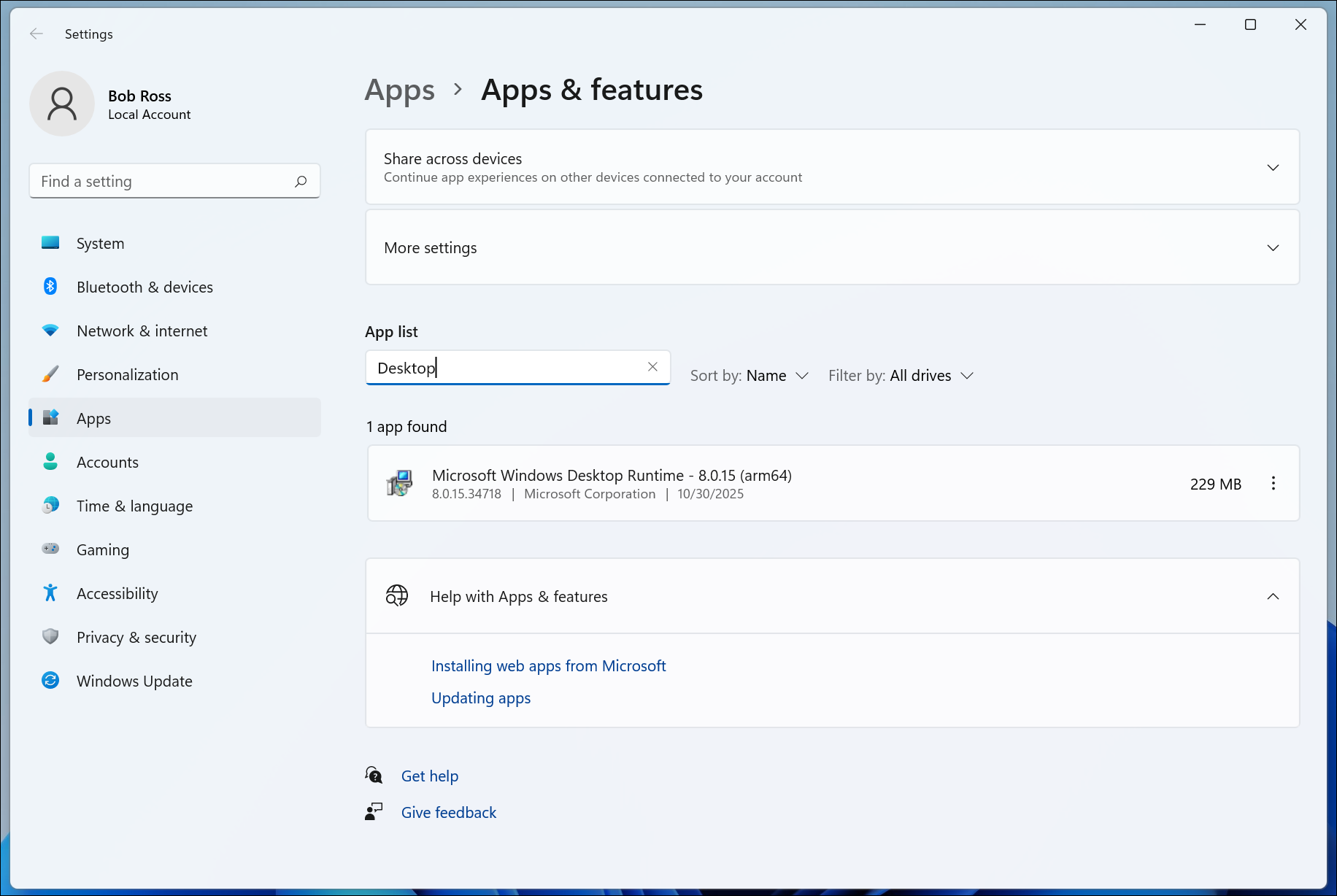
- Microsoft Visual C++ 2022 Redistributable
Resolution
To resolve the issue, you must install the following dependencies manually on the affected device. Download and run the installers depending on the device’s hardware architecture:
- x86_64
- ARM
If the issue persists after verifying and installing dependencies:
- On the affected Windows device, open File Explorer and go to the following directory:
C:\Program Files\JumpCloud\cpoidc - Locate and delete the following file:
version.txt - Reinstall the JumpCloud agent, overwriting the existing installation. See Install the Windows Agent to learn more.
Was this information helpful?