Troubleshoot: Error When Opening a Website in Web Shield
In Privileged Access Management (PAM), you can register an internal website as a Privileged Website. When Web Shield is turned on, the session does not run in your browser. It runs on the Jump Server, which opens the website in an isolated browser and shows it to you. For this reason, the Jump Server must be able to reach the website on the network. If it cannot, the session shows Webservice currently unavailable.
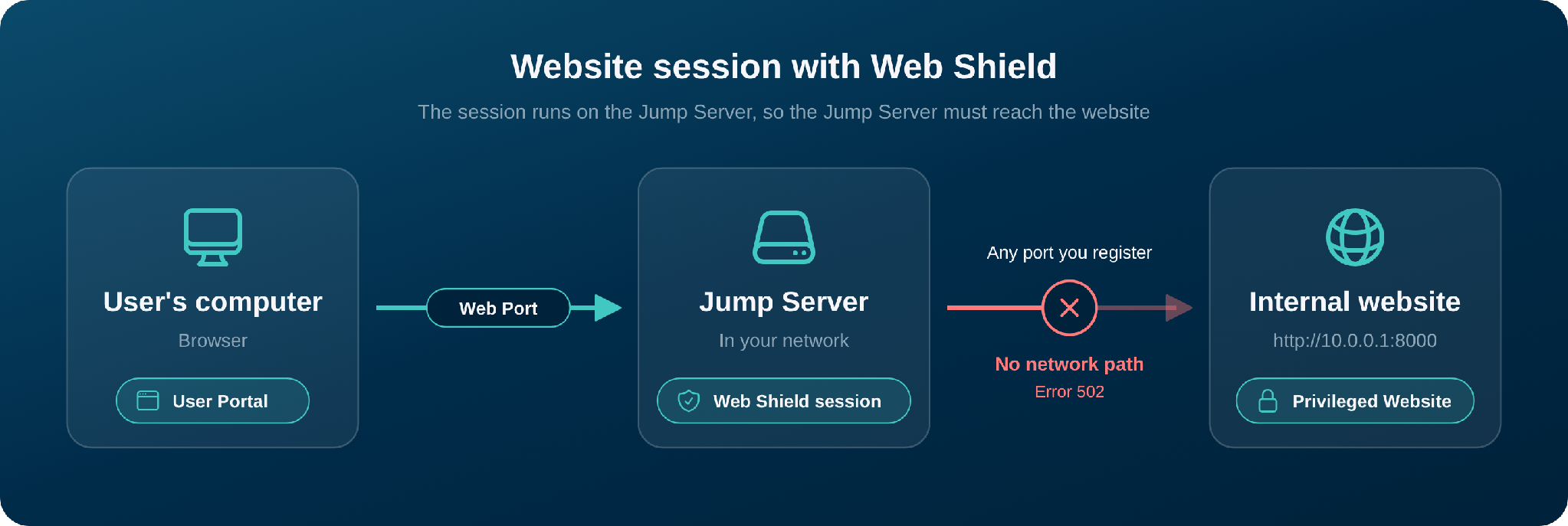
The port that you register in PAM does not open the network path. The Jump Server needs network access to the address and the port of the website. If Web Shield is turned off, the session runs in your own browser, and the Jump Server is not part of the connection.
Check the Jump Server.
Symptoms: When you open a Privileged Website with Web Shield turned on, the session shows Webservice currently unavailable.
Resolution: Confirm that the Jump Server containers are running on the host where the Jump Server is installed.
-
Open a terminal on the host where the Jump Server is installed.
-
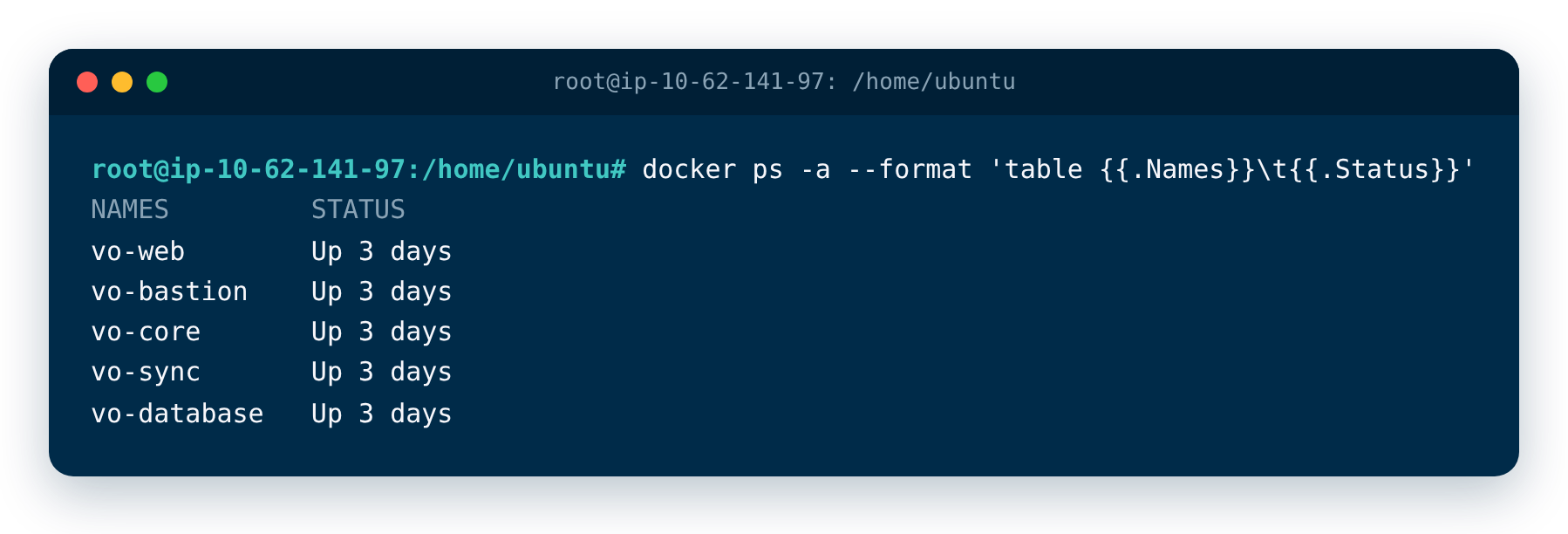
Check that the Jump Server containers are running:
docker ps -a --format 'table {{.Names}}\t{{.Status}}'
- Confirm that the status of every container starts with Up. If a container is not running, fix this first, because the Jump Server cannot open the website.
Test the connection to the website.
Symptoms: Jump Server containers are up, but the Web Shield session still shows Webservice currently unavailable, or you need to confirm that the Jump Server can reach the website.
Resolution:
- In PAM, copy the address of the website from the Website URL field of the resource.
Placeholder screenshot: Website URL field of the website resource
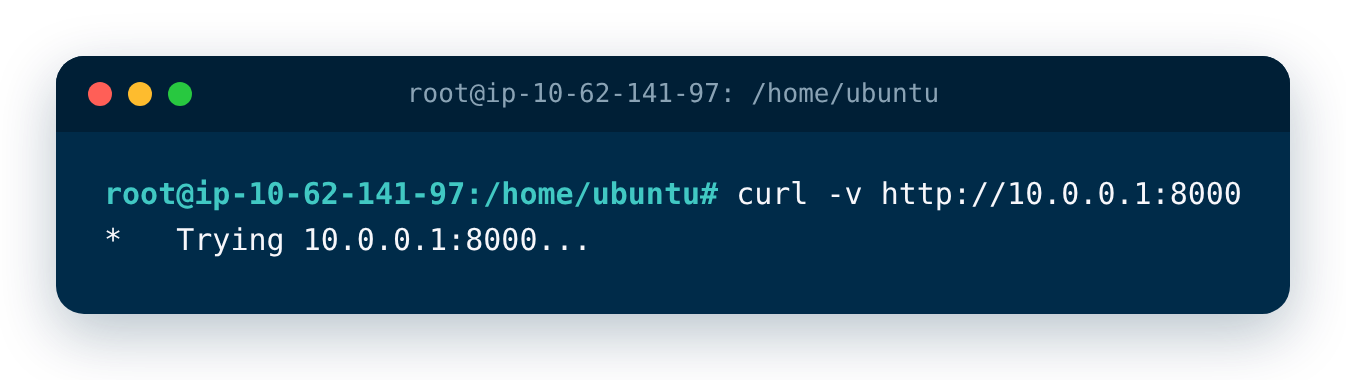
- On the host of the Jump Server, run curl with that address. For example, for a website at http://10.0.0.1:8000:
curl -v http://10.0.0.1:8000
-
Check the result:
-
If the command stays on Trying 10.0.0.1:8000... with no result, the Jump Server cannot reach the website. Continue with the next issue.
-
If the command shows Connected to and an HTTP response, the Jump Server reaches the website. Any status code, such as 200, 401, or 404, means that the network path works.
-
If the Jump Server cannot reach the website.
Symptoms: On the Jump Server host, curl to the website address stays on Trying... with no result, or the Web Shield session continues to show Webservice currently unavailable after you confirm that the containers are up.
Resolution: Ask your network team to allow the connection from the host of the Jump Server to the address and the port of the website. Check these items:
-
The Jump Server is in the same network as the website, or there is a route between the two networks.
-
Firewalls, security groups, and network rules allow traffic from the host of the Jump Server to the port of the website.
-
If the website address uses a hostname, the host of the Jump Server can resolve it.
After the change, run the curl command again. When it connects, open the website again from the User Portal.
Was this information helpful?