Troubleshoot: Deleting a Jump Server
Cannot delete a Jump Server because it has associated privileged resources.
Privileged Access Management (PAM) deletes a Jump Server only when no Privileged Resource is associated with it. A Privileged Resource cannot be left without the Jump Server that it uses.
| Resource | Association with a Jump Server |
|---|---|
| Server | Required. You select a Jump Server when you add the server. |
| Database | Required. You select a Jump Server when you add the database. |
| Privileged Website | Only when the website uses Web Shield. A website without Web Shield does not use a Jump Server. |
Symptoms: When you try to delete a Jump Server that still has associated resources, PAM blocks the deletion and shows this message:
Cannot delete selected jump servers. The Jump Server has associated privileged resources. Remove or migrate associated resources before deleting.
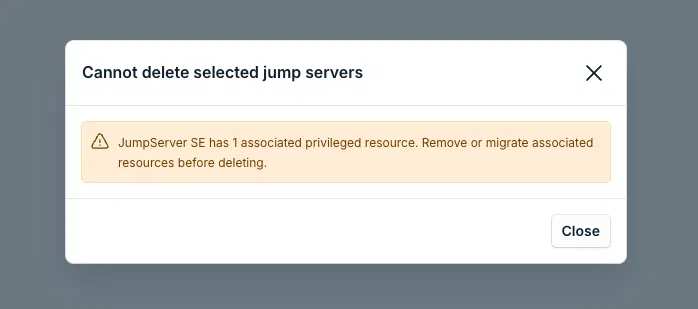
Resolution: Migrate the associated Servers, Databases, or Privileged Websites with Web Shield to another Jump Server. Confirm that Associated Resources shows 0, then delete the Jump Server again. See the issues below for the full steps.
Deleting a Jump Server is permanent. PAM removes the Jump Server and this cannot be undone.
How do I check which resources are associated with a Jump Server?
Symptoms: You need to know whether a Jump Server still has associated privileged resources before you delete it, or after you see the deletion error.
Resolution: Use one of these ways to see how many resources use the Jump Server.
From the Overview
-
In the JumpCloud Admin Portal, open the PAM Overview.
-
In the Jump Servers Health table, find the Jump Server.
-
Read the number in the Associated Resources column.

From the Jump Servers list
-
Open the list of Jump Servers.
-
In the Actions column of the Jump Server, click the three dots.
-
Select Migrate Resources. The first step shows the resources that are associated with the Jump Server.
If the Jump Server has no associated resources, you can delete it. If it still has resources, migrate them first.
How do I migrate resources to another Jump Server before deleting?
Migrate the resources to another Jump Server before you delete the one that you no longer need. You can also use this procedure to move resources between Jump Servers without deleting any of them.
Symptoms: Associated Resources is greater than 0 for the Jump Server you want to delete, or Migrate Resources shows one or more associated resources.
Resolution:
-
In the Actions column of the Jump Server that you want to delete, click the three dots and select Migrate Resources.
-
In Choose Resources, select the resources to migrate. PAM selects all of them by default. To delete the Jump Server, keep all the resources selected. You can use Search and Filter to find a resource.
-
Go to the next step. In Choose Jump Server, select the Target jump server that will receive the resources.
-
Go to the next step. In Review and Migrate, check the current Jump Server, the target Jump Server, and the list of selected resources.
-
Start the migration.
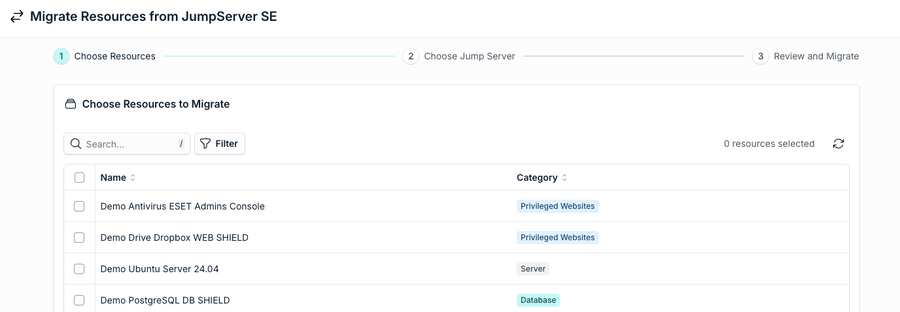
After the migration, open the Jump Servers Health table in the Overview and confirm that Associated Resources shows 0 for the Jump Server.
How do I delete a Jump Server after Associated Resources shows 0?
Symptoms: The Jump Server has no associated resources, and you are ready to remove it permanently.
Resolution: You can delete a Jump Server in two ways.
With the checkbox
-
In the list of Jump Servers, select the checkbox of the Jump Server.
-
In the bar that shows 1 Jump server selected, click Delete.
With the Actions menu
-
In the Actions column of the Jump Server, click the three dots.
-
Select Delete.
In both ways, PAM asks you to confirm. Read the Irreversible action message and click Delete.
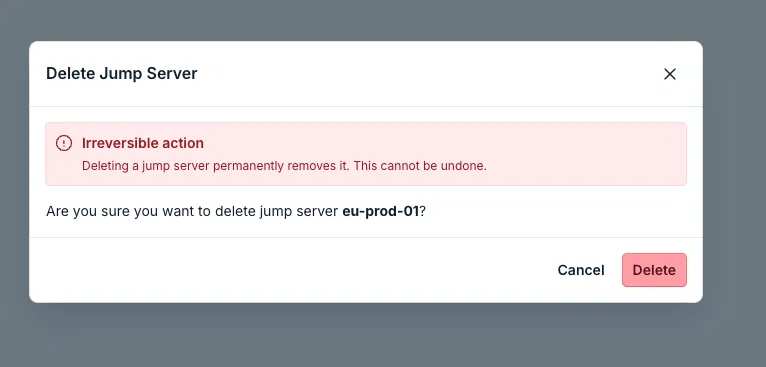
To avoid the associated-resources error, check the Associated Resources column before you delete a Jump Server.
Was this information helpful?