Troubleshoot: RDP Access Error "The remote desktop server is currently unreachable"
That message usually means the connection reached the Jump Server, but the Jump Server could not reach the target Windows resource.
Symptoms: The Remote Desktop Protocol (RDP) session shows this error:
The remote desktop server is currently unreachable. If the problem persists, please notify your system administrator, or check your system logs.
The session may also show Reconnecting in 10 seconds..., with Reconnect and Logout options.
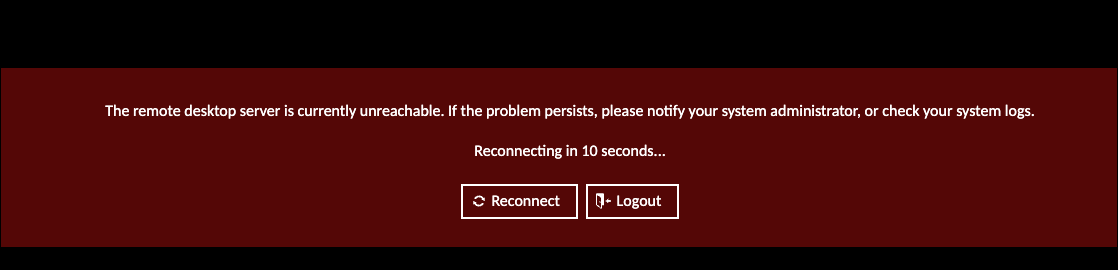
Resolution: Use these checks in order: Jump Server health, network reachability to the target, then resource and credential settings in the JumpCloud Admin Portal.
Prerequisites
- You can sign in to the JumpCloud Admin Portal.
- You can access the Linux host where the Jump Server is installed.
- You can run commands as root, or with equivalent permissions, on the Jump Server host.
- You know the target resource IP or hostname and the RDP port (often 3389).
This article is for administrators who manage Jump Servers and privileged server resources in JumpCloud Privileged Access Management (PAM).
Check Jump Server Health
Start in the JumpCloud Admin Portal. Confirm the Jump Server that brokers this RDP session is healthy before you test the network path to the Windows resource.
Check the Jump Server Status
- Sign in to the JumpCloud Admin Portal.
- In the left menu, open Access, then open PAM.
- Open Jump Servers.
- Find the Jump Server used by the Windows resource.
- In the Status column, note the current state.
Jump Servers can show one of these statuses:
- Online
- Warning
- Offline
- Not Installed
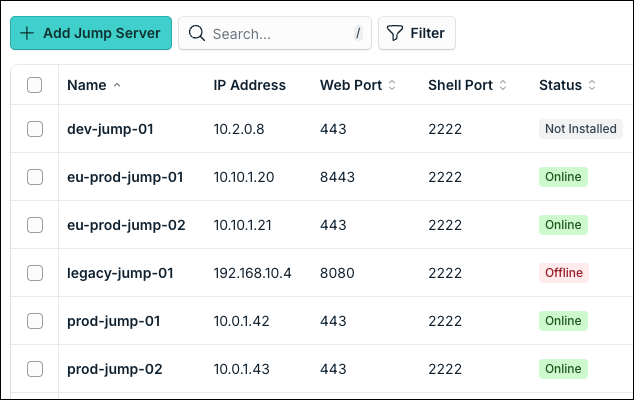
If the status is Offline or Not Installed, do not continue with the network checks yet. Restore Jump Server connectivity or finish installation first. RDP sessions cannot succeed while the Jump Server is offline or not installed.
How to install or reinstall:
- Go to Access > PAM > Jump Servers. In Actions, open Install Jump Server for that Jump Server.
- Choose a version, then select an installation mode:
- Execute the following command line in order to install the jump server: copy the command and run it on the Linux host where the Jump Server is installed, or where you will install it.
- Or download and execute the install file: select Download, then run the install file on that same host.
- After the install finishes, return to the Jump Servers list and confirm the status is Online before you continue troubleshooting.
Open Health Check
If the Jump Server shows Online or Warning, open Health Check for more detail.
- Still on the Jump Servers list, find the row for that Jump Server.
- In the actions for that row, click the Health Check icon.
The Health Check page shows Jump Server details and metrics over a date range.
Use the tabs to review:
- Network
- Disk
- Memory
- CPU
- Status
Look for unusual spikes, sustained high usage, or service downtime that lines up with the failed RDP attempt.
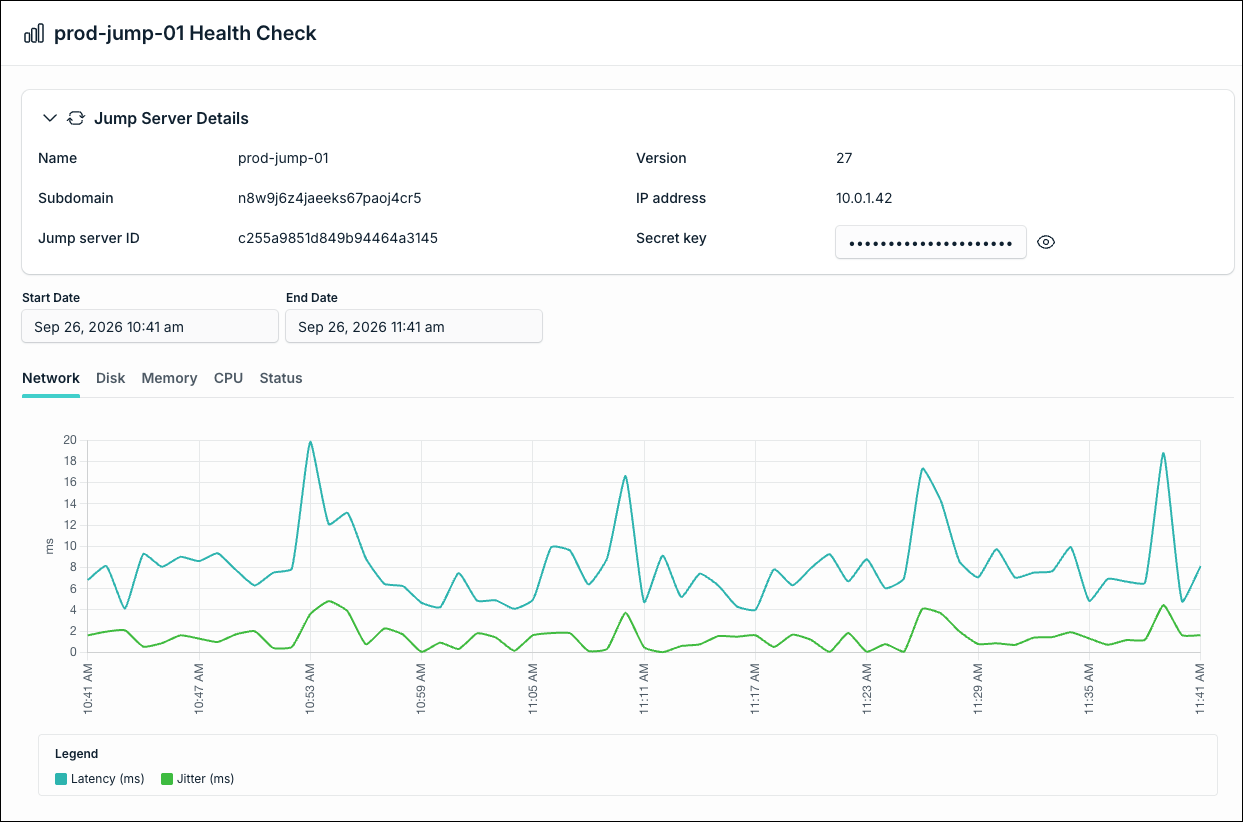
Health metrics are available 10 minutes after the Jump Server is installed. If the Jump Server is Not Installed, Health Check shows that metrics are unavailable until you install the Jump Server.
Confirm Containers on the Jump Server Host
Next, sign in to the Linux server where the Jump Server is installed.
This is the host machine that runs the Jump Server containers. It is not the Windows resource the user is trying to reach over RDP.
If the Jump Server status in the Admin Portal looks healthy but RDP still fails, open a terminal on that Linux host and confirm the containers are running.
Open a terminal on that host and run:
sudo su
docker ps -a
You should see five containers with status Up:
- vo-core
- vo-web
- vo-sync
- vo-bastion
- vo-database

If any container is not Up, first identify which container is down, then try these steps in order.
Reinstall the Jump Server
In many cases, reinstalling the Jump Server restores the containers.
- In the JumpCloud Admin Portal, go to Access > PAM > Jump Servers.
- Open Install Jump Server for that Jump Server.
- Choose a version, then run either the install command or the downloadable install file on the Linux host where the Jump Server is installed.
- After the install finishes, run
docker ps -aagain and confirm all five containers show Up.
If vo-sync Is Down or Unhealthy
vo-sync handles communication between the Jump Server and JumpCloud PAM Backend.
Check whether the Jump Server host can reach the required outbound endpoints for your data center (US, EU, or India).
Most use port 443. The message queue endpoint uses port 5671, which is easy to miss on firewalls that only allow outbound 443.
If outbound traffic to those endpoints is blocked, vo-sync may fail even when other containers look fine.
US Data Center
| Address |
|---|
*.vault.jumpcloud.com:443 |
*.api.vault.jumpcloud.com:443 |
*.app.vault.jumpcloud.com:443 |
*.connect.vault.jumpcloud.com:443 |
b-4e73f8f9-5209-4e31-b0e9-b53a88287a70.mq.us-east-1.on.aws:5671 |
public.ecr.aws:443 |
*.cloudfront.net:443 |
*.s3.us-east-1.amazonaws.com:443 |
clients2.google.com:443 |
EU Data Center
| Address |
|---|
*.vault.eu.jumpcloud.com:443 |
*.api.vault.eu.jumpcloud.com:443 |
*.app.vault.eu.jumpcloud.com:443 |
*.connect.vault.eu.jumpcloud.com:443 |
b-1b7a56b2-c4ea-4ef3-bfaa-f7a46f806487.mq.eu-central-1.on.aws:5671 |
public.ecr.aws:443 |
*.cloudfront.net:443 |
*.s3.eu-central-1.amazonaws.com:443 |
clients2.google.com:443 |
India Data Center
| Address |
|---|
*.vault.in.jumpcloud.com:443 |
*.api.vault.in.jumpcloud.com:443 |
*.app.vault.in.jumpcloud.com:443 |
*.connect.vault.in.jumpcloud.com:443 |
b-3e2a9040-3eeb-46ae-b7c4-918bf4c69efb.mq.ap-south-1.on.aws:5671 |
public.ecr.aws:443 |
*.cloudfront.net:443 |
*.s3.ap-south-1.amazonaws.com:443 |
clients2.google.com:443 |
If vo-web Is Down or Unhealthy
vo-web serves the browser session path and depends on a healthy SSL certificate on the Jump Server.
Confirm the certificate state for that Jump Server, and review vo-web logs if the container keeps exiting:
docker logs --details -n 200 vo-web
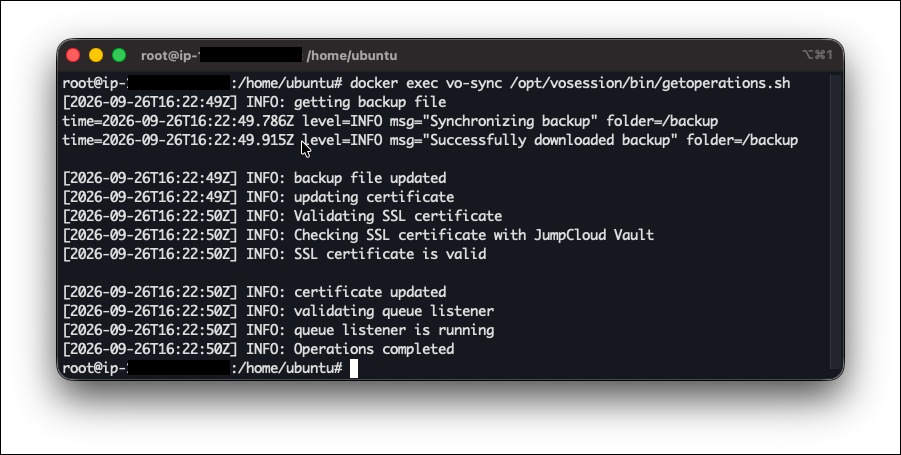
To confirm and even update the SSL certificate, run:
docker exec vo-sync /opt/vosession/bin/getoperations.sh
Test Network Connectivity to the Target Resource
Stay on the Linux server where the Jump Server is installed.
From a terminal on that Linux server, test whether the Jump Server can reach the target Windows resource on the RDP port.
Run:
telnet <IP_or_hostname> <Port>
- Replace
<IP_or_hostname>with the address registered for the resource in JumpCloud PAM. - Replace
<Port>with the RDP port for that resource. The default is often 3389.
Example:
telnet 18.231.90.26 3389

If telnet succeeds, the network path from the Linux server where the Jump Server is installed to the target is open. Continue to validate the resource and credential in the JumpCloud Admin Portal.
If telnet fails, you likely have a network or firewall issue between the Linux server where the Jump Server is installed and the target Windows resource.
Common causes include:
- A firewall or ACL blocking the IP of the Linux server where the Jump Server is installed
- A cloud security group that does not allow that Linux server IP
- The wrong target IP, hostname, or RDP port in the resource settings
- The target machine is offline or not listening on that port
RDP sessions go from the user to the Jump Server, then from the Jump Server to the Windows resource. If the Linux server where the Jump Server is installed cannot open the target port, the session fails even when the Jump Server itself looks healthy in the JumpCloud Admin Portal.
Validate the Resource and Credential in the JumpCloud Admin Portal
If telnet works but the RDP error continues, check the resource and credential settings in the JumpCloud Admin Portal.
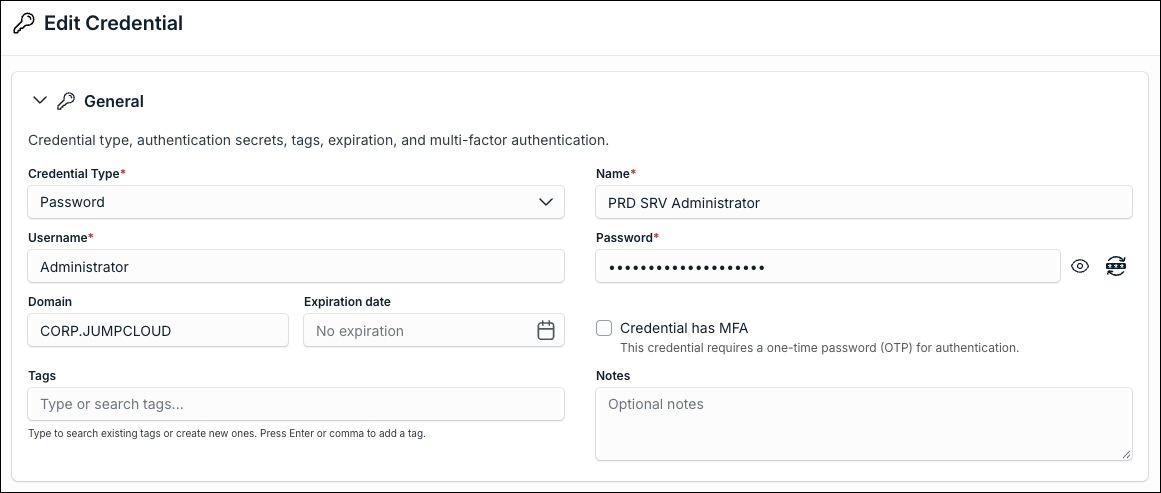
Check the Privileged Credential
-
Sign in to the JumpCloud Admin Portal.
-
In the left menu, open Access, then open PAM.
-
Open the privileged credential used for this Windows resource.
-
Confirm the username and password are correct.
-
If the Windows resource needs a domain, confirm the username format is correct, for example:
DOMAIN\usernameor
username@domain.com
Check the Server RDP Security Setting
- Still in Access > PAM, open Privileged Resources.
- Open the Servers tab.
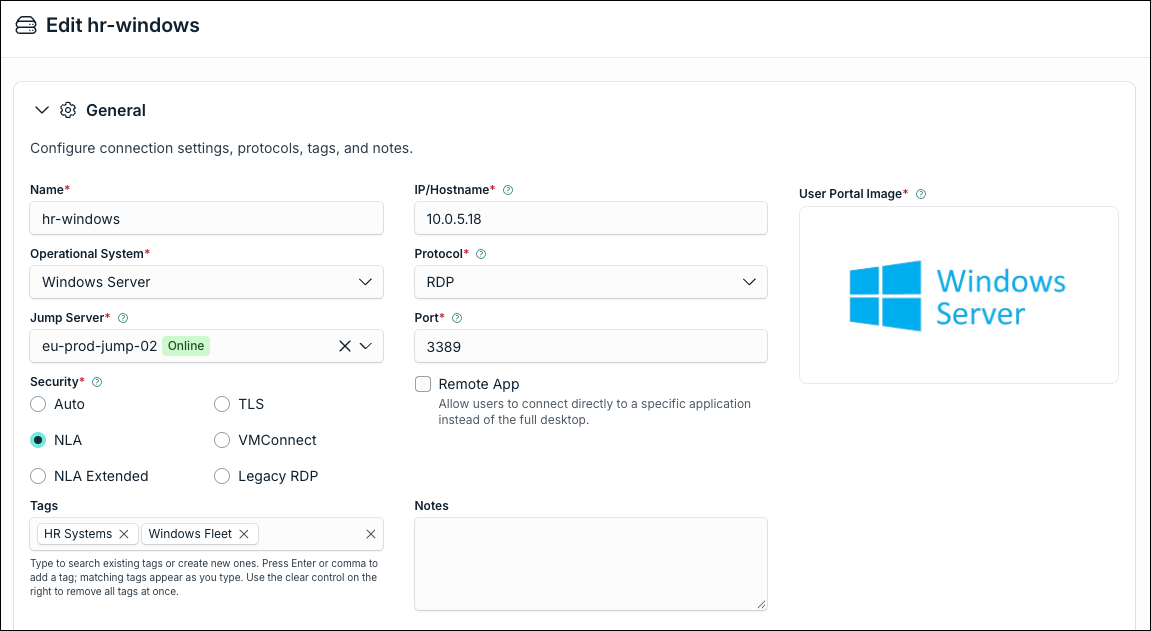
- Open the Windows server resource.
- Confirm the RDP security setting.
Many Windows systems require NLA (Network Level Authentication).
If a different security option is selected, try NLA or Auto, save the resource, and test the connection again.
To use NLA, the resource must have at least one linked privileged credential.
What to Expect
| Check | Where you run it | What a good result means |
|---|---|---|
| Jump Server status and Health Check | JumpCloud Admin Portal > Access > PAM > Jump Servers | Status is Online (or a mild Warning that does not block sessions), and Health Check metrics look healthy for the failure window |
docker ps -a | Linux server where the Jump Server is installed | All five containers are Up |
telnet <IP_or_hostname> <Port> | Linux server where the Jump Server is installed | That Linux server can reach the target RDP port |
| Credential and RDP security | JumpCloud Admin Portal | Username, password, domain format, and NLA settings match the Windows resource |
Was this information helpful?