Transfer Files in PAM Sessions
When you connect to a resource using JumpCloud PAM, through a Jump Server, you can move files between your computer and that resource.
Who this article is for: Users who connect to resources in JumpCloud Privileged Access Management (PAM), and administrators who manage file transfer settings.
File transfer works in different ways, depending on where your session runs:
| Resource | Session type | How files move |
|---|---|---|
| Server (Linux or Windows) | Session in the browser | Through the Jump Server |
| Website | With Web Shield | Through the Jump Server |
| Website | Without Web Shield (uses JumpCloud Go) | Directly between your browser and the website. No extra steps. |
| Database | With DB Shield | Through the Jump Server |
| Database | Without DB Shield | Directly in your browser, no extra steps |
Web Shield and DB Shield run the session on the Jump Server and stream the screen to your browser. Because of that, the file windows in your session show the Jump Server, not your computer. Without them, the session runs in your own browser, so uploads and downloads use your own computer.
Plan for file size and disk space. Each file you transfer is stored temporarily in the temp directory of the Jump Server host. The Jump Server accepts file transfers with files up to 1 GB each. If many users transfer large files at the same time, the Jump Server host can run out of disk space.
How File Transfer Works
Files do not go straight between your computer and the resource. They always stop at the Jump Server first.
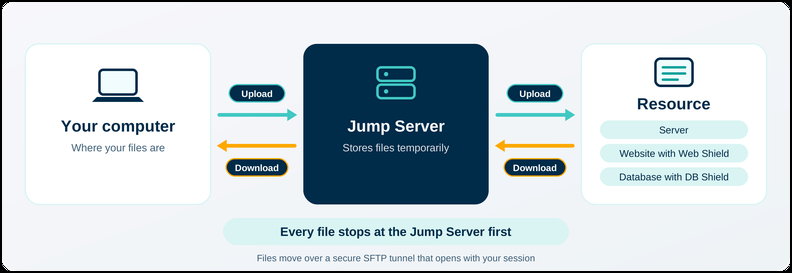
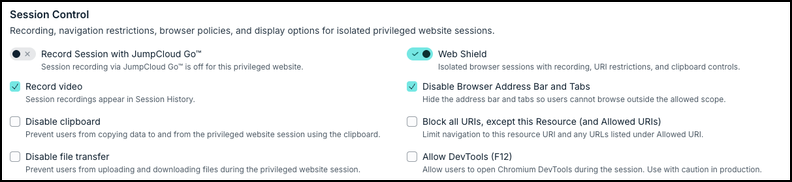
The SFTP tunnel is available unless an administrator selected Disable file transfer for the resource.
Prerequisites
- You have a session open to a Server, to a Website with Web Shield, or to a Database with DB Shield.
- File transfer is turned on for the resource. In the JumpCloud Admin Portal, an administrator opens the resource and checks General > Session Control. The option Disable file transfer is unchecked.
- Each file is 1 GB or smaller.
Open the File Transfer Menu
All file transfers start from a side menu in your session. Press the shortcut for your computer:
| Your computer | Shortcut |
|---|---|
| Windows or Linux | Ctrl + Shift + Alt |
| macOS | Ctrl + Shift + Cmd |
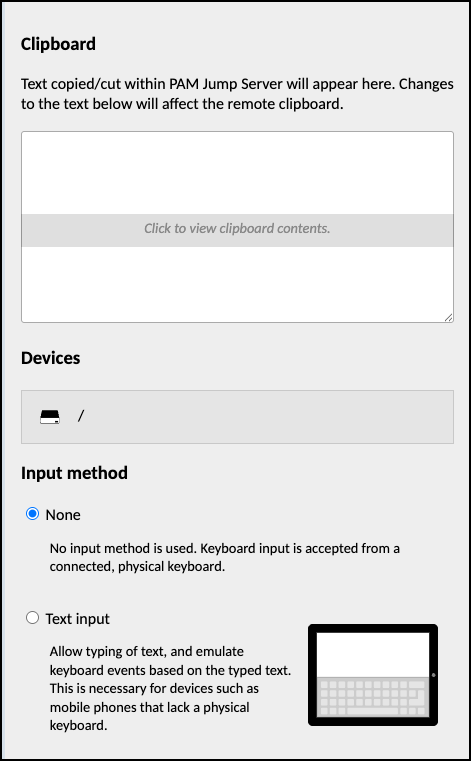
The side menu also has other session settings, such as Input method and Display.
For file transfer, use the Devices section. Press the same shortcut again to close the menu.
Websites with Web Shield and Databases with DB Shield
The steps are the same for both. The examples use a website.
Upload a File
Upload in two parts. First, send the file to the Jump Server. Then, select it from inside your session.
- Open the side menu.
- Under Devices, select the drive (/).
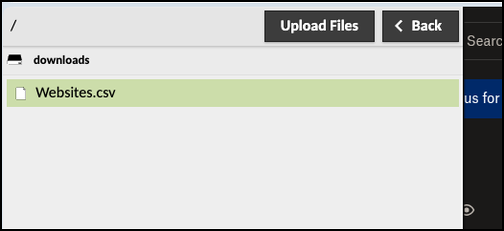
- Double-click the downloads folder. Stay in this folder. To go up one level, select Back.
- Select Upload Files, then choose the file from your computer.
- Check the File Transfers panel at the bottom right. It shows the file name and size while the transfer runs.
- Close the side menu.
- In the website, start your upload as usual. In the file window, open sftp > downloads and select your file.

Download a File
Download started does not mean the file is on your computer. The file is only on the Jump Server. Open the shortcut again to download the file to your laptop.
- In the website, start the download as usual.
- Wait for the Download started.
- Open the side menu. Under Devices, select the drive, then double-click the downloads folder.
- Double-click the file. Your browser saves it to your computer.
Linux Servers
A Linux session uses a terminal, so there is no file window. You use only the side menu.
In Devices, you see the folders of the server itself, not only downloads. You can upload and download only in folders where the account you connected with has permission. PAM does not raise your privileges.
Upload a File
- Open the side menu and select the drive.
- Open a folder where you can write. A good choice is your home folder: open home, then the folder named after the account you used to connect.
- Select Upload Files and choose the file from your computer.
- Check the File Transfers panel. When the transfer ends, the file shows in the folder list.
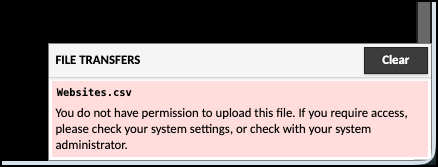
If your account cannot write in the folder, the File Transfers panel shows a permission error. Choose another folder and try again.
Download a File
- Open the side menu and select the drive.
- Open the folder that has the file.
- Double-click the file. Your browser saves it to your computer.
Windows Servers
Windows works like Web Shield, with one extra way to reach your files: File Explorer on the Windows server.
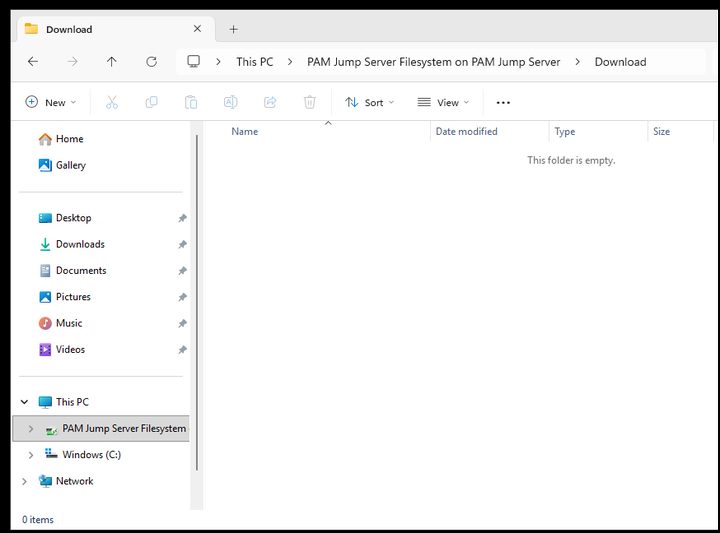
In File Explorer, the PAM drive appears under This PC.
The downloads folder on this drive is the same downloads folder you see in the side menu, on the Jump Server.
Upload a File
- Send the file to the downloads folder with the side menu. Use steps 1 to 5 in Upload a File under Websites with Web Shield.
- On the Windows server, open File Explorer, then open the PAM drive under This PC.
- Open downloads, then copy the file to where you need it.
Download a File
- On the Windows server, copy or save the file to the downloads folder on the PAM drive in File Explorer.
- Open the side menu. Under Devices, select the drive, then open downloads.
- Double-click the file. Your browser saves it to your computer.
Databases without DB Shield
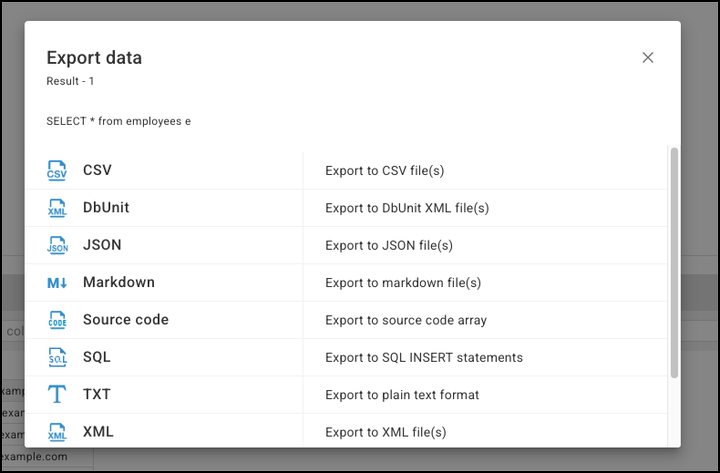
Your administrator chooses, for each database, whether to use DB Shield. Without DB Shield, the session runs in your browser. Export works directly with your computer, so you do not need the side menu.
- Run your query.
- Select Export at the bottom of the results.
- The file downloads to your computer.
Best Practices
- Use the downloads folder for Web Shield, DB Shield, and Windows sessions.
- Keep each file under 1 GB. For larger files, compress or split them.
- Transfer only the files you need. Files use space on the Jump Server, so smaller transfers leave more room for other users.
- Check your folder permissions before you transfer files to a Linux server.
- Administrators: select Disable file transfer on resources that do not need it.
- Administrators: plan Jump Server disk space for your busiest hours. For host requirements, see Install PAM Jump Server.
Troubleshooting Tips
- Downloads folder empty: Upload the file via the side menu first, then select it in your session.
- Downloaded file missing on computer: The file is on the Jump Server. Open the side menu and double-click it in downloads to save it locally.
- Permission error: Try uploading to a directory you can access, like your home folder, or ask an administrator to check folder permissions.
- Transfers completely disabled: Ask your administrator to verify that Disable file transfer is unchecked for the resource.
- Large file transfer failure: Ensure each file is under 1 GB.
Quick Reminder
| Task | Where | What you do |
|---|---|---|
| Upload (Web Shield, DB Shield, Windows) | Side menu > Devices > downloads | Select Upload Files, then pick the file inside your session |
| Download (Web Shield, DB Shield, Windows) | Side menu > Devices > downloads | Double-click the file |
| Upload or download (Linux) | Side menu > Devices | Open a folder where your account has permission |
| Export or import (database without DB Shield) | Database client | Use Export. Files move directly to or from your computer |
Was this information helpful?