Settings in the Enterprise Portal (Preview)
The Settings page in the Enterprise Portal (EP) provides centralized control for identity, security, feature management.
Terminology:
- Enterprise Portal: Portal where Enterprise Admins manage settings for multiple organizations under one Enterprise Configuration. Differs from the JumpCloud Admin Portal, which is for one organization
- Enterprise (formerly Enterprise Configuration): Centralized hub for all the organizations' objects in the Enterprise Portal. Items can be created and shared for organizations in the Enterprise Portal from this hub
- Organizations: A division of the enterprise (for example a region or a country) that maintains its own users, devices, and resources
- Enterprise Administrator: Admin who has full access to all orgs and enterprise resources
- Organization Administrator: Admin whose access is limited to explicitly granted orgs
Considerations:
- Some tabs are Enterprise-level resources. Others are Organization-level only and display a message when the Enterprise configuration is selected.
- Organization deletion is controlled at the Enterprise level. The Delete Enterprise option is not available on the UI and must be handled manually through a support request.
Following tabs are available on the Settings page:
Enterprise Profile
A centralized management section that lets Enterprise-level administrators define and manage core identity and branding metadata. This ensures consistency and prevents unauthorized modifications.
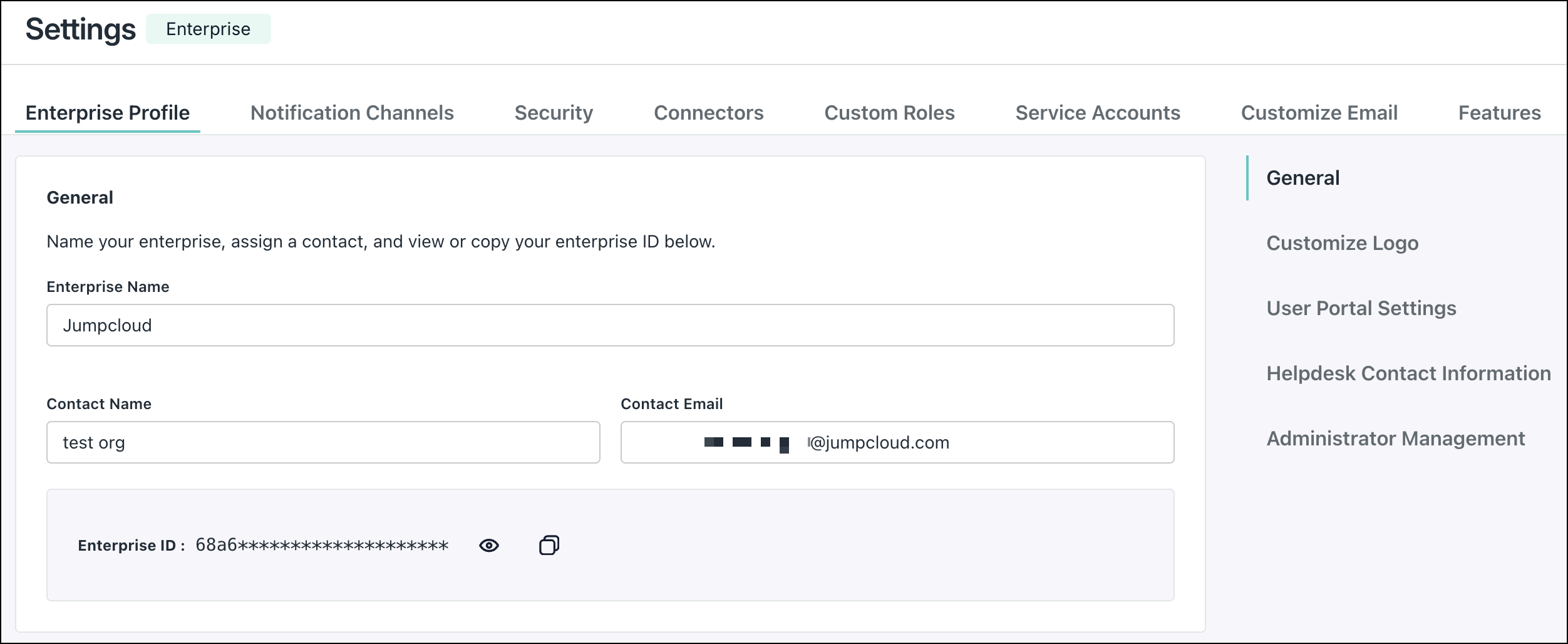
The following information is displayed and can be edited in this tab:
General
- Enterprise Name
- Contact Name
- Contact Email
- Enterprise ID
The UI clearly indicates whether you’re viewing Enterprise settings or any specific Organizational settings in the upper-right corner.
Customize Logo
Upload, edit, and preview the Enterprise logo. You can upload a PNG or JPG file and preview the logo before saving.
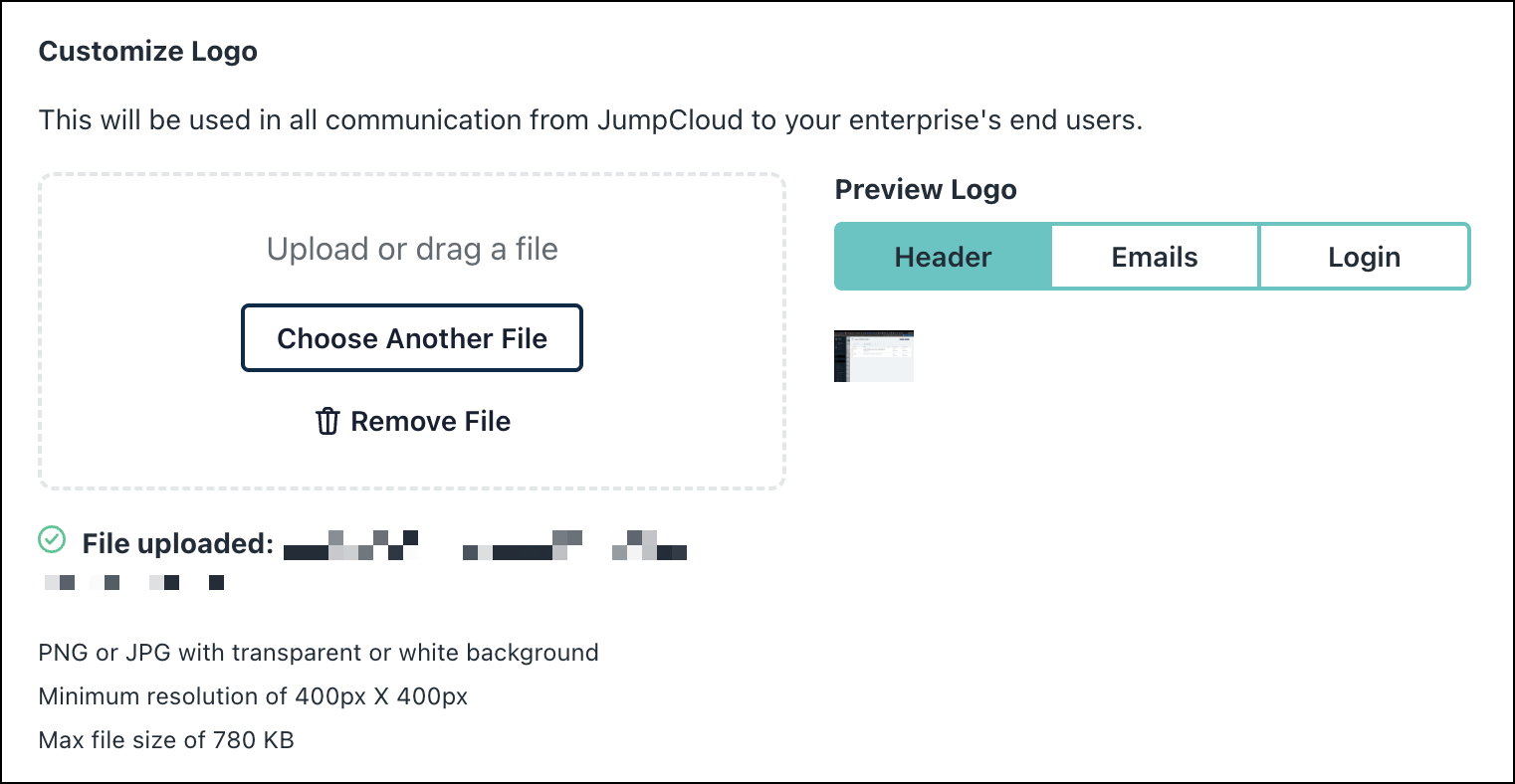
The Customize Logo option is also available at the organization level so that branding can be controlled.
User Portal Settings
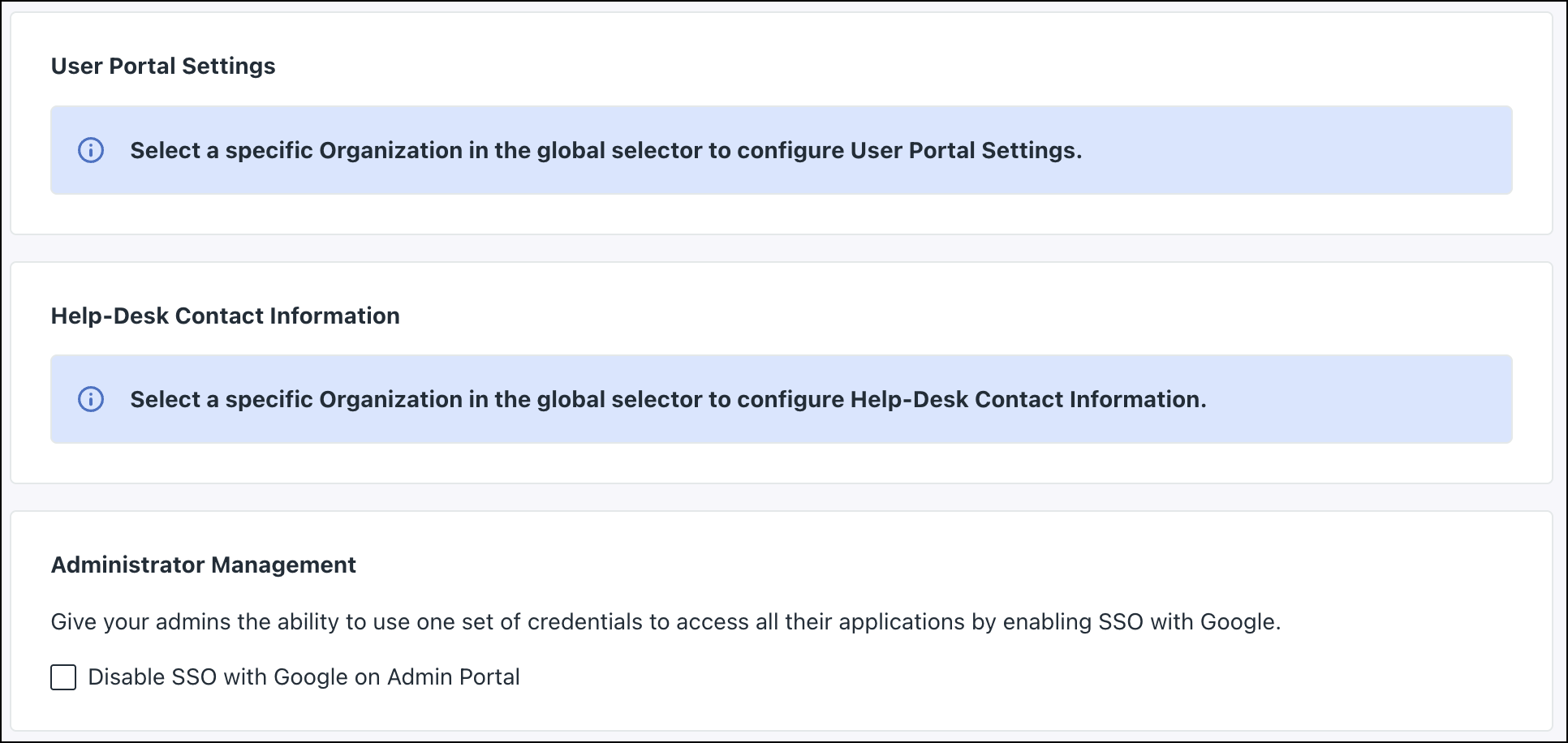
Select an organization from the global selector dropdown in the upper-right corner to see the user portal settings for a specific organization.
Help Desk Contact Information
Select an organization from the global selector dropdown in the upper-right corner to see the help desk contact information for a specific organization. See Help Desk Contact Information to learn more.
Administrator Management
Admins can use Google SSO to sign in to the Admin portal. Select the Disable SSO with Google on Admin Portal checkbox to prevent Administrators from signing in to the Admin Portal with Google credentials. See Disable Google SSO in the Admin Portal to learn more.
Deleting Enterprise or Organization
The Delete Enterprise option is hidden for all Administrators. Enterprise deletion is handled manually through a support request. See Contact JumpCloud Support to learn more.
The Delete Organization option is not available in the organization settings. Organization deletion is only possible from the Enterprise Portal by authorized Enterprise administrators.
Managed Configuration Messaging
The UI clearly indicates when settings are Managed by Enterprise.
Notification Channels
You can view the existing channels and add new ones as required. Email, webhook, and Slack channels are displayed in this tab. Notification Channels is an organization-specific setting. See Create Email Channels to learn more.
Security
The Security tab provides a centralized management section to define and manage core security protocols and global compliance standards across all Organizations.
Admin Accounts
Select the checkbox to enforce MFA for all Administrator sign-ins.
This checkbox is disabled by default since MFA is mandatory for Admins while signing-in.
Password Settings
Configure the password requirements, lockout conditions, and password reset settings in this section. See Manage Password and Security Settings to learn more. To view these settings, select an organization from the global selector dropdown.
Password Recovery Email
Select the checkbox to enable users to reset their password using a different email address than their primary email. To view these settings, select an organization from the global selector dropdown.
Users must have MFA enabled to use this feature.
UID/GID Management
Select this checkbox to enable UID/GID management for users. A User ID (UID) is a unique value assigned by a Unix operating device to each user. Users are identified to their device by their UID, and usernames are generally used only as an interface for humans.
To view these settings, select an organization from the global selector dropdown.
See Enable UID/GID (User ID) to learn more.
Password Configurations
Configure the actions taken by various resources (Google Workspace, LDAP, Microsoft 365, & RADIUS) when a user has an expired JumpCloud password or is locked out of their JumpCloud account. This allows you to customize your organization's security settings. See Password Configurations to learn more.
Connectors
You can manage your organizational resources by adding connectors for your preferred tools.
Connectors in JumpCloud allow Admins to link external services, webhooks, and third-party tools natively into JumpCloud Workflows and identity lifecycles. See Manage Connectors in Settings to learn more.
Custom Roles
Enterprise Administrators can create custom roles in this tab. This enables granular control, allowing Admins to tailor roles based on specific responsibilities and requirements. You can create custom Admin roles with specific view and edit access. These custom roles are available in all organizations once created.
See Custom Admin Roles to learn more.
Service Accounts
Enterprise admins can view service accounts when in the Enterprise-level configuration. Admins can assign service accounts for individual organizations during configuration. See Service Account for APIs to learn more.
Customize Email
You can customize email templates and email content for communication emails sent to the users. Once the content is customized, you can see the preview on the right side.
To view these settings, select an organization from the global selector dropdown. See Customize Email Templates to learn more.
Features
This tab provides centralized control for enabling or disabling platform features for the Enterprise.
JumpCloud AI
You can enable or disable AI related features from this section. Following settings can be enabled or disabled from here.
- AI Assistant: See Get Started: AI Admin Assistant to learn more
- AI Search: Get Started: JumpCloud AI Search to learn more
- AI Commands Builder: Get Started: AI Commands Builder to learn more
- MCP Server: Get Started: JumpCloud MCP Server to learn more
Insights
Enable or disable the directory insights and system insights. You can also auto-enable System Insights on new devices based on their operating systems. See Directory Insights and System Insights to learn more.
Remote Access
Enable or disable remote access related settings from this section. Remote Access allows access and remote control of devices for maintenance and support. See Remote Assist to learn more.
JumpCloud Go
Manage JumpCloud Go settings by clicking the Manage in MFA Configurations button. You’ll be redirected to the MFA Configurations page. See Get Started: JumpCloud Go to learn more.
Automation Variables
JumpCloud Command Variables allows admins to define, manage, and reuse configuration variables for organizations that can be referenced in JumpCloud Commands. See Manage Variables to learn more.
Was this information helpful?