Securing Personal Android Devices with JumpCloud Protect
Enrolling a personal Android device installs JumpCloud Protect and Google Chrome to establish device trust before Google sign-in. This Protect-first workflow keeps Conditional Access Policies active during onboarding without needing temporary exemptions.
Prerequisites
- JumpCloud Android EMM configured (see Set Up Android EMM).
- Personal enrollment enabled via User Portal (see Add and Manage Android Devices).
- Organization enabled for Protect-first enrollment.
- Network connection to Google services available.
- JumpCloud Protect and Google Chrome are able to install during setup.
- Conditional Access remains active; Protect-first establishes trust before Google sign-in without bypassing policies.
- Users must skip initial Google sign-in until Protect registration finishes.
Considerations
- Complete Google setup only through enrollment prompts.
- Initial Google sign-in screen cannot be hidden and must be manually skipped.
- Devices where users have not added user details during enrollment will show up as Pending: Google Registration in the Admin Console until finished.
- Screens vary by device; allow time for app installation.
Understanding Protect-First Enrollment
Without Protect-first, Google authentication can occur before JumpCloud Protect registers the device. Conditional Access Policies can treat the device as unmanaged and block access, so Admins create temporary exclusions to finish enrollment.
With Protect-first enrollment:
- JumpCloud Protect and Chrome install during setup.
- Protect registers the device prior to Google sign-in.
- User signs into Google to finish work profile setup.
- Device updates to managed status for Conditional Access Policy evaluation.
Enabling Personal Android Device Enrollment
- Log in to the JumpCloud Admin Portal.
If your data is stored outside of the US, check which login URL you should be using depending on your region. If your organization uses LDAP, RADIUS, or requires firewall allow list configuration, the Fully Qualified Domain Names (FQDNs) will also be region specific. See JumpCloud Data Centers for the URLs, FQDNs, and IP addresses.
- Go to Device Management > Devices, then select the Devices tab.
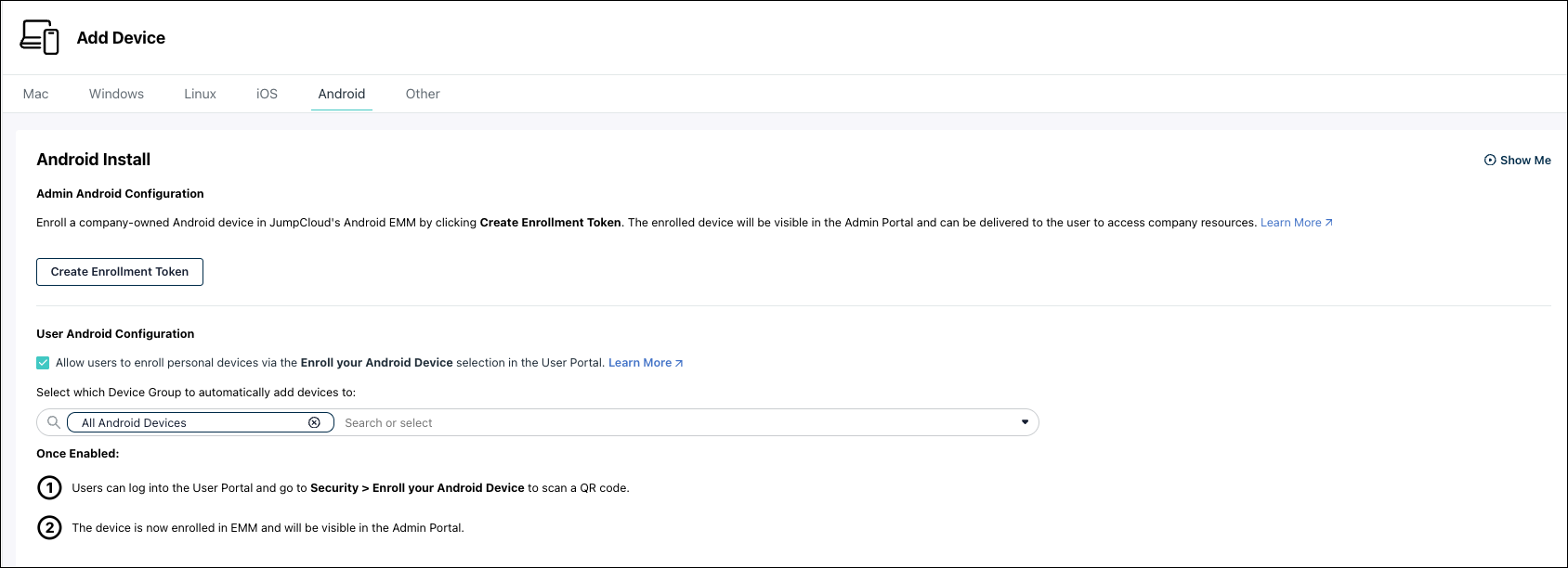
- Click + Device and select the Android tab.
- Under User Android Configuration, select Allow users to enroll personal devices via the Enroll your Android Device selection in the User Portal. By default this is enabled.
- Select the target Device Group.
- Direct users to follow Protect-first enrollment steps.
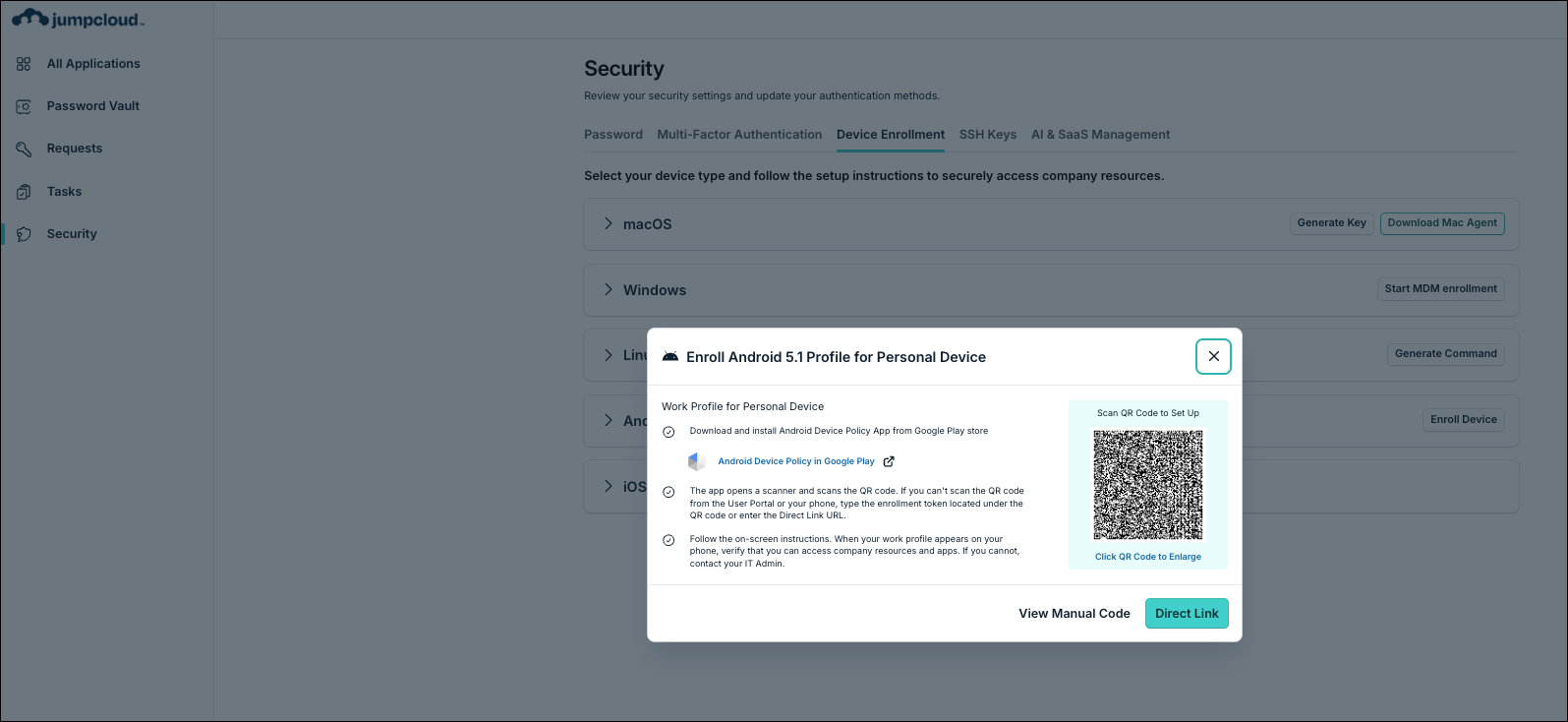
Users go to Security > Device Enrollment in the User Portal to enroll a personal Android device.
Enrolling a Personal Android Device
Share these steps with users when Protect-first is enabled. Enroll in a private setting so others cannot see the QR code or enrollment token.
In the JumpCloud User Portal:
- Log in to the JumpCloud User Portal.
- Go to Security > Device Enrollment.
- Expand Android and set Ownership type to Personal.
- Click Enroll Device.
- Install Android Device Policy on your device if prompted. If you cannot find Android Device Policy in the Play Store, search for it in Chrome and launch the app from there to scan the QR code.
- Scan the QR code, use the Direct Link, or enter the code manually, then tap Accept & Continue.
- Wait for JumpCloud Protect and Chrome to install.
- Tap Skip on initial Google sign-in prompts until Protect registration completes.
- Sign in to Google to complete work profile setup and verify access.
Sign in to Google only after JumpCloud Protect registration completes. Early Google authentication can cause Conditional Access to treat the device as unmanaged and block access.
Screens can differ by device. Work profile setup can take a few minutes. Do not expose a usable QR code, enrollment token, organization identifier, or user information in documentation screenshots.
Verifying Enrollment as an Administrator
While enrollment is in progress, Admins can distinguish incomplete devices from fully enrolled ones.
In the JumpCloud Admin Portal:
- Go to Device Management > Devices.
- Select the Devices tab.
- Locate the target Android device.
- Check for Pending: Google Registration under Status.
- Hover over the status to view the Google registration is pending tooltip.
Pending: Google Registration means Protect-first enrollment started, but Google registration is not finished. After Google registration completes, the pending status is removed.
Failed or abandoned enrollment must not appear as successfully enrolled or trusted.
You should not need to disable Conditional Access, exclude the user, weaken device trust, or change the organization's shared default Android policy for this flow.
Filtering Devices by Pending Google Registration
- Go to Device Management > Devices > Devices tab.
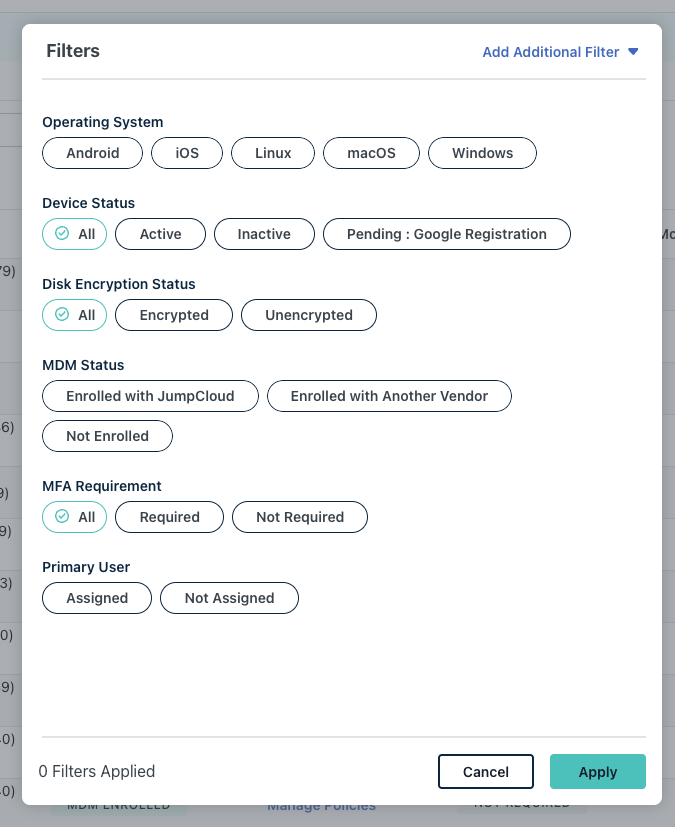
- Open the Filters dialog.
- Under Device Status, select Pending: Google Registration.
- Click Apply.
Confirming Access After Enrollment Completes
- Verify status is no longer Pending: Google Registration.
- Open device details and review the EMM tab.
- Confirm user access to SSO and Conditional Access Policy-protected Google Workspace apps and managed device recognition.
Troubleshooting Protect-First Enrollment
User signed in to Google too early
Symptoms: Conditional Access blocks authentication after the user completes the first Google sign-in before Protect registration finishes.
Resolution: Instruct the user to skip the first Google sign-in and finish Protect registration before signing in to Google.
JumpCloud Protect does not install
Symptoms: Protect does not install after work profile setup begins.
Resolution: Confirm network access to Google Play and that Google Play services are available. Wait for required setup apps to finish installing.
JumpCloud Protect registration does not complete
Symptoms: Enrollment waits on Protect registration, or the Admin Portal still shows Pending: Google Registration with tooltip Google registration is pending.
Resolution: Confirm the user skipped early Google sign-in and left Protect registration running. Confirm connectivity to JumpCloud and Google services.
Google sign-in is still blocked after Protect registration
Symptoms: Protect registration finished, but Google sign-in or access protected by Conditional Access is still denied.
Resolution: Confirm Protect registration completed. In the Admin Portal, check whether the device still shows Pending: Google Registration. Retry authentication after the status updates.
You can collect ORG ID, Device ID, and CAP Policy Name for support if Google sign-in remains blocked after Protect registration.
Enrollment token expires
Symptoms: The QR code or token is no longer valid.
Resolution: Request or generate a new enrollment token from the User Portal (or from the Admin).
User added the work account from Google Play or Android Settings
Symptoms: Enrollment does not complete as a Protect-first flow, or Conditional Access still denies access.
Resolution: Restart enrollment. Complete Google sign-in only from enrollment prompts after Protect registration finishes.
Was this information helpful?