Revoke PAM Access for a User Group
When a user group no longer needs Privileged Access Management (PAM), you can remove it. This is the opposite of enrolling a group. When you revoke access, the group leaves the User Groups table, and its members lose access to PAM.
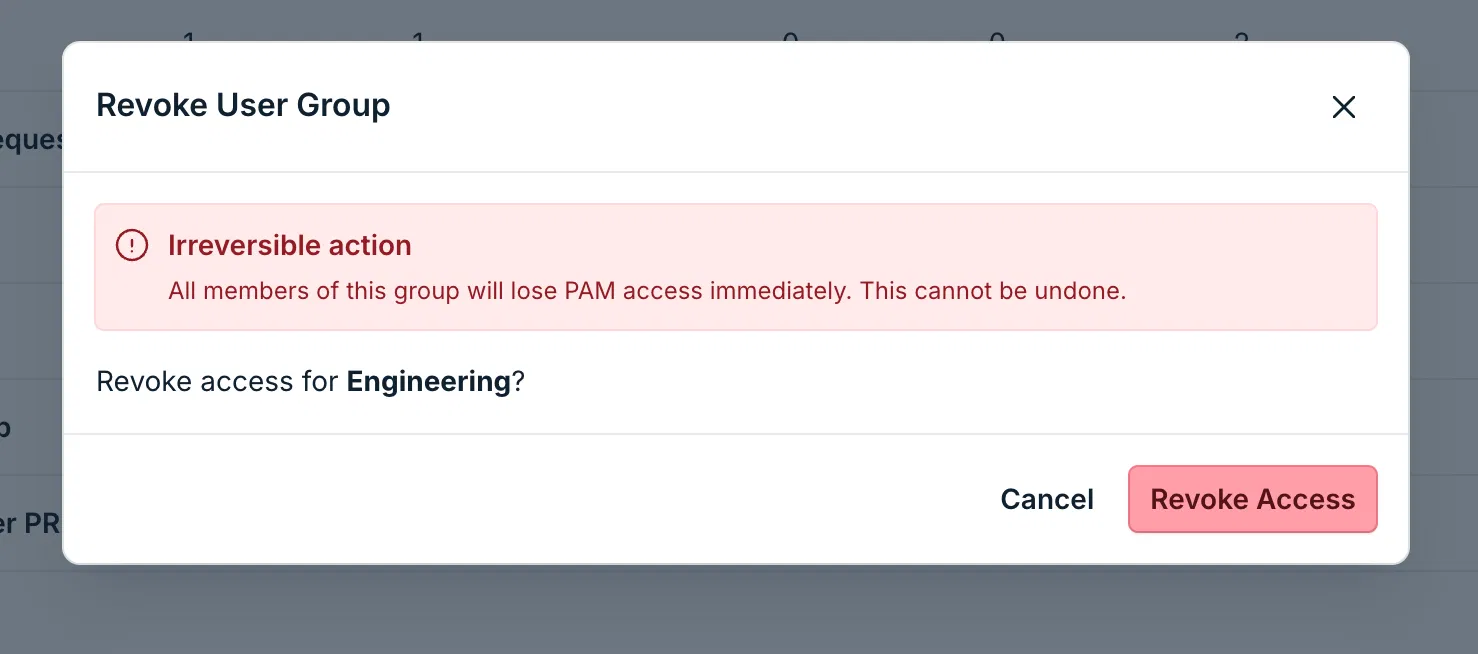
Revoking access cannot be undone. All members of the group lose PAM access immediately.
Considerations
-
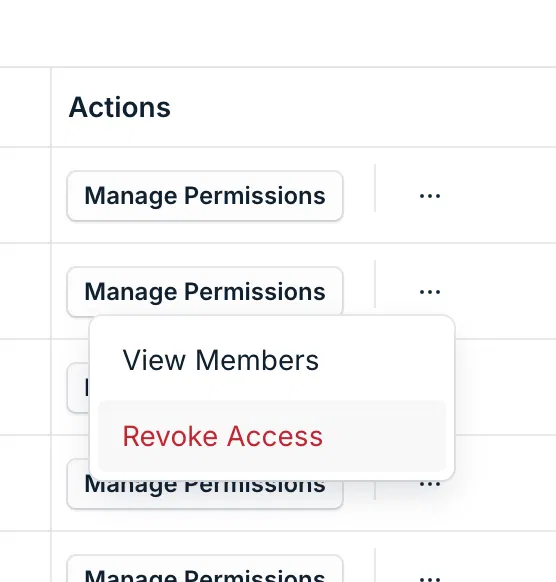
Check who is in the group. In the row of the group, select the more actions icon, and then select View Members.
-
Check what the group can reach. Select Manage Permissions in the row of the group to see the resources that are shared with it.
-
If you only want the group to reach fewer resources, remove those resources instead. For the steps, see Manage User Group Permissions and Share Resources in Bulk.
Revoking Access for a Group
-
In the Admin Portal, go to Access > PAM > User Groups.
-
In the row of the group, select the more actions icon, and then select Revoke Access.
-
In the Revoke User Group window, read the warning and check the name of the group.
-
Select Revoke Access to confirm.
The group is removed from the User Groups table.
You revoke one group at a time. To revoke access for several groups, repeat these steps for each group.
Giving a Group Access Again
To use PAM with the group again, enroll the group again. For the steps, see Get Started: Enroll a User Group in PAM.
Was this information helpful?